Windows DVD Maker - How to Use

How to Use Windows DVD Maker in Windows 7

   Information
This will show you how to open and use Windows DVD Maker in Windows 7 to create and burn a pictures and videos DVD that you can watch on a computer or on a TV using a regular DVD player. You can also customize the DVD menu style and text before you burn the DVD.

See also: Burn a DVD-Video disc with Windows DVD Maker

   Note
Windows DVD Maker is only available in the Windows 7 Home Premium, Professional, Ultimate, and Enterprise editions.


The N and KN editions of Windows 7 have all the features that normally come with each individual Windows 7 edition, except for Windows Media Player 12 and related programs, such as Windows Media Center or Windows DVD Maker.

The N editions of Windows 7 allow you to choose your own media player and software required to manage and play CDs, DVDs, and other digital media files. If you choose to use Windows Media Player 12, downloading it, along with related software, is free. Download Media Feature Pack for Windows 7 N with Service Pack 1 and Windows 7 KN with Service Pack 1 (KB968211) from Official Microsoft Download Center


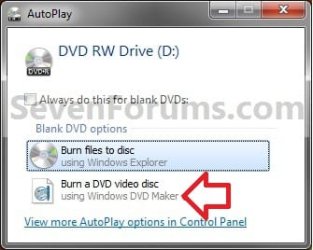
Here's How: 1. Insert a blank DVD into your DVD drive, then click on Burn a DVD video disc using Windows DVD Maker in the AutoPlay dialog box when it appears. (see screenshot below) AutoPlay.jpg
A) Go to step 3.
OR

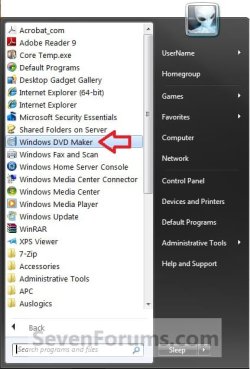
2. Open the Start Menu, click on All Programs, and click on the Windows DVD Maker shortcut. (see screenshot below)
NOTE: The Windows DVD Maker EXE file path is C:\Program Files\DVD Maker\DVDMaker.exe. Step1.jpg
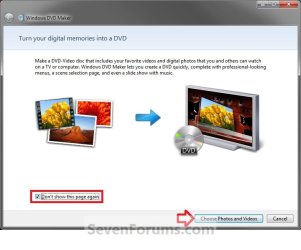
3. If displayed, click on the Choose Photos and Videos button. (see screenshot below)
NOTE: If you do not want to see this window again the next time you open Windows DVD Maker, then check the Don't show this page again box. Step2.jpg
4. To Add and Remove Pictures and Video A) If you have an existing msdvd project file that you want to open and finish, then click on File and Open project file. Navigate to the folder that contains a Windows DVD Maker project file (.msdvd file extension) that you want to use to create your DVD, select the project file, and then click on Open. (see screenshot below)
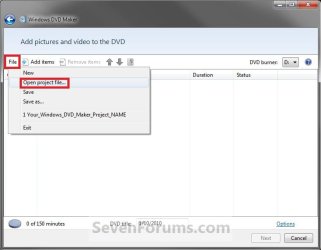
StepA.jpg
OR
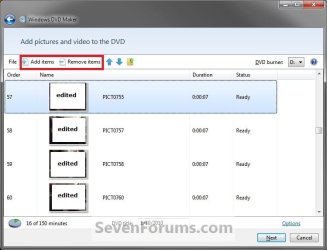
B) Click on Add items, then navigate to and select the videos and pictures that you want to add to your DVD, and then click on Add. (see screenshots below)

   Note
To select several pictures or videos, press and hold the Ctrl key, and then click each picture or video that you want to add. You can add these type of picture and video files.

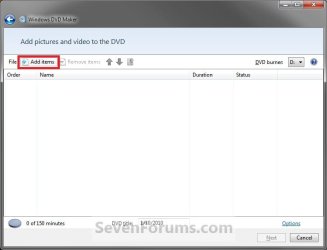
Files.jpg
Step3.jpg

Step4.jpg

C) Continue to Add items or Remove items until you have finished. (see screenshots below) Step5A.jpg
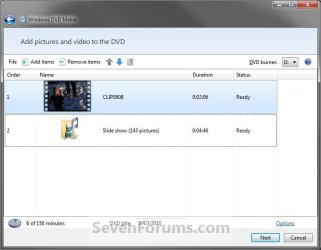
Step5B.jpg

5. To Arrange the Play Order of Added Items A) Select a added item that you want to move, then either click on Move.jpg arrows to move that item up or down in the play order. (see screenshot below)
NOTE: You can also drag and drop them up and down the order list. Step5A.jpg
B) At the upper right corner, select the drive letter for your DVD burner in the drop down arrow menu. (see screenshot above)
6. To Change the DVD Video Options A) Click on the Options link. (see screenshot above)

B) Select the settings that you want to use to create your DVD with, then click on OK when done. (see screenshot below) DVD_Options.jpg
   Note

  • Choose DVD playback settings. Select one of the following options, depending on how you want your DVD to play:
    • If you want the DVD menu to display when the disc is inserted into a DVD player, click Start with DVD menu.
    • If you want the video to play automatically when the disc is inserted in a DVD player and show the menu at the end, click Play video and end with DVD menu.
    • If you want the video to play automatically and loop continuously, click Play video in a continuous loop. You will still be able to view the menu if you press the Menu button on the remote control for your DVD player.
  • DVD aspect ratio. This option lets you determine if a slide show on the DVD is displayed at a 4:3 (standard) or 16:9 (widescreen) aspect ratio. The aspect ratio is expressed as the relation of the width to the height of the slide show. When deciding which aspect ratio to choose, consider the aspect ratio for the monitor or TV on which your slide show will be played.
  • Video format. This option lets you choose the video format that will be used for the video on your DVD. The options are NTSC and PAL. Most of the time you will not need to change this setting. However, you might need to change it if you plan to share your DVD with friends or family who live in a part of the world that uses a different video format. The video format that is selected by default is based on the
    "Region and Language" settings in Control Panel.
  • DVD burner speed. This option lets you select the speed to burn your DVD. The default is Fastest. Some DVD burners won't burn at full speed if you're using certain kinds of DVDs. If you have a problem burning a disc, try selecting Medium or Slow.
  • Temporary file location. If you want to change the storage location for temporary files that are created when making a DVD, click Browse, select the new folder location, and then click OK. For the best results when choosing a temporary file location, choose a folder on a hard disk drive partition that has at least 5 gigabytes (GB) of available disk space and a fast write speed.

7. Click on Next. (see screenshot below step 5A)

8. Select a Menu Style that you want to use for your DVD. (see screenshot below) Menu_Styles.jpg
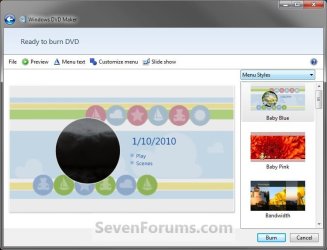
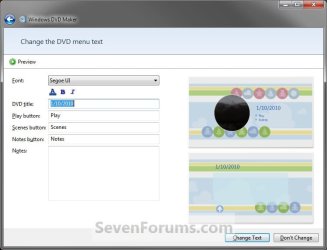
9. To Change the DVD Menu Text A) Click on Menu text on the toolbar. (see screenshot above)

B) Now do one or more of the following below that you would like to do. (see screenshot below)

NOTE: The Notes button and Notes page only appear on the DVD if you include information in these fields.
  • Click the Font box, and then select the font for the menu text.
  • Click the Font Color (A), Bold (B), or Italic (I) buttons to select the font color and formatting.
  • In the DVD title box, type the title that you want to use for your DVD.
  • In the Play button box, type a label for the button people can click to play your DVD.
  • In the Scenes button box, type a label for the button that people can click to view the different scenes on the DVD.
  • In the Notes button box, type a label for the button that people can click to view any notes you enter for the DVD.
  • In the Notes box, type any notes that you want to appear on your DVD.
Menu_text.jpg
C) A static preview of your changes appears in the preview pane on the right side of the screen. (see screenshot above)

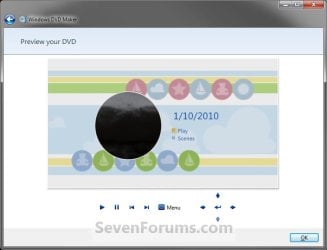
D) To preview the DVD menu and see how it looks, click on Preview. Click on OK when you're done previewing the DVD. (see screenshot below) Preview.jpg
E) When done making changes, click on Change Text to save the text changes and to return to the previous page. (see screenshot below step 9B)
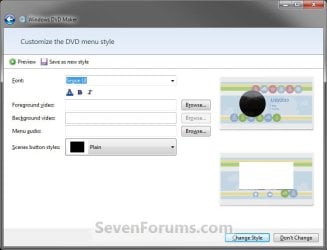
10. To Customize the DVD Menu Style A) Click on Customize menu on the toolbar. (see screenshot below step 8)


B) Now do one or more of the following below that you would like to do. (see screenshot below)
  • Click the Font box, and then select a font.
  • Click the Font Color (A), Bold (B), or Italic (I) buttons to select the font color and formatting for your DVD menu text.
  • If you select a menu style with both foreground and background video options, near the Foreground video box, click Browse, locate the video or picture that you want to appear in the foreground, and then click Add.
  • To have a picture or video appear as the background for the main DVD menu, near the Background video box, click Browse, locate the video or picture that you want to appear in the background, and then click Add.
  • If you want music to play while the DVD menu is displayed, near the Menu audio box, click Browse, locate the audio file (such as an MP3 or WMA file) that you want to use, and then click Add.
  • Click the Scenes button styles box, and then select the shape for the scenes buttons on your DVD.
Customize_menu.jpg
C) To preview the DVD menu and see how it looks, click on Preview. Click on OK when you're done previewing the DVD. (see screenshot below 9D)

D) When done making changes, click on Change Style to save your changes and to return to the previous page. (see screenshot above)
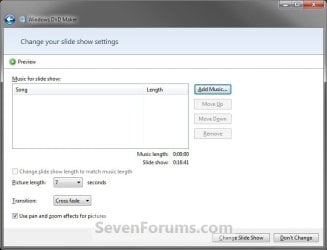
11. To Choose the Settings for a Slide Show on the DVD A) Click on Slide show on the toolbar. (see screenshot below step 8)


B) Now do one or more of the following below that you would like to do. (see screenshot below)
  • Click Add music, find the music files (such as MP3 or WMA files) that you want to use, and then click Add. Depending on the length and settings for the slide show, you might want to add additional music. To do so, add another music file.
  • If you added more than one audio file and you want to change the order in which the music files play in the slide show, click an audio file that you want to move, and then click Move up or Move down.
  • To remove an audio file from the list, in the Music for slide show list, select the audio file, and then click Remove.
  • To make the slide show and music last the same amount of time, select the Change slide show length to match music length check box. The amount of time each picture displays is shown next to Picture length.
  • To specify the duration for each picture to display in the slide show, clear the Change slide show length to match music length check box (if it's selected), and then click the amount of time (in seconds) in the Picture length list for each picture to display.
  • To choose the kind of transition you want to use between pictures, select a transition type from the Transition box.
  • To add pan and zoom effects to the pictures you include in your slide show, click Use pan and zoom effects for pictures.
Slide_Show.jpg
C) If you want to see the slide show as it will appear when you play your DVD, click Preview, and then click the slide show. Click OK when you're done previewing. (see screenshot below step 9D)

D) When done making changes, click on Change Slide Show to save your changes and to return to the previous page. (see screenshot above)
12. To Save your Windows DVD Maker Project
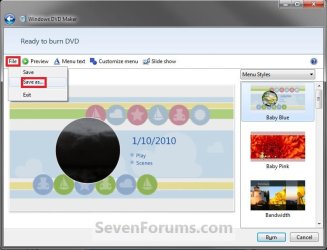
NOTE: This will allow you to save this current Windows DVD Maker project as a msdvd file that you can open in step 4A above to either finish the project later, make more changes, or burn another DVD using this project. You can also do this at any point while creating your project. A) Click on File and Save as. (see screenshot below) Save_as.jpg
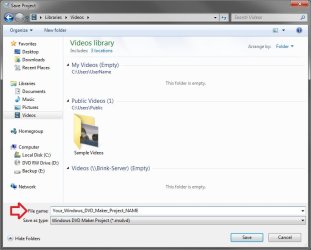
B) Navigate to where you want to save your project at, type in a name for your project, then click on Save. (see screenshot below) Save_as_2.jpg
13. To Burn your DVD A) If you have not already, place a blank DVD in your DVD drive. If the AutoPlay opens, you can just close it.

B) Click on the Burn button at the bottom right corner. (see screenshot below) Menu_Styles.jpg
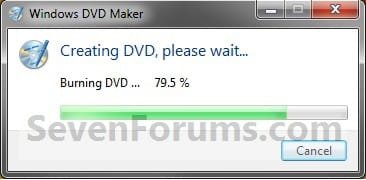
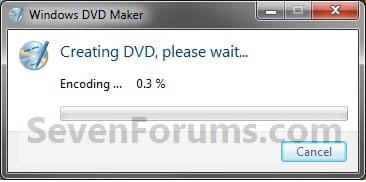
C) You will now see this below. The time it takes to burn your DVD depends on a few things, such as the amount of video you added to the DVD, your computer system resources, as well as your DVD burner. Step6.jpg
Step7.jpg

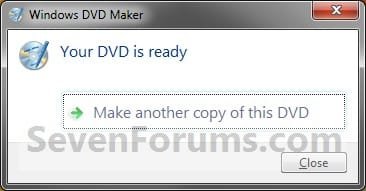
D) When it's finished burning your DVD, you can do one or more of the following below that you would like to do. (see screenshot below):
  • To make another copy of the current DVD, remove the burned DVD, insert a new recordable DVD, and then click Make another copy of this DVD.
  • To close the page, click Close.
Step8.jpg
14. When done, close Windows DVD Maker.
That's it,
Shawn
 
Last edited:

My Computer

Computer type
PC/Desktop
Computer Manufacturer/Model Number
Self built custom
OS
64-bit Windows 11 Pro for Workstations
CPU
Intel i7-8700K OC'd to 5 GHz
Motherboard
ASUS ROG Maximus XI Formula Z390
Memory
64 GB (4x16GB) G.SKILL TridentZ RGB DDR4 3600 MHz
Graphics Card(s)
ASUS ROG-STRIX-GTX1080TI-O11G-GAMING
Sound Card
Integrated
Monitor(s) Displays
2 x Samsung Odyssey G7 27"
Screen Resolution
2560x1440
Hard Drives
1TB Samsung 990 PRO M.2,
4TB Samsung 990 PRO PRO M.2,
TerraMaster F8 SSD Plus NAS
PSU
Seasonic Prime Titanium 850W
Case
Thermaltake Core P3
Cooling
Corsair Hydro H115i
Keyboard
Logitech wireless K800
Mouse
Logitech MX Master 4
Internet Speed
2 Gb/s Download and 100 Mb/s Upload
Antivirus
Malwarebyte Anti-Malware Premium
Browser
Google Chrome
Other Info
Logitech Z625 speaker system,
Logitech BRIO 4K Pro webcam,
HP Color LaserJet Pro MFP M477fdn,
APC SMART-UPS RT 1000 XL - SURT1000XLI,
Galaxy S23 Plus phone
Last edited by a moderator:

My Computer

Computer type
Laptop
Computer Manufacturer/Model Number
Acer
OS
Windows 7 Home Premium 64-bit
Memory
2 GB DDR3
Graphics Card(s)
Intel HD Graphics
Hard Drives
640 GB HDD
Antivirus
Microsoft Security Essentials
Browser
Google Chrome, Mozilla Firefox
Rissa,

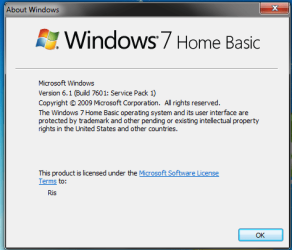
You have Windows 7 Home Basic that does not include Windows DVD Maker. You will not be able to download or install it.

Windows DVD Maker is only available in the Windows 7 Home Premium, Professional, Ultimate, and Enterprise editions. :(
 

My Computer

Computer type
PC/Desktop
Computer Manufacturer/Model Number
Self built custom
OS
64-bit Windows 11 Pro for Workstations
CPU
Intel i7-8700K OC'd to 5 GHz
Motherboard
ASUS ROG Maximus XI Formula Z390
Memory
64 GB (4x16GB) G.SKILL TridentZ RGB DDR4 3600 MHz
Graphics Card(s)
ASUS ROG-STRIX-GTX1080TI-O11G-GAMING
Sound Card
Integrated
Monitor(s) Displays
2 x Samsung Odyssey G7 27"
Screen Resolution
2560x1440
Hard Drives
1TB Samsung 990 PRO M.2,
4TB Samsung 990 PRO PRO M.2,
TerraMaster F8 SSD Plus NAS
PSU
Seasonic Prime Titanium 850W
Case
Thermaltake Core P3
Cooling
Corsair Hydro H115i
Keyboard
Logitech wireless K800
Mouse
Logitech MX Master 4
Internet Speed
2 Gb/s Download and 100 Mb/s Upload
Antivirus
Malwarebyte Anti-Malware Premium
Browser
Google Chrome
Other Info
Logitech Z625 speaker system,
Logitech BRIO 4K Pro webcam,
HP Color LaserJet Pro MFP M477fdn,
APC SMART-UPS RT 1000 XL - SURT1000XLI,
Galaxy S23 Plus phone
why the audio did not play?
 

My Computer

Computer type
Laptop
Computer Manufacturer/Model Number
Acer
OS
Windows 7 Home Premium 64-bit
Memory
2 GB DDR3
Graphics Card(s)
Intel HD Graphics
Hard Drives
640 GB HDD
Antivirus
Microsoft Security Essentials
Browser
Google Chrome, Mozilla Firefox
Hello Rissa,

I'm not sure what you mean. If you still have Windows 7 Home Basic like in your screenshots above, then you do not have Windows DVD Maker.

If you upgrade to Windows 7 Home Premium from your specs, then you might double check to see if you may have made a mistake while creating it. :(
 

My Computer

Computer type
PC/Desktop
Computer Manufacturer/Model Number
Self built custom
OS
64-bit Windows 11 Pro for Workstations
CPU
Intel i7-8700K OC'd to 5 GHz
Motherboard
ASUS ROG Maximus XI Formula Z390
Memory
64 GB (4x16GB) G.SKILL TridentZ RGB DDR4 3600 MHz
Graphics Card(s)
ASUS ROG-STRIX-GTX1080TI-O11G-GAMING
Sound Card
Integrated
Monitor(s) Displays
2 x Samsung Odyssey G7 27"
Screen Resolution
2560x1440
Hard Drives
1TB Samsung 990 PRO M.2,
4TB Samsung 990 PRO PRO M.2,
TerraMaster F8 SSD Plus NAS
PSU
Seasonic Prime Titanium 850W
Case
Thermaltake Core P3
Cooling
Corsair Hydro H115i
Keyboard
Logitech wireless K800
Mouse
Logitech MX Master 4
Internet Speed
2 Gb/s Download and 100 Mb/s Upload
Antivirus
Malwarebyte Anti-Malware Premium
Browser
Google Chrome
Other Info
Logitech Z625 speaker system,
Logitech BRIO 4K Pro webcam,
HP Color LaserJet Pro MFP M477fdn,
APC SMART-UPS RT 1000 XL - SURT1000XLI,
Galaxy S23 Plus phone
Hello Rissa,

I'm not sure what you mean. If you still have Windows 7 Home Basic like in your screenshots above, then you do not have Windows DVD Maker.

If you upgrade to Windows 7 Home Premium from your specs, then you might double check to see if you may have made a mistake while creating it. :(

Im using windows 7 home premium now.. when i play the dvd id dvd player there is no sound...
 

My Computer

Computer type
Laptop
Computer Manufacturer/Model Number
Acer
OS
Windows 7 Home Premium 64-bit
Memory
2 GB DDR3
Graphics Card(s)
Intel HD Graphics
Hard Drives
640 GB HDD
Antivirus
Microsoft Security Essentials
Browser
Google Chrome, Mozilla Firefox
Double check to see if you may have made a mistake. Possibly wrong format used.

Did it play when testing before burning the DVD?
 

My Computer

Computer type
PC/Desktop
Computer Manufacturer/Model Number
Self built custom
OS
64-bit Windows 11 Pro for Workstations
CPU
Intel i7-8700K OC'd to 5 GHz
Motherboard
ASUS ROG Maximus XI Formula Z390
Memory
64 GB (4x16GB) G.SKILL TridentZ RGB DDR4 3600 MHz
Graphics Card(s)
ASUS ROG-STRIX-GTX1080TI-O11G-GAMING
Sound Card
Integrated
Monitor(s) Displays
2 x Samsung Odyssey G7 27"
Screen Resolution
2560x1440
Hard Drives
1TB Samsung 990 PRO M.2,
4TB Samsung 990 PRO PRO M.2,
TerraMaster F8 SSD Plus NAS
PSU
Seasonic Prime Titanium 850W
Case
Thermaltake Core P3
Cooling
Corsair Hydro H115i
Keyboard
Logitech wireless K800
Mouse
Logitech MX Master 4
Internet Speed
2 Gb/s Download and 100 Mb/s Upload
Antivirus
Malwarebyte Anti-Malware Premium
Browser
Google Chrome
Other Info
Logitech Z625 speaker system,
Logitech BRIO 4K Pro webcam,
HP Color LaserJet Pro MFP M477fdn,
APC SMART-UPS RT 1000 XL - SURT1000XLI,
Galaxy S23 Plus phone
Double check to see if you may have made a mistake. Possibly wrong format used.

Did it play when testing before burning the DVD?

is .avi format possible?
 

My Computer

Computer type
Laptop
Computer Manufacturer/Model Number
Acer
OS
Windows 7 Home Premium 64-bit
Memory
2 GB DDR3
Graphics Card(s)
Intel HD Graphics
Hard Drives
640 GB HDD
Antivirus
Microsoft Security Essentials
Browser
Google Chrome, Mozilla Firefox
Sure, that's fine for a video or media file. I'm afraid that I don't have enough experience with this to give better support on other than play with a bit more, and test it before burning to a DVD.

formats.jpg
 

My Computer

Computer type
PC/Desktop
Computer Manufacturer/Model Number
Self built custom
OS
64-bit Windows 11 Pro for Workstations
CPU
Intel i7-8700K OC'd to 5 GHz
Motherboard
ASUS ROG Maximus XI Formula Z390
Memory
64 GB (4x16GB) G.SKILL TridentZ RGB DDR4 3600 MHz
Graphics Card(s)
ASUS ROG-STRIX-GTX1080TI-O11G-GAMING
Sound Card
Integrated
Monitor(s) Displays
2 x Samsung Odyssey G7 27"
Screen Resolution
2560x1440
Hard Drives
1TB Samsung 990 PRO M.2,
4TB Samsung 990 PRO PRO M.2,
TerraMaster F8 SSD Plus NAS
PSU
Seasonic Prime Titanium 850W
Case
Thermaltake Core P3
Cooling
Corsair Hydro H115i
Keyboard
Logitech wireless K800
Mouse
Logitech MX Master 4
Internet Speed
2 Gb/s Download and 100 Mb/s Upload
Antivirus
Malwarebyte Anti-Malware Premium
Browser
Google Chrome
Other Info
Logitech Z625 speaker system,
Logitech BRIO 4K Pro webcam,
HP Color LaserJet Pro MFP M477fdn,
APC SMART-UPS RT 1000 XL - SURT1000XLI,
Galaxy S23 Plus phone
Windows DVD Maker not playing audio files

I'm trying to create a DVD with Windows DVD Maker. I have uploaded my pictures, videos and audio files. When I preview my DVD it plays music when the menu comes up but never plays any song audio during the photo sequences. On the screen to Add Music to Slide Show I have 3 songs listed (in mp3 format). It gives a total of time for the length of music 10:43; and under that it says length of slide show 00:00. But where the photos and videos are listed it says 31 of 150 minutes in the bottom left hand corner. I don't understand what I'm doing wrong?
 

My Computer

Computer type
PC/Desktop
Computer Manufacturer/Model Number
Dell
OS
Windows 7 Professional 64 bit
CPU
Intel(R) Core(TM) i3-3240 CPU @ 3.40GHz
Memory
4.00 GB
Browser
IE
DVD Maker

The end of every video file, the audio will cut out for like the last 5 seconds. It's fine before goes in, cut when comes out...the video remains perfect
 

My Computer

Computer type
PC/Desktop
Computer Manufacturer/Model Number
Custom
OS
Windows 7 Ultimate 64 bit
CPU
Intel i3-3220 3.30 GHz
Memory
12.0 GB
Graphics Card(s)
Geforce GTX 650
Can't burn DVDs anymore

I have burnt a lot of DVDs on Windows DVD Maker and recently it will not allow me to burn anymore. I don't know what has changed, but it says "An error occurred when burning the DVD". It started working again for a little while and let me burn 2 DVDs, but restarted my computer both times. What can I do because I like this program and nothing I try works.
 

My Computer

Computer type
Laptop
Computer Manufacturer/Model Number
Toshiba
OS
Windows home premium 64 bit
CPU
i3-2370M 240 GHz
Memory
4.00 installed memory
also how do you view replies on here? It says I have 31 replies to my question, but I can not see them.
 

My Computer

Computer type
Laptop
Computer Manufacturer/Model Number
Toshiba
OS
Windows home premium 64 bit
CPU
i3-2370M 240 GHz
Memory
4.00 installed memory
also how do you view replies on here? It says I have 31 replies to my question, but I can not see them.

Hello Ally, and welcome to Seven Forums. :-)

Those would be the number of replies in this tutorial instead of direct replies to your post.

It may be best to create a new thread for your issue instead.
 

My Computer

Computer type
PC/Desktop
Computer Manufacturer/Model Number
Self built custom
OS
64-bit Windows 11 Pro for Workstations
CPU
Intel i7-8700K OC'd to 5 GHz
Motherboard
ASUS ROG Maximus XI Formula Z390
Memory
64 GB (4x16GB) G.SKILL TridentZ RGB DDR4 3600 MHz
Graphics Card(s)
ASUS ROG-STRIX-GTX1080TI-O11G-GAMING
Sound Card
Integrated
Monitor(s) Displays
2 x Samsung Odyssey G7 27"
Screen Resolution
2560x1440
Hard Drives
1TB Samsung 990 PRO M.2,
4TB Samsung 990 PRO PRO M.2,
TerraMaster F8 SSD Plus NAS
PSU
Seasonic Prime Titanium 850W
Case
Thermaltake Core P3
Cooling
Corsair Hydro H115i
Keyboard
Logitech wireless K800
Mouse
Logitech MX Master 4
Internet Speed
2 Gb/s Download and 100 Mb/s Upload
Antivirus
Malwarebyte Anti-Malware Premium
Browser
Google Chrome
Other Info
Logitech Z625 speaker system,
Logitech BRIO 4K Pro webcam,
HP Color LaserJet Pro MFP M477fdn,
APC SMART-UPS RT 1000 XL - SURT1000XLI,
Galaxy S23 Plus phone
How do I make a new thread

Well I clicked on the tab to make a new thread, but I don't think it worked and now I can't find the tab again.
 

My Computer

Computer type
Laptop
Computer Manufacturer/Model Number
Toshiba
OS
Windows home premium 64 bit
CPU
i3-2370M 240 GHz
Memory
4.00 installed memory
That's ok.

While logged in to the site and on the forum homepage:

1) Click on forum category (ex: "General Discussion") that best fits the subject of your issue.

2) Click on the "New Thread" button towards the top or bottom left of the web page.
 

My Computer

Computer type
PC/Desktop
Computer Manufacturer/Model Number
Self built custom
OS
64-bit Windows 11 Pro for Workstations
CPU
Intel i7-8700K OC'd to 5 GHz
Motherboard
ASUS ROG Maximus XI Formula Z390
Memory
64 GB (4x16GB) G.SKILL TridentZ RGB DDR4 3600 MHz
Graphics Card(s)
ASUS ROG-STRIX-GTX1080TI-O11G-GAMING
Sound Card
Integrated
Monitor(s) Displays
2 x Samsung Odyssey G7 27"
Screen Resolution
2560x1440
Hard Drives
1TB Samsung 990 PRO M.2,
4TB Samsung 990 PRO PRO M.2,
TerraMaster F8 SSD Plus NAS
PSU
Seasonic Prime Titanium 850W
Case
Thermaltake Core P3
Cooling
Corsair Hydro H115i
Keyboard
Logitech wireless K800
Mouse
Logitech MX Master 4
Internet Speed
2 Gb/s Download and 100 Mb/s Upload
Antivirus
Malwarebyte Anti-Malware Premium
Browser
Google Chrome
Other Info
Logitech Z625 speaker system,
Logitech BRIO 4K Pro webcam,
HP Color LaserJet Pro MFP M477fdn,
APC SMART-UPS RT 1000 XL - SURT1000XLI,
Galaxy S23 Plus phone
Ok guys this is a year later...somebody still watching this thread? My problem is that I loaded .mp4 videos into Windows Movie Maker but it would not work so I converted them to .Mpeg. I just loaded 4 videos to check but I do not get to the encoding part...it is stuck in "" Creating DVD please wait...preparing 0.0%"....and there it stays....what to do please...
 

My Computer

Computer type
PC/Desktop
Computer Manufacturer/Model Number
custom build
OS
Windows 7 Professional x64
CPU
IntelCore I5
Graphics Card(s)
GeForce GT630DDR3
Hard Drives
Samsung SSD 256GB
Antivirus
MS Security Essentials
Browser
Internet Explorer 11
Back
Top