
How to Enable or Disable Error Reporting in Vista, Windows 7, and Windows 8
Information
The error reporting feature enables users to notify Microsoft of application faults, kernel faults, unresponsive applications, and other application specific problems. Microsoft can use the error reporting feature to provide customers with troubleshooting information, solutions, or updates for their specific problems. Developers can use this infrastructure to receive information that can be used to improve their applications. If a solution is not available yet, the information that you send in a problem report can help Microsoft find or create a new solution.
For more information aboue Windows Error Reporting, see: Windows Error Reporting
This tutorial will show you how to either enable or disable error reporting for specific or all users in Vista, Windows 7, and Windows 8.
You must be logged in as an administrator to be able to do the steps in this tutorial.
For more information aboue Windows Error Reporting, see: Windows Error Reporting
This tutorial will show you how to either enable or disable error reporting for specific or all users in Vista, Windows 7, and Windows 8.
You must be logged in as an administrator to be able to do the steps in this tutorial.
Note
What information is sent to Microsoft when I report a problem?
When a hardware or software problem occurs, Windows collects information from your computer that describes the problem and then creates a problem report. Problem report details can include the name of a program that has stopped working, the date and time that a problem occurred, or the version of the program that has encountered the problem. Sending a problem report allows Windows to notify you if a solution is available.
If a solution is not available, you might be asked to provide additional details about the problem. Your participation can help Microsoft create new solutions. Additional details can include files or parts of files that help identify the problem or explain how it has affected your computer. Windows does not intentionally collect any personal information. You can view the additional details in a problem report before sending it to Microsoft.
For more information about how to view the information being sent, see View the details of a problem report. For more information about reporting problems and your privacy, go to the Privacy Statement for the Windows Error Reporting Service online.
When a hardware or software problem occurs, Windows collects information from your computer that describes the problem and then creates a problem report. Problem report details can include the name of a program that has stopped working, the date and time that a problem occurred, or the version of the program that has encountered the problem. Sending a problem report allows Windows to notify you if a solution is available.
If a solution is not available, you might be asked to provide additional details about the problem. Your participation can help Microsoft create new solutions. Additional details can include files or parts of files that help identify the problem or explain how it has affected your computer. Windows does not intentionally collect any personal information. You can view the additional details in a problem report before sending it to Microsoft.
For more information about how to view the information being sent, see View the details of a problem report. For more information about reporting problems and your privacy, go to the Privacy Statement for the Windows Error Reporting Service online.
Warning
Windows Error Reporting can be a valuable tool to get more information if Windows 7 is not working properly. It should not be disabled unless you are sure that you will not need it.
If you turn off or disable error reporting, then:
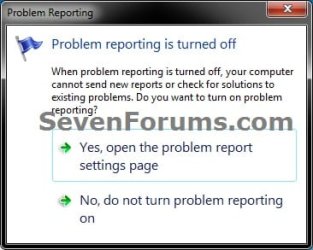
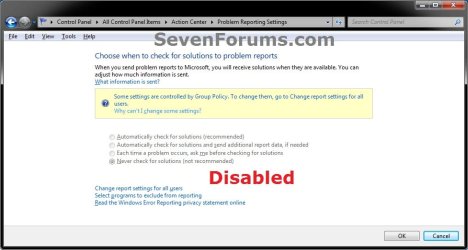
If you turn off or disable error reporting, then:
- If you try to check for solutions, you will get this message instead.
- The problem reporting settings will be grayed out, and cannot be changed if disabled.
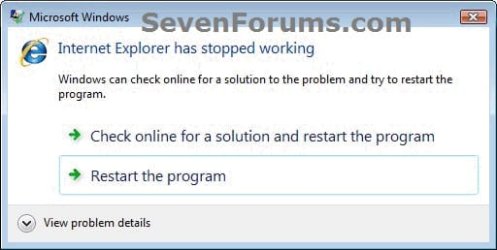
EXAMPLE: Windows Error Reporting Message
NOTE: This is just an example of an error reporting message that you may get if Internet Explorer has stopped working. What you see will depend on the error you are getting and what it is for.
OPTION ONE
To Turn Error Reporting On or Off in Action Center
1. In Action Center, open the problem reporting settings window. (see screenshot below)
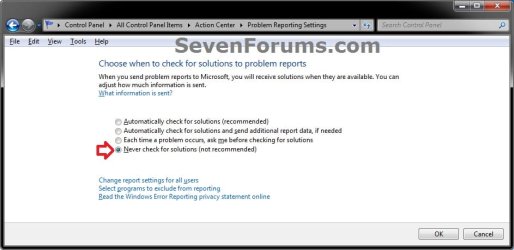
2. To Turn Off Windows Error Reporting
A) Select (dot) the Never check for solutions option, and click on OK. (see screeshot below step 1)
3. To Turn On Windows Error Reporting
A) Select (dot) any other option other than the Never check for solutions option, and click on OK. (see screeshot below step 1)
NOTE: The default setting is Each time a problem occurs, ask me before checking for solutions.
OPTION TWO
To Enable or Disable Error Reporting Using a REG File Download
1. To Enable Windows Error Reporting for Only Current User
NOTE: This is the default setting.
A) Click on the Download button below to download the file below.
Enable_Windows_Error_Reporting.reg
Download
B) Go to step 3.
2. To Disable Windows Error Reporting for Only Current User
A) Click on the Download button below to download the file below.
Disable_Windows_Error_Reporting.reg
Download
3. Save the .reg file to your desktop.
4. Double click/tap on the downloaded .reg file to merge it.
5. If prompted, click/tap on Run, Yes (UAC-Windows 7/8) or Continue (UAC-Vista), Yes, and OK to approve the merge.
6. Log off and log on, or restart the computer to fully apply.
7. When done, you can delete the downloaded .reg file if you like.
OPTION THREE
To Enable or Disable Error Reporting in Group Policy
1. Open the all users, specific users or groups, or all users except administrators Local Group Policy Editor for how you want this policy applied.
2. In the left pane, click on to expand User Configuration, Administrative Templates, Windows Components, and Windows Error Reporting. (see screenshot below)

3. In the right pane, right click on Disable Windows Error Reporting and click on Edit. (see screenshot above)
4. To Enable Windows Error Reporting
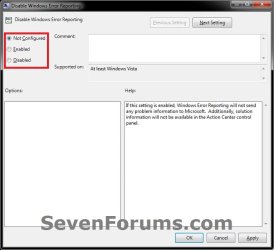
A) Select (dot) either Not Configured or Disabled. (see screenshot below step 6)
NOTE: Not Configured is the default setting.
B) Go to step 6.
5. To Disable Windows Error Reporting
A) Select (dot) Enabled. (see screenshot below step 6)
6. Click on OK. (see screenshot below)
7. Close the Local Group Policy Editor window.
That's it,
Shawn
Related Tutorials
Attachments
Last edited:


