
Windows Explorer Columns - Change Width

How to Change the Width of Columns in Windows Explorer

   Information
This will show you how to change the width of columns that display details about files in a folder in Windows Explorer.

You will need to have the folder in Windows Explorer displayed with Details view to have columns displayed.

   Note

  • In Libraries, column width changes are applied to all included folders in the library.
  • In Windows Explorer, column changes are only applied to that specific folder and the specific location it was opened from (ex: Start menu vs Windows Explorer), and will not be applied to any other folder unless Apply to Folders is used, or it is used to set a default for all folders.


OPTION ONE

To Automatically Size Columns to Fit in Windows Explorer


1. In Windows Explorer, open the folder that you want to change the width of columns in.

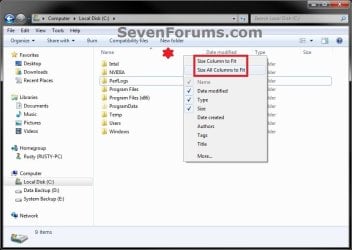
2. To "Size Column to Fit"
NOTE: This will only adjust the width of a selected column to only be as wide as the longest text (ex: file name) in that column.
A) Right click on a specific column name and click on Size a Column to Fit. (see screenshot below)
Size_to_Fit.jpg
3. To "Size All Columns to Fit"
NOTE: This will adjust the width of all columns in the open folder to only be as wide as the longest text in each column.
A) Right click on the column bar and click on Size All Columns to Fit. (see screenshot above)


OPTION TWO

To Manually Enter Column Width in Pixels


NOTE: You will only be able to set the column width to a minimum of 80 (except 40 for the # column) pixels. If you enter a pixel value below 80 it will just default back to 80 (except 40 for the # column) pixels.
1. In Windows Explorer, open the folder that you want to change the width of columns in.

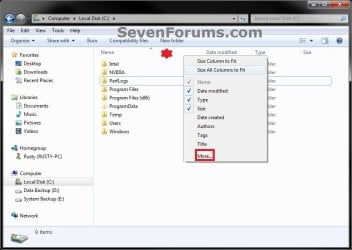
2. Right click on the column bar and click on More. (see screenshot below)
More-1.jpg
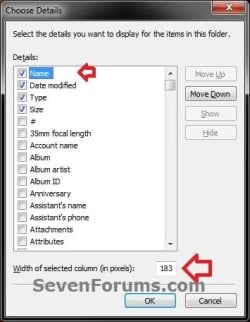
3. Under Details, select (highlight) a column that you want to change the width of, enter how many pixels wide you want the column to be. (see screenshot below)
NOTE: Only the checked columns are displayed for the folder in Windows Explorer.
More-2.jpg
4. Repeat step 3 for any other columns that you want to change the width of. When finished, click on OK. (see screenshot above)


OPTION THREE

To Manually Drag the Column Border to Adjust Width


1. In Windows Explorer, open the folder that you want to change the width of columns in.

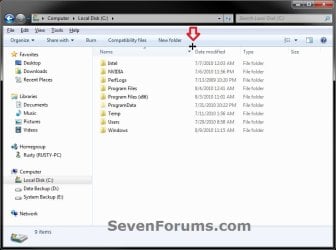
2. Move and hover the mouse pointer over the border line on the column bar to the right of the column that you want to change the width of until it turns into a cross with double horizontal arrows. (see screeshot below)
Drag.jpg
3. Left click and hold, then drag the column border to the left and right to adjust it's width to what you would like it to be. Release left click when finished adjusting width.
That's it,
Shawn


Last edited:
Is it possible to apply that by default to ALL folders? It's a drag to do this for every folder.
 

My Computer

Computer Manufacturer/Model Number
Custom
OS
Windows 8 Professional 64-bit
CPU
Intel Core i3-2100
Motherboard
ASRock Intel Z68M/USB3
Memory
4GB
Graphics Card(s)
GeForece GTX 550 Ti
Screen Resolution
1680 x 1050
PSU
750w

My Computer

Computer type
PC/Desktop
Computer Manufacturer/Model Number
Self built custom
OS
64-bit Windows 11 Pro for Workstations
CPU
Intel i7-8700K OC'd to 5 GHz
Motherboard
ASUS ROG Maximus XI Formula Z390
Memory
64 GB (4x16GB) G.SKILL TridentZ RGB DDR4 3600 MHz
Graphics Card(s)
ASUS ROG-STRIX-GTX1080TI-O11G-GAMING
Sound Card
Integrated
Monitor(s) Displays
2 x Samsung Odyssey G7 27"
Screen Resolution
2560x1440
Hard Drives
1TB Samsung 990 PRO M.2,
4TB Samsung 990 PRO PRO M.2,
TerraMaster F8 SSD Plus NAS
PSU
Seasonic Prime Titanium 850W
Case
Thermaltake Core P3
Cooling
Corsair Hydro H115i
Keyboard
Logitech wireless K800
Mouse
Logitech MX Master 4
Internet Speed
2 Gb/s Download and 100 Mb/s Upload
Antivirus
Malwarebyte Anti-Malware Premium
Browser
Google Chrome
Other Info
Logitech Z625 speaker system,
Logitech BRIO 4K Pro webcam,
HP Color LaserJet Pro MFP M477fdn,
APC SMART-UPS RT 1000 XL - SURT1000XLI,
Galaxy S23 Plus phone

My Computer

Computer Manufacturer/Model Number
Custom
OS
Windows 8 Professional 64-bit
CPU
Intel Core i3-2100
Motherboard
ASRock Intel Z68M/USB3
Memory
4GB
Graphics Card(s)
GeForece GTX 550 Ti
Screen Resolution
1680 x 1050
PSU
750w
You're most welcome. :)
 

My Computer

Computer type
PC/Desktop
Computer Manufacturer/Model Number
Self built custom
OS
64-bit Windows 11 Pro for Workstations
CPU
Intel i7-8700K OC'd to 5 GHz
Motherboard
ASUS ROG Maximus XI Formula Z390
Memory
64 GB (4x16GB) G.SKILL TridentZ RGB DDR4 3600 MHz
Graphics Card(s)
ASUS ROG-STRIX-GTX1080TI-O11G-GAMING
Sound Card
Integrated
Monitor(s) Displays
2 x Samsung Odyssey G7 27"
Screen Resolution
2560x1440
Hard Drives
1TB Samsung 990 PRO M.2,
4TB Samsung 990 PRO PRO M.2,
TerraMaster F8 SSD Plus NAS
PSU
Seasonic Prime Titanium 850W
Case
Thermaltake Core P3
Cooling
Corsair Hydro H115i
Keyboard
Logitech wireless K800
Mouse
Logitech MX Master 4
Internet Speed
2 Gb/s Download and 100 Mb/s Upload
Antivirus
Malwarebyte Anti-Malware Premium
Browser
Google Chrome
Other Info
Logitech Z625 speaker system,
Logitech BRIO 4K Pro webcam,
HP Color LaserJet Pro MFP M477fdn,
APC SMART-UPS RT 1000 XL - SURT1000XLI,
Galaxy S23 Plus phone
Is there a way to set up Windows Explorer in Windows 7 so that all columns are sized to fit every time? Or at least that each folder will remember what its settings are so I won't have to resize all of the columns to fit every time I switch folders?

This gets real irritating when I am switching back and fortrh between 2 or 3 folders repeatedly. It was easy to do in earlier versions of windows.
 

My Computer

Computer Manufacturer/Model Number
Dell Precision M4500
OS
Windows 7, 64 bit
Hello rltomkinson, and welcome to Seven Forums.

Unfortunately, the column width settings are remembered on a per folder basis. The quickest way is to use the Size All Columns to Fit option in OPTION ONE per folder that you wanted to change the column width of. The next time you open that folder from the same location, it should be the same as when last closed it or had it opened as.

In a way this is good since each folder would most likely require different column widths. Having a universal column width for all folders might not look good in all folders.

Hope this helps some,
Shawn
 

My Computer

Computer type
PC/Desktop
Computer Manufacturer/Model Number
Self built custom
OS
64-bit Windows 11 Pro for Workstations
CPU
Intel i7-8700K OC'd to 5 GHz
Motherboard
ASUS ROG Maximus XI Formula Z390
Memory
64 GB (4x16GB) G.SKILL TridentZ RGB DDR4 3600 MHz
Graphics Card(s)
ASUS ROG-STRIX-GTX1080TI-O11G-GAMING
Sound Card
Integrated
Monitor(s) Displays
2 x Samsung Odyssey G7 27"
Screen Resolution
2560x1440
Hard Drives
1TB Samsung 990 PRO M.2,
4TB Samsung 990 PRO PRO M.2,
TerraMaster F8 SSD Plus NAS
PSU
Seasonic Prime Titanium 850W
Case
Thermaltake Core P3
Cooling
Corsair Hydro H115i
Keyboard
Logitech wireless K800
Mouse
Logitech MX Master 4
Internet Speed
2 Gb/s Download and 100 Mb/s Upload
Antivirus
Malwarebyte Anti-Malware Premium
Browser
Google Chrome
Other Info
Logitech Z625 speaker system,
Logitech BRIO 4K Pro webcam,
HP Color LaserJet Pro MFP M477fdn,
APC SMART-UPS RT 1000 XL - SURT1000XLI,
Galaxy S23 Plus phone
Unfortunately, Windows is not remembering the column widths for each folder. That is what I want it to do. It was real easy in XP, but I cannot figure out how to do it in Win7.
 

My Computer

Computer Manufacturer/Model Number
Dell Precision M4500
OS
Windows 7, 64 bit
If this for in a library, then all included folders in a library share the same folder view.

Folder views are also saved on a per specific location opened from as well. For example, you will have a separate folder view for when you open say your user folder from the C:\Users\(user-name) location vs from the Start Menu personal folder location.

If not, then you might see if resetting all folder views back to default to see if that may help.
 

My Computer

Computer type
PC/Desktop
Computer Manufacturer/Model Number
Self built custom
OS
64-bit Windows 11 Pro for Workstations
CPU
Intel i7-8700K OC'd to 5 GHz
Motherboard
ASUS ROG Maximus XI Formula Z390
Memory
64 GB (4x16GB) G.SKILL TridentZ RGB DDR4 3600 MHz
Graphics Card(s)
ASUS ROG-STRIX-GTX1080TI-O11G-GAMING
Sound Card
Integrated
Monitor(s) Displays
2 x Samsung Odyssey G7 27"
Screen Resolution
2560x1440
Hard Drives
1TB Samsung 990 PRO M.2,
4TB Samsung 990 PRO PRO M.2,
TerraMaster F8 SSD Plus NAS
PSU
Seasonic Prime Titanium 850W
Case
Thermaltake Core P3
Cooling
Corsair Hydro H115i
Keyboard
Logitech wireless K800
Mouse
Logitech MX Master 4
Internet Speed
2 Gb/s Download and 100 Mb/s Upload
Antivirus
Malwarebyte Anti-Malware Premium
Browser
Google Chrome
Other Info
Logitech Z625 speaker system,
Logitech BRIO 4K Pro webcam,
HP Color LaserJet Pro MFP M477fdn,
APC SMART-UPS RT 1000 XL - SURT1000XLI,
Galaxy S23 Plus phone
No, it's not a library.

Let's say I open up the Documents folder. I reset all of the column widths to fit. I then go to one of the sub folders, in this case "AutoCAD files". All of the column widths are the same as Documents folder that I just left. I reset them to fit. Now, if I go back to the Documents folder, instead of being set to fit the way I left them, they are all sized the same as the sub folder I just left and I need to resize them again. This is REALLY frustrating. I did not have this issue in XP.
 

My Computer

Computer Manufacturer/Model Number
Dell Precision M4500
OS
Windows 7, 64 bit

My Computer

Computer type
PC/Desktop
Computer Manufacturer/Model Number
Self built custom
OS
64-bit Windows 11 Pro for Workstations
CPU
Intel i7-8700K OC'd to 5 GHz
Motherboard
ASUS ROG Maximus XI Formula Z390
Memory
64 GB (4x16GB) G.SKILL TridentZ RGB DDR4 3600 MHz
Graphics Card(s)
ASUS ROG-STRIX-GTX1080TI-O11G-GAMING
Sound Card
Integrated
Monitor(s) Displays
2 x Samsung Odyssey G7 27"
Screen Resolution
2560x1440
Hard Drives
1TB Samsung 990 PRO M.2,
4TB Samsung 990 PRO PRO M.2,
TerraMaster F8 SSD Plus NAS
PSU
Seasonic Prime Titanium 850W
Case
Thermaltake Core P3
Cooling
Corsair Hydro H115i
Keyboard
Logitech wireless K800
Mouse
Logitech MX Master 4
Internet Speed
2 Gb/s Download and 100 Mb/s Upload
Antivirus
Malwarebyte Anti-Malware Premium
Browser
Google Chrome
Other Info
Logitech Z625 speaker system,
Logitech BRIO 4K Pro webcam,
HP Color LaserJet Pro MFP M477fdn,
APC SMART-UPS RT 1000 XL - SURT1000XLI,
Galaxy S23 Plus phone
That didn't work. Apparently I was wrong about being in a library. It appears ALL folders and files in Documents are part of a library. I tried to remove them from the library and it appears they were deleted completely. Is there a way to get them back?

Nevermind, I figured it out. now they aren't part of a library, the column width seems to be working properly. Thanks for the quick responses and the help.
 
Last edited by a moderator:

My Computer

Computer Manufacturer/Model Number
Dell Precision M4500
OS
Windows 7, 64 bit
That's great news rltomkinson. I'm happy to hear that you got it sorted. :)
 

My Computer

Computer type
PC/Desktop
Computer Manufacturer/Model Number
Self built custom
OS
64-bit Windows 11 Pro for Workstations
CPU
Intel i7-8700K OC'd to 5 GHz
Motherboard
ASUS ROG Maximus XI Formula Z390
Memory
64 GB (4x16GB) G.SKILL TridentZ RGB DDR4 3600 MHz
Graphics Card(s)
ASUS ROG-STRIX-GTX1080TI-O11G-GAMING
Sound Card
Integrated
Monitor(s) Displays
2 x Samsung Odyssey G7 27"
Screen Resolution
2560x1440
Hard Drives
1TB Samsung 990 PRO M.2,
4TB Samsung 990 PRO PRO M.2,
TerraMaster F8 SSD Plus NAS
PSU
Seasonic Prime Titanium 850W
Case
Thermaltake Core P3
Cooling
Corsair Hydro H115i
Keyboard
Logitech wireless K800
Mouse
Logitech MX Master 4
Internet Speed
2 Gb/s Download and 100 Mb/s Upload
Antivirus
Malwarebyte Anti-Malware Premium
Browser
Google Chrome
Other Info
Logitech Z625 speaker system,
Logitech BRIO 4K Pro webcam,
HP Color LaserJet Pro MFP M477fdn,
APC SMART-UPS RT 1000 XL - SURT1000XLI,
Galaxy S23 Plus phone
While this maximizes the columns to the longest value of each column, it still doesn't maximize the entire column collection to the full width of the window like an HTML table does set to 100% (there's tons of empty space on the right). If a browser can do it, Windows should be able to do it.
 

My Computer

Computer type
PC/Desktop
OS
Windows 7 Pro 64-bit
it wont let me drag columns in explorer or in any program

it wont let me do it even in any porgram that has columns one being process hacker 2. please help :( this is so annoying. is there some registry value or key or column value i can change or mdify or delete in the registry? help would be apreciate thanks. (i am on windows 8) the reason why i am posting this here is because i havent seen a thread like this in windows 8 forums. thanks
 

My Computer

Computer type
PC/Desktop
OS
windo
Hello idontknowaname, :)

What happens when you try to drag a column name (ex: "Date modified") in File Explorer (Win+E)?

Please go ahead and post a screenshot of this to see if anything may standout.
 

My Computer

Computer type
PC/Desktop
Computer Manufacturer/Model Number
Self built custom
OS
64-bit Windows 11 Pro for Workstations
CPU
Intel i7-8700K OC'd to 5 GHz
Motherboard
ASUS ROG Maximus XI Formula Z390
Memory
64 GB (4x16GB) G.SKILL TridentZ RGB DDR4 3600 MHz
Graphics Card(s)
ASUS ROG-STRIX-GTX1080TI-O11G-GAMING
Sound Card
Integrated
Monitor(s) Displays
2 x Samsung Odyssey G7 27"
Screen Resolution
2560x1440
Hard Drives
1TB Samsung 990 PRO M.2,
4TB Samsung 990 PRO PRO M.2,
TerraMaster F8 SSD Plus NAS
PSU
Seasonic Prime Titanium 850W
Case
Thermaltake Core P3
Cooling
Corsair Hydro H115i
Keyboard
Logitech wireless K800
Mouse
Logitech MX Master 4
Internet Speed
2 Gb/s Download and 100 Mb/s Upload
Antivirus
Malwarebyte Anti-Malware Premium
Browser
Google Chrome
Other Info
Logitech Z625 speaker system,
Logitech BRIO 4K Pro webcam,
HP Color LaserJet Pro MFP M477fdn,
APC SMART-UPS RT 1000 XL - SURT1000XLI,
Galaxy S23 Plus phone
Back
Top