Windows Image Backup

johnp

New member
Local time
10:17 PM
Messages
29
A couple of days ago my hard drive started failing so I created a Windows Image Backup on an external hard drive. Today I received my new hard drive and installed it, unfortunately when I tried to restore the backup I get the message Windows could not find any file backups on this computer even though the external hard drive shows in my computer.
Any ideas?

Thanks.
 

My Computer

OS
Windows 7 Ultimate 64 bit
CPU
AMD Athlon 64 X2 Dual Core Processor
Motherboard
ASUS Crosshair
Memory
4GB
Graphics Card(s)
NVIDIA GeForce 8600 GT
Sound Card
sSoundMAX
Monitor(s) Displays
Plug and Play
Hard Drives
Maxtor 6V300F0
ST3750330SV
start your computer with the win7 dvd, press any key when prompted. go to repair options, and if you select "restore", there should be an option to restore from an image. then navigate to where you created the image file.
 

My Computer

Computer Manufacturer/Model Number
Alienware AREA-51 M17x
OS
windows 7 ultimate 64bit
CPU
Intel Core2 Extreme x9000 2.8GHZ
Motherboard
Asus P965 Intel chipset
Memory
4Gig
Graphics Card(s)
2 NVidia GeForce 8800M GTX (SLi)
Sound Card
onboard
Monitor(s) Displays
17in. built-in, 47in JVC LCD
Screen Resolution
1080p
Hard Drives
2 250Gig Hitachi (RAID 0) @ 7200RPM
Case
17in. laptop
Mouse
touchpad, Logitech Anywhere Mouse cordless laser
Internet Speed
cable
I have tried that, but it does not find my external harddrive.
 

My Computer

OS
Windows 7 Ultimate 64 bit
CPU
AMD Athlon 64 X2 Dual Core Processor
Motherboard
ASUS Crosshair
Memory
4GB
Graphics Card(s)
NVIDIA GeForce 8600 GT
Sound Card
sSoundMAX
Monitor(s) Displays
Plug and Play
Hard Drives
Maxtor 6V300F0
ST3750330SV
how is it connected? if its USB, you may have to enable it in the BIOS.
 

My Computer

Computer Manufacturer/Model Number
Alienware AREA-51 M17x
OS
windows 7 ultimate 64bit
CPU
Intel Core2 Extreme x9000 2.8GHZ
Motherboard
Asus P965 Intel chipset
Memory
4Gig
Graphics Card(s)
2 NVidia GeForce 8800M GTX (SLi)
Sound Card
onboard
Monitor(s) Displays
17in. built-in, 47in JVC LCD
Screen Resolution
1080p
Hard Drives
2 250Gig Hitachi (RAID 0) @ 7200RPM
Case
17in. laptop
Mouse
touchpad, Logitech Anywhere Mouse cordless laser
Internet Speed
cable
1) Connect your ext HDD
2) Boot from a System Repair disk
3) When in the "System Recovery Options" screen
4) Select Install Drivers. When it says insert media click OK. You will be presented with a Windows explorer screen.
5) Go to the top and navigate to your external HDD (forget about drive letters - they will be different).
6) Proceed like normal explorer and open it. You are looking for a folder in the root of the ext HDD called exactly WindowsImageBackup.
7) Select cancel until you get back to "Select an Image" option and select the image you browsed to and proceed as normal.

The key thing is you must have a folder called WindowsImageBackup in a root partition.

You can use command prompt to find your image but I think the above may be easier.
 

My Computer

Computer type
PC/Desktop
Computer Manufacturer/Model Number
Own build
OS
Windows 7x64 Home Premium SP1
CPU
Intel i7 2600k
Motherboard
ASUS P8Z68 Deluxe
Memory
G.Skill Ripjaws (DDR3-1600) 2x4GB
Graphics Card(s)
Nvidia GeForce GTS 450; Intel HD Graphics 3000(GT2+)
Monitor(s) Displays
Dell Ultrasharp IPS panel U2311H, Samsung SyncMaster P2350
Screen Resolution
1920x1080
Hard Drives
Samsung 850 Pro SSD 256GB, Samsung SSD 840 120GB, Seagates 1TB Barracuda ST31000528AS x2
PSU
Seasonic M12II 520W
Case
Lian Li Lancool PC-K60
Cooling
Case: 1x120mm, 3x140mm CPU: Hyper 212+
Keyboard
Logitech MK520 (wireless)
Mouse
Logitech MK520
Internet Speed
6-7 Mbps
Antivirus
Norton Security Premium, Malwarebytes on 2 (MSE on 3rd PC)
Browser
FireFox
Other Info
Audio: Logitech Z523 2.1
Hi mjf, thanks for your reply.

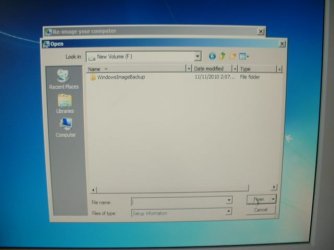
I followed your instructions 1-7 with no problems, unfortunately when the WindowsImageBackup was found in "Select an Image" there is a box at the bottom of the screen called "Files of type" with Setup Information inside. When I tried to find this within WindowsImageBackup it could not find any of these type of files.

Any ideas?

Thanks.
 

My Computer

OS
Windows 7 Ultimate 64 bit
CPU
AMD Athlon 64 X2 Dual Core Processor
Motherboard
ASUS Crosshair
Memory
4GB
Graphics Card(s)
NVIDIA GeForce 8600 GT
Sound Card
sSoundMAX
Monitor(s) Displays
Plug and Play
Hard Drives
Maxtor 6V300F0
ST3750330SV
I'm not sure what the "Files of Type" is about without seeing the screen.
When you proceed to step 6. You are verifying that an image of the correct name can be located ie. WindowImageBackup exists in a root partition. Don't select it at this stage. This is just verifying that the System Repair disk should be able to see a valid image.
You are merley using the install Driver option to get access to the Explorer function. Hitting cancel (a couple of times I think) backs you up out of the install driver option until you are at the "select an image" screen. You pick the select an image option and go next. Then one of the images (maybe only one) should be the one you found via the Explorer search.
Select this image and proceed until you have the final "Finish" button to press.

It's getting late here. I'll look tomorrow to see how you go.
 

My Computer

Computer type
PC/Desktop
Computer Manufacturer/Model Number
Own build
OS
Windows 7x64 Home Premium SP1
CPU
Intel i7 2600k
Motherboard
ASUS P8Z68 Deluxe
Memory
G.Skill Ripjaws (DDR3-1600) 2x4GB
Graphics Card(s)
Nvidia GeForce GTS 450; Intel HD Graphics 3000(GT2+)
Monitor(s) Displays
Dell Ultrasharp IPS panel U2311H, Samsung SyncMaster P2350
Screen Resolution
1920x1080
Hard Drives
Samsung 850 Pro SSD 256GB, Samsung SSD 840 120GB, Seagates 1TB Barracuda ST31000528AS x2
PSU
Seasonic M12II 520W
Case
Lian Li Lancool PC-K60
Cooling
Case: 1x120mm, 3x140mm CPU: Hyper 212+
Keyboard
Logitech MK520 (wireless)
Mouse
Logitech MK520
Internet Speed
6-7 Mbps
Antivirus
Norton Security Premium, Malwarebytes on 2 (MSE on 3rd PC)
Browser
FireFox
Other Info
Audio: Logitech Z523 2.1
Hi mjf,

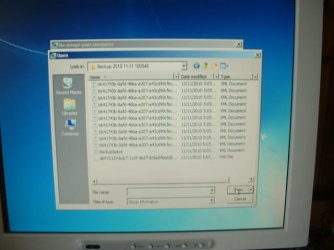
Thanks for your reply, I have attached 4 photos taken my screen after selecting an image option. As I said earlier I cannot find any Files of type "Set up information", only the files shown in the photos.

Thanks.
 

Attachments

  • 002.JPG
    002.JPG
    31.6 KB · Views: 191
  • 003.JPG
    003.JPG
    32 KB · Views: 152
  • 004.JPG
    004.JPG
    35 KB · Views: 163
  • 005.JPG
    005.JPG
    41.9 KB · Views: 193

My Computer

OS
Windows 7 Ultimate 64 bit
CPU
AMD Athlon 64 X2 Dual Core Processor
Motherboard
ASUS Crosshair
Memory
4GB
Graphics Card(s)
NVIDIA GeForce 8600 GT
Sound Card
sSoundMAX
Monitor(s) Displays
Plug and Play
Hard Drives
Maxtor 6V300F0
ST3750330SV
in the "files of type" box, click the little black arrow on the right, and see if there are any other file types listed. i think you need an img file. (i've never actually had to do a restore from image file yet, so if you would rather wait for mjf to reply...)
 

My Computer

Computer Manufacturer/Model Number
Alienware AREA-51 M17x
OS
windows 7 ultimate 64bit
CPU
Intel Core2 Extreme x9000 2.8GHZ
Motherboard
Asus P965 Intel chipset
Memory
4Gig
Graphics Card(s)
2 NVidia GeForce 8800M GTX (SLi)
Sound Card
onboard
Monitor(s) Displays
17in. built-in, 47in JVC LCD
Screen Resolution
1080p
Hard Drives
2 250Gig Hitachi (RAID 0) @ 7200RPM
Case
17in. laptop
Mouse
touchpad, Logitech Anywhere Mouse cordless laser
Internet Speed
cable
Johnp,
What you did was enter the image folder progressively until you got to the final list of files including the large .vhd file at the bottom of the list.
That's ok but all I wanted is for you is to verify that the system repair can see a [WindowsImageBackup] and you have done this. So when you hit cancel,..,cancel
until you reach back at the "Select an Image screen" and go search the computer for an image, the image you have just seen should appear (because we know it's there). Highlight it and proceed as per a normal image recover.
Post back what you find.
 

My Computer

Computer type
PC/Desktop
Computer Manufacturer/Model Number
Own build
OS
Windows 7x64 Home Premium SP1
CPU
Intel i7 2600k
Motherboard
ASUS P8Z68 Deluxe
Memory
G.Skill Ripjaws (DDR3-1600) 2x4GB
Graphics Card(s)
Nvidia GeForce GTS 450; Intel HD Graphics 3000(GT2+)
Monitor(s) Displays
Dell Ultrasharp IPS panel U2311H, Samsung SyncMaster P2350
Screen Resolution
1920x1080
Hard Drives
Samsung 850 Pro SSD 256GB, Samsung SSD 840 120GB, Seagates 1TB Barracuda ST31000528AS x2
PSU
Seasonic M12II 520W
Case
Lian Li Lancool PC-K60
Cooling
Case: 1x120mm, 3x140mm CPU: Hyper 212+
Keyboard
Logitech MK520 (wireless)
Mouse
Logitech MK520
Internet Speed
6-7 Mbps
Antivirus
Norton Security Premium, Malwarebytes on 2 (MSE on 3rd PC)
Browser
FireFox
Other Info
Audio: Logitech Z523 2.1
Hi mjf,

When I select an image backup there is nothing on the list, so you have to click advanced. This then gives you the option to search for a system image on the network or install a driver, so I have to install a driver which takes me to computer where again I get my external harddrive containing the WindowsImageBackup, and I just get the same problems as already noted.
Is there something I am missing.
 

My Computer

OS
Windows 7 Ultimate 64 bit
CPU
AMD Athlon 64 X2 Dual Core Processor
Motherboard
ASUS Crosshair
Memory
4GB
Graphics Card(s)
NVIDIA GeForce 8600 GT
Sound Card
sSoundMAX
Monitor(s) Displays
Plug and Play
Hard Drives
Maxtor 6V300F0
ST3750330SV
You should not have to use the Advanced Options if you have the external plugged into the same computer you're booting from DVD>Repair>Recover Using an Image.

You already know your external has its driver since you can browse into it using the "Load Drivers" mini-explorer.

As long as folder is in the open root of the External and named "WindowsImageBackup" it should be auto-detected.

If not, try another external HD.
 
Frustrating for you - but I'm more than happy to keep going.
We know:
1) The Repair disk can see a folder WindowsImageBackup
2) The Reimaging is not accepting it as a valid image
3) What you are attempting to do is valid. It has worked flawlessly for me & others.

Way Forward:
I assume you have tried pressing REFRESH in the process (scan for images screen). Unplug USB HDD plug back (other usb port if possible) & REFRESH.
I also assume that your old disk was out of the computer and the new disk in it's exact sata port location.

On one of your screens you posted you have 2 folders
Backup .....
catalog
& a media ID file

I always have a third folder called "SPPMetadata Cache"

I would now do the following to cover all bases
1) Replace old HDD
2) Rename the WindowsImageBackup to WindowsImageBackupxxx
3) Go into Backup & Restore. Press Create a System Image and direct to your ext HDD. Maybe try another ext HDD if you can get hold of one.
4) While your old HDD is still in. If the replacement is a Seagate or WD download their free (Acronis) cloning software.
5) Download Macrium Reflect (free edition). I image and have restored from this as well.
6) Install Macrium and make an image of your 100MB system partion if you have one and your main OS partition onto an ext HDD (given you only had 1 vhd file it looks like you don't have the 100MB). Make the linux recovery disk.
7) Replace the old disk with the new (same sata port location)
8) Repeat the windows reimaging process.

A progress post would be good now.

9) If no success reimage the Macrium images. If 2 partitions the software lets you select one then go back and select the second. ACCEPT the replace MBR option for a new disk.

Post back.

Edit: perhaps leave out step 4) at this stage
 
Last edited:

My Computer

Computer type
PC/Desktop
Computer Manufacturer/Model Number
Own build
OS
Windows 7x64 Home Premium SP1
CPU
Intel i7 2600k
Motherboard
ASUS P8Z68 Deluxe
Memory
G.Skill Ripjaws (DDR3-1600) 2x4GB
Graphics Card(s)
Nvidia GeForce GTS 450; Intel HD Graphics 3000(GT2+)
Monitor(s) Displays
Dell Ultrasharp IPS panel U2311H, Samsung SyncMaster P2350
Screen Resolution
1920x1080
Hard Drives
Samsung 850 Pro SSD 256GB, Samsung SSD 840 120GB, Seagates 1TB Barracuda ST31000528AS x2
PSU
Seasonic M12II 520W
Case
Lian Li Lancool PC-K60
Cooling
Case: 1x120mm, 3x140mm CPU: Hyper 212+
Keyboard
Logitech MK520 (wireless)
Mouse
Logitech MK520
Internet Speed
6-7 Mbps
Antivirus
Norton Security Premium, Malwarebytes on 2 (MSE on 3rd PC)
Browser
FireFox
Other Info
Audio: Logitech Z523 2.1
You should not have to use the Advanced Options if you have the external plugged into the same computer you're booting from DVD>Repair>Recover Using an Image.

You already know your external has its driver since you can browse into it using the "Load Drivers" mini-explorer.

As long as folder is in the open root of the External and named "WindowsImageBackup" it should be auto-detected.

If not, try another external HD.
This is included in my followup options above. Maybe downloading cloning software over complicates matters at this stage.
 

My Computer

Computer type
PC/Desktop
Computer Manufacturer/Model Number
Own build
OS
Windows 7x64 Home Premium SP1
CPU
Intel i7 2600k
Motherboard
ASUS P8Z68 Deluxe
Memory
G.Skill Ripjaws (DDR3-1600) 2x4GB
Graphics Card(s)
Nvidia GeForce GTS 450; Intel HD Graphics 3000(GT2+)
Monitor(s) Displays
Dell Ultrasharp IPS panel U2311H, Samsung SyncMaster P2350
Screen Resolution
1920x1080
Hard Drives
Samsung 850 Pro SSD 256GB, Samsung SSD 840 120GB, Seagates 1TB Barracuda ST31000528AS x2
PSU
Seasonic M12II 520W
Case
Lian Li Lancool PC-K60
Cooling
Case: 1x120mm, 3x140mm CPU: Hyper 212+
Keyboard
Logitech MK520 (wireless)
Mouse
Logitech MK520
Internet Speed
6-7 Mbps
Antivirus
Norton Security Premium, Malwarebytes on 2 (MSE on 3rd PC)
Browser
FireFox
Other Info
Audio: Logitech Z523 2.1
mjf

After reading your last reply, I decided there must be an easier way to recover my backup as I had already wiped my old hard drive and returned it for replacement as it was still under warranty.
I have now recovered my backup by booting with a Acroni Bootable Media disk, from Acronis True Home 2010.
When loaded you choose
Recover My Disks,
File Name (External HD),
Files of Type - Windows Backup Archives (*VHD)
Recover Whole Disks & Partitions.

All is now working as before.
 

My Computer

OS
Windows 7 Ultimate 64 bit
CPU
AMD Athlon 64 X2 Dual Core Processor
Motherboard
ASUS Crosshair
Memory
4GB
Graphics Card(s)
NVIDIA GeForce 8600 GT
Sound Card
sSoundMAX
Monitor(s) Displays
Plug and Play
Hard Drives
Maxtor 6V300F0
ST3750330SV
That's great.
Acronis has a lot of supporters. Even though you have to pay it's not that much really.
But I didn't realise it allows you to recover just from the windows .vhd alone. Interesting.

(in the windows image backup there numerous .xml files - I wonder if Acronis needed these as well?)
 

My Computer

Computer type
PC/Desktop
Computer Manufacturer/Model Number
Own build
OS
Windows 7x64 Home Premium SP1
CPU
Intel i7 2600k
Motherboard
ASUS P8Z68 Deluxe
Memory
G.Skill Ripjaws (DDR3-1600) 2x4GB
Graphics Card(s)
Nvidia GeForce GTS 450; Intel HD Graphics 3000(GT2+)
Monitor(s) Displays
Dell Ultrasharp IPS panel U2311H, Samsung SyncMaster P2350
Screen Resolution
1920x1080
Hard Drives
Samsung 850 Pro SSD 256GB, Samsung SSD 840 120GB, Seagates 1TB Barracuda ST31000528AS x2
PSU
Seasonic M12II 520W
Case
Lian Li Lancool PC-K60
Cooling
Case: 1x120mm, 3x140mm CPU: Hyper 212+
Keyboard
Logitech MK520 (wireless)
Mouse
Logitech MK520
Internet Speed
6-7 Mbps
Antivirus
Norton Security Premium, Malwarebytes on 2 (MSE on 3rd PC)
Browser
FireFox
Other Info
Audio: Logitech Z523 2.1
This is a (related) aside now.
I pulled out a vhd file on its own. I mounted/attached it ok. Imaged it with Macrium. I could mount the Macrium image and read it and presumably restore it.
Macrium can convert their .mrimg to .vhd but don't seem to be able to directly read a vhd.

The fact that Acronis integrates this image compatibility is therefore a +1 for Acronis.
 

My Computer

Computer type
PC/Desktop
Computer Manufacturer/Model Number
Own build
OS
Windows 7x64 Home Premium SP1
CPU
Intel i7 2600k
Motherboard
ASUS P8Z68 Deluxe
Memory
G.Skill Ripjaws (DDR3-1600) 2x4GB
Graphics Card(s)
Nvidia GeForce GTS 450; Intel HD Graphics 3000(GT2+)
Monitor(s) Displays
Dell Ultrasharp IPS panel U2311H, Samsung SyncMaster P2350
Screen Resolution
1920x1080
Hard Drives
Samsung 850 Pro SSD 256GB, Samsung SSD 840 120GB, Seagates 1TB Barracuda ST31000528AS x2
PSU
Seasonic M12II 520W
Case
Lian Li Lancool PC-K60
Cooling
Case: 1x120mm, 3x140mm CPU: Hyper 212+
Keyboard
Logitech MK520 (wireless)
Mouse
Logitech MK520
Internet Speed
6-7 Mbps
Antivirus
Norton Security Premium, Malwarebytes on 2 (MSE on 3rd PC)
Browser
FireFox
Other Info
Audio: Logitech Z523 2.1
mjf

As far as I can tell Acronis does not need the xml files.
 

My Computer

OS
Windows 7 Ultimate 64 bit
CPU
AMD Athlon 64 X2 Dual Core Processor
Motherboard
ASUS Crosshair
Memory
4GB
Graphics Card(s)
NVIDIA GeForce 8600 GT
Sound Card
sSoundMAX
Monitor(s) Displays
Plug and Play
Hard Drives
Maxtor 6V300F0
ST3750330SV
That is one the major shortcomings of Windows sys image.

You can't pick up a vhd if it doesn't find it automatically.

If you can access it with Disk Mgmt, of course you can mount it - make an image with any 3rd party app.- the free versions will be fine - then restore the 3rd party image.

Often , the attempt to restore the image is because you can't get into windows.

Many will need to get a paid 3rd party app. ( Paragon/Acronis ) to get out of that mess.
 

My Computers

System One System Two

  • Computer type
    PC/Desktop
    OS
    7 X64
    CPU
    i5 8400
    Motherboard
    gigabyte b365m ds3h
    Memory
    2x8gb 3200mhz
    Hard Drives
    various
    PSU
    pure power 11 400w cm
    Case
    Coolermaster
    Cooling
    cryorig m9i
  • Computer type
    PC/Desktop
    OS
    7x64
    CPU
    g5400
    Motherboard
    ga b365m ds3h
    Memory
    8gb ddr4 2400
    PSU
    xfx pro 450w
Will Acronis apply its more flexible same-disk partition imaging, imaging over network, etc. to use the WindowsImageBackup VHD?

How is it cued?

I remember now this being mentioned here about a year ago, before I had Acronis and a bunch of inflexible Win7 image backups.
 
Back
Top