Windows not going to sleep per power options

pokeefe0001

New member
Power User
Local time
3:43 AM
Messages
165
Lately - within the past few days my PC has stopped going to sleep based on the Power Options settings. I am not obviously running anything that prevents this. The only "foreground" application running has been my email client - Thunderbird - and it has never prevented sleep before.

I do have a few programs on the PC that prevent sleep, but they were not running. Is it possible they left a "don't sleep" tickler active? (I have no idea how the sleep override works. That was probably a dumb question.)

Is there any way to tell what is keeping Windows awake? Something recorded in the Event Log maybe? (If so, I haven't found it.)
 

My Computer My Computer

Computer type
PC/Desktop
Computer Manufacturer/Model Number
Custom built by Puget Systems
OS
Windows 7 x64 Pro
CPU
Intel i7 4771 3.50 GHz
Motherboard
ASUS Z87-A
Memory
Kingston DDR3 - 16GB
Graphics Card(s)
Intel HD Graphics 4600
Sound Card
M-Audio Delta Audiofile 2496
Monitor(s) Displays
Samsung SyncMasterr 2043 BWX
Hard Drives
Samsung SSD 840 PRO
WDC WD1002FAEX-00Z3A0
PSU
built in - part of case - 650 Watt
Case
Fractal Design R4
Cooling
Coolmaster Hyper TX3
Keyboard
Dell PS/2
Mouse
Logitech USB
Internet Speed
50 Mb Cable
Antivirus
Kaspersky Internet Security 2015
Browser
Firefox
Can you give me a bit more detailed information about the issue?
Does the monitor stay awake? I've had the same issue,the computer fan was still awake but the monitor was turned off
 

My Computer My Computer

Computer type
PC/Desktop
OS
Win7 Ultimate/X84
CPU
Intel Celeron 336/2.8Ghz
Motherboard
MS-7592
Memory
DDR3/2GB
Hard Drives
ATA-100/160GB
Browser
FirefoX
The monitor goes off in 15 minute per the Power Options. The PC should go to sleep after 30 minutes but did not. I just rebooted a short time ago and don't know if the problem still happens.
 

My Computer My Computer

Computer type
PC/Desktop
Computer Manufacturer/Model Number
Custom built by Puget Systems
OS
Windows 7 x64 Pro
CPU
Intel i7 4771 3.50 GHz
Motherboard
ASUS Z87-A
Memory
Kingston DDR3 - 16GB
Graphics Card(s)
Intel HD Graphics 4600
Sound Card
M-Audio Delta Audiofile 2496
Monitor(s) Displays
Samsung SyncMasterr 2043 BWX
Hard Drives
Samsung SSD 840 PRO
WDC WD1002FAEX-00Z3A0
PSU
built in - part of case - 650 Watt
Case
Fractal Design R4
Cooling
Coolmaster Hyper TX3
Keyboard
Dell PS/2
Mouse
Logitech USB
Internet Speed
50 Mb Cable
Antivirus
Kaspersky Internet Security 2015
Browser
Firefox
I've now determined that automatic Sleep is happening again now that I've rebooted. But this wasn't the first time this happened and probably won't be the last. So I'm back to my original question: How do I find out why isn't going to sleep when it should? Is there some way to get Windows to generate a "I wanted to go to sleep but couldn't because ..." indication of some sort? Or is there some "Look for things that would prevent sleep" utility?

Actually, I found mention of a command line utility that (sort of) does that: powercfg -requests
However, it's not very specific. I started a program that indirectly prevents Windows from sleeping - it uses an audio cards ASIO driver that prevents sleep. The Powercfg command says:
PS C:\Windows\system32> powercfg -requests
DISPLAY:
None.

SYSTEM:
[DRIVER] Legacy Kernel Caller

AWAYMODE:
None.
That "[DRIVER] Legacy Kernel Caller" doesn't tell me much more than something is there preventing sleep.

BTW, "prevent sleep" is too strong of a phrase. I had no trouble manually putting Windows to sleep. It just wouldn't do it based on the Power Options setting. That has been the case in the past, too.
 

My Computer My Computer

Computer type
PC/Desktop
Computer Manufacturer/Model Number
Custom built by Puget Systems
OS
Windows 7 x64 Pro
CPU
Intel i7 4771 3.50 GHz
Motherboard
ASUS Z87-A
Memory
Kingston DDR3 - 16GB
Graphics Card(s)
Intel HD Graphics 4600
Sound Card
M-Audio Delta Audiofile 2496
Monitor(s) Displays
Samsung SyncMasterr 2043 BWX
Hard Drives
Samsung SSD 840 PRO
WDC WD1002FAEX-00Z3A0
PSU
built in - part of case - 650 Watt
Case
Fractal Design R4
Cooling
Coolmaster Hyper TX3
Keyboard
Dell PS/2
Mouse
Logitech USB
Internet Speed
50 Mb Cable
Antivirus
Kaspersky Internet Security 2015
Browser
Firefox
Ok,let's determine if there's any hardware problems with your computer.
Let's make the system automatically go to sleep...
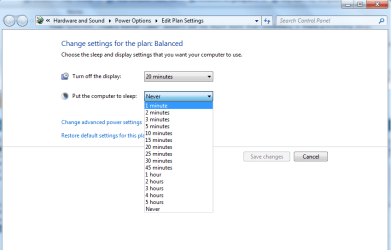
Go to the following location Control Panel\Hardware and Sound\Power Options\Edit Plan Settings
Then edit "Put the computer to sleep" settings. I've disabled this option ,so the computer won't go sleep automatically.
But you can enable the setting and even set a time. Just set "1 minute" and click "save changes" and see if the computer
goes to sleep in a minute. If it goes,then we will know,there's no hardware prroblems,but software, good luck !
 

Attachments

  • Untitled.png
    Untitled.png
    25.9 KB · Views: 3

My Computer My Computer

Computer type
PC/Desktop
OS
Win7 Ultimate/X84
CPU
Intel Celeron 336/2.8Ghz
Motherboard
MS-7592
Memory
DDR3/2GB
Hard Drives
ATA-100/160GB
Browser
FirefoX
Setting the timeout value to 1 minute worked fine, of course. The PC went to sleep. As I said in my previous post, it has worked since yesterday's reboot. So there is nothing to diagnose at the moment.

I want to know how to diagnose it when it happens again. How do I determine what is preventing sleep when something is preventing it.
 

My Computer My Computer

Computer type
PC/Desktop
Computer Manufacturer/Model Number
Custom built by Puget Systems
OS
Windows 7 x64 Pro
CPU
Intel i7 4771 3.50 GHz
Motherboard
ASUS Z87-A
Memory
Kingston DDR3 - 16GB
Graphics Card(s)
Intel HD Graphics 4600
Sound Card
M-Audio Delta Audiofile 2496
Monitor(s) Displays
Samsung SyncMasterr 2043 BWX
Hard Drives
Samsung SSD 840 PRO
WDC WD1002FAEX-00Z3A0
PSU
built in - part of case - 650 Watt
Case
Fractal Design R4
Cooling
Coolmaster Hyper TX3
Keyboard
Dell PS/2
Mouse
Logitech USB
Internet Speed
50 Mb Cable
Antivirus
Kaspersky Internet Security 2015
Browser
Firefox
Back
Top