Windows.old folder - Restore into a new installation

How to Restore your Windows.old Folder into a New Installation

   Information
This will restore the files and folders from the windows.old folder.

This means that any documents, settings, and programs will be restored to their previous positions and settings.
It will look similar to your previous installation, but not exactly the same! There will be some differences!

YES, this works in Vista, as well as Windows Seven. The instructions are EXACTLY the same!

For more information, see also:
How to restore a Windows 7-based computer to a previous Windows installation by using the Windows.old folder


   Warning
Make sure you:

  • Know how to boot from a CD/DVD.
  • Know how to install Windows from a DVD, over an existing installation.
Make sure that the free space on the drive you are restoring to has enough free space for the windows.old folder.

This does NOT work perfectly!!!
When I used this, I still encountered some errors, such as TWO Program Files folders, and missing icon pictures.

This is NOT a recommended way to do a restore! It will work, but you should back up your data and take the time to either create a restore image, or reinstall your files.

It WILL work just fine for files such as those in your Documents folder.


Setup:

1) Make sure that you want to do a new installation. If you are, then boot into the Install Disk and complete the installation.

2) Now you want to restore some of your old files? OK, read on!

Let's begin:

1) Insert your Installation disk into your DVD drive, and reboot. Make sure you can boot from the DVD.

2) Press any key to boot from CD when the option appears.

3) At this point, you have already done a clean install over your existing installation.

4) Select "Repair Your Computer" from the installation menu (see screen shot below).
picture.php

5) Select your Windows installation you want to restore to.

6) Select Command Prompt. This will bring up the command prompt window.

   Warning
This starts getting complicated, and if you do something incorrectly, it could cause problems. Make sure you have your windows.old folder backed up, as well as your current installation (if needed).

Type each command EXACTLY as it is written! If you misspell what is in the code box, you will misspell the folder, possibly causing problems or errors!

   Note
When you type one or more of the commands at the command prompt in the following steps in this section, and you then press ENTER, you may receive the following message:
The system cannot find the file specified.
If you receive this message, go to the next step in this section, and then type the command in that next step.


7) Type the following commands in, one at a time. Press ENTER at the end of each line. This will rename the windows.old folders, in preparation of being moved.
Code:
c:
Code:
ren Windows Windows.backup
Code:
ren "Program Files" "Program Files.old"
Code:
ren "Users" "Users.old"
Code:
rmdir "C:\Documents and Settings"
8) Now we will move the folders over the new ones, restoring your old settings and files. Again, type the commands in one at a time, pressing ENTER at the end of each.

:busted: If you are using a drive other than c: for your windows installation, replace c: with that drive letter!


Code:
move /y c:\windows.old\windows c:\
Code:
move /y "c:\windows.old\program files" c:\
8a) When the previous Windows installation was Microsoft Windows Server 2003, Microsoft Windows XP, or Microsoft Windows 2000:
Code:
move /y "c:\windows.old\documents and settings" c:\
8b) When the previous Windows installation was a different version of Windows Vista or Windows Seven:
Code:
move /y c:\windows.old\users c:\
9) Now we need to restore the boot sector of the previous installation.NOTE: D: represents the DVD drive in the following commands. If the DVD drive on the computer is represented by a different letter, such as E:, use that letter in the command.
When the previous Windows installation was Microsoft Windows Server 2003, Microsoft Windows XP, or Microsoft Windows 2000
Code:
D:\boot\bootsect /nt52 c:
When the previous Windows installation was a different version of Windows Vista
Code:
D:\boot\bootsect /nt60 c:
10) Restore the Boot.ini file for the previous Windows Installation of Windows XP or Windows 2000
Note: Only follow these steps when the previous installation is Windows XP or Windows 2000.
Code:
c:
Code:
attrib boot.ini.saved -s -h -r
Code:
ren"boot.ini.saved""boot.ini"
Code:
attrib boot.ini +s +h +r
11) Exit Command Prompt by typing:
Code:
exit
Then restart your computer.

Your Windows installation will start as normal, with the newly restored files and settings.
   Warning
This does NOT work perfectly!!!
When I used this, I still encountered some errors, such as TWO Program Files folders, and missing icon pictures.

This is NOT a recommended way to do a restore! It will work, but you should back up your data and take the time to either create a restore image, or reinstall your files.

It WILL work just fine for files such as those in your Documents folder.


For anyone that wishes to use it, I hope it works for you.
I hope this tutorial will help many a person, and provide a solution.

~Lordbob


Last edited by a moderator:
Hi Lordbob,

I wonder if you have finished reading, as you said over a week ago. I would like to have a simple answer to my question, please, either affirmative or negative. Thanks.
 

My Computer My Computer

Computer type
PC/Desktop
Computer Manufacturer/Model Number
Home assembled
OS
Windows 7 Ultimate 64-bit SP1
CPU
AMD Athlon 64 II X3 440
Motherboard
M4A785TD-V EVO
Memory
Kingston kit 4GB DDR3 1333MHz (KVR1333D3N9K2/4)
Monitor(s) Displays
ASUS AS VH198S
Screen Resolution
1440x900
Hard Drives
Crucial MX300 2.5" SSD SATA,
Western Digital Caviar Black WD1002FAEX SATA-III,
Samsung HD161HJ SATA-II,
Seagate Barracuda ST3120022A ATA,
Western Digital WD800BB ATA.
Case
Standard
Cooling
Standard
Keyboard
Safeway SW-20
Mouse
Logitech Anywhere, Logitech MX Anywhere 2S, Technet M006
Internet Speed
130 Mbs fiber
Antivirus
Avast Premier
Browser
Firefox, Ice Dragon and Opera
Other Info
PCI ATA-133 Adapter,
Parallel Port Card PCI - PU005V2.
Hi Lordbob,

No i didn't. I just did a custom install w.o formatting the other drives.

Thanks for the reply.
 

My Computer My Computer

OS
Windows 7 Ultimate x86
Hi Lordbob,

No i didn't. I just did a custom install w.o formatting the other drives.

Thanks for the reply.
Other drives? Did you install Windows 7 to a new drive, or over your old installation?

~Lordbob
 

My Computer My Computer

Computer Manufacturer/Model Number
Hera
OS
Windows 7 Ultimate x64, Mint 9
CPU
Intel i5-2500k
Motherboard
ASUS P8P67 Pro
Memory
2x 4Gb Corsair VENGEANCE DDR3-1600
Graphics Card(s)
NVidia GeForce N260GTX Twin Frozr
Sound Card
Realtek HD OnBoard Audio
Monitor(s) Displays
ASUS 24" Monitor
Screen Resolution
1920x1080
Hard Drives
G.SKILL Phoenix Series 60GB SATA II MLC Internal Solid State Drive (SSD)
SAMSUNG Spinpoint F3R 1TB 7200 RPM 32MB Cache SATA II
PSU
Cooler Master Real Power Pro 750W
Case
Cooler Master Haf 932
Cooling
Fans
Keyboard
Razer Tarantula
Mouse
Razer Lachesis
Internet Speed
not fast enough
Other drives? Did you install Windows 7 to a new drive, or over your old installation?

~Lordbob
yes i installed it over my old installation..

thing is i tried to do an upgrade installation of windows 7 ultimate over the old one in drive c..but then i messed it up by removing the cd in the middle of the installation.. after that my pc wont start properly, seems like its trying to continue the installation but then it stops to an error even after putting the cd back..

and so i tried to do a custom install w/o formatting any drive (i have 2 drives; C: & D: ) hoping that i can restore some programs by following this guide..but yeah, it just gave me the "The system cannot find the file specified." after every code i entered..

till i gave up and tried something else..i took ownership of everything in the C: drive..then went to windows.old and cut everything there and moved it to C:.. (i followed this method the best i could on another site, forgot it so i cant show you a link..)but still, the programs won't work anymore..

edit: oh btw, the other method i tried didn't went well either..some were said missing and some can't be moved even after taking ownership and giving full control over the files..
 

My Computer My Computer

OS
Windows 7 Ultimate x86
Oh I see. Well, you can't do an upgrade, you have to do a clean install over it, especially if you have a corrupted install.

Also, this will not save your programs, merely your data. You will have to reinstall them anyways.

~Lordbob
 

My Computer My Computer

Computer Manufacturer/Model Number
Hera
OS
Windows 7 Ultimate x64, Mint 9
CPU
Intel i5-2500k
Motherboard
ASUS P8P67 Pro
Memory
2x 4Gb Corsair VENGEANCE DDR3-1600
Graphics Card(s)
NVidia GeForce N260GTX Twin Frozr
Sound Card
Realtek HD OnBoard Audio
Monitor(s) Displays
ASUS 24" Monitor
Screen Resolution
1920x1080
Hard Drives
G.SKILL Phoenix Series 60GB SATA II MLC Internal Solid State Drive (SSD)
SAMSUNG Spinpoint F3R 1TB 7200 RPM 32MB Cache SATA II
PSU
Cooler Master Real Power Pro 750W
Case
Cooler Master Haf 932
Cooling
Fans
Keyboard
Razer Tarantula
Mouse
Razer Lachesis
Internet Speed
not fast enough
i see...well thanks, it's clear to me now...damn, back to borrowing those cds..lalalala..
 

My Computer My Computer

OS
Windows 7 Ultimate x86
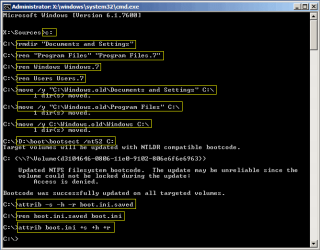
Just one important point I noticed when restoring XP using Windows.old:

Step 7 in tutorial, four first commands are correct. But Documents and Settings in Seven is a junction point, which, correct me if I'm wrong, can not be renamed. It can only be removed, therefore the last command shown in step 7 should be:
Code:
rmdir "C:\Documents and Settings"
Other than that, these instructions are perfect. I have now tested on two different computers, both had XP Pro SP3 before installing Seven. I have now successfully restored XP on both rigs, following these instructions with the mentioned change.

After restoring SP, everything works perfectly, XP being exactly what it was before installing Seven. All previously installed applications and software like Office 2003, old games and so on. All settings were restored, from desktop wallpaper and icon placing to Outlook rules.

Here's a screenshot of commands needed, the same than in original tutorial with that one change:

Upgrade_to_Seven_108.png

Kari
 

My Computer My Computer

Computer type
Laptop
Computer Manufacturer/Model Number
HP ENVY 17-1150eg
OS
Windows 10 Pro x64 EN-GB
CPU
1.6 GHz Intel Core i7-720QM Processor
Memory
6 GB
Graphics Card(s)
ATI Mobility Radeon HD 5850 Graphics
Sound Card
Beats sound system with integrated subwoofer
Monitor(s) Displays
17" laptop display, 22" LED and 32" Full HD TV through HDMI
Screen Resolution
1600*900 (1), 1920*1080 (2&3)
Hard Drives
Internal: 2 x 500 GB SATA Hard Disk Drive 7200 rpm
External: 2TB for backups, 3TB USB3 network drive for media
Cooling
As Envy runs a bit warm, I have it on a Cooler Master pad
Keyboard
Logitech diNovo Media Desktop Laser (bluetooth)
Mouse
Logitech Performance Mouse MX
Internet Speed
50/10 Mbps VDSL
Antivirus
Windows Defender 4.3.9431.0
Browser
Maxthon 3.5.2., IE11
Thanks Kari. Does my change look correct to you? I didn't have a chance to check it with XP.

~Lordbob
 

My Computer My Computer

Computer Manufacturer/Model Number
Hera
OS
Windows 7 Ultimate x64, Mint 9
CPU
Intel i5-2500k
Motherboard
ASUS P8P67 Pro
Memory
2x 4Gb Corsair VENGEANCE DDR3-1600
Graphics Card(s)
NVidia GeForce N260GTX Twin Frozr
Sound Card
Realtek HD OnBoard Audio
Monitor(s) Displays
ASUS 24" Monitor
Screen Resolution
1920x1080
Hard Drives
G.SKILL Phoenix Series 60GB SATA II MLC Internal Solid State Drive (SSD)
SAMSUNG Spinpoint F3R 1TB 7200 RPM 32MB Cache SATA II
PSU
Cooler Master Real Power Pro 750W
Case
Cooler Master Haf 932
Cooling
Fans
Keyboard
Razer Tarantula
Mouse
Razer Lachesis
Internet Speed
not fast enough
Yes, it's OK.

Without removing the junction point, you get Access denied error when trying to move XP's Document and Settings from Windows.old to root. I spent weekend "practicing" all possible upgrade and "revert back to old OS" scenarios, doing several in-place upgrades, normal upgrades, clean and custom installs, and every time trying to revert Seven back to XP got this error. Somehow my small brain refused to understand why i couldn't rename it, until I got it. You just can not rename a junction point with built-in tools. But because it's just a junction point, there's nothing to loose removing it completely, you can always use mklink /J to recreate it if needed, so removing it is the simplest solution.

I have to say it one more time: Absolutely perfect solution to those who don't want to keep Seven. In my tests at least, everything went perfectly. Every single program worked as before, all files and settings intact.

It's very good to know this really works!

Kari
 

My Computer My Computer

Computer type
Laptop
Computer Manufacturer/Model Number
HP ENVY 17-1150eg
OS
Windows 10 Pro x64 EN-GB
CPU
1.6 GHz Intel Core i7-720QM Processor
Memory
6 GB
Graphics Card(s)
ATI Mobility Radeon HD 5850 Graphics
Sound Card
Beats sound system with integrated subwoofer
Monitor(s) Displays
17" laptop display, 22" LED and 32" Full HD TV through HDMI
Screen Resolution
1600*900 (1), 1920*1080 (2&3)
Hard Drives
Internal: 2 x 500 GB SATA Hard Disk Drive 7200 rpm
External: 2TB for backups, 3TB USB3 network drive for media
Cooling
As Envy runs a bit warm, I have it on a Cooler Master pad
Keyboard
Logitech diNovo Media Desktop Laser (bluetooth)
Mouse
Logitech Performance Mouse MX
Internet Speed
50/10 Mbps VDSL
Antivirus
Windows Defender 4.3.9431.0
Browser
Maxthon 3.5.2., IE11
Thanks for testing that out Kari! Appreciated very much. Too bad I can't rep you...

~Lordbob
 

My Computer My Computer

Computer Manufacturer/Model Number
Hera
OS
Windows 7 Ultimate x64, Mint 9
CPU
Intel i5-2500k
Motherboard
ASUS P8P67 Pro
Memory
2x 4Gb Corsair VENGEANCE DDR3-1600
Graphics Card(s)
NVidia GeForce N260GTX Twin Frozr
Sound Card
Realtek HD OnBoard Audio
Monitor(s) Displays
ASUS 24" Monitor
Screen Resolution
1920x1080
Hard Drives
G.SKILL Phoenix Series 60GB SATA II MLC Internal Solid State Drive (SSD)
SAMSUNG Spinpoint F3R 1TB 7200 RPM 32MB Cache SATA II
PSU
Cooler Master Real Power Pro 750W
Case
Cooler Master Haf 932
Cooling
Fans
Keyboard
Razer Tarantula
Mouse
Razer Lachesis
Internet Speed
not fast enough
A bit more testing:

Even though I was already sure it works, I decided to do one more test. Installed Seven on my test rig once more, on top of XP creating Windows.old. After installation, I copied the Windows.old folder to an external HD and deleted it from the new Windows 7 installation. I "played" a few days with Seven, installed software and so on. This morning I copied the Windows.old folder back to Seven, and did the restore procedure.

Everything works as before, XP is restored to the smallest detail. For those reading this tutorial and wondering if it really works, I can only say that I have now tested it several times, different scenarios and it always works.

Amazing, when you think of it.

Kari
 

My Computer My Computer

Computer type
Laptop
Computer Manufacturer/Model Number
HP ENVY 17-1150eg
OS
Windows 10 Pro x64 EN-GB
CPU
1.6 GHz Intel Core i7-720QM Processor
Memory
6 GB
Graphics Card(s)
ATI Mobility Radeon HD 5850 Graphics
Sound Card
Beats sound system with integrated subwoofer
Monitor(s) Displays
17" laptop display, 22" LED and 32" Full HD TV through HDMI
Screen Resolution
1600*900 (1), 1920*1080 (2&3)
Hard Drives
Internal: 2 x 500 GB SATA Hard Disk Drive 7200 rpm
External: 2TB for backups, 3TB USB3 network drive for media
Cooling
As Envy runs a bit warm, I have it on a Cooler Master pad
Keyboard
Logitech diNovo Media Desktop Laser (bluetooth)
Mouse
Logitech Performance Mouse MX
Internet Speed
50/10 Mbps VDSL
Antivirus
Windows Defender 4.3.9431.0
Browser
Maxthon 3.5.2., IE11
A bit more testing:

Even though I was already sure it works, I decided to do one more test. Installed Seven on my test rig once more, on top of XP creating Windows.old. After installation, I copied the Windows.old folder to an external HD and deleted it from the new Windows 7 installation. I "played" a few days with Seven, installed software and so on. This morning I copied the Windows.old folder back to Seven, and did the restore procedure.

Everything works as before, XP is restored to the smallest detail. For those reading this tutorial and wondering if it really works, I can only say that I have now tested it several times, different scenarios and it always works.

Amazing, when you think of it.

Kari
Awesome Kari, thanks (again)!
Would rep you if I could.

~Lordbob
 

My Computer My Computer

Computer Manufacturer/Model Number
Hera
OS
Windows 7 Ultimate x64, Mint 9
CPU
Intel i5-2500k
Motherboard
ASUS P8P67 Pro
Memory
2x 4Gb Corsair VENGEANCE DDR3-1600
Graphics Card(s)
NVidia GeForce N260GTX Twin Frozr
Sound Card
Realtek HD OnBoard Audio
Monitor(s) Displays
ASUS 24" Monitor
Screen Resolution
1920x1080
Hard Drives
G.SKILL Phoenix Series 60GB SATA II MLC Internal Solid State Drive (SSD)
SAMSUNG Spinpoint F3R 1TB 7200 RPM 32MB Cache SATA II
PSU
Cooler Master Real Power Pro 750W
Case
Cooler Master Haf 932
Cooling
Fans
Keyboard
Razer Tarantula
Mouse
Razer Lachesis
Internet Speed
not fast enough
Lordbob - from the tutorial you illustrated....

My old version and new version are both Windows 7. When in command prompt, do I just replace all commands that include "Vista" with "Windows 7"?

I am looking to retrieve an old Excel spreadsheet that was located on my previous desktop...

Appreciate your help.

Witz
 

My Computer My Computer

Computer Manufacturer/Model Number
dell inspiron
OS
windows 7
CPU
?
Motherboard
?
Memory
?
Graphics Card(s)
?
Sound Card
?
Monitor(s) Displays
?
Hard Drives
?
PSU
?
Case
?
Cooling
?
Hi Witz, welcome to the Seven Forums.

The word "Vista" in this excellent tutorial by Lordbob is only used to rename some system folders. You can rename those as you want to, like this:
Code:
ren Windows Windows.Any.Name.You.Want.To.Use
The rename command's two parameters are current name (Windows in this example), and the new name (Windows.Any.Name.You.Want.To.Use in this example).

You can forget steps 9 and 10 if both new and old versions are Seven.

Kari
 

My Computer My Computer

Computer type
Laptop
Computer Manufacturer/Model Number
HP ENVY 17-1150eg
OS
Windows 10 Pro x64 EN-GB
CPU
1.6 GHz Intel Core i7-720QM Processor
Memory
6 GB
Graphics Card(s)
ATI Mobility Radeon HD 5850 Graphics
Sound Card
Beats sound system with integrated subwoofer
Monitor(s) Displays
17" laptop display, 22" LED and 32" Full HD TV through HDMI
Screen Resolution
1600*900 (1), 1920*1080 (2&3)
Hard Drives
Internal: 2 x 500 GB SATA Hard Disk Drive 7200 rpm
External: 2TB for backups, 3TB USB3 network drive for media
Cooling
As Envy runs a bit warm, I have it on a Cooler Master pad
Keyboard
Logitech diNovo Media Desktop Laser (bluetooth)
Mouse
Logitech Performance Mouse MX
Internet Speed
50/10 Mbps VDSL
Antivirus
Windows Defender 4.3.9431.0
Browser
Maxthon 3.5.2., IE11
I am a complete beginner at this and I was able to do it!

Many thanks to you.... I greatly appreciate your help!

Witz
 

My Computer My Computer

Computer Manufacturer/Model Number
dell inspiron
OS
windows 7
CPU
?
Motherboard
?
Memory
?
Graphics Card(s)
?
Sound Card
?
Monitor(s) Displays
?
Hard Drives
?
PSU
?
Case
?
Cooling
?
I am a complete beginner at this and I was able to do it!

Many thanks to you.... I greatly appreciate your help!

Witz
Thanks mate, glad it worked for you.

~Lordbob
 

My Computer My Computer

Computer Manufacturer/Model Number
Hera
OS
Windows 7 Ultimate x64, Mint 9
CPU
Intel i5-2500k
Motherboard
ASUS P8P67 Pro
Memory
2x 4Gb Corsair VENGEANCE DDR3-1600
Graphics Card(s)
NVidia GeForce N260GTX Twin Frozr
Sound Card
Realtek HD OnBoard Audio
Monitor(s) Displays
ASUS 24" Monitor
Screen Resolution
1920x1080
Hard Drives
G.SKILL Phoenix Series 60GB SATA II MLC Internal Solid State Drive (SSD)
SAMSUNG Spinpoint F3R 1TB 7200 RPM 32MB Cache SATA II
PSU
Cooler Master Real Power Pro 750W
Case
Cooler Master Haf 932
Cooling
Fans
Keyboard
Razer Tarantula
Mouse
Razer Lachesis
Internet Speed
not fast enough
Hey good job! But I have a question, is there a way to undo the above steps? I mean, what if I wanted to have the files back like before, i.e., delete the files .Vista including Windows.Vista, Program Files.Vista etc.
Any idea?
Thank you so much!!! :D
 

My Computer My Computer

OS
Windows 7 Ultimate x86
Hey good job! But I have a question, is there a way to undo the above steps? I mean, what if I wanted to have the files back like before, i.e., delete the files .Vista including Windows.Vista, Program Files.Vista etc.
Any idea?
Thank you so much!!! :D
I believe that you could just follow the order and reverse the names, putting it back the way it was. I have not tried or thought about it though.

~Lordbob
 

My Computer My Computer

Computer Manufacturer/Model Number
Hera
OS
Windows 7 Ultimate x64, Mint 9
CPU
Intel i5-2500k
Motherboard
ASUS P8P67 Pro
Memory
2x 4Gb Corsair VENGEANCE DDR3-1600
Graphics Card(s)
NVidia GeForce N260GTX Twin Frozr
Sound Card
Realtek HD OnBoard Audio
Monitor(s) Displays
ASUS 24" Monitor
Screen Resolution
1920x1080
Hard Drives
G.SKILL Phoenix Series 60GB SATA II MLC Internal Solid State Drive (SSD)
SAMSUNG Spinpoint F3R 1TB 7200 RPM 32MB Cache SATA II
PSU
Cooler Master Real Power Pro 750W
Case
Cooler Master Haf 932
Cooling
Fans
Keyboard
Razer Tarantula
Mouse
Razer Lachesis
Internet Speed
not fast enough
thanks! what about step 9? how would you write the line for it to boot in Win 7?
 

My Computer My Computer

OS
Windows 7 Ultimate x86
Same as for Vista - they are both nt6.
 

My Computers My Computers

System One System Two

  • Computer type
    PC/Desktop
    OS
    7 X64
    CPU
    i5 8400
    Motherboard
    gigabyte b365m ds3h
    Memory
    2x8gb 3200mhz
    Hard Drives
    various
    PSU
    pure power 11 400w cm
    Case
    Coolermaster
    Cooling
    cryorig m9i
  • Computer type
    PC/Desktop
    OS
    7x64
    CPU
    g5400
    Motherboard
    ga b365m ds3h
    Memory
    8gb ddr4 2400
    PSU
    xfx pro 450w
Back
Top