
How to Enable or Disable Windows Updates from Automatically Restarting the Computer
Information
This will show you how to enable or disable Vista, Windows 7, or Windows 8 from automatically restarting the computer after 5 minutes of installing a Windows Update that requires a restart to finish installing.
Warning
Even though if you disable automatic restart for Windows Update, you will still be required to restart the computer to finish installing the Windows Update. However, you will be able to do this when you are able to instead of it doing it automatically while you were working on something and losing it.
Tip
After you install an important update in Windows 8 and 8.1, you receive a notice that you have to restart the PC in three days. If the restart does not occur in three days, the PC displays a 15-minute countdown and then automatically restarts. By default, this automatic restart is delayed if the PC is locked, and the countdown will begin the next time that you sign in to the PC.
A new feature is now available that lets you force automatic restarts to finish installing important updates, regardless of whether you are at the PC. You can change to this new restart behavior through the following new registry key value that was introduced in the April 2013 Windows 8 cumulative update (2822241).
See also: How to force automatic restarts after important updates in Windows 8
and
Minimizing restarts after automatic updating in Windows Update - Building Windows 8 - Site Home - MSDN Blogs
A new feature is now available that lets you force automatic restarts to finish installing important updates, regardless of whether you are at the PC. You can change to this new restart behavior through the following new registry key value that was introduced in the April 2013 Windows 8 cumulative update (2822241).
See also: How to force automatic restarts after important updates in Windows 8
and
Minimizing restarts after automatic updating in Windows Update - Building Windows 8 - Site Home - MSDN Blogs
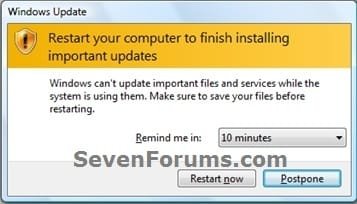
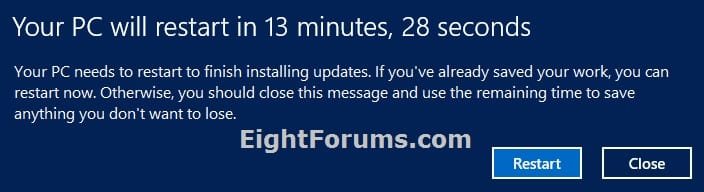
EXAMPLE: Windows Update Restart Prompt
NOTE: Enabled (left screenshot), disabled (right screenshot), Windows 8 on bottom

OPTION ONE
Using a REG File Download
1. To Enable Windows Update Automatic Restart
NOTE: This is the default setting.
A) Click on the Download button below to download the file below, and go to step 3 below.
Enable_Windows_Update_Auto_Restart.reg
Download
2. To Disable Windows Update Automatic Restart
A) Click on the Download button below to download the file below, and go to step 3 below.
Disable_Windows_Update_Auto_Restart.reg
Download
3. Save the .reg file to your desktop.
4. Double click/tap on the downloaded .reg file to merge it.
5. If prompted, click/tap on Run, Yes (UAC-Windows 7/8) or Continue (UAC-Vista), Yes, and OK to approve the mege.
6. Log off and log on, or restart the computer to apply.
7. When finished, you can delete the downloaded .reg file if you like.
OPTION TWO
Through the Local Group Policy Editor
1. Open the Local Group Policy Editor.
2. In the left pane, click/tap on the arrow to expand Computer Configuration, Administrative Templates, Windows Components, then click/tap on Windows Update. (see screenshot below)
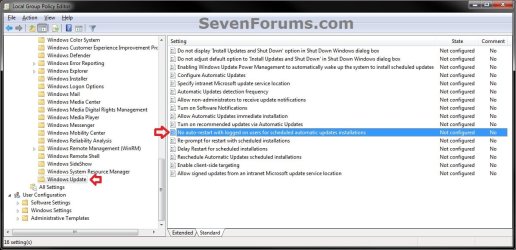
3. In the right pane of Windows Update, double click/tap on No auto-restart with logged on users for scheduled automatic updates installations to edit it. (see screenshot above)
4. To Enable Windows Update Automatic Restart
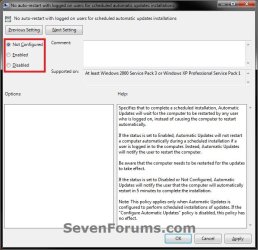
A) Select (dot) Not Configured or Disabled, and go to step 6 below. (see screenshot below step 6)
NOTE: Not Configured is the default setting.
5. To Disable Windows Update Automatic Restart
A) Select (dot) Enabled, and go to step 6 below. (see screenshot below step 6)
6. Click/tap on OK. (see screenshot below)
7. Close the Local Group Policy Editor.
That's it,
Shawn
Related Tutorials
- How to Check for and Install Windows Updates in Windows 8
- How to Create a "Windows Update" Shortcut in Windows 7
- How to Change the Windows Update Settings in Windows 7
- How to Turn Automatic Updating On or Off in Windows 8
- How to View Windows Update History Details in Windows 7 and Windows 8
- How to Uninstall a Windows Update in Windows 7
- How to Hide or Restore Hidden Windows Updates in Windows 7 and Windows 8
- How to Create a "Installed Windows Updates" Shortcut in Windows 7
- How to Create a "Windows Update Troubleshoot" Shortcut in Windows 7
- How to Enable or Disable Access to Windows Updates in Windows 7
- How to Reset Windows Update in Vista, Windows 7, and Windows 8
- How to Enable or Disable the Windows Update "Who can install updates" Setting
- How to Download the Standalone MSU Installer File of a Windows Update
- How to Enable or Disable "Install Updates and Shut Down" Option in Windows 7
- How to Change "Install Updates and Shut Down" as Default Choice in Shut Down Windows Dialog
Attachments
Last edited:


