Windows Update Shortcut - Create in Windows 7

How to Create a "Windows Update" Shortcut in Windows 7


   Information
This will show you how to create or download a Windows Update shortcut in Windows 7.


EXAMPLE: Windows Update
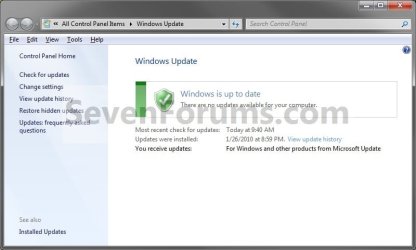
Windows_Update.jpg


OPTION ONE

To Download a "Windows Update" Shortcut

1. Click on the Download button below to download the file below. Windows_Update.zip


Download


2. Click on Save, and save the .zip file to the desktop.

3. Open the .zip file and extract the Windows Update shortcut to the desktop.

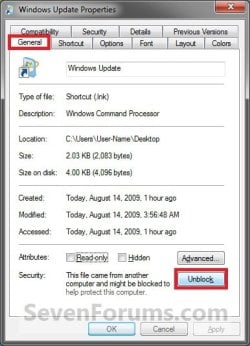
4. Right click on the Windows Update shortcut, and click on Properties, General tab, and on the Unblock button. (see screenshot below)
NOTE: If you do not have a Unblock button under the General tab, then the shortcut is already unblocked and you can continue on to step 5. Unblock.jpg
5. You can now Pin to Taskbar or Pin to Start Menu this shortcut, assign a keyboard shortcut to it, or move it where you like for easy use.

6. When done, you can delete the downloaded .zip file on the desktop if you like, or save it to use again.


OPTION TWO

To Manually Create a "Windows Update" Shortcut

1. Right click on a empty area on the desktop, and click on New and Shortcut.

2. Copy and Paste either location below into the location area, and click on the Next button. (see screenshot below) %windir%\System32\rundll32.exe url.dll,FileProtocolHandler wuapp.exe

OR

%windir%\explorer.exe shell:::{36eef7db-88ad-4e81-ad49-0e313f0c35f8}
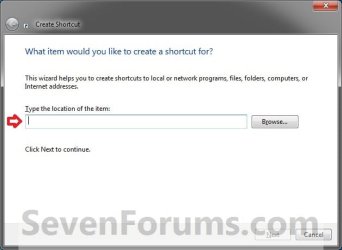
Step1.jpg
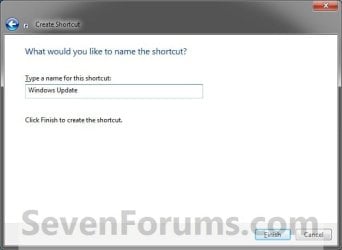
3. Type Windows Update for the name, and click on the Finish button. (see screenshot below)
NOTE: You can name this anything you would like though. Step2.jpg
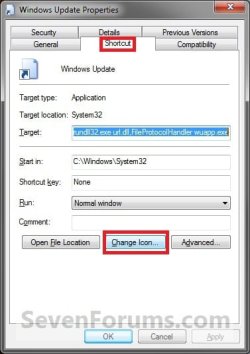
4. Right click on the new Windows Update shortcut on the Desktop and click on Properties.

5. Click on the Change Icon button. (see screenshot below) Step3.jpg
6. In the line under "Look for icons in this file", type the location below and press Enter. (see screenshot below) %windir%\system32\wucltux.dll

Step5.jpg
7. Select the icon highlighted in blue above and click on OK. (see screenshot above)
NOTE: You can use any icon that you would like instead though.

8. Click on OK. (see screenshot below) Step6.jpg
9. You can now Pin to Taskbar or Pin to Start Menu this shortcut, assign a keyboard shortcut to it, or move it where you like for easy use.
That's it,
Shawn


Attachments

Last edited:
Hello Silkfire, and welcome to Seven Forums.

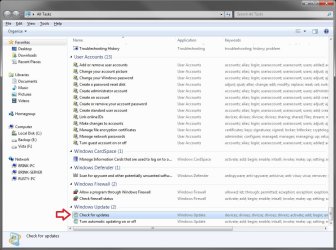
When I use the Check for updates shortcut in the Control Panel All Tasks list, it only opens to the same location as in this Windows Update shortcut here. It doesn't automatically check for updates upon opening Windows Update either. Does it for you? :confused:

All_Tasks.jpg
 

My Computer

Computer type
PC/Desktop
Computer Manufacturer/Model Number
Self built custom
OS
64-bit Windows 11 Pro for Workstations
CPU
Intel i7-8700K OC'd to 5 GHz
Motherboard
ASUS ROG Maximus XI Formula Z390
Memory
64 GB (4x16GB) G.SKILL TridentZ RGB DDR4 3600 MHz
Graphics Card(s)
ASUS ROG-STRIX-GTX1080TI-O11G-GAMING
Sound Card
Integrated
Monitor(s) Displays
2 x Samsung Odyssey G7 27"
Screen Resolution
2560x1440
Hard Drives
1TB Samsung 990 PRO M.2,
4TB Samsung 990 PRO PRO M.2,
TerraMaster F8 SSD Plus NAS
PSU
Seasonic Prime Titanium 850W
Case
Thermaltake Core P3
Cooling
Corsair Hydro H115i
Keyboard
Logitech wireless K800
Mouse
Logitech MX Master 4
Internet Speed
2 Gb/s Download and 100 Mb/s Upload
Antivirus
Malwarebyte Anti-Malware Premium
Browser
Google Chrome
Other Info
Logitech Z625 speaker system,
Logitech BRIO 4K Pro webcam,
HP Color LaserJet Pro MFP M477fdn,
APC SMART-UPS RT 1000 XL - SURT1000XLI,
Galaxy S23 Plus phone
I found an easier way a couple of weeks ago. Try holding down a SHIFT key then right click on the Windows Update icon wherever you find it. Then the Pin option will magically appear.

This works for many of the "unpinable" items in W7.

I believe that it worked the same way in Vista, but not positive about that.

Ron
 
Last edited by a moderator:

My Computer

Computer Manufacturer/Model Number
Office & Home(Vista, Business) Dell, Portable Acer Netbook
OS
Windows 7
Screen Resolution
Highest possible
Mouse
MS Wireless
Hello Ron, and thank you for sharing.

True, that would give you the "Pin to Start Menu" option, but unfortunately it will still not give you the "Pin to taskbar" option.
 

My Computer

Computer type
PC/Desktop
Computer Manufacturer/Model Number
Self built custom
OS
64-bit Windows 11 Pro for Workstations
CPU
Intel i7-8700K OC'd to 5 GHz
Motherboard
ASUS ROG Maximus XI Formula Z390
Memory
64 GB (4x16GB) G.SKILL TridentZ RGB DDR4 3600 MHz
Graphics Card(s)
ASUS ROG-STRIX-GTX1080TI-O11G-GAMING
Sound Card
Integrated
Monitor(s) Displays
2 x Samsung Odyssey G7 27"
Screen Resolution
2560x1440
Hard Drives
1TB Samsung 990 PRO M.2,
4TB Samsung 990 PRO PRO M.2,
TerraMaster F8 SSD Plus NAS
PSU
Seasonic Prime Titanium 850W
Case
Thermaltake Core P3
Cooling
Corsair Hydro H115i
Keyboard
Logitech wireless K800
Mouse
Logitech MX Master 4
Internet Speed
2 Gb/s Download and 100 Mb/s Upload
Antivirus
Malwarebyte Anti-Malware Premium
Browser
Google Chrome
Other Info
Logitech Z625 speaker system,
Logitech BRIO 4K Pro webcam,
HP Color LaserJet Pro MFP M477fdn,
APC SMART-UPS RT 1000 XL - SURT1000XLI,
Galaxy S23 Plus phone
Shawn,
Thanks for the tutorial as in one of my cleanings I'd removed many shortcuts, but this one I use and my solutions were non-ideal.
 

My Computer

Computer Manufacturer/Model Number
Toshiba Satellite S875D-S7239 laptop
OS
MS Windows 7 Ultimate SP1 64-bit
CPU
AMD A10-4600M
Motherboard
AMD Pumori (Socket FT1)
Memory
6.00 GB Dual-Channel DDR3 @ 798MHz (11-11-12-28)
Graphics Card(s)
AMD Radeon HD 7660G
Sound Card
High Definition Audio Device
Monitor(s) Displays
Generic PnP Monitor (1600x900@60Hz)
Screen Resolution
1600x900@60Hz
Hard Drives
SSD 119GB Corsair CSSD-V128GB2 ATA Device
Keyboard
Standard PS/2 Keyboard
Mouse
HP Wireless Optical Mobile Mouse Model FHA-3410
Internet Speed
What the local pub, local coffee shop offers.
Other Info
Optical Drive:MATSHITA BD-CMB UJ160B ATA Device


Also have an Asus ha1002xp netbook with Win 7 Ultimate installed.
You're most welcome Karl. :)
 

My Computer

Computer type
PC/Desktop
Computer Manufacturer/Model Number
Self built custom
OS
64-bit Windows 11 Pro for Workstations
CPU
Intel i7-8700K OC'd to 5 GHz
Motherboard
ASUS ROG Maximus XI Formula Z390
Memory
64 GB (4x16GB) G.SKILL TridentZ RGB DDR4 3600 MHz
Graphics Card(s)
ASUS ROG-STRIX-GTX1080TI-O11G-GAMING
Sound Card
Integrated
Monitor(s) Displays
2 x Samsung Odyssey G7 27"
Screen Resolution
2560x1440
Hard Drives
1TB Samsung 990 PRO M.2,
4TB Samsung 990 PRO PRO M.2,
TerraMaster F8 SSD Plus NAS
PSU
Seasonic Prime Titanium 850W
Case
Thermaltake Core P3
Cooling
Corsair Hydro H115i
Keyboard
Logitech wireless K800
Mouse
Logitech MX Master 4
Internet Speed
2 Gb/s Download and 100 Mb/s Upload
Antivirus
Malwarebyte Anti-Malware Premium
Browser
Google Chrome
Other Info
Logitech Z625 speaker system,
Logitech BRIO 4K Pro webcam,
HP Color LaserJet Pro MFP M477fdn,
APC SMART-UPS RT 1000 XL - SURT1000XLI,
Galaxy S23 Plus phone
Another way is to use target "C:\Windows\System32\wuauclt.exe /ShowWU". This shortcut has the Windows Update icon inherently, and it can be pinned to the taskbar. If you want to immediately check for updates like silkfire, you can add AutoScan to the switch:
"C:\Windows\System32\wuauclt.exe /ShowWUAutoScan"

https://technet.microsoft.com/en-us/library/cc720477(v=ws.10).aspx
 

My Computer

Computer type
PC/Desktop
OS
Windows 7 Ultimate x64
How 'bout in the All Programs list?

I tell you, I learned so much from reading all your posts on the Windows Update to Start Menu and/or Taskbar.
My problem is restoring the Windows Update shortcut to the All Programs list (Start, All Programs).
I "cleverly" deleted it to keep our users from seeing it and I'd like to restore it.
Thanks to all of you, I do have it on the Start Menu now.
Any ideas on this variation?
Many, many thanks in advance!
(Windows 7,32-bit, Professional)
 

My Computer

OS
windows 7

My Computer

Computer type
PC/Desktop
Computer Manufacturer/Model Number
Self built custom
OS
64-bit Windows 11 Pro for Workstations
CPU
Intel i7-8700K OC'd to 5 GHz
Motherboard
ASUS ROG Maximus XI Formula Z390
Memory
64 GB (4x16GB) G.SKILL TridentZ RGB DDR4 3600 MHz
Graphics Card(s)
ASUS ROG-STRIX-GTX1080TI-O11G-GAMING
Sound Card
Integrated
Monitor(s) Displays
2 x Samsung Odyssey G7 27"
Screen Resolution
2560x1440
Hard Drives
1TB Samsung 990 PRO M.2,
4TB Samsung 990 PRO PRO M.2,
TerraMaster F8 SSD Plus NAS
PSU
Seasonic Prime Titanium 850W
Case
Thermaltake Core P3
Cooling
Corsair Hydro H115i
Keyboard
Logitech wireless K800
Mouse
Logitech MX Master 4
Internet Speed
2 Gb/s Download and 100 Mb/s Upload
Antivirus
Malwarebyte Anti-Malware Premium
Browser
Google Chrome
Other Info
Logitech Z625 speaker system,
Logitech BRIO 4K Pro webcam,
HP Color LaserJet Pro MFP M477fdn,
APC SMART-UPS RT 1000 XL - SURT1000XLI,
Galaxy S23 Plus phone
Back
Top