Windows Virtual PC - Boot from a CD in Virtual Machine

How to Boot from a CD or DVD in a Windows Virtual PC


   Information
This will show you how to boot from a CD or DVD in an existing virtual machine, including XP Mode, created in Windows Virtual PC.
   Note
In a virtual machine you will need to use a ISO of the bootable CD/DVD to boot from instead. If you do not have a ISO of the bootable CD/DVD, then you can use a free program like ISO Recorder or ISODisk to create a ISO from the CD/DVD.


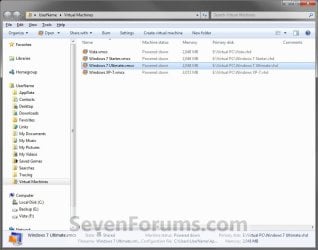
Here's How: 1. If the virtual machine is open, then you will need to shut down and close it first.

2. Open the settings of the virtual machine.

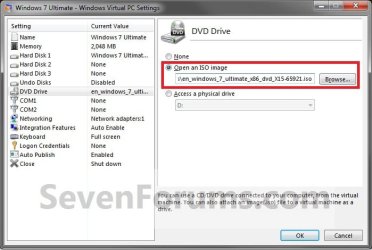
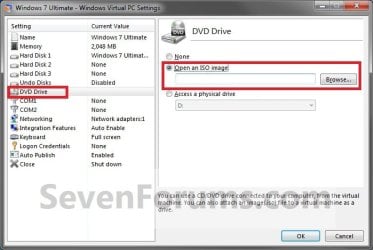
3. In the left pane select DVD Drive, then select (dot) Open an ISO image in the right pane. Click on the Browse button and navigate to the location of the ISO file of the CD/DVD, then select the ISO file and double click on it. (see screenshots below) Settings-1.jpg
Settings-2.jpg

4. In the left pane select Integration Features, then make sure that the Enable at startup box in the right pane is unchecked. (see screenshot below) Settings-3.jpg
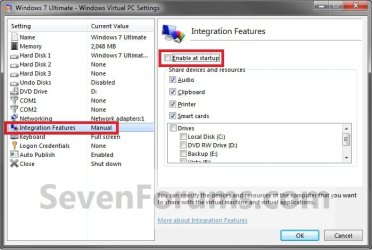
5. Click on OK. (see screenshot above)

6. Start the virtual machine. (see screenshots below) Step1.jpg
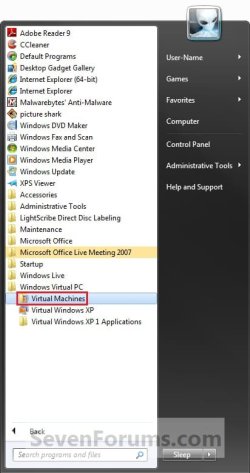
VM.jpg

7. While the virtual machine is starting, tap the Delete key every second until you see the virtual BIOS Setup Utility screen. (see screenshot below step 8)
   Note
You will only have a few brief seconds to press the Delete key. If you miss it, you will need to restart the virtual machine and try again.

You could also click on Action (menu bar) and Restart.
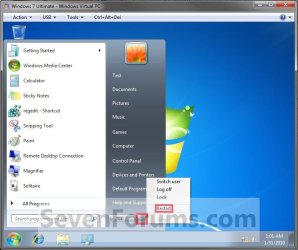
Restart.jpg


8. Using the arrow keys, select the Boot menu bar item, then select Boot Device Priority and press enter. (see screenshot below) BIOS-1.jpg
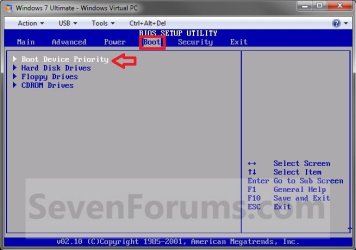
9. Select 1st Boot Device and press enter to change it to have CDROM listed as the 1st Boot Device and Hard Drive as the 2nd Boot Device. When done press the ESC (escape) key. (see screenshot below) BIOS-2.jpg
10. Select the Exit menu bar item, then select Exit Saving Changes and press enter. (see screenshot below) BIOS-3.jpg
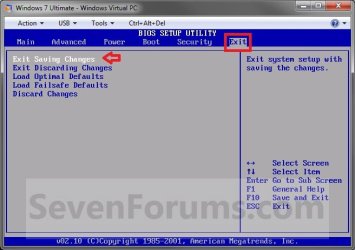
11. Select OK, and press enter. (see screenshot below) BIOS-4.jpg
12. When you see the Press any key to boot from CD or DVD message, press a key (ex: spacebar) to boot from the ISO made from the CD or DVD.
   Note
You will only have 8 seconds to press a key when you see this message. If you miss it, you will need to restart the virtual machine and try again.

Restart.jpg
press_any_key.jpg
13. When you are finished, you can select (dot) None in step 3 above to stop having the option to boot from the ISO.
That's it,
Shawn


Last edited:
You did it. Thanks.

Kari
 

My Computer

Computer type
Laptop
Computer Manufacturer/Model Number
HP ENVY 17-1150eg
OS
Windows 10 Pro x64 EN-GB
CPU
1.6 GHz Intel Core i7-720QM Processor
Memory
6 GB
Graphics Card(s)
ATI Mobility Radeon HD 5850 Graphics
Sound Card
Beats sound system with integrated subwoofer
Monitor(s) Displays
17" laptop display, 22" LED and 32" Full HD TV through HDMI
Screen Resolution
1600*900 (1), 1920*1080 (2&3)
Hard Drives
Internal: 2 x 500 GB SATA Hard Disk Drive 7200 rpm
External: 2TB for backups, 3TB USB3 network drive for media
Cooling
As Envy runs a bit warm, I have it on a Cooler Master pad
Keyboard
Logitech diNovo Media Desktop Laser (bluetooth)
Mouse
Logitech Performance Mouse MX
Internet Speed
50/10 Mbps VDSL
Antivirus
Windows Defender 4.3.9431.0
Browser
Maxthon 3.5.2., IE11
You're welcome Kari. Thank you. :)
 

My Computer

Computer type
PC/Desktop
Computer Manufacturer/Model Number
Self built custom
OS
64-bit Windows 11 Pro for Workstations
CPU
Intel i7-8700K OC'd to 5 GHz
Motherboard
ASUS ROG Maximus XI Formula Z390
Memory
64 GB (4x16GB) G.SKILL TridentZ RGB DDR4 3600 MHz
Graphics Card(s)
ASUS ROG-STRIX-GTX1080TI-O11G-GAMING
Sound Card
Integrated
Monitor(s) Displays
2 x Samsung Odyssey G7 27"
Screen Resolution
2560x1440
Hard Drives
1TB Samsung 990 PRO M.2,
4TB Samsung 990 PRO PRO M.2,
TerraMaster F8 SSD Plus NAS
PSU
Seasonic Prime Titanium 850W
Case
Thermaltake Core P3
Cooling
Corsair Hydro H115i
Keyboard
Logitech wireless K800
Mouse
Logitech MX Master 4
Internet Speed
2 Gb/s Download and 100 Mb/s Upload
Antivirus
Malwarebyte Anti-Malware Premium
Browser
Google Chrome
Other Info
Logitech Z625 speaker system,
Logitech BRIO 4K Pro webcam,
HP Color LaserJet Pro MFP M477fdn,
APC SMART-UPS RT 1000 XL - SURT1000XLI,
Galaxy S23 Plus phone
Wow, it is working, thanks! How can it is not doucmented some where by microsoft.
And it seems that you must set step 4 even after you did BIOS setup, is it ture?
 

My Computer

OS
win 7 pro
You're welcome Oldman,

I'm sure that Microsoft probably has it documented somewhere.

Setting the integrated features to be enable or disabled from within the VM only affects that current session. It needs to be done from the VM settings in step 4 before the VM is opened to be able to boot to the BIOS in the VM. That's all. :)
 

My Computer

Computer type
PC/Desktop
Computer Manufacturer/Model Number
Self built custom
OS
64-bit Windows 11 Pro for Workstations
CPU
Intel i7-8700K OC'd to 5 GHz
Motherboard
ASUS ROG Maximus XI Formula Z390
Memory
64 GB (4x16GB) G.SKILL TridentZ RGB DDR4 3600 MHz
Graphics Card(s)
ASUS ROG-STRIX-GTX1080TI-O11G-GAMING
Sound Card
Integrated
Monitor(s) Displays
2 x Samsung Odyssey G7 27"
Screen Resolution
2560x1440
Hard Drives
1TB Samsung 990 PRO M.2,
4TB Samsung 990 PRO PRO M.2,
TerraMaster F8 SSD Plus NAS
PSU
Seasonic Prime Titanium 850W
Case
Thermaltake Core P3
Cooling
Corsair Hydro H115i
Keyboard
Logitech wireless K800
Mouse
Logitech MX Master 4
Internet Speed
2 Gb/s Download and 100 Mb/s Upload
Antivirus
Malwarebyte Anti-Malware Premium
Browser
Google Chrome
Other Info
Logitech Z625 speaker system,
Logitech BRIO 4K Pro webcam,
HP Color LaserJet Pro MFP M477fdn,
APC SMART-UPS RT 1000 XL - SURT1000XLI,
Galaxy S23 Plus phone
I can't seem to get past step 7. Every time I boot up the virtual pc (XP Mode), I tap the DELETE button like a mad man, but to no avail. The OS just takes over. Should I try some other buttons - F10, or something?

Never mind, I figured it out. Thanks
 
Last edited by a moderator:

My Computer

Computer Manufacturer/Model Number
microsoft
OS
windows7 pro 64 bit
CPU
ADM Phenom II X4 965 3.4GHZ
Motherboard
MSI 790GX-G65
Memory
8 ram
Monitor(s) Displays
accer p244w lcd
Hard Drives
Western Digital Caviar Black 1 TB Bulk/OEM Hard Drive 3.5 Inch, 32 MB Cache, 7200 RPM SATA II WD1001FALS
PSU
Thermaltake W0117RU ToughPower 750W Black PFC Power Supply w
Case
Antec Three Hundred Gaming Case
Hello Badboy,

I'm happy to hear that you figured it out. What turned out to be the solution for you?
 

My Computer

Computer type
PC/Desktop
Computer Manufacturer/Model Number
Self built custom
OS
64-bit Windows 11 Pro for Workstations
CPU
Intel i7-8700K OC'd to 5 GHz
Motherboard
ASUS ROG Maximus XI Formula Z390
Memory
64 GB (4x16GB) G.SKILL TridentZ RGB DDR4 3600 MHz
Graphics Card(s)
ASUS ROG-STRIX-GTX1080TI-O11G-GAMING
Sound Card
Integrated
Monitor(s) Displays
2 x Samsung Odyssey G7 27"
Screen Resolution
2560x1440
Hard Drives
1TB Samsung 990 PRO M.2,
4TB Samsung 990 PRO PRO M.2,
TerraMaster F8 SSD Plus NAS
PSU
Seasonic Prime Titanium 850W
Case
Thermaltake Core P3
Cooling
Corsair Hydro H115i
Keyboard
Logitech wireless K800
Mouse
Logitech MX Master 4
Internet Speed
2 Gb/s Download and 100 Mb/s Upload
Antivirus
Malwarebyte Anti-Malware Premium
Browser
Google Chrome
Other Info
Logitech Z625 speaker system,
Logitech BRIO 4K Pro webcam,
HP Color LaserJet Pro MFP M477fdn,
APC SMART-UPS RT 1000 XL - SURT1000XLI,
Galaxy S23 Plus phone
I had trouble at step 7 too...

This is a great little how to, thanks for this.

When I got to step 7 I couldn't get the system to recognize the DEL key. I had integration auto-enabled and keyboard set to "full screen".

I toggled integration off and set the keyboard to "virtual machine" (probably unnecessarily) and closed the machine, then restarted it. Got into the BIOS, set the CDROM to boot first, closed the BIOS and rebooted to the ISO I wanted.

After I reset a password (my whole reason to this was to crack the password I forgot last year sometime), I shut the machine down, turned integration back on and set the keyboard back, and its working fine. It's now presenting as a windowed VM rather than hiding the bootup, which is also nice.

Anyway, thanks!
 

My Computer

OS
Win7 Pro and ultimate 64 bit
You're welcome Decker, and welcome to Seven Forums. :)
 

My Computer

Computer type
PC/Desktop
Computer Manufacturer/Model Number
Self built custom
OS
64-bit Windows 11 Pro for Workstations
CPU
Intel i7-8700K OC'd to 5 GHz
Motherboard
ASUS ROG Maximus XI Formula Z390
Memory
64 GB (4x16GB) G.SKILL TridentZ RGB DDR4 3600 MHz
Graphics Card(s)
ASUS ROG-STRIX-GTX1080TI-O11G-GAMING
Sound Card
Integrated
Monitor(s) Displays
2 x Samsung Odyssey G7 27"
Screen Resolution
2560x1440
Hard Drives
1TB Samsung 990 PRO M.2,
4TB Samsung 990 PRO PRO M.2,
TerraMaster F8 SSD Plus NAS
PSU
Seasonic Prime Titanium 850W
Case
Thermaltake Core P3
Cooling
Corsair Hydro H115i
Keyboard
Logitech wireless K800
Mouse
Logitech MX Master 4
Internet Speed
2 Gb/s Download and 100 Mb/s Upload
Antivirus
Malwarebyte Anti-Malware Premium
Browser
Google Chrome
Other Info
Logitech Z625 speaker system,
Logitech BRIO 4K Pro webcam,
HP Color LaserJet Pro MFP M477fdn,
APC SMART-UPS RT 1000 XL - SURT1000XLI,
Galaxy S23 Plus phone
That worked... with one slight change...

First of all, great work on the research and original post. Overall the process worked. One exception I had, since I had joined the VM to a domain which locked out the administrator account by Group Policy, then fallen off the domain due to the token expiration (hadn't logged in for over 90 days)... was that I needed to load my Hiren's CD so I could clear the built-in administrator account lockout... In my csae, I had to disable integration features, otherwise by Group Policy, I was not able to log in interactively using any account... after I disabled that feature, the rest of your walk through worked perfectly. Thank you.
 

My Computer

Computer Manufacturer/Model Number
Dell Optiplex 780
OS
Windows 7 64bit Enterprise
CPU
x64
Memory
8GB
Graphics Card(s)
AMD 3000 series PCI
Hard Drives
Silicon Image 3124 PCI to Sata 4ch Raid in 4xR5 configuration managing 4 1TB disks (appx 3TB total storage).
Thank you for the addition slipdipidis. :)
 

My Computer

Computer type
PC/Desktop
Computer Manufacturer/Model Number
Self built custom
OS
64-bit Windows 11 Pro for Workstations
CPU
Intel i7-8700K OC'd to 5 GHz
Motherboard
ASUS ROG Maximus XI Formula Z390
Memory
64 GB (4x16GB) G.SKILL TridentZ RGB DDR4 3600 MHz
Graphics Card(s)
ASUS ROG-STRIX-GTX1080TI-O11G-GAMING
Sound Card
Integrated
Monitor(s) Displays
2 x Samsung Odyssey G7 27"
Screen Resolution
2560x1440
Hard Drives
1TB Samsung 990 PRO M.2,
4TB Samsung 990 PRO PRO M.2,
TerraMaster F8 SSD Plus NAS
PSU
Seasonic Prime Titanium 850W
Case
Thermaltake Core P3
Cooling
Corsair Hydro H115i
Keyboard
Logitech wireless K800
Mouse
Logitech MX Master 4
Internet Speed
2 Gb/s Download and 100 Mb/s Upload
Antivirus
Malwarebyte Anti-Malware Premium
Browser
Google Chrome
Other Info
Logitech Z625 speaker system,
Logitech BRIO 4K Pro webcam,
HP Color LaserJet Pro MFP M477fdn,
APC SMART-UPS RT 1000 XL - SURT1000XLI,
Galaxy S23 Plus phone
Back
Top