Windows XP Mode - Install and Setup

How to Install and Setup Windows XP Mode in Windows 7


   Information
Windows XP Mode is 32-bit XP Pro SP3 virtual machine.

Windows XP Mode for Windows 7 makes it easy to install and run your applications for 32-bit Windows XP directly from your Windows 7 32-bit or 64-bit based PC. It utilizes virtualization technology such as Windows Virtual PC to provide a Virtual Windows XP environment for Windows 7. Windows XP Mode provides only Windows 7 Professional, Ultimate, or Enterprise users the flexibility to run many older productivity applications in a virtual Windows XP environment on a Windows 7-based PC.

UPDATE: Windows XP Mode now accessible to more PCs | Blogging Windows

   Note
Windows Virtual PC (step 1 below) is the latest Microsoft virtualization technology for Windows 7. It is the runtime engine for Windows XP Mode to provide a virtual Windows environment for Windows 7. With Windows Virtual PC, Windows XP mode applications can be seen and accessed from a Windows 7-based PC. For more detailed information about Windows Virtual PC, see Windows Virtual PC: Documentation

To find out whether your computer's CPU is capable of hardware-assisted virtualization. To check, download and run the Hardware-Assisted Virtualization Detection Tool.
  • If you receive the message “This computer is configured with hardware-assisted virtualization,” you can run Windows Virtual PC and Windows XP Mode. See the instructions below.
  • If you receive the error message "There is no hardware-assisted virtualization support in the system," your computer's CPU doesn't support hardware-assisted virtualization. You can still use Windows XP Mode by installing an update to Windows 7. See Why am I receiving errors about hardware-assisted virtualization (HAV) when I try to use Windows XP Mode and Windows Virtual PC?. Be aware that XP Mode will run much better if hardware-assisted virtualization can be enabled.
   Tip


   Warning
Windows Virtual PC Requirements:
  • 1 GHz 32-bit / 64-bit processor required
  • Memory (RAM)
    • 1.25 GB required, 2 GB memory recommended
  • Recommended 15 GB hard disk space per virtual Windows environment
  • Supported host (your computer) operating system:
    NOTE: Windows XP Mode can only be installed on Windows 7 Professional, Windows 7 Ultimate, and Windows 7 Enterprise.
    • Windows 7 Home Premium (32-bit or 64-bit)
    • Windows 7 Professional (32-bit and 64-bit)
    • Windows 7 Ultimate (32-bit and 64-bit)
    • Windows 7 Enterprise (32-bit and 64-bit)
  • Supported guest (virtual machine) 32-bit only operating system:
    • Windows XP
      • Virtual Applications feature is supported only on Windows XP Service Pack 3 (SP3) Professional
    • Windows Vista
      • Virtual Applications feature is supported only on Windows Vista Enterprise and Windows Vista Ultimate
    • Windows 7
      • Virtual Applications feature is supported only on Windows 7 Enterprise and Windows 7 Ultimate
EXAMPLE: Windows XP Mode
Example.jpg
Here's How:
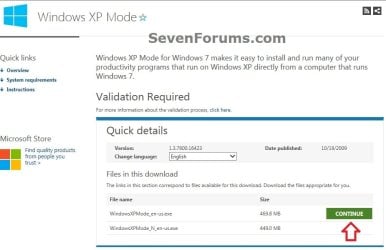
1. Go to the Windows XP Mode webpage, select your language, and click on the Continue button. (see screenshot below)
XP-Mode-1.jpg
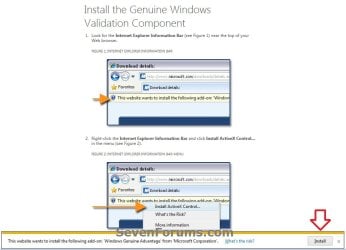
2. If you have not already, you will need to validate your Windows 7 first. Click on Install to install the Genuine Windows Validation Component, or follow on screen instructions. (see screenshot below)
NOTE: You will need to have Windows 7 activated and cookies enabled to be able to do this.
Validate-1.jpg
3. Download and Install Windows XP Mode
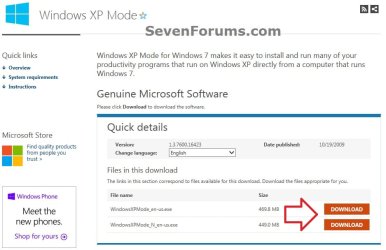
A) Select your language, and click on the Download button for the version (ex: WindowsXPMode_en-us.exe) you want to download. (see screenshot below)
NOTE: The "N" version of Windows XP is for the European version of Windows.
XP-Mode-2.jpg
B) Save the WindowsXPMode_en-us.exe file to your desktop.
C) Double click on the downloaded WindowsXPMode_en-us.exe installation file to start installing it.
NOTE: The part of the name in red will vary for you depending on what language you selected (step 1).

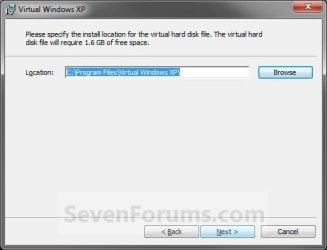
D) Click on the Next button. (see screenshot below)
NOTE: If you like, you could click on Browse and select another location to save the VHD file for XP Mode to instead of the default location in the screenshot below.
Install_VXP-1.jpg
E) Click on the Next button. (see screenshot below)
Install_VXP-UAC-2.jpg
F) If prompted by UAC, click on Yes.

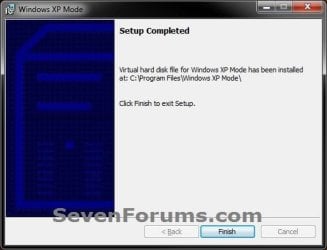
G) When Windows XP Mode is finished installing, click on the Finish button. (See screenshot below)
Install_VXP-3.jpg
4. Download and Install Windows Virtual PC
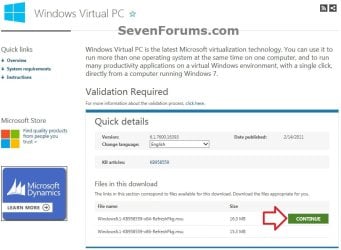
A) At the Windows Virtual PC webpage, select your language, and click on the Continue button. (see screenshot below)
Windows_Virtual-PC-1.jpg
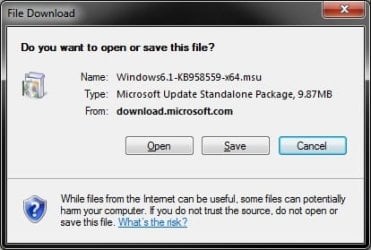
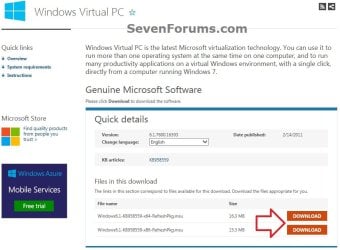
B) Select your language, and click on the Download button for either the Windows6.1-KB958559-x86-RefreshPkg.msu (32-bit) or Windows6.1-KB958559-x64-RefreshPkg.msu (64-bit) file for your same 32-bit or 64-bit Windows 7 version you have installed.

C) Save the Windows6.1-KB958559-x86-RefreshPkg.msu or Windows6.1-KB958559-x64-RefreshPkg.msu file to your desktop. (see screenshot below)
Windows_Virtual-PC-2.jpg
D) Double click on the downloaded Windows6.1-KB958559-x86-RefreshPkg.msu or Windows6.1-KB958559-x64-RefreshPkg.msu file to start installing it.

E) If prompted by UAC, click on Yes.
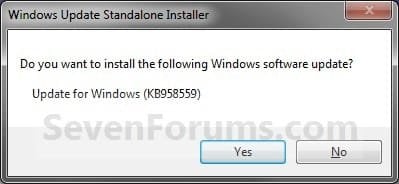
F) Click on Yes. (see screenshot below)
Install-1.jpg
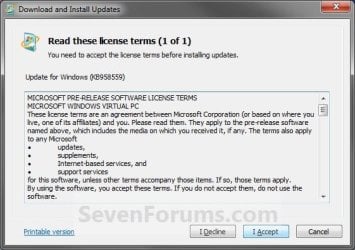
G) Click on the I Accept button. (see screenshot below)
Install-2.jpg
H) When it is finished, click on the Restart Now button. (see screenshot below)
WARNING: This will restart your computer immediately. Be sure to save and close anything that you have open first.
Install-3.jpg
I) When the computer is finished restarting, continue on to step 6 below.
5. To Open and Run Windows XP Mode
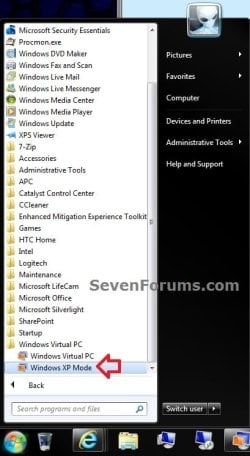
A) Open the Start Menu, then click on All Programs, expand the Windows Virtual PC folder, and double click on the Windows XP Mode shortcut. (see screenshot below)
XP-1.jpg
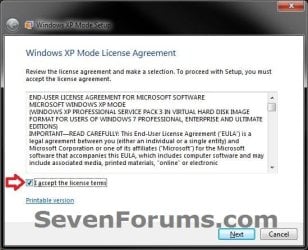
6. Check the I accept box, then click on the Next button. (see screenshot below)
Step1B.jpg
7. Type in a password and type it in again to confirm it, then click on the Next button. (see screenshot below)
NOTE: If you would like to be logged on automatically whenever you open Windows XP Mode (step 5), then check the Remember credentials box.
XP-2.jpg
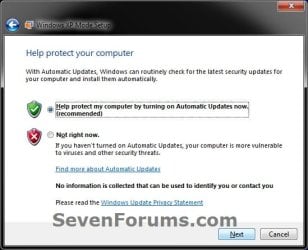
8. Select (dot) the Help protect my computer by turning on Automatic Updates now box, then click on the Next button. (see screenshot below)
XP-3.jpg
9. Click on the Start Setup button. (see screenshot below)
XP-4.jpg
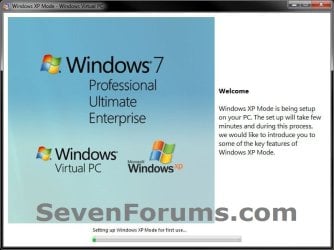
10. You will now see this for a few moments while Windows XP Mode is being setup. (see screeshot below)
Step4B.jpg
11. When setup is finished and you did not check the Remember credentials box in step 7 above, then you will need to enter your password entered and click on OK. If you did, then skip this and continue on to step 12. (see screenshot below)
XP-5.jpg
12. The Windows XP Mode - Windows Virtual PC window will now open. You are now in Windows XP Mode. (see screenshot below)
Example.jpg
13. Next, be sure to install Integration Components and enable Integration Features.
NOTE: Sometimes this will be enabled for you automatically during installation.

14. Set Windows XP Mode Settings
A) In the Windows XP Mode window, click on Tools (menu bar) and Settings. (see screenshot above)

B) In the left pane, select Close/Shut Down. (see screenshot below)
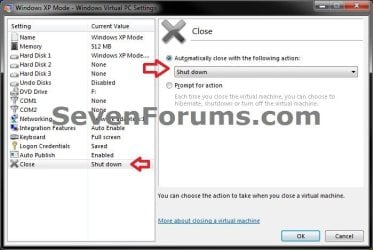
Shut-Down.jpg
C) In the right pane, select (dot) Automatically close with the following action, then select Shut Down and click on OK. (see screenshot above)
15. To Close Windows XP Mode
A) Click on the X in the upper right corner of the Windows XP Mode window like you would any other window in Windows 7. (see screenshot below step 19)

OR

B) In the Windows XP Mode window, click on Action (menu bar) and Close. (see screenshot below step 16)
16. Installing a Program in Windows XP Mode
NOTE: You would install a program in Virtual Windows XP just like you would in Windows 7 with the same access to everything in Windows 7. For example, hard drives, DVD drives, USB drives, Windows 7 folders and files, etc.....
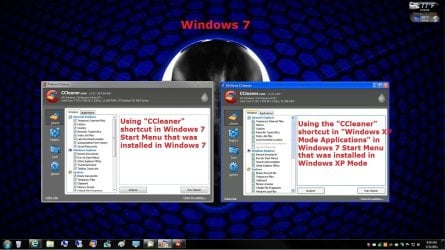
A) After you have installed any program (ex: CCleaner) in Windows XP Mode, you will notice that there will now also be a shortcut to it in the Windows 7 Start Menu in the Windows XP Mode Applications folder under Windows Virtual PC and Windows XP Mode. (see screenshot below)
NOTE: Double clicking on the program's shortcut (ex: CCleaner) in the Windows 7 Start Menu when Windows XP Mode is closed will open and run the program in Windows 7 but as if it you were running it in Windows XP Mode. You could also move or copy this Windows XP Mode Applications shortcut where you like in Windows 7 for easy use.
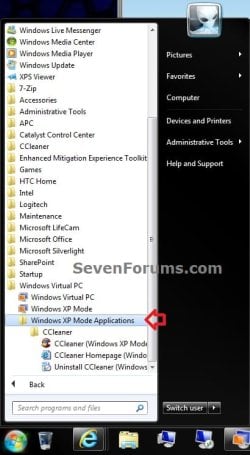
XP-6.jpg

Program_Example.jpg

That's it,
Shawn


Attachments

  • Virtual-PC_Save.jpg
    Virtual-PC_Save.jpg
    40 KB · Views: 2,157
Last edited:
Just one thing that may need to be noted:

The 3rd step in the update process, as I understand it, (as highlighted by airbot in another post) is not really needed if you have BIOS support for virtualization. Is that correct? So don't bother to download/install the last (Windows6.1-KB977206-x64.msu) if you have BIOS support for virtuallization. Right?


Hello Bit64z,

While the Windows XP Mode Update download may be optional for PCs with Hardware Assisted Virtualization Technology, it will not hurt anything to install it to be safe if one is not sure if they do or not. I installed it on my system with BIOS support, and it works without issue. I added a note though. :)
 

My Computer

Computer type
PC/Desktop
Computer Manufacturer/Model Number
Self built custom
OS
64-bit Windows 11 Pro for Workstations
CPU
Intel i7-8700K OC'd to 5 GHz
Motherboard
ASUS ROG Maximus XI Formula Z390
Memory
64 GB (4x16GB) G.SKILL TridentZ RGB DDR4 3600 MHz
Graphics Card(s)
ASUS ROG-STRIX-GTX1080TI-O11G-GAMING
Sound Card
Integrated
Monitor(s) Displays
2 x Samsung Odyssey G7 27"
Screen Resolution
2560x1440
Hard Drives
1TB Samsung 990 PRO M.2,
4TB Samsung 990 PRO PRO M.2,
TerraMaster F8 SSD Plus NAS
PSU
Seasonic Prime Titanium 850W
Case
Thermaltake Core P3
Cooling
Corsair Hydro H115i
Keyboard
Logitech wireless K800
Mouse
Logitech MX Master 4
Internet Speed
2 Gb/s Download and 100 Mb/s Upload
Antivirus
Malwarebyte Anti-Malware Premium
Browser
Google Chrome
Other Info
Logitech Z625 speaker system,
Logitech BRIO 4K Pro webcam,
HP Color LaserJet Pro MFP M477fdn,
APC SMART-UPS RT 1000 XL - SURT1000XLI,
Galaxy S23 Plus phone
Hi Shawn

I test XP mode out on an old P4-1800, ram 2g last week, works well, bit slow but OK.

Ray
 

My Computer

OS
ME/XP/Vista/Win7
Wow, but I have W7 Home Premium, so it appears it will not run XP mode (old applications). That said, trying it did find Palm Desk Top and Synchronization as two of the many applications that my version of W7 could not run. I plowed ahead and ended with a sequence that looked hopeful, but failed. The process went into a Palm Desk Top Synchro mode, but alas, I could not establish a connection either USB Cable or USB IR Dongle. :confused:
 

My Computer

OS
Windows 7 Home Premium
Error when trying to start XP MODE

I followed the Xp Mode tutorial up until it was time to Open XP Mode. START.....PROGRAMS.......WINDOWS Virtual PC.......WINDOWS XP MODE and got a message( see attached) which told me "it won't work".
What might be wrong?

I am using W7 Ultimate 32bit.
3gh AMD Athlon 64 X2 Dual Core Processor
2 gb RAM
ASUS M3A78-EM Mother Board
More than 20gb free space on system disk prior to XP mode installation.
 

Attachments

  • Capture.JPG
    Capture.JPG
    36.8 KB · Views: 238

My Computer

Computer type
Laptop
Computer Manufacturer/Model Number
Asus
OS
W7 Ultimate
CPU
2.2 bh Intel Core i3-2330M
Motherboard
Asustek Computer Inc. P53E 1.0
Memory
4MB
Graphics Card(s)
On Board
Sound Card
On Board
Monitor(s) Displays
On Board
Screen Resolution
1366 X 768
Hard Drives
ST9500423AS
ST2000DM USB Backup Drive External
Working OK now. Second install did it.
 

My Computer

Computer type
Laptop
Computer Manufacturer/Model Number
Asus
OS
W7 Ultimate
CPU
2.2 bh Intel Core i3-2330M
Motherboard
Asustek Computer Inc. P53E 1.0
Memory
4MB
Graphics Card(s)
On Board
Sound Card
On Board
Monitor(s) Displays
On Board
Screen Resolution
1366 X 768
Hard Drives
ST9500423AS
ST2000DM USB Backup Drive External
Window XP Mode

Is Window XP Mode is not for the windows 7 Home Basic (64 Bit) o s. If no please reply me how can I use this facility on my laptop(O. S.)
 

My Computer

OS
Windows 7 Home Basic (64 bit)
Hello Jiashutosh, welcome to the Seven Forums.

To use XP Mode you need to have Seven Professional, Ultimate or Enterprise.

Kari
 

My Computer

Computer type
Laptop
Computer Manufacturer/Model Number
HP ENVY 17-1150eg
OS
Windows 10 Pro x64 EN-GB
CPU
1.6 GHz Intel Core i7-720QM Processor
Memory
6 GB
Graphics Card(s)
ATI Mobility Radeon HD 5850 Graphics
Sound Card
Beats sound system with integrated subwoofer
Monitor(s) Displays
17" laptop display, 22" LED and 32" Full HD TV through HDMI
Screen Resolution
1600*900 (1), 1920*1080 (2&3)
Hard Drives
Internal: 2 x 500 GB SATA Hard Disk Drive 7200 rpm
External: 2TB for backups, 3TB USB3 network drive for media
Cooling
As Envy runs a bit warm, I have it on a Cooler Master pad
Keyboard
Logitech diNovo Media Desktop Laser (bluetooth)
Mouse
Logitech Performance Mouse MX
Internet Speed
50/10 Mbps VDSL
Antivirus
Windows Defender 4.3.9431.0
Browser
Maxthon 3.5.2., IE11
All this loading etc, and no one has yet remarked on what success, if any, they have had in using it for older applications etc.

So far I've tried two XP ONLY games and although both installed correctly, when you try to start them it asks for the disk, when the disk is already in,

By the way the games are Civilization IV and Alexander.

The Computer window shows the disk in the drive, right click to auto play, as the disk does not autoplay.

I may be missing something as I haven't used XP for nearly 3 years.

No trouble whatsoever downloading XP mode into 64 bit 7 pro
 

My Computer

Computer Manufacturer/Model Number
Home build.
OS
Vista Ultimate 32 bit, Win 7 Pro 32 bit, Win 7 Pro 64 bit
CPU
Intel i5 CPU 750 @ 2.67 GHZ, OC 3.7 GHZ
Motherboard
Asus P7P55D
Memory
4 Gig
Graphics Card(s)
Nvidia GeForce GTS450
Monitor(s) Displays
Acer 24"
Screen Resolution
1440 x 900
Hard Drives
1000 GIG
1000 GIG
PSU
650
Case
Antec Nine Hundred Two
Internet Speed
14 MB (APPROX)
I don't know if I'm putting this in the right place. I have created VHD and then went through this tutorial perfect except that I wasn't watching close enough and let it create it's own VHD on my SSD instead of putting it on F where I had one created. I tried to change to it but I can't seem to do it.
is there a way to change it?
will it be faster on the SSD than on the old drive (WD 360)?

Brink; I tried to rep and it keeps telling me that I need to spread it around , but I have given rep to others in the mean time am I doing something wrong? Thanks anyway for both VHD and Virtual PC tutorials. This forum is the best I've found.
 

My Computer

Computer Manufacturer/Model Number
home
OS
win7 profesional 64bit
CPU
amd phenom
Motherboard
asus m3a78-cm
Memory
4g ddr2
Graphics Card(s)
ati radeon 3100 onboard
Hard Drives
intel ssds2a2m080 wd caviar 320g,win7
PSU
us robotics 450
Case
good question
Cooling
coolermaster heatsink, two silenex case fan
Keyboard
compaq
Mouse
kingston turborig trackball
Internet Speed
xplornet sattelite(you never know one min. to the next)
Hello Sphred, and welcome to Seven Forums.

Since Windows XP Mode installs like a program, you will just need to uninstall it from Programs and Features in the Control Panel first. Afterwards reinstall it, being sure to select your SSD instead, and the XP-Mode Update KB977206. It shouldn't take to long to do. :)

Hope this helps,
Shawn
 

My Computer

Computer type
PC/Desktop
Computer Manufacturer/Model Number
Self built custom
OS
64-bit Windows 11 Pro for Workstations
CPU
Intel i7-8700K OC'd to 5 GHz
Motherboard
ASUS ROG Maximus XI Formula Z390
Memory
64 GB (4x16GB) G.SKILL TridentZ RGB DDR4 3600 MHz
Graphics Card(s)
ASUS ROG-STRIX-GTX1080TI-O11G-GAMING
Sound Card
Integrated
Monitor(s) Displays
2 x Samsung Odyssey G7 27"
Screen Resolution
2560x1440
Hard Drives
1TB Samsung 990 PRO M.2,
4TB Samsung 990 PRO PRO M.2,
TerraMaster F8 SSD Plus NAS
PSU
Seasonic Prime Titanium 850W
Case
Thermaltake Core P3
Cooling
Corsair Hydro H115i
Keyboard
Logitech wireless K800
Mouse
Logitech MX Master 4
Internet Speed
2 Gb/s Download and 100 Mb/s Upload
Antivirus
Malwarebyte Anti-Malware Premium
Browser
Google Chrome
Other Info
Logitech Z625 speaker system,
Logitech BRIO 4K Pro webcam,
HP Color LaserJet Pro MFP M477fdn,
APC SMART-UPS RT 1000 XL - SURT1000XLI,
Galaxy S23 Plus phone
that makes perfect sense i thought i might be able to do it through tools. thanks
 

My Computer

Computer Manufacturer/Model Number
home
OS
win7 profesional 64bit
CPU
amd phenom
Motherboard
asus m3a78-cm
Memory
4g ddr2
Graphics Card(s)
ati radeon 3100 onboard
Hard Drives
intel ssds2a2m080 wd caviar 320g,win7
PSU
us robotics 450
Case
good question
Cooling
coolermaster heatsink, two silenex case fan
Keyboard
compaq
Mouse
kingston turborig trackball
Internet Speed
xplornet sattelite(you never know one min. to the next)
You're welcome Sphred.

Yeah, if it was a VHD that you created within Windows Virtual PC, then you could of just moved the VHD to the SSD, and changed the "Hard Disk 1" location in the virtual machine's settings to the new location of the VHD.
 

My Computer

Computer type
PC/Desktop
Computer Manufacturer/Model Number
Self built custom
OS
64-bit Windows 11 Pro for Workstations
CPU
Intel i7-8700K OC'd to 5 GHz
Motherboard
ASUS ROG Maximus XI Formula Z390
Memory
64 GB (4x16GB) G.SKILL TridentZ RGB DDR4 3600 MHz
Graphics Card(s)
ASUS ROG-STRIX-GTX1080TI-O11G-GAMING
Sound Card
Integrated
Monitor(s) Displays
2 x Samsung Odyssey G7 27"
Screen Resolution
2560x1440
Hard Drives
1TB Samsung 990 PRO M.2,
4TB Samsung 990 PRO PRO M.2,
TerraMaster F8 SSD Plus NAS
PSU
Seasonic Prime Titanium 850W
Case
Thermaltake Core P3
Cooling
Corsair Hydro H115i
Keyboard
Logitech wireless K800
Mouse
Logitech MX Master 4
Internet Speed
2 Gb/s Download and 100 Mb/s Upload
Antivirus
Malwarebyte Anti-Malware Premium
Browser
Google Chrome
Other Info
Logitech Z625 speaker system,
Logitech BRIO 4K Pro webcam,
HP Color LaserJet Pro MFP M477fdn,
APC SMART-UPS RT 1000 XL - SURT1000XLI,
Galaxy S23 Plus phone
I like to play around with things from CNET and other places. Can I do that here and know that if I mess something up I can just delete and reinstall? This was why I wanted it as a sandbox of sorts.
 

My Computer

Computer Manufacturer/Model Number
home
OS
win7 profesional 64bit
CPU
amd phenom
Motherboard
asus m3a78-cm
Memory
4g ddr2
Graphics Card(s)
ati radeon 3100 onboard
Hard Drives
intel ssds2a2m080 wd caviar 320g,win7
PSU
us robotics 450
Case
good question
Cooling
coolermaster heatsink, two silenex case fan
Keyboard
compaq
Mouse
kingston turborig trackball
Internet Speed
xplornet sattelite(you never know one min. to the next)
Hello Sphred,

Sure, you would need to leave Windows Virtual PC installed, but you can uninstall Windows XP Mode and reinstall it and possibly Windows XP Mode Update to have a fresh Windows XP Mode again. It's not secured like a true sandbox though since Windows XP Mode does integrate some with your installed Windows 7. For example, being able to have shortcuts of installed program in Windows XP Mode in Windows 7 to run as if they were running in Windows XP Mode.

Hope this helps,
Shawn
 

My Computer

Computer type
PC/Desktop
Computer Manufacturer/Model Number
Self built custom
OS
64-bit Windows 11 Pro for Workstations
CPU
Intel i7-8700K OC'd to 5 GHz
Motherboard
ASUS ROG Maximus XI Formula Z390
Memory
64 GB (4x16GB) G.SKILL TridentZ RGB DDR4 3600 MHz
Graphics Card(s)
ASUS ROG-STRIX-GTX1080TI-O11G-GAMING
Sound Card
Integrated
Monitor(s) Displays
2 x Samsung Odyssey G7 27"
Screen Resolution
2560x1440
Hard Drives
1TB Samsung 990 PRO M.2,
4TB Samsung 990 PRO PRO M.2,
TerraMaster F8 SSD Plus NAS
PSU
Seasonic Prime Titanium 850W
Case
Thermaltake Core P3
Cooling
Corsair Hydro H115i
Keyboard
Logitech wireless K800
Mouse
Logitech MX Master 4
Internet Speed
2 Gb/s Download and 100 Mb/s Upload
Antivirus
Malwarebyte Anti-Malware Premium
Browser
Google Chrome
Other Info
Logitech Z625 speaker system,
Logitech BRIO 4K Pro webcam,
HP Color LaserJet Pro MFP M477fdn,
APC SMART-UPS RT 1000 XL - SURT1000XLI,
Galaxy S23 Plus phone
Thanx I figured that since it was integrated, but it's nice to hear it from someone who knows. Will have to keep sandboxie for the funny stuff I guess.
 

My Computer

Computer Manufacturer/Model Number
home
OS
win7 profesional 64bit
CPU
amd phenom
Motherboard
asus m3a78-cm
Memory
4g ddr2
Graphics Card(s)
ati radeon 3100 onboard
Hard Drives
intel ssds2a2m080 wd caviar 320g,win7
PSU
us robotics 450
Case
good question
Cooling
coolermaster heatsink, two silenex case fan
Keyboard
compaq
Mouse
kingston turborig trackball
Internet Speed
xplornet sattelite(you never know one min. to the next)
You're welcome Sphred. :)
 

My Computer

Computer type
PC/Desktop
Computer Manufacturer/Model Number
Self built custom
OS
64-bit Windows 11 Pro for Workstations
CPU
Intel i7-8700K OC'd to 5 GHz
Motherboard
ASUS ROG Maximus XI Formula Z390
Memory
64 GB (4x16GB) G.SKILL TridentZ RGB DDR4 3600 MHz
Graphics Card(s)
ASUS ROG-STRIX-GTX1080TI-O11G-GAMING
Sound Card
Integrated
Monitor(s) Displays
2 x Samsung Odyssey G7 27"
Screen Resolution
2560x1440
Hard Drives
1TB Samsung 990 PRO M.2,
4TB Samsung 990 PRO PRO M.2,
TerraMaster F8 SSD Plus NAS
PSU
Seasonic Prime Titanium 850W
Case
Thermaltake Core P3
Cooling
Corsair Hydro H115i
Keyboard
Logitech wireless K800
Mouse
Logitech MX Master 4
Internet Speed
2 Gb/s Download and 100 Mb/s Upload
Antivirus
Malwarebyte Anti-Malware Premium
Browser
Google Chrome
Other Info
Logitech Z625 speaker system,
Logitech BRIO 4K Pro webcam,
HP Color LaserJet Pro MFP M477fdn,
APC SMART-UPS RT 1000 XL - SURT1000XLI,
Galaxy S23 Plus phone
How can I run XP Mode without being a local admin on the host (physical) PC
 

My Computer

Computer Manufacturer/Model Number
Custom Built
OS
Windows 7 Home Premium 64-Bit
CPU
Intel® Core™2 Quad Q6600 G0
Motherboard
Asus P5K
Memory
4GB OCZ DDR2 800
Graphics Card(s)
EVGA GeForce GTX 460 1024MB
Sound Card
Mobo Built-in
Monitor(s) Displays
Benq V2400W
Screen Resolution
1920x1200
Hard Drives
1TB
PSU
Corsair HX620
Case
Coolermaster Cosmos 1000
Cooling
Air
Keyboard
Logitech G15 Gaming Keyboard
Mouse
Logitech Gaming Mouse G500
Internet Speed
Roger's Extreme
Other Info
Logitech Z-5500 THX® Certified 5.1
Hello BoxterDuke,

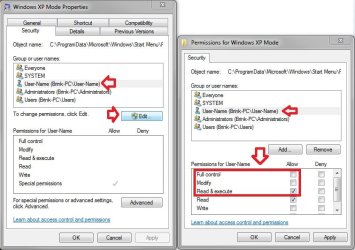
You would have to have the administrator right click on the Windows XP Mode shortcut in your Start Menu, and Allow your user account at least Read & execute or above permissions to be able to.


Permissions.jpg

Hope this helps,
Shawn
 
Last edited:

My Computer

Computer type
PC/Desktop
Computer Manufacturer/Model Number
Self built custom
OS
64-bit Windows 11 Pro for Workstations
CPU
Intel i7-8700K OC'd to 5 GHz
Motherboard
ASUS ROG Maximus XI Formula Z390
Memory
64 GB (4x16GB) G.SKILL TridentZ RGB DDR4 3600 MHz
Graphics Card(s)
ASUS ROG-STRIX-GTX1080TI-O11G-GAMING
Sound Card
Integrated
Monitor(s) Displays
2 x Samsung Odyssey G7 27"
Screen Resolution
2560x1440
Hard Drives
1TB Samsung 990 PRO M.2,
4TB Samsung 990 PRO PRO M.2,
TerraMaster F8 SSD Plus NAS
PSU
Seasonic Prime Titanium 850W
Case
Thermaltake Core P3
Cooling
Corsair Hydro H115i
Keyboard
Logitech wireless K800
Mouse
Logitech MX Master 4
Internet Speed
2 Gb/s Download and 100 Mb/s Upload
Antivirus
Malwarebyte Anti-Malware Premium
Browser
Google Chrome
Other Info
Logitech Z625 speaker system,
Logitech BRIO 4K Pro webcam,
HP Color LaserJet Pro MFP M477fdn,
APC SMART-UPS RT 1000 XL - SURT1000XLI,
Galaxy S23 Plus phone
I have XP Mode working; I have a HTPC, the frontend software that I have been using for a long time, is no longer supported. I was able to load it in the xp mode and is working except for 1 big detail. I have a button that when depressed starts media player classic, problem is I have it set to start the mpc in windows 7 pro 64bit. IT starts no problem but it starts inside xp mode which of course will not run. I need to have mpc start in win 7. I tried mapping the C drive but that did not work either. The program still starts inside xp mode. Is there a way to start a program from xp mode desktop but run on the win 7 side? I use 2 monitors 1 for the frontend software 2nd for viewing.
Any Help is greatly appreciated...............
Jerry
 

My Computer

Computer Manufacturer/Model Number
Clone
OS
Win. 7 Pro 64
CPU
Duo Core
Motherboard
Asus P5B-VM
Memory
3 g
Graphics Card(s)
Sapphire HD5670 1G
Sound Card
use Video Card HDMI pass through
Monitor(s) Displays
Panasonic 3D TC-P65VT25 / 10 inch touch screen
Hard Drives
3 x 1T / 2 x 500 g
Case
Thermatake
Hello Jerry, welcome to the Seven Forums.

Because of the limitations of Remote Desktop Protocol, you can not start a program in remote client (virtual host) from remote host (virtual guest, XP Mode in your case). I just answered a similar question a few days ago, read this.

Kari
 

My Computer

Computer type
Laptop
Computer Manufacturer/Model Number
HP ENVY 17-1150eg
OS
Windows 10 Pro x64 EN-GB
CPU
1.6 GHz Intel Core i7-720QM Processor
Memory
6 GB
Graphics Card(s)
ATI Mobility Radeon HD 5850 Graphics
Sound Card
Beats sound system with integrated subwoofer
Monitor(s) Displays
17" laptop display, 22" LED and 32" Full HD TV through HDMI
Screen Resolution
1600*900 (1), 1920*1080 (2&3)
Hard Drives
Internal: 2 x 500 GB SATA Hard Disk Drive 7200 rpm
External: 2TB for backups, 3TB USB3 network drive for media
Cooling
As Envy runs a bit warm, I have it on a Cooler Master pad
Keyboard
Logitech diNovo Media Desktop Laser (bluetooth)
Mouse
Logitech Performance Mouse MX
Internet Speed
50/10 Mbps VDSL
Antivirus
Windows Defender 4.3.9431.0
Browser
Maxthon 3.5.2., IE11
Back
Top