Windows XP Mode - Install and Setup

How to Install and Setup Windows XP Mode in Windows 7


   Information
Windows XP Mode is 32-bit XP Pro SP3 virtual machine.

Windows XP Mode for Windows 7 makes it easy to install and run your applications for 32-bit Windows XP directly from your Windows 7 32-bit or 64-bit based PC. It utilizes virtualization technology such as Windows Virtual PC to provide a Virtual Windows XP environment for Windows 7. Windows XP Mode provides only Windows 7 Professional, Ultimate, or Enterprise users the flexibility to run many older productivity applications in a virtual Windows XP environment on a Windows 7-based PC.

UPDATE: Windows XP Mode now accessible to more PCs | Blogging Windows

   Note
Windows Virtual PC (step 1 below) is the latest Microsoft virtualization technology for Windows 7. It is the runtime engine for Windows XP Mode to provide a virtual Windows environment for Windows 7. With Windows Virtual PC, Windows XP mode applications can be seen and accessed from a Windows 7-based PC. For more detailed information about Windows Virtual PC, see Windows Virtual PC: Documentation

To find out whether your computer's CPU is capable of hardware-assisted virtualization. To check, download and run the Hardware-Assisted Virtualization Detection Tool.
  • If you receive the message “This computer is configured with hardware-assisted virtualization,” you can run Windows Virtual PC and Windows XP Mode. See the instructions below.
  • If you receive the error message "There is no hardware-assisted virtualization support in the system," your computer's CPU doesn't support hardware-assisted virtualization. You can still use Windows XP Mode by installing an update to Windows 7. See Why am I receiving errors about hardware-assisted virtualization (HAV) when I try to use Windows XP Mode and Windows Virtual PC?. Be aware that XP Mode will run much better if hardware-assisted virtualization can be enabled.
   Tip


   Warning
Windows Virtual PC Requirements:
  • 1 GHz 32-bit / 64-bit processor required
  • Memory (RAM)
    • 1.25 GB required, 2 GB memory recommended
  • Recommended 15 GB hard disk space per virtual Windows environment
  • Supported host (your computer) operating system:
    NOTE: Windows XP Mode can only be installed on Windows 7 Professional, Windows 7 Ultimate, and Windows 7 Enterprise.
    • Windows 7 Home Premium (32-bit or 64-bit)
    • Windows 7 Professional (32-bit and 64-bit)
    • Windows 7 Ultimate (32-bit and 64-bit)
    • Windows 7 Enterprise (32-bit and 64-bit)
  • Supported guest (virtual machine) 32-bit only operating system:
    • Windows XP
      • Virtual Applications feature is supported only on Windows XP Service Pack 3 (SP3) Professional
    • Windows Vista
      • Virtual Applications feature is supported only on Windows Vista Enterprise and Windows Vista Ultimate
    • Windows 7
      • Virtual Applications feature is supported only on Windows 7 Enterprise and Windows 7 Ultimate
EXAMPLE: Windows XP Mode
Example.jpg
Here's How:
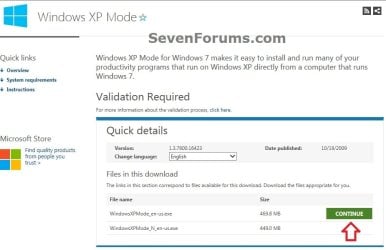
1. Go to the Windows XP Mode webpage, select your language, and click on the Continue button. (see screenshot below)
XP-Mode-1.jpg
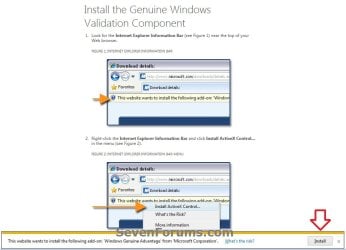
2. If you have not already, you will need to validate your Windows 7 first. Click on Install to install the Genuine Windows Validation Component, or follow on screen instructions. (see screenshot below)
NOTE: You will need to have Windows 7 activated and cookies enabled to be able to do this.
Validate-1.jpg
3. Download and Install Windows XP Mode
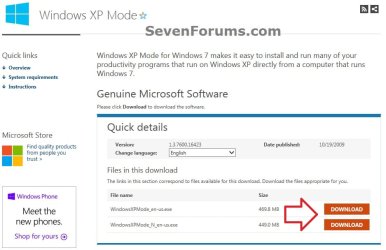
A) Select your language, and click on the Download button for the version (ex: WindowsXPMode_en-us.exe) you want to download. (see screenshot below)
NOTE: The "N" version of Windows XP is for the European version of Windows.
XP-Mode-2.jpg
B) Save the WindowsXPMode_en-us.exe file to your desktop.
C) Double click on the downloaded WindowsXPMode_en-us.exe installation file to start installing it.
NOTE: The part of the name in red will vary for you depending on what language you selected (step 1).

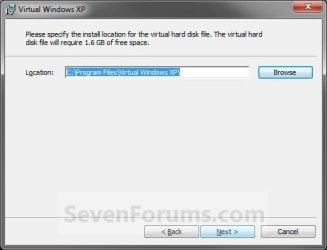
D) Click on the Next button. (see screenshot below)
NOTE: If you like, you could click on Browse and select another location to save the VHD file for XP Mode to instead of the default location in the screenshot below.
Install_VXP-1.jpg
E) Click on the Next button. (see screenshot below)
Install_VXP-UAC-2.jpg
F) If prompted by UAC, click on Yes.

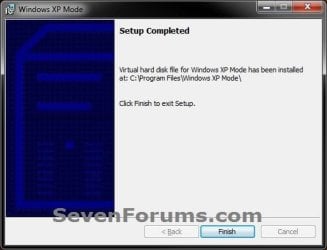
G) When Windows XP Mode is finished installing, click on the Finish button. (See screenshot below)
Install_VXP-3.jpg
4. Download and Install Windows Virtual PC
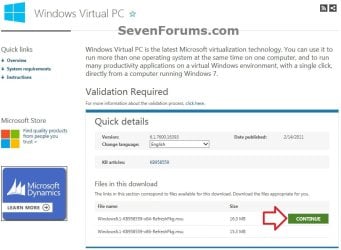
A) At the Windows Virtual PC webpage, select your language, and click on the Continue button. (see screenshot below)
Windows_Virtual-PC-1.jpg
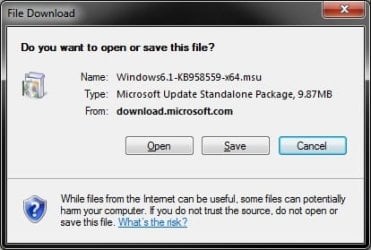
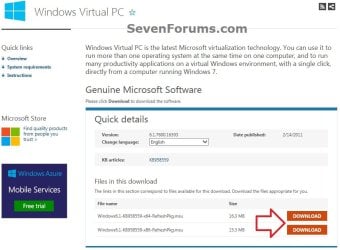
B) Select your language, and click on the Download button for either the Windows6.1-KB958559-x86-RefreshPkg.msu (32-bit) or Windows6.1-KB958559-x64-RefreshPkg.msu (64-bit) file for your same 32-bit or 64-bit Windows 7 version you have installed.

C) Save the Windows6.1-KB958559-x86-RefreshPkg.msu or Windows6.1-KB958559-x64-RefreshPkg.msu file to your desktop. (see screenshot below)
Windows_Virtual-PC-2.jpg
D) Double click on the downloaded Windows6.1-KB958559-x86-RefreshPkg.msu or Windows6.1-KB958559-x64-RefreshPkg.msu file to start installing it.

E) If prompted by UAC, click on Yes.
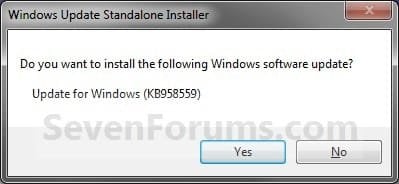
F) Click on Yes. (see screenshot below)
Install-1.jpg
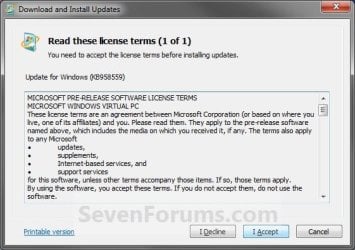
G) Click on the I Accept button. (see screenshot below)
Install-2.jpg
H) When it is finished, click on the Restart Now button. (see screenshot below)
WARNING: This will restart your computer immediately. Be sure to save and close anything that you have open first.
Install-3.jpg
I) When the computer is finished restarting, continue on to step 6 below.
5. To Open and Run Windows XP Mode
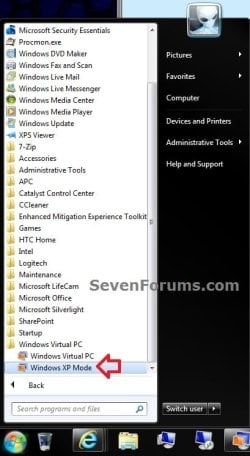
A) Open the Start Menu, then click on All Programs, expand the Windows Virtual PC folder, and double click on the Windows XP Mode shortcut. (see screenshot below)
XP-1.jpg
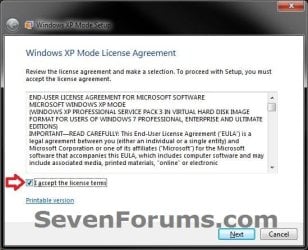
6. Check the I accept box, then click on the Next button. (see screenshot below)
Step1B.jpg
7. Type in a password and type it in again to confirm it, then click on the Next button. (see screenshot below)
NOTE: If you would like to be logged on automatically whenever you open Windows XP Mode (step 5), then check the Remember credentials box.
XP-2.jpg
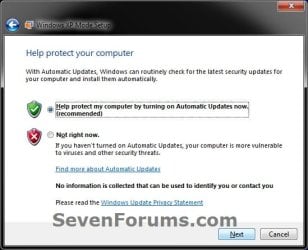
8. Select (dot) the Help protect my computer by turning on Automatic Updates now box, then click on the Next button. (see screenshot below)
XP-3.jpg
9. Click on the Start Setup button. (see screenshot below)
XP-4.jpg
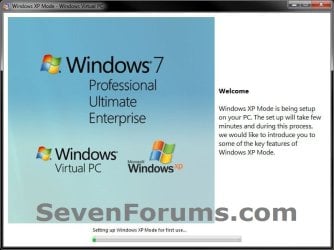
10. You will now see this for a few moments while Windows XP Mode is being setup. (see screeshot below)
Step4B.jpg
11. When setup is finished and you did not check the Remember credentials box in step 7 above, then you will need to enter your password entered and click on OK. If you did, then skip this and continue on to step 12. (see screenshot below)
XP-5.jpg
12. The Windows XP Mode - Windows Virtual PC window will now open. You are now in Windows XP Mode. (see screenshot below)
Example.jpg
13. Next, be sure to install Integration Components and enable Integration Features.
NOTE: Sometimes this will be enabled for you automatically during installation.

14. Set Windows XP Mode Settings
A) In the Windows XP Mode window, click on Tools (menu bar) and Settings. (see screenshot above)

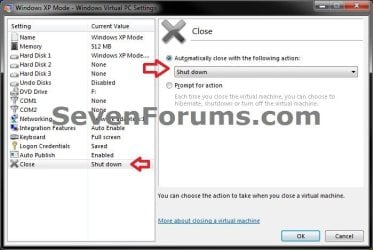
B) In the left pane, select Close/Shut Down. (see screenshot below)
Shut-Down.jpg
C) In the right pane, select (dot) Automatically close with the following action, then select Shut Down and click on OK. (see screenshot above)
15. To Close Windows XP Mode
A) Click on the X in the upper right corner of the Windows XP Mode window like you would any other window in Windows 7. (see screenshot below step 19)

OR

B) In the Windows XP Mode window, click on Action (menu bar) and Close. (see screenshot below step 16)
16. Installing a Program in Windows XP Mode
NOTE: You would install a program in Virtual Windows XP just like you would in Windows 7 with the same access to everything in Windows 7. For example, hard drives, DVD drives, USB drives, Windows 7 folders and files, etc.....
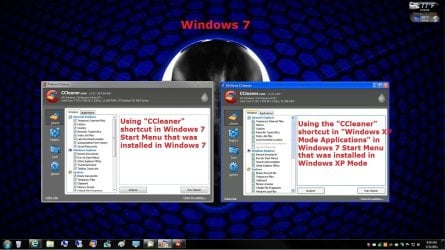
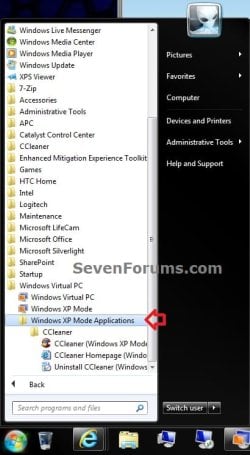
A) After you have installed any program (ex: CCleaner) in Windows XP Mode, you will notice that there will now also be a shortcut to it in the Windows 7 Start Menu in the Windows XP Mode Applications folder under Windows Virtual PC and Windows XP Mode. (see screenshot below)
NOTE: Double clicking on the program's shortcut (ex: CCleaner) in the Windows 7 Start Menu when Windows XP Mode is closed will open and run the program in Windows 7 but as if it you were running it in Windows XP Mode. You could also move or copy this Windows XP Mode Applications shortcut where you like in Windows 7 for easy use.
XP-6.jpg

Program_Example.jpg

That's it,
Shawn


Attachments

  • Virtual-PC_Save.jpg
    Virtual-PC_Save.jpg
    40 KB · Views: 2,157
Last edited:
'Format' XP Mode

Managed to improve performance by increasing RAM allocation!

Something went wrong during setup of my application though, and now there are corrupted files I cannot uninstall. I want to 'format' XP mode. Can I do that by uninstalling and reinstalling? If yes, do I have to uninstall Windows Virtual PC also, or just uninstalling Windows XP Mode will suffice?

Also, will all the applications get removed on their own? Will the space allocated to XP Mode be automatically reallocated?
 

My Computer

OS
Vista Home Premium
Hello Shailesh,

You would only have to uninstall and reinstall Windows XP Mode. No need to do the same with Windows Virtual PC.

Yes, when you uninstall Windows XP Mode through Programs and Features in the Control Panel, it will remove it and free up the space used by it.

Hope this helps,
Shawn
 

My Computer

Computer type
PC/Desktop
Computer Manufacturer/Model Number
Self built custom
OS
64-bit Windows 11 Pro for Workstations
CPU
Intel i7-8700K OC'd to 5 GHz
Motherboard
ASUS ROG Maximus XI Formula Z390
Memory
64 GB (4x16GB) G.SKILL TridentZ RGB DDR4 3600 MHz
Graphics Card(s)
ASUS ROG-STRIX-GTX1080TI-O11G-GAMING
Sound Card
Integrated
Monitor(s) Displays
2 x Samsung Odyssey G7 27"
Screen Resolution
2560x1440
Hard Drives
1TB Samsung 990 PRO M.2,
4TB Samsung 990 PRO PRO M.2,
TerraMaster F8 SSD Plus NAS
PSU
Seasonic Prime Titanium 850W
Case
Thermaltake Core P3
Cooling
Corsair Hydro H115i
Keyboard
Logitech wireless K800
Mouse
Logitech MX Master 4
Internet Speed
2 Gb/s Download and 100 Mb/s Upload
Antivirus
Malwarebyte Anti-Malware Premium
Browser
Google Chrome
Other Info
Logitech Z625 speaker system,
Logitech BRIO 4K Pro webcam,
HP Color LaserJet Pro MFP M477fdn,
APC SMART-UPS RT 1000 XL - SURT1000XLI,
Galaxy S23 Plus phone
Managed to improve performance by increasing RAM allocation!

Something went wrong during setup of my application though, and now there are corrupted files I cannot uninstall. I want to 'format' XP mode. Can I do that by uninstalling and reinstalling? If yes, do I have to uninstall Windows Virtual PC also, or just uninstalling Windows XP Mode will suffice?

Also, will all the applications get removed on their own? Will the space allocated to XP Mode be automatically reallocated?

Hi;

A tip if you can't get it to install and work - make sure that in Control Panel, under Programs and Features, Turn Windows features on or off, you have the Windows Virtual PC turned on! I did not, and it took hours before I found it.

Steve
 
Last edited by a moderator:

My Computer

Computer Manufacturer/Model Number
Dell T3400
OS
Windows 7 Pro x64 (dual-booting XPSP3 and Win7)
CPU
Intel Core-2 Quad
Memory
4GB 800 Mhz PC2 unbuffered ECC
Graphics Card(s)
NVIDIA Quadro FX 570
Sound Card
Creative SB X-Fi model SB0770
Monitor(s) Displays
Dell 19" FP
Screen Resolution
1680x1050
Hard Drives
SATA disk0 250GB disk1 500GB
Internet Speed
TW RR
Other Info
Just a baby compared to my work box!
validation..?

hi,
I'm stucked at the validation. Have gennuine windows but doesn't let me through..
any suggestions!?
 

My Computer

OS
windows 7 ultimate 32bit
hi,
I'm stucked at the validation. Have gennuine windows but doesn't let me through..
any suggestions!?

Are you using Internet Explorer? My own experience is that this validation script runs not so well on other browsers.

Kari
 

My Computer

Computer type
Laptop
Computer Manufacturer/Model Number
HP ENVY 17-1150eg
OS
Windows 10 Pro x64 EN-GB
CPU
1.6 GHz Intel Core i7-720QM Processor
Memory
6 GB
Graphics Card(s)
ATI Mobility Radeon HD 5850 Graphics
Sound Card
Beats sound system with integrated subwoofer
Monitor(s) Displays
17" laptop display, 22" LED and 32" Full HD TV through HDMI
Screen Resolution
1600*900 (1), 1920*1080 (2&3)
Hard Drives
Internal: 2 x 500 GB SATA Hard Disk Drive 7200 rpm
External: 2TB for backups, 3TB USB3 network drive for media
Cooling
As Envy runs a bit warm, I have it on a Cooler Master pad
Keyboard
Logitech diNovo Media Desktop Laser (bluetooth)
Mouse
Logitech Performance Mouse MX
Internet Speed
50/10 Mbps VDSL
Antivirus
Windows Defender 4.3.9431.0
Browser
Maxthon 3.5.2., IE11
hi,
I'm stucked at the validation. Have gennuine windows but doesn't let me through..
any suggestions!?

Hallo Sanjbb, and welcome to Seven Forums.

Do you have cookies enabled in IE? You will need to have them enabled to be able to pass as genuine.

Hope this helps,
Shawn
 

My Computer

Computer type
PC/Desktop
Computer Manufacturer/Model Number
Self built custom
OS
64-bit Windows 11 Pro for Workstations
CPU
Intel i7-8700K OC'd to 5 GHz
Motherboard
ASUS ROG Maximus XI Formula Z390
Memory
64 GB (4x16GB) G.SKILL TridentZ RGB DDR4 3600 MHz
Graphics Card(s)
ASUS ROG-STRIX-GTX1080TI-O11G-GAMING
Sound Card
Integrated
Monitor(s) Displays
2 x Samsung Odyssey G7 27"
Screen Resolution
2560x1440
Hard Drives
1TB Samsung 990 PRO M.2,
4TB Samsung 990 PRO PRO M.2,
TerraMaster F8 SSD Plus NAS
PSU
Seasonic Prime Titanium 850W
Case
Thermaltake Core P3
Cooling
Corsair Hydro H115i
Keyboard
Logitech wireless K800
Mouse
Logitech MX Master 4
Internet Speed
2 Gb/s Download and 100 Mb/s Upload
Antivirus
Malwarebyte Anti-Malware Premium
Browser
Google Chrome
Other Info
Logitech Z625 speaker system,
Logitech BRIO 4K Pro webcam,
HP Color LaserJet Pro MFP M477fdn,
APC SMART-UPS RT 1000 XL - SURT1000XLI,
Galaxy S23 Plus phone
thanks for the fast answer..!
I'm using opera. gonna try with IE..(with cookies enabled of course):D
 

My Computer

OS
windows 7 ultimate 32bit
You're welcome Sanjbb. Glad that we could help. :)
 

My Computer

Computer type
PC/Desktop
Computer Manufacturer/Model Number
Self built custom
OS
64-bit Windows 11 Pro for Workstations
CPU
Intel i7-8700K OC'd to 5 GHz
Motherboard
ASUS ROG Maximus XI Formula Z390
Memory
64 GB (4x16GB) G.SKILL TridentZ RGB DDR4 3600 MHz
Graphics Card(s)
ASUS ROG-STRIX-GTX1080TI-O11G-GAMING
Sound Card
Integrated
Monitor(s) Displays
2 x Samsung Odyssey G7 27"
Screen Resolution
2560x1440
Hard Drives
1TB Samsung 990 PRO M.2,
4TB Samsung 990 PRO PRO M.2,
TerraMaster F8 SSD Plus NAS
PSU
Seasonic Prime Titanium 850W
Case
Thermaltake Core P3
Cooling
Corsair Hydro H115i
Keyboard
Logitech wireless K800
Mouse
Logitech MX Master 4
Internet Speed
2 Gb/s Download and 100 Mb/s Upload
Antivirus
Malwarebyte Anti-Malware Premium
Browser
Google Chrome
Other Info
Logitech Z625 speaker system,
Logitech BRIO 4K Pro webcam,
HP Color LaserJet Pro MFP M477fdn,
APC SMART-UPS RT 1000 XL - SURT1000XLI,
Galaxy S23 Plus phone
Hoping to install XP tomorrow. Looked on the Microsoft download site and just found this tutorial which is excellent but earlier today I found another site that says the Microsoft site is incorrect and that you should install Virtual PC first then the KB977206 update if its is required and then XP mode. Both your site and Microsoft give the order as XP mode, Virtual PC, KB977206 (if necessary) and then run XP mode to complete installation. Considering your tutorial lookes very comprehensive I cannot belive it is incorrect but maybe something has changed since it was written.

Thanks for reading this.

Paul
 

My Computer

OS
Win 7 pro 64
Hoping to install XP tomorrow. Looked on the Microsoft download site and just found this tutorial which is excellent but earlier today I found another site that says the Microsoft site is incorrect and that you should install Virtual PC first then the KB977206 update if its is required and then XP mode. Both your site and Microsoft give the order as XP mode, Virtual PC, KB977206 (if necessary) and then run XP mode to complete installation. Considering your tutorial lookes very comprehensive I cannot belive it is incorrect but maybe something has changed since it was written.

Thanks for reading this.

Paul

Hello Paul, and welcome to Seven Forums.

I've personally always installed Windows Virtual PC first then XP Mode, but you can install either one first. :)

Please let us know how it went for you.
 

My Computer

Computer type
PC/Desktop
Computer Manufacturer/Model Number
Self built custom
OS
64-bit Windows 11 Pro for Workstations
CPU
Intel i7-8700K OC'd to 5 GHz
Motherboard
ASUS ROG Maximus XI Formula Z390
Memory
64 GB (4x16GB) G.SKILL TridentZ RGB DDR4 3600 MHz
Graphics Card(s)
ASUS ROG-STRIX-GTX1080TI-O11G-GAMING
Sound Card
Integrated
Monitor(s) Displays
2 x Samsung Odyssey G7 27"
Screen Resolution
2560x1440
Hard Drives
1TB Samsung 990 PRO M.2,
4TB Samsung 990 PRO PRO M.2,
TerraMaster F8 SSD Plus NAS
PSU
Seasonic Prime Titanium 850W
Case
Thermaltake Core P3
Cooling
Corsair Hydro H115i
Keyboard
Logitech wireless K800
Mouse
Logitech MX Master 4
Internet Speed
2 Gb/s Download and 100 Mb/s Upload
Antivirus
Malwarebyte Anti-Malware Premium
Browser
Google Chrome
Other Info
Logitech Z625 speaker system,
Logitech BRIO 4K Pro webcam,
HP Color LaserJet Pro MFP M477fdn,
APC SMART-UPS RT 1000 XL - SURT1000XLI,
Galaxy S23 Plus phone
Hi Paul, welcome to the Seven Forums.

I can of course only speak for myself but at least I have always, on every rig and every install, installed first the XP Mode, then VPC which requires reboot, and after reboot launched the second half of XP Mode installation by launching it from Start Menu.

Kari
 

My Computer

Computer type
Laptop
Computer Manufacturer/Model Number
HP ENVY 17-1150eg
OS
Windows 10 Pro x64 EN-GB
CPU
1.6 GHz Intel Core i7-720QM Processor
Memory
6 GB
Graphics Card(s)
ATI Mobility Radeon HD 5850 Graphics
Sound Card
Beats sound system with integrated subwoofer
Monitor(s) Displays
17" laptop display, 22" LED and 32" Full HD TV through HDMI
Screen Resolution
1600*900 (1), 1920*1080 (2&3)
Hard Drives
Internal: 2 x 500 GB SATA Hard Disk Drive 7200 rpm
External: 2TB for backups, 3TB USB3 network drive for media
Cooling
As Envy runs a bit warm, I have it on a Cooler Master pad
Keyboard
Logitech diNovo Media Desktop Laser (bluetooth)
Mouse
Logitech Performance Mouse MX
Internet Speed
50/10 Mbps VDSL
Antivirus
Windows Defender 4.3.9431.0
Browser
Maxthon 3.5.2., IE11
Still confused, 2 answers, both different but both saying their method works. Really confused by Brinks answer since its opposite to what is written in the tutorial whereas Kari repeats what is in the tutorial.

What can go wrong if I do it in the wrong order, don't want to have to format and re-install Win 7.
 

My Computer

OS
Win 7 pro 64
Paul, read Brink's answer once again:

I've personally always installed Windows Virtual PC first then XP Mode, but you can install either one first. :)

Like we say in Finnish, some men like mothers, some other daughters ;) meaning both ways are OK, do as you please.

You can not harm your PC or VPC / XP Mode installation whichever approach you choose. I simply do the XP Mode install always first because it does not require reboot. VPC install requires reboot and I like to be "done" at that phase so after reboot I can just launch XP Mode from Start Menu to let it finish installation and start first time.

Kari
 

My Computer

Computer type
Laptop
Computer Manufacturer/Model Number
HP ENVY 17-1150eg
OS
Windows 10 Pro x64 EN-GB
CPU
1.6 GHz Intel Core i7-720QM Processor
Memory
6 GB
Graphics Card(s)
ATI Mobility Radeon HD 5850 Graphics
Sound Card
Beats sound system with integrated subwoofer
Monitor(s) Displays
17" laptop display, 22" LED and 32" Full HD TV through HDMI
Screen Resolution
1600*900 (1), 1920*1080 (2&3)
Hard Drives
Internal: 2 x 500 GB SATA Hard Disk Drive 7200 rpm
External: 2TB for backups, 3TB USB3 network drive for media
Cooling
As Envy runs a bit warm, I have it on a Cooler Master pad
Keyboard
Logitech diNovo Media Desktop Laser (bluetooth)
Mouse
Logitech Performance Mouse MX
Internet Speed
50/10 Mbps VDSL
Antivirus
Windows Defender 4.3.9431.0
Browser
Maxthon 3.5.2., IE11
Still confused, 2 answers, both different but both saying their method works. Really confused by Brinks answer since its opposite to what is written in the tutorial whereas Kari repeats what is in the tutorial.

What can go wrong if I do it in the wrong order, don't want to have to format and re-install Win 7.

I just used what was officially instructed on how to at Microsoft in the tutorial, but you can install either one first. It really doesn't matter. :)
 

My Computer

Computer type
PC/Desktop
Computer Manufacturer/Model Number
Self built custom
OS
64-bit Windows 11 Pro for Workstations
CPU
Intel i7-8700K OC'd to 5 GHz
Motherboard
ASUS ROG Maximus XI Formula Z390
Memory
64 GB (4x16GB) G.SKILL TridentZ RGB DDR4 3600 MHz
Graphics Card(s)
ASUS ROG-STRIX-GTX1080TI-O11G-GAMING
Sound Card
Integrated
Monitor(s) Displays
2 x Samsung Odyssey G7 27"
Screen Resolution
2560x1440
Hard Drives
1TB Samsung 990 PRO M.2,
4TB Samsung 990 PRO PRO M.2,
TerraMaster F8 SSD Plus NAS
PSU
Seasonic Prime Titanium 850W
Case
Thermaltake Core P3
Cooling
Corsair Hydro H115i
Keyboard
Logitech wireless K800
Mouse
Logitech MX Master 4
Internet Speed
2 Gb/s Download and 100 Mb/s Upload
Antivirus
Malwarebyte Anti-Malware Premium
Browser
Google Chrome
Other Info
Logitech Z625 speaker system,
Logitech BRIO 4K Pro webcam,
HP Color LaserJet Pro MFP M477fdn,
APC SMART-UPS RT 1000 XL - SURT1000XLI,
Galaxy S23 Plus phone
Installed as per tutorial and working fine. Only snags were internet connection crashed when it was checking validity of my copy of windows and I was surprised when I had to install Avast Free for every user.

Question regarding memory. Virtual PC has been allocated 512 mb which does not appear much to me. Machine had 4gb and my question is should I fit more memory before I consider increasing the 512mb or would it be OK to increase it now.

Thanks.

Paul
 

My Computer

OS
Win 7 pro 64
Try increasing the RAM allocated to XP Mode to 1GB.

I don't see any need to buy more RAM unless you want increased performance from your host computer.
 

My Computer

Computer Manufacturer/Model Number
HP Pavilion Elite 495UK
OS
Windows 7 Ultimate SP1 64-Bit
CPU
Intel Core i7 870 @ 2.93GHz
Motherboard
MSI 2A9C (CPU1)
Memory
8Gb Dual-Channel DDR3 @ 664MHz
Graphics Card(s)
nVidia GeForce GTX 460 1024MB dedicated RAM
Sound Card
Realtek HD Audio
Monitor(s) Displays
HP2310i
Screen Resolution
1920 x 1080
Hard Drives
1x1954GB Hitachi HDS22020ALA 330 (RAID), 1x1954GB Hitachi External for backup and storage
PSU
460W
Case
HP Elite
Cooling
Air cooled
Keyboard
Logitech K750 solar-powered keyboard
Mouse
Logitech Wireless M180 mouse
Internet Speed
2Mb
Other Info
Pure Avanti Flow Internet Radio with iPod Dock, 64Gb iPod, HP USB Speakers, Sony MDR-V500 Headphones, Sony Vaio F-Series Laptop
Just a quick question on XP mode. When you go into XP mode does XP delete the restore points in Windows 7 as it does in a dual boot setup?
 

My Computer

OS
Windows 7 Professional 64 bit

My Computer

Computer type
PC/Desktop
Computer Manufacturer/Model Number
Self built custom
OS
64-bit Windows 11 Pro for Workstations
CPU
Intel i7-8700K OC'd to 5 GHz
Motherboard
ASUS ROG Maximus XI Formula Z390
Memory
64 GB (4x16GB) G.SKILL TridentZ RGB DDR4 3600 MHz
Graphics Card(s)
ASUS ROG-STRIX-GTX1080TI-O11G-GAMING
Sound Card
Integrated
Monitor(s) Displays
2 x Samsung Odyssey G7 27"
Screen Resolution
2560x1440
Hard Drives
1TB Samsung 990 PRO M.2,
4TB Samsung 990 PRO PRO M.2,
TerraMaster F8 SSD Plus NAS
PSU
Seasonic Prime Titanium 850W
Case
Thermaltake Core P3
Cooling
Corsair Hydro H115i
Keyboard
Logitech wireless K800
Mouse
Logitech MX Master 4
Internet Speed
2 Gb/s Download and 100 Mb/s Upload
Antivirus
Malwarebyte Anti-Malware Premium
Browser
Google Chrome
Other Info
Logitech Z625 speaker system,
Logitech BRIO 4K Pro webcam,
HP Color LaserJet Pro MFP M477fdn,
APC SMART-UPS RT 1000 XL - SURT1000XLI,
Galaxy S23 Plus phone
I echo Shawn, no it doesn't effect restore points the way a dual boot might.
 

My Computer

Computer type
PC/Desktop
Computer Manufacturer/Model Number
Alienware® ALX X58
OS
Win 7 Ult SP1/Win 10 Pro (all x64)
CPU
Intel® Core™ i7-975 Extreme O/C to 4.02 GHz, 8MB Cache
Motherboard
Asus® P6T Deluxe V2 X58 LGA1366
Memory
24GB Corsair Vengeance DDR3 SDRAM at 1600MHz - 6 x 4096MB
Graphics Card(s)
1792 MB NVIDIA® GeForce® GTX 295 Dual Core
Sound Card
Onboard Soundmax® High-Definition 7.1 Performance Audio
Monitor(s) Displays
Samsung XL2370 LED backlit 23" W/S 2ms response time
Screen Resolution
1920 X 1080
Hard Drives
2 x 500gb SATA II
1 x 1TB SATA II
1 external eSATA LaCie 3TB
(Non-RAID)
PSU
Alienware® 1200 Watt Multi-GPU
Case
Alienware® P2 ALX Chassis with AlienIce™ 3.0 Video Cooling
Cooling
Alienware® High-Perf. Liquid Cooling + Acoustic Dampening
Keyboard
Microsoft® Wireless Entertainment 8000 + Logitech® G15 Wired
Mouse
Microsoft® Wireless Laser 8000 + Logitech® G9 Wired
Internet Speed
1Gb/s
Antivirus
McAfee LiveSafe
Browser
Firefox - latest
Other Info
Using non-RAID on purpose as I find RAID to be too temperamental.
Now set to AHCI
Back
Top