
You are using an out of date browser. It may not display this or other websites correctly.
You should upgrade or use an alternative browser.
You should upgrade or use an alternative browser.
Windows XP Mode to be available for download
- Thread starter neozm
- Start date

P
PotatoMan83
Guest

My Computer
At a glance
Windows 7 SP1 x64 build 7601.21701Intel Q9450 @3608mhz (8x451)6GB - 2x Corsair CM2X1024-8500C5D and 2x CM2X...Zotac nVidia GTX295
- Computer Manufacturer/Model Number
- Custom
- OS
- Windows 7 SP1 x64 build 7601.21701
- CPU
- Intel Q9450 @3608mhz (8x451)
- Motherboard
- Asus Rampage Formula
- Memory
- 6GB - 2x Corsair CM2X1024-8500C5D and 2x CM2X2048-8500C5D
- Graphics Card(s)
- Zotac nVidia GTX295
- Sound Card
- SoundMAX ADI1988B (X-FI MB)
- Monitor(s) Displays
- LG L227WTP & Samsung LE26R71B LCD TV
- Screen Resolution
- 1680x1050 & 1360x768
- Hard Drives
- 2x Seagate ST3500630NS in RAID0
- PSU
- Thermaltake Toughpower 750W
- Case
- Thermaltake
- Cooling
- Thermalright Ultra-120 Extreme and couple of fans
- Keyboard
- Logitech G15 v2
- Mouse
- Razer DeathAdder
- Internet Speed
- FTTH 50/50 (dualstack IPv4 & native IPv6)


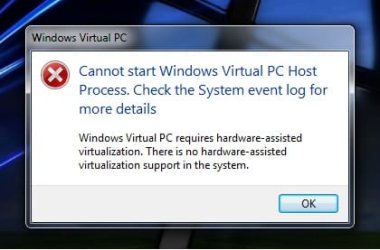
One thing you have to remember with Windows XP mode is that it requires that your CPU support hardware virtualization. You can find out if your system supports this by downloading this free utility:
GRC*|*SecurAble: Determine Processor Security Features*|**
I checked all my computers and none support hardware virtualization. I guess it is time to upgrade!
GRC*|*SecurAble: Determine Processor Security Features*|**
I checked all my computers and none support hardware virtualization. I guess it is time to upgrade!
Last edited:
My Computer
At a glance
Windows 7 Ultimate (x64) RTMAMD Athlon 64 X2 2.2 GHz4 GBRadeon Xpress 200
- Computer Manufacturer/Model Number
- HP DX5150 SFF
- OS
- Windows 7 Ultimate (x64) RTM
- CPU
- AMD Athlon 64 X2 2.2 GHz
- Motherboard
- HP
- Memory
- 4 GB
- Graphics Card(s)
- Radeon Xpress 200
- Hard Drives
- Seagate 1 TB
- Other Info
- Hauppauge WinTV-HVR-2250 Dual Tuner PCI Express TV tuner
Sounds good but if there using VirtualPC or hyperV, but does vitual PC still not support USB or serial ports? I suppose you can go for a USB over IP solution but thats not cheap.
My Computer
At a glance
Windows 7 Ultimate x64 / Vista 32 Ultimate / ...Dual cores / Quad cores / vPro / Intel and AMD
- Computer Manufacturer/Model Number
- Homemade / HP ML350 g5 /hp Dl380 g3 / Advent 8315 / HP nc6400 / hp 6910p
- OS
- Windows 7 Ultimate x64 / Vista 32 Ultimate / Windows XP Pro SP3 / Windows 2008 Ent / Vmware VI3.5
- CPU
- Dual cores / Quad cores / vPro / Intel and AMD
- Screen Resolution
- 1680 x 1050 Mon1 / 1280 x 1024 Mon2 / 1600x1200 projector
- Hard Drives
- Sata / Pata / Ultra 320 / MSA1000 via 2GB FC
- Cooling
- Thermaltake Bigwater
- Internet Speed
- 8192 up 486 down (x2)

BIOS
· On computers that have an Intel® processor with Trusted Execution Technology (TXT) enabled in the BIOS, you may encounter an error message when starting a virtual machine, stating that hardware assisted virtualization (HAV) is not enabled, even though the HAV setting is actually ON in the BIOS.USB
o Possible Workaround: Try turning off the TXT setting in the BIOS of the computer.
· When you try to attach a USB device to a virtual machine by using the Attach command on the USB menu, the USB device fail to show up in the virtual machine.Networking
o Workaround: Start Device Manager from the virtual machine [E.g. Click Start->Run>Type devmgmt.msc > Enter]. Expand the ‘Universal Serial Bus controllers’ node. Right click on 'USB Virtualization Bus Driver' and then select 'Update driver'. Provide the path as "%PROGRAMFILES%\Virtual PC Integration Components” and install the driver. Once the update for 'USB Virtualization Bus Driver' is complete, repeat the steps for 'USB Virtualization Hub Driver' under the USB Virtualization node.
· A USB device attached to a virtual machine is removed automatically. This happens if the device reboots or reconfigures itself.
o Workaround: Re-attach the USB device to the virtual machine using the USB menu.
· USB devices attached to computer may not appear in the USB menu of the virtual machine window.
o Workaround: Remove the USB device from the computer. Reconnect the USB device to the computer and try again.
· Cannot access the internet on the virtual machine when a WWAN device is connected to the virtual machine.Seamless applications
o Workaround: Configure the networking options in virtual machine settings to use Shared Networking (NAT), then connect the WWAN device to the computer and try again (without assigning the device to the virtual machine).
· Shortcuts to applications that are installed as “per-user” in the virtual machine are not published to the Windows 7 Start menu.Integration features
o Workaround: Copy the shortcut to the application that was not published to the “All-Users” menu.
· Removing the Windows Virtual PC update does not remove the links to virtual applications on the Start menu of Windows 7.
o Workaround: These links have to be deleted manually.
· Windows XP Mode feature is designed to help small businesses still using older Windows XP Line of Business (LOB) applications move to Windows 7. A small set of applications, which are graphics or resource intensive such as 3D games or have hardware dependencies, are not suitable for running in Windows XP Mode
· It may take a long time to access hard drives connected to the Windows 7 computer from within a virtual machine.Video/Graphics performance
· Sometimes, right-clicking inside a virtual machine starts a file copy on Windows 7 host. This occurs if the clipboard has a large amount of data.
o Workaround: Clear the data from the clipboard. For example, you can copy a small dummy file or text on the Windows 7 host to clear the clipboard.
· The audio from the virtual machine is not audible on the attached audio device. This may occur if the audio device is attached to the computer while the virtual machine is running (in full desktop, or as virtual application).
o Workaround: Close the virtual machine. If virtual applications are running, then close all virtual applications and wait for 5 minutes. Then attach the audio device to the computer, and then start the virtual machine (virtual desktop, or virtual application).
· Running graphics intensive applications in a virtual machine may result in relatively sluggish performance, especially if the virtual machine is running a version of Windows Vista.
Release notes
My Computer
At a glance
Windows 11
- Computer type
- PC/Desktop
- OS
- Windows 11
One thing you have to remember with Windows XP mode is that it requires that your CPU support hardware virtualization. You can find out if your system supports this by downloading this free utility:
GRC*|*SecurAble: Determine Processor Security Features*|**
I checked all my computers and none support hardware virtualization. I guess it is time to upgrade!
mine nc10 does not support heardware virtualisation...i guess i cant use XP mode

My Computer
At a glance
windows 7Intel Atom 1.6ghzPNY 2GB PC6400Intel
- Computer Manufacturer/Model Number
- Samsung NC10
- OS
- windows 7
- CPU
- Intel Atom 1.6ghz
- Motherboard
- samsung
- Memory
- PNY 2GB PC6400
- Graphics Card(s)
- Intel
- Sound Card
- Intel
- Monitor(s) Displays
- Samsung 10"
- Screen Resolution
- 1024x600
- Hard Drives
- 160GB HDD
- Case
- netbook
- Cooling
- air
- Keyboard
- samsung
- Mouse
- trackpad
- Internet Speed
- 20mb Cable and O2 mobile

this is only for people with AMD-V or Intel-VT...
it wont let you otherwise install....
it wont let you otherwise install....
My Computer
At a glance
Windows 7 Ult x64(x2), HomePrem x32(x4), Serv...Turion X2 ultra (oh well came with laptop)/P4...OCZ Dual Channel 4GB kit/ 1gb Dual ChannelHD 3200 graphics /GMA x3100 (yay for intergra...
- Computer Manufacturer/Model Number
- Tx2500z Tablet Pc/Homemade Server
- OS
- Windows 7 Ult x64(x2), HomePrem x32(x4), Server 08 (+VM), 08 R2 (VM) , SuSe 11.2 (VM), XP 32 (VM)
- CPU
- Turion X2 ultra (oh well came with laptop)/P4 @3.2 (yes P4)
- Motherboard
- IDK HP Motherboard / Intel DG965SS
- Memory
- OCZ Dual Channel 4GB kit/ 1gb Dual Channel
- Graphics Card(s)
- HD 3200 graphics /GMA x3100 (yay for intergrated!!)
- Sound Card
- Realtek HD Audio(mic working, well sort of)/Siig IC-70012
- Monitor(s) Displays
- built-in Hp 12" laptop screen/ Acer 19"
- Screen Resolution
- 1280x800 /1440x900
- Cooling
- All Air Cooled
- Mouse
- Logi MX Rev. /MS Wheel Optical 1.1A /Logitech Optical Mouse
- Internet Speed
- College baby but its still routed through vpn to 1536k...
- Other Info
- love my wacom pen and pressure sensitivity...
wished it worked in 7, SUSE for that matter though
mine nc10 does not support heardware virtualisation...i guess i cant use XP mode
I am surprised that virtualPC now needs hyperV to run. One way round it would be to see if you can get hold of the VHD (Virtual Hard Disk) and then run it with vmware server (free download) that might work. Failing that use vmware server and just create a XP virtual machine that way you can run USB devices as well.
My Computer
At a glance
Windows 7 Ultimate x64 / Vista 32 Ultimate / ...Dual cores / Quad cores / vPro / Intel and AMD
- Computer Manufacturer/Model Number
- Homemade / HP ML350 g5 /hp Dl380 g3 / Advent 8315 / HP nc6400 / hp 6910p
- OS
- Windows 7 Ultimate x64 / Vista 32 Ultimate / Windows XP Pro SP3 / Windows 2008 Ent / Vmware VI3.5
- CPU
- Dual cores / Quad cores / vPro / Intel and AMD
- Screen Resolution
- 1680 x 1050 Mon1 / 1280 x 1024 Mon2 / 1600x1200 projector
- Hard Drives
- Sata / Pata / Ultra 320 / MSA1000 via 2GB FC
- Cooling
- Thermaltake Bigwater
- Internet Speed
- 8192 up 486 down (x2)
my Home PC uses Opteron 175, its a server side cpu but that app says it does not support, which cpus support it do you know?
My Computer
At a glance
windows 7Intel Atom 1.6ghzPNY 2GB PC6400Intel
- Computer Manufacturer/Model Number
- Samsung NC10
- OS
- windows 7
- CPU
- Intel Atom 1.6ghz
- Motherboard
- samsung
- Memory
- PNY 2GB PC6400
- Graphics Card(s)
- Intel
- Sound Card
- Intel
- Monitor(s) Displays
- Samsung 10"
- Screen Resolution
- 1024x600
- Hard Drives
- 160GB HDD
- Case
- netbook
- Cooling
- air
- Keyboard
- samsung
- Mouse
- trackpad
- Internet Speed
- 20mb Cable and O2 mobile
I am surprised that virtualPC now needs hyperV to run. One way round it would be to see if you can get hold of the VHD (Virtual Hard Disk) and then run it with vmware server (free download) that might work. Failing that use vmware server and just create a XP virtual machine that way you can run USB devices as well.
hyper-v is a different thing....
its a technology on Server 2008
you need Intel-VT or AMD-V...
my Home PC uses Opteron 175, its a server side cpu but that app says it does not support, which cpus support it do you know?
your CPU does not have AMD-v support as shown here...
http://en.wikipedia.org/wiki/List_o...on_100-series_.22Denmark.22_.28E6.2C_90_nm.29
My Computer
At a glance
Windows 7 Ult x64(x2), HomePrem x32(x4), Serv...Turion X2 ultra (oh well came with laptop)/P4...OCZ Dual Channel 4GB kit/ 1gb Dual ChannelHD 3200 graphics /GMA x3100 (yay for intergra...
- Computer Manufacturer/Model Number
- Tx2500z Tablet Pc/Homemade Server
- OS
- Windows 7 Ult x64(x2), HomePrem x32(x4), Server 08 (+VM), 08 R2 (VM) , SuSe 11.2 (VM), XP 32 (VM)
- CPU
- Turion X2 ultra (oh well came with laptop)/P4 @3.2 (yes P4)
- Motherboard
- IDK HP Motherboard / Intel DG965SS
- Memory
- OCZ Dual Channel 4GB kit/ 1gb Dual Channel
- Graphics Card(s)
- HD 3200 graphics /GMA x3100 (yay for intergrated!!)
- Sound Card
- Realtek HD Audio(mic working, well sort of)/Siig IC-70012
- Monitor(s) Displays
- built-in Hp 12" laptop screen/ Acer 19"
- Screen Resolution
- 1280x800 /1440x900
- Cooling
- All Air Cooled
- Mouse
- Logi MX Rev. /MS Wheel Optical 1.1A /Logitech Optical Mouse
- Internet Speed
- College baby but its still routed through vpn to 1536k...
- Other Info
- love my wacom pen and pressure sensitivity...
wished it worked in 7, SUSE for that matter though
my Home PC uses Opteron 175, its a server side cpu but that app says it does not support, which cpus support it do you know?
This might help.
intel:
Intel® Pentium® 4 Processors - Support information
AMD:
List of AMD Athlon 64 microprocessors - Wikipedia, the free encyclopedia
My Computer
At a glance
Windows 7 Ultimate x64 / Vista 32 Ultimate / ...Dual cores / Quad cores / vPro / Intel and AMD
- Computer Manufacturer/Model Number
- Homemade / HP ML350 g5 /hp Dl380 g3 / Advent 8315 / HP nc6400 / hp 6910p
- OS
- Windows 7 Ultimate x64 / Vista 32 Ultimate / Windows XP Pro SP3 / Windows 2008 Ent / Vmware VI3.5
- CPU
- Dual cores / Quad cores / vPro / Intel and AMD
- Screen Resolution
- 1680 x 1050 Mon1 / 1280 x 1024 Mon2 / 1600x1200 projector
- Hard Drives
- Sata / Pata / Ultra 320 / MSA1000 via 2GB FC
- Cooling
- Thermaltake Bigwater
- Internet Speed
- 8192 up 486 down (x2)
thanks for the post, looks like most of the core2duo supports it
My Computer
At a glance
windows 7Intel Atom 1.6ghzPNY 2GB PC6400Intel
- Computer Manufacturer/Model Number
- Samsung NC10
- OS
- windows 7
- CPU
- Intel Atom 1.6ghz
- Motherboard
- samsung
- Memory
- PNY 2GB PC6400
- Graphics Card(s)
- Intel
- Sound Card
- Intel
- Monitor(s) Displays
- Samsung 10"
- Screen Resolution
- 1024x600
- Hard Drives
- 160GB HDD
- Case
- netbook
- Cooling
- air
- Keyboard
- samsung
- Mouse
- trackpad
- Internet Speed
- 20mb Cable and O2 mobile
thanks for the post, looks like most of the core2duo supports it
I know that on Server 2008 Hyper-V did not start correctly unless you had your regional settings set to US before you added the role. Once it was installed you could change it back. I'm not saying that this is the case for W7 but you never know with microsoft! :sarc:
My Computer
At a glance
Windows 7 Ultimate x64 / Vista 32 Ultimate / ...Dual cores / Quad cores / vPro / Intel and AMD
- Computer Manufacturer/Model Number
- Homemade / HP ML350 g5 /hp Dl380 g3 / Advent 8315 / HP nc6400 / hp 6910p
- OS
- Windows 7 Ultimate x64 / Vista 32 Ultimate / Windows XP Pro SP3 / Windows 2008 Ent / Vmware VI3.5
- CPU
- Dual cores / Quad cores / vPro / Intel and AMD
- Screen Resolution
- 1680 x 1050 Mon1 / 1280 x 1024 Mon2 / 1600x1200 projector
- Hard Drives
- Sata / Pata / Ultra 320 / MSA1000 via 2GB FC
- Cooling
- Thermaltake Bigwater
- Internet Speed
- 8192 up 486 down (x2)
Virtual Box requires Intel-VT or AMD-V to run x64...just FYI, so I wouldn't be surprised if XP Mode did too...
My Computer
At a glance
Windows 7 x64 / SameIntel Core 2 Duo T7250 / Intel Core i7 9304GB / 6GBNVIDIA GeForce 8400M GS / ASUS 1GB
- Computer Manufacturer/Model Number
- Dell Inspiron 1520 (Laptop)/ Home (Desktop)
- OS
- Windows 7 x64 / Same
- CPU
- Intel Core 2 Duo T7250 / Intel Core i7 930
- Motherboard
- Intel 945 / Asus P6X58D-E
- Memory
- 4GB / 6GB
- Graphics Card(s)
- NVIDIA GeForce 8400M GS / ASUS 1GB
- Sound Card
- Whatever Dell gave me :-( / Onboard
- Monitor(s) Displays
- 15.4" LCD / Crappy CRT
- Hard Drives
- Seagate 500GB SATA; 7200 RPM / Seagate 1TB SATA; 7200 RPM
- PSU
- N/A / OCZ Fatal1ty 550W Modular
- Case
- N/A / Antec 900
- Cooling
- Air
- Mouse
- Microsoft Presenter (Bluetooth)
Virtual Box requires Intel-VT or AMD-V to run x64...just FYI, so I wouldn't be surprised if XP Mode did too...
to run a 64 guests then yes...
but this is x86 xp.....
which means that this is a different situation..
what i believe is that it is faster as more code is being run on the cpu and less code is need to be run to emulate the OS...
Vbox Manual said:Enabling hardware virtualization is required only in two scenarios:
• for certain rare guest operating systems like OS/2 that make use of very esoteric
processor instructions that are not supported with our software virtualization
and
• if you want to run 64-bit guest operating systems (a feature added with
VirtualBox 2.0), since most 64-bit CPUs ship with hardware virtualization anyway.
The exceptions to this rule are e.g. older Intel Celeron and AMD Opteron
CPUs.
Last edited:
My Computer
At a glance
Windows 7 Ult x64(x2), HomePrem x32(x4), Serv...Turion X2 ultra (oh well came with laptop)/P4...OCZ Dual Channel 4GB kit/ 1gb Dual ChannelHD 3200 graphics /GMA x3100 (yay for intergra...
- Computer Manufacturer/Model Number
- Tx2500z Tablet Pc/Homemade Server
- OS
- Windows 7 Ult x64(x2), HomePrem x32(x4), Server 08 (+VM), 08 R2 (VM) , SuSe 11.2 (VM), XP 32 (VM)
- CPU
- Turion X2 ultra (oh well came with laptop)/P4 @3.2 (yes P4)
- Motherboard
- IDK HP Motherboard / Intel DG965SS
- Memory
- OCZ Dual Channel 4GB kit/ 1gb Dual Channel
- Graphics Card(s)
- HD 3200 graphics /GMA x3100 (yay for intergrated!!)
- Sound Card
- Realtek HD Audio(mic working, well sort of)/Siig IC-70012
- Monitor(s) Displays
- built-in Hp 12" laptop screen/ Acer 19"
- Screen Resolution
- 1280x800 /1440x900
- Cooling
- All Air Cooled
- Mouse
- Logi MX Rev. /MS Wheel Optical 1.1A /Logitech Optical Mouse
- Internet Speed
- College baby but its still routed through vpn to 1536k...
- Other Info
- love my wacom pen and pressure sensitivity...
wished it worked in 7, SUSE for that matter though
to run a 64 guests then yes...
but this is x86 xp.....
which means that this is a different situation..
what i believe is that it is faster as more code is being run on the cpu and less code is need to be run to emulate the OS...
My mistake. I thought x64 guest was being discussed. Easy mistake to make.
My Computer
At a glance
Windows 7 x64 / SameIntel Core 2 Duo T7250 / Intel Core i7 9304GB / 6GBNVIDIA GeForce 8400M GS / ASUS 1GB
- Computer Manufacturer/Model Number
- Dell Inspiron 1520 (Laptop)/ Home (Desktop)
- OS
- Windows 7 x64 / Same
- CPU
- Intel Core 2 Duo T7250 / Intel Core i7 930
- Motherboard
- Intel 945 / Asus P6X58D-E
- Memory
- 4GB / 6GB
- Graphics Card(s)
- NVIDIA GeForce 8400M GS / ASUS 1GB
- Sound Card
- Whatever Dell gave me :-( / Onboard
- Monitor(s) Displays
- 15.4" LCD / Crappy CRT
- Hard Drives
- Seagate 500GB SATA; 7200 RPM / Seagate 1TB SATA; 7200 RPM
- PSU
- N/A / OCZ Fatal1ty 550W Modular
- Case
- N/A / Antec 900
- Cooling
- Air
- Mouse
- Microsoft Presenter (Bluetooth)
I guess its only 32-bit XP thats in XPM. I suppose thats the whole point of XPM, so its 1005% compatible with your old programs.
btw can you make it use 32-bit colours instead of 16?
btw can you make it use 32-bit colours instead of 16?
My Computer
At a glance
Windows 7 Professional 64-bitIntel E8400 3GHzKingston PC3-10700H 4GbXFX Radeon HD 5850 BlackEd.
- Computer Manufacturer/Model Number
- self built
- OS
- Windows 7 Professional 64-bit
- CPU
- Intel E8400 3GHz
- Motherboard
- Intel DX48BT2
- Memory
- Kingston PC3-10700H 4Gb
- Graphics Card(s)
- XFX Radeon HD 5850 BlackEd.
- Sound Card
- Asus Xonar DG
- Monitor(s) Displays
- 2x Samsung SM-T220HD 22"
- Screen Resolution
- 1680x1050 on two monitors
- Hard Drives
- OCZ Vertex 2 120gb 3.5" (OS)
Seagate Momentus XT 500gb
Samsung F3 1Tb (games)
2x Samsung F1 1Tb
- PSU
- Thermaltake ToughPower 850w
- Case
- Thermaltake Armor
- Cooling
- Scythe Mugen II
- Keyboard
- Microsoft Comfort Curve USB
- Mouse
- Razer Diamondback 3G
- Internet Speed
- 8128/443
Similar threads

- Replies
- 3
- Views
- 3K
- Replies
- 5
- Views
- 2K

- Replies
- 1
- Views
- 3K

- Replies
- 1
- Views
- 3K