Windows7 and XP

mojgarg

New member
Local time
2:41 PM
Messages
4
Hi,

I got HP Laptop with Wondows 7 Pro installed. Can some one suggest me the best way to do the followings

1. Install XP
2. Later I want to installed Windows7

I don't have Windows7 installation DVD.

Thanks
Manoj
 

My Computer

Computer Manufacturer/Model Number
HP
OS
Windows 7

My Computer

Computer type
PC/Desktop
Computer Manufacturer/Model Number
Pauly Special
OS
Win7 Ultimate X64
CPU
Intel i5 3570K
Motherboard
Gigabyte Z77X-DS3H
Memory
8GB DDR3 1600
Graphics Card(s)
Onboard
Sound Card
Onboard
Screen Resolution
1280x1024
Hard Drives
Samsung 840 Evo SSD (OS)
1TB Spinner (Data)
PSU
800W Arctic
Case
Cooler Master
Cooling
3x120mm Fans
Keyboard
MS Wireless
Mouse
MS Wireless
Internet Speed
20M
thanks for suggestion.

I have one more question. What if after sometime I don't want XP..In that case I will be easily able to uninstall XP and merge the disk back..Right? or do I have to follow some other process.

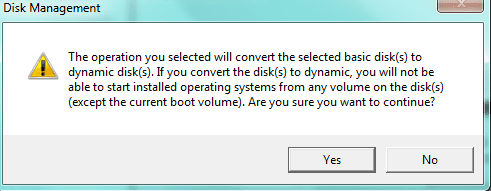
also during partition I am getting the below message. Is that expected?
 

Attachments

  • Capture.PNG
    Capture.PNG
    7.4 KB · Views: 5
Last edited:

My Computer

Computer Manufacturer/Model Number
HP
OS
Windows 7
If your HP laptop came with Win7 pre-installed, you should have a recovery partition D:. In this partition you should find a tool to burn a recovery DVD set, depending on your model it's two to four DVD's.

So burn the recovery DVD set, then you can test and play as you like and later (if you want to), return your laptop to the factory defaults.

Kari
 

My Computer

Computer type
Laptop
Computer Manufacturer/Model Number
HP ENVY 17-1150eg
OS
Windows 10 Pro x64 EN-GB
CPU
1.6 GHz Intel Core i7-720QM Processor
Memory
6 GB
Graphics Card(s)
ATI Mobility Radeon HD 5850 Graphics
Sound Card
Beats sound system with integrated subwoofer
Monitor(s) Displays
17" laptop display, 22" LED and 32" Full HD TV through HDMI
Screen Resolution
1600*900 (1), 1920*1080 (2&3)
Hard Drives
Internal: 2 x 500 GB SATA Hard Disk Drive 7200 rpm
External: 2TB for backups, 3TB USB3 network drive for media
Cooling
As Envy runs a bit warm, I have it on a Cooler Master pad
Keyboard
Logitech diNovo Media Desktop Laser (bluetooth)
Mouse
Logitech Performance Mouse MX
Internet Speed
50/10 Mbps VDSL
Antivirus
Windows Defender 4.3.9431.0
Browser
Maxthon 3.5.2., IE11
Please find the full screen shot

Capture.PNG
 

My Computer

Computer Manufacturer/Model Number
HP
OS
Windows 7
Please find the full screen shot

View attachment 50636

OK, the HP Recovery Partition is there. Here's HP's instructions how to create a recovery DVD set.

Read the instructions, come back if you have questions. Please be careful, HP allows you to run recovery disk creator only once.

Kari
 

My Computer

Computer type
Laptop
Computer Manufacturer/Model Number
HP ENVY 17-1150eg
OS
Windows 10 Pro x64 EN-GB
CPU
1.6 GHz Intel Core i7-720QM Processor
Memory
6 GB
Graphics Card(s)
ATI Mobility Radeon HD 5850 Graphics
Sound Card
Beats sound system with integrated subwoofer
Monitor(s) Displays
17" laptop display, 22" LED and 32" Full HD TV through HDMI
Screen Resolution
1600*900 (1), 1920*1080 (2&3)
Hard Drives
Internal: 2 x 500 GB SATA Hard Disk Drive 7200 rpm
External: 2TB for backups, 3TB USB3 network drive for media
Cooling
As Envy runs a bit warm, I have it on a Cooler Master pad
Keyboard
Logitech diNovo Media Desktop Laser (bluetooth)
Mouse
Logitech Performance Mouse MX
Internet Speed
50/10 Mbps VDSL
Antivirus
Windows Defender 4.3.9431.0
Browser
Maxthon 3.5.2., IE11
You already have 4 primary partitions on the HD. To install XP, you'll need to use one of those Primary partitions.

If you make the Recovery DVD's as Kari suggests, test them to make sure they boot and cue up Recovery correctly. Then would you want to use the Recovery Partition to install XP?

Others may have another suggestion, but if you decide you want to install XP in the Recovery Partition space, I would first make a Win7 Backup image of the entire HD to save externally so you have the Recov partition backed up besides the Recovery DVD's (which sometimes dont' work).

Then you can delete the Recovery partition, shrink some more space from C to add to it if you want, then Create a new primary partition there to install XP. Boot from the XP CD and use it's drive tools to Create and Format the partition in the unallocated space you create for it.

Make sure you make the Win7 REpair CD offered when you create the System Image in Backup Center. This is what you would use to reimage the HD from the saved System Image. And back up your files separately, always.

 
Back
Top