Within Windows 7, CHKDSK detects C: drive as raw (unrecognized)

rgcowie4D

New member
Local time
9:49 AM
Messages
5
Would appreciate any advice on this problem, it has me stumped. I have a machine that ran XP Pro 32-bit flawlessly for several years. I upgraded to Windows 7 Pro 64-bit, by wiping the system drive and doing a clean install. Setup created a system reserved partition (c: ) and the Win7 install partition (g: as the machine has several drives with multiple partitions). If I boot to the recovery environment, chkdsk sees these drive letters and does not detect any errors on them.

The machine will boot normally into Windows 7, and it does the required substitution so that the system reserved partition has no drive letter, and the Win7 install partition becomes c:. But if I run chkdsk c: from an elevated command prompt, it reports that drive c: is a raw partition (unrecognized). Yet the machine is running with c: as the Win7 install disk, and I can access it without problems. The issues that occur are as follows:

1. chkdsk c: from within Win7 reports the partition as raw, but this takes a long time and the computer becomes unresponsive while chkdsk runs, returning to normal after chkdsk reports raw status.

2. the disk management console takes a very long time to load the disk information, but does eventually report it correctly, showing c: as the Win7 install drive, as well as the system reserved partition with no drive letter. All volumes are reported as healthy.

3. if I boot to safe mode, chkdsk c: does correctly detect the Win7 install drive and reports NTFS, also no problems on that drive.

4. if I try to do an in-place upgrade of Win 7 (as a repair install), the machine becomes slower and slower and eventually does a BSOD with error code 7a.

5. about twice a month, the machine running normally under Win7 will reboot after a BSOD error code 7a. This seems to happen after instances of extensive system disk use (Windows updates, etc).

So I'm guessing this is either a driver issue or an incorrect registry entry. The only unusual thing about this machine is it uses an Adaptec 29320 SCSI controller and Seagate SCSI hard disks. I've checked out the controller diagnostics and it reports both the controller and disks as ok.

Any thoughts?
 

My Computer My Computer

At a glance

Windows 7 Pro 64-bit
Computer type
PC/Desktop
OS
Windows 7 Pro 64-bit
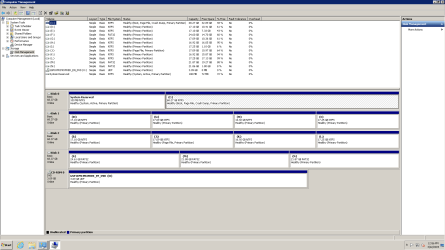
Post a screen shot of Windows Disk Management so we can better visualize the problem.

You say "Setup created a system reserved partition (c: )". Any idea why that happened?

I'd expect it to have no drive letter by default.
 

My Computer My Computer

At a glance

Windows 7 Home Premium SP1, 64-bitIntel Skylake i5-6600K, not overclocked8 GB HyperX DDR4-2666 (2 x 4 GB)none; graphics are integrated on CPU
Computer type
PC/Desktop
Computer Manufacturer/Model Number
Ignatz Special; 4 speed manual gearbox; factory air conditioning; one of one
OS
Windows 7 Home Premium SP1, 64-bit
CPU
Intel Skylake i5-6600K, not overclocked
Motherboard
AsRock Z170M Extreme 4, micro ATX
Memory
8 GB HyperX DDR4-2666 (2 x 4 GB)
Graphics Card(s)
none; graphics are integrated on CPU
Sound Card
onboard: Realtek ALC1150; external: USB Behringer UF0-202
Monitor(s) Displays
Dell S2340M 23 inch IPS
Screen Resolution
1600 x 900
Hard Drives
System: Crucial MX100 series SSD, 128 GB;
Data: Samsung Spinpoint 103SJ, 1 TB;
Backup: WD Caviar Green WD30EZRX-00D8PB0, 3 TB
PSU
Rosewill SilentNight 500 watt fanless, semi-modular
Case
Antec Solo II
Cooling
Noctua NH-U12S; Noctua F12 intake, Noctua S12A exhaust
Keyboard
Microsoft 200 6JH-00001 USB
Mouse
Dell or Microsoft optical wired; USB
Antivirus
Microsoft Security Essentials and Malwarebytes Premium
Browser
Pale Moon
Other Info
All fans PWM; speeds at idle: CPU circa 500 rpm; intake circa 600 rpm; exhaust circa 600 rpm; CPU temps 27 idle and 47 C load in a warm room (27 C/81 F) when running Intel Extreme Tuning Utility stress test.
The drive letter assignment was done by Windows Setup. My understanding is that it's normal for the system reserved partition to have a drive letter for the recovery environment, but that Windows on boot (and by default) switches the drive letters to be consistent with c: being the boot volume, and shows the system reserved partition with no drive letter. At least that is the case for my machine. The question is why chkdsk doesn't see this from inside Windows, but the system works anyway?
 

Attachments

  • disk_man.png
    disk_man.png
    31.2 KB · Views: 8

My Computer My Computer

At a glance

Windows 7 Pro 64-bit
Computer type
PC/Desktop
OS
Windows 7 Pro 64-bit
It certainly sounds like a failing drive. Run the maker's HD Diagnostic extended CD scan to know for sure.

Then if necessary replace the drive to run a Clean Reinstall Windows 7.

In addition Win7 has elegant Aero graphics that use no extra resources than it does to turn them off, so type Personalize in Start Search box to choose an Aero Theme, select a Windows 7 background slideshow to enjoy spectacular scenic pics of some of the most expensive pictures ever taken. The entire collection from all Windows 7 national editions can be downloaded at Microsoft services
 
As mentioned, the drive checks out as ok. It passes chkdsk and drive utilities outside of Windows 7 or in Windows 7 safe mode. So most likely something in the Windows 7 normal boot configuration is interfering with chkdsk's ability to read the drive, as well as causing periodic BSOD's. Just not sure what it is.

Chkdsk is a black box and there are no real alternatives. I tried TestDisk but it also reports the drive and all partitions as ok, even from within Windows. It does not return the raw type for any partition. Also Seagate utilities reports the drive tests successfully, both inside and outside of Windows 7.

Guess I'll keep looking. Thanks everyone, for the help.
 

My Computer My Computer

At a glance

Windows 7 Pro 64-bit
Computer type
PC/Desktop
OS
Windows 7 Pro 64-bit
3. if I boot to safe mode, chkdsk c: does correctly detect the Win7 install drive and reports NTFS, also no problems on that drive.

This seems to be the key to the problem. I would do a clean "diagnostics" boot via MSCONFIG and see what that does. If it works, start adding things back until you can isolate the problem. Check Task Scheduler while you're at it. Autoruns is good for this, but has to be used with caution (use Restore Points). CCleaner does a good job too.

Another possibility is ghosted devices. This can come into play particularly when hardware has been changed or when the install is a clone of a different machine. GhostBuster is a great tool for finding and uninstalling ghosted devices that might be causing conflicts.
 

My Computer My Computer

At a glance

Linux Lite 3.2 x64; Windows 7, 8.1Core2Duo 2.46GB ddr2nVidia
Computer type
PC/Desktop
Computer Manufacturer/Model Number
dell precision t3400 tower
OS
Linux Lite 3.2 x64; Windows 7, 8.1
CPU
Core2Duo 2.4
Memory
6GB ddr2
Graphics Card(s)
nVidia
Hard Drives
120gb SSD, 1TB HD, 2TB HD; sata II
Internet Speed
12/2
Browser
Vivaldi, Slimjet (Chromium) x64
Power & Data Connections

Make sure that the power and data connections are properly seated on the HDD and motherboard.
Also if possible try using different SATA cables.

A couple of weeks ago I experienced something a weird issue with an external HDD.
I ran Check Disk and it reported no issues.
Less than a minute later, the drive vanished from Windows Explorer and Windows asked if I wanted to format it.
The HDD had some weird adapter (SATA to USB 3) which somehow became faulty and caused the issue.

I'm now using the HDD internally (i.e. connected to my motherboard).
 
Last edited:

My Computer My Computer

At a glance

W7 Ultimate SP1, LM19.2 MATE, W10 Home 1703, ...AMD Phenom II x6 1100T, 3.3 GHz12GB DDR3 1333 G-Skill (4GB x 2), G-Skill (2G...NVIDIA GeForce GTX 660
Computer type
PC/Desktop
Computer Manufacturer/Model Number
n/a
OS
W7 Ultimate SP1, LM19.2 MATE, W10 Home 1703, W10 Pro 1703 VM, #All 64 bit
CPU
AMD Phenom II x6 1100T, 3.3 GHz
Motherboard
ASUS M4A88T-M/USB3 (AM3)
Memory
12GB DDR3 1333 G-Skill (4GB x 2), G-Skill (2GB x 2)
Graphics Card(s)
NVIDIA GeForce GTX 660
Sound Card
Realtek?
Monitor(s) Displays
Samsung S23B350
Screen Resolution
1920x1080
Hard Drives
WD Green 2TB (SATA), WD Green 3TB (SATA), WD Blue 4TB (SATA), WD Blue 6TB (SATA)
PSU
Cooler Master
Case
Antec GX300 Tower
Cooling
3x Antec TRICOOL 120mm Fans
Mouse
Wired Optical
Internet Speed
DSL
Antivirus
Avast
Browser
Pale Moon (64 bit)
Other Info
2018-12-27 Upgraded HDDs
2015-12-10 Upgraded case, graphics card, storage
2015-08-15 Upgraded motherboard & RAM
2015-07-15 Upgraded LM17.1 to LM17.2
I'm sorry but I don't see where you "mention" that you'd done the actual hard drive maker's bootable diagnostics which is the only way to know for certain the drive's condition since it check's the physical surface, while Disk Check only checks the file system that resides upon it?

The drive is only tested good if it passes both tests, or if there are errors it fixes them enough that the drive passes a second test. But most of us would not trust the drive enough after that to keep using it.
 
Thanks everyone, for the suggestions. Starting up clean with drivers added until failure is a good idea. The machine is installed at a co-location site, but I'll try that next time I can get access. I was hoping for something I could try remotely but I can schedule another access session.

As far as the disk, it's been tested by the SCSI controller verify utility, which checks the disk surface. It's also been tested by chkdsk /r and /x, and by the Seagate disk utilities which also test the surface. Finally it's been tested by TestDisk. All the tests come up good, no errors or problems on the disk. It has been marked dirty a few times due to the BSOD, but that's expected.

I really think the controller and disk are ok. But a loose SCSI connection is also possible, I'd have to pull the machine from the rack to check that. Maybe I can do that at the next access session.
 

My Computer My Computer

At a glance

Windows 7 Pro 64-bit
Computer type
PC/Desktop
OS
Windows 7 Pro 64-bit
FYI, I did some testing and found that Windows Superfetch contributes to the problem. Superfetch does not run in safe mode, and when in Windows with the Superfetch service disabled, I can run chkdsk c: from within Windows and the computer responds normally. Couldn't do that before.

So possibly there is an incompatibility between Superfetch and the SCSI disk drivers, or Superfetch increases the disk load to the point of driver instability. I noticed that Superfetch disk accesses sometimes were taking several seconds and numerous requests from Superfetch were queued. Other disk processes had normal access times. Not sure why Superfetch would be different.
 

My Computer My Computer

At a glance

Windows 7 Pro 64-bit
Computer type
PC/Desktop
OS
Windows 7 Pro 64-bit
Back
Top