XP Mode - No Full Screen or Integration Features

PaulRichards

New member
Local time
11:38 PM
Messages
17
Using Windows 7 Pro 64 bit+SP1.

Have had XP mode running without problems for over a year. Today I launched XP mode and could not get rid of the menu bar across the top of the screen, which also left my Windows 7 Task Bar and System Tray visible. Also not all the previous options were available in the menu bar. The VM settings stated that Integration Features were not enabled (why, I don't know - I hadn't made any changes) so I hit 'Install Integration Features' which basically starts and then stops with a 'Set Up Interrupted' meassage. I tried this several times with the same result. I looked in the XP's Device Manager and found that the 'Virtual PC Bus Guest Driver' was not working with message 'Could not start this device because its configuration information (in the registry) is incomplete or damaged'.

After extensive searching on the web, I tried the 'fix' described in the following link but to no avail: Starting Virtual Machine will not start from hibernate mode.

I've also got virtualization enabled in my BIOS. So I'm stymied at the moment. This seems to be a common problem from the research I've done but I haven't yet been able to find a solution. Solutions will be gratefully received! TIA
 

My Computer

Computer Manufacturer/Model Number
ASUS N61JV
OS
Windows 7 Pro 64 bit
CPU
Intel Core i5
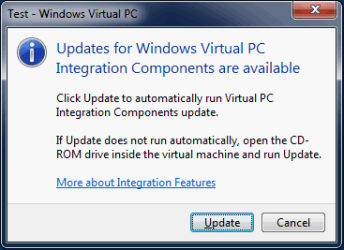
Windows 7 SP1 also updated Virtual PC and its integration components. After installing SP1 on a Seven host, all Virtual PC vm's show (should show ;)) this message when booted:

VPC_Integration_update.png

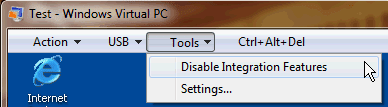
If you have updated your host with SP1, it might have corrupted the old integration components. What is strange in your case is that the option to install integration components should not be there if as you mentioned they were already installed. Tools menu when components are installed looks like this:

VPC_Integration_update_3.png

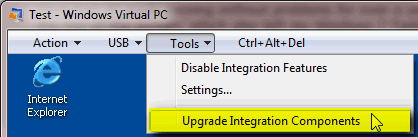
When components are installed but not yet upgraded, the upgrade option is also visible:

VPC_Integration_update_2.png

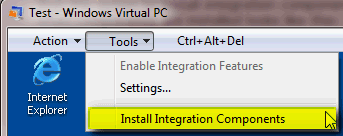
Install option should be visible and available only when integration components are not installed:

VPC_Integration_update_5.png

Whether you get the upgrade message or not, check first if you can still find Virtual PC Integration Components on XP Mode > Control Panel > Add or Remove Programs list:

VPC_Integration_update_4.png

If the list shows components as installed, remove them and reboot. After reboot, you should be able to re-install integration components.

Kari
 

My Computer

Computer type
Laptop
Computer Manufacturer/Model Number
HP ENVY 17-1150eg
OS
Windows 10 Pro x64 EN-GB
CPU
1.6 GHz Intel Core i7-720QM Processor
Memory
6 GB
Graphics Card(s)
ATI Mobility Radeon HD 5850 Graphics
Sound Card
Beats sound system with integrated subwoofer
Monitor(s) Displays
17" laptop display, 22" LED and 32" Full HD TV through HDMI
Screen Resolution
1600*900 (1), 1920*1080 (2&3)
Hard Drives
Internal: 2 x 500 GB SATA Hard Disk Drive 7200 rpm
External: 2TB for backups, 3TB USB3 network drive for media
Cooling
As Envy runs a bit warm, I have it on a Cooler Master pad
Keyboard
Logitech diNovo Media Desktop Laser (bluetooth)
Mouse
Logitech Performance Mouse MX
Internet Speed
50/10 Mbps VDSL
Antivirus
Windows Defender 4.3.9431.0
Browser
Maxthon 3.5.2., IE11
Kari: thanks for the reply. I never had the 'Update Integration Components' message after I installed SP1.

I'll take you through what happens:

(a) 'Starting virtual machine' then dialog appears with
(b) 'Could not enable integration components'. I hit 'Continue' and the VM opens in a small (not full screen) window.
(c) I go to 'Tools' and the options are: 'Enable Integration Components' - this is grayed out; 'Settings...' and 'Install integration Features'
(d) In Control Panel/Add-Remove programs 'Virtual Integration PC Components' are shown as installed. I uninstalled them and rebooted
(e) On reboot, go to 'Tools/Install Integration Components', the set up starts, then rolls back with a 'Setup Interrupted' message - which is where I was before.

I am wondering whether it would be best to uninstall XP Mode and reinstall it, but I really don't want to reinstall all my XP Mode applications. I'm not sure which file contains the virtual environment with my apps but could I back this up, reinstall XP Mode and then replace the 'default' virtual environment with my backed up version to get me back to a properly operating XP Mode?

Thanks again.
 

My Computer

Computer Manufacturer/Model Number
ASUS N61JV
OS
Windows 7 Pro 64 bit
CPU
Intel Core i5
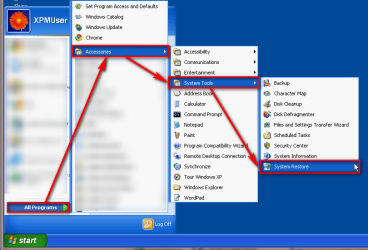
It seems that the installed integration components are corrupted, and that's causing re-installation to fail. First thing to try is to do a System restore to an earlier point in XP Mode. System restore in XP can be found like this:

XPM_System_Restore.png

Go back as far as needed to be sure Integration worked at that point.

If that does not help, I'm afraid there's nothing much to do except reinstalling. Assuming you have not changed the default setup, XP Mode uses two virtual hard disks, a base vhd and a user specific vhd (check this post if this is unfamiliar to you).

Because of the way these so called XP Mode differencing vhd's work, the integration components are installed on the user vhd, not on the base. Due this, it might not work to make a copy of your vhd, reinstall XP Mode and create a new virtual machine using the old XP Mode vhd. But, at least it is worth to try. This post was an answer to another member who wanted to copy XP Mode to another computer. Although different situation, you can use that method to make a copy of your vhd and after reinstalling XP Mode create a new vm.

If this fails, then (sorry!) there's nothing else to do than reinstall all apps on new reinstalled XP Mode.

For future reference, here's a list of all possible XP Mode files and their default locations.

Kari
 

My Computer

Computer type
Laptop
Computer Manufacturer/Model Number
HP ENVY 17-1150eg
OS
Windows 10 Pro x64 EN-GB
CPU
1.6 GHz Intel Core i7-720QM Processor
Memory
6 GB
Graphics Card(s)
ATI Mobility Radeon HD 5850 Graphics
Sound Card
Beats sound system with integrated subwoofer
Monitor(s) Displays
17" laptop display, 22" LED and 32" Full HD TV through HDMI
Screen Resolution
1600*900 (1), 1920*1080 (2&3)
Hard Drives
Internal: 2 x 500 GB SATA Hard Disk Drive 7200 rpm
External: 2TB for backups, 3TB USB3 network drive for media
Cooling
As Envy runs a bit warm, I have it on a Cooler Master pad
Keyboard
Logitech diNovo Media Desktop Laser (bluetooth)
Mouse
Logitech Performance Mouse MX
Internet Speed
50/10 Mbps VDSL
Antivirus
Windows Defender 4.3.9431.0
Browser
Maxthon 3.5.2., IE11
Kari: thanks. I thought I'd nearly got there - the system restore, after reboot, worked initially, in the sense that I was able to get a full screen. Since I'd restored from some time ago Windows Update loaded about 20 updates for XP. However after the required reboot I was back to a small screen and inability to Update/Install the Integration Components.

So I guess I'm going to have to reinstall XP Mode. Thanks for your help - your links will be useful in guiding me through the reinstallation.
 

My Computer

Computer Manufacturer/Model Number
ASUS N61JV
OS
Windows 7 Pro 64 bit
CPU
Intel Core i5
An idea, might work: after System restore, disconnect XP Mode from Internet so no updates are installed. Reboot XP Mode, try now to uninstall those remains of Integration Components. Reboot again, and make a final try to install integration.

Shot in the dark, I know ;)

Kari
 

My Computer

Computer type
Laptop
Computer Manufacturer/Model Number
HP ENVY 17-1150eg
OS
Windows 10 Pro x64 EN-GB
CPU
1.6 GHz Intel Core i7-720QM Processor
Memory
6 GB
Graphics Card(s)
ATI Mobility Radeon HD 5850 Graphics
Sound Card
Beats sound system with integrated subwoofer
Monitor(s) Displays
17" laptop display, 22" LED and 32" Full HD TV through HDMI
Screen Resolution
1600*900 (1), 1920*1080 (2&3)
Hard Drives
Internal: 2 x 500 GB SATA Hard Disk Drive 7200 rpm
External: 2TB for backups, 3TB USB3 network drive for media
Cooling
As Envy runs a bit warm, I have it on a Cooler Master pad
Keyboard
Logitech diNovo Media Desktop Laser (bluetooth)
Mouse
Logitech Performance Mouse MX
Internet Speed
50/10 Mbps VDSL
Antivirus
Windows Defender 4.3.9431.0
Browser
Maxthon 3.5.2., IE11
Kari: this is very weird. I did a System Restore (with internet connection off). I can boot into XP Mode. If I look at Tools/Settings, Integration Features are shown as 'Not Available' but I also have the options of 'Disable Integration Features' (which implies that they are enabled) and 'Install Integration Components'.

Control Panel/Add-Remove programs shows Virtual PC Integration Components as installed. If I look in Device Manager I have 'Other Devices' with a yellow Question Mark and with 3 Virtual PC Integration Devices (all with yellow Question Marks) shown beneath, all of which show 'This device is working properly.'

Using Windows Explorer I can see/access folders on the host machine.

So it appears that XP Mode is working but Settings show Integration Features 'not available'. Am I missing something here? Should I turn on my internet and allow XP to install updates?
 

My Computer

Computer Manufacturer/Model Number
ASUS N61JV
OS
Windows 7 Pro 64 bit
CPU
Intel Core i5
Those Virtual PC Integration Devices should be there just like that, working properly but with yellow exclamation marks (read this for more information).

If you still have some patience, try this after system restore:
  • Uninstall (remove) Integration Components, still disconnected from the Net
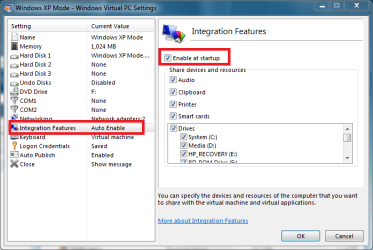
  • Open XP Mode settings, check that Auto Integration is disabled, just to be sure. If it's enabled as in this picture, uncheck it:
    .
    XPM_Integration4.png
    .
  • Reboot XP Mode
  • Try now to reinstall integration components

If this works, connect XP Mode back to net. If not, then get a few beers and start reinstalling... ;)

Kari
 

My Computer

Computer type
Laptop
Computer Manufacturer/Model Number
HP ENVY 17-1150eg
OS
Windows 10 Pro x64 EN-GB
CPU
1.6 GHz Intel Core i7-720QM Processor
Memory
6 GB
Graphics Card(s)
ATI Mobility Radeon HD 5850 Graphics
Sound Card
Beats sound system with integrated subwoofer
Monitor(s) Displays
17" laptop display, 22" LED and 32" Full HD TV through HDMI
Screen Resolution
1600*900 (1), 1920*1080 (2&3)
Hard Drives
Internal: 2 x 500 GB SATA Hard Disk Drive 7200 rpm
External: 2TB for backups, 3TB USB3 network drive for media
Cooling
As Envy runs a bit warm, I have it on a Cooler Master pad
Keyboard
Logitech diNovo Media Desktop Laser (bluetooth)
Mouse
Logitech Performance Mouse MX
Internet Speed
50/10 Mbps VDSL
Antivirus
Windows Defender 4.3.9431.0
Browser
Maxthon 3.5.2., IE11
Kari:

>>Uninstall (remove) Integration Components, still disconnected from the Net<<

Do you mean by Control Panel/Add-Remove programs?
 

My Computer

Computer Manufacturer/Model Number
ASUS N61JV
OS
Windows 7 Pro 64 bit
CPU
Intel Core i5
Yes! (XP Mode > Control Panel > Add or Remove Programs)
 

My Computer

Computer type
Laptop
Computer Manufacturer/Model Number
HP ENVY 17-1150eg
OS
Windows 10 Pro x64 EN-GB
CPU
1.6 GHz Intel Core i7-720QM Processor
Memory
6 GB
Graphics Card(s)
ATI Mobility Radeon HD 5850 Graphics
Sound Card
Beats sound system with integrated subwoofer
Monitor(s) Displays
17" laptop display, 22" LED and 32" Full HD TV through HDMI
Screen Resolution
1600*900 (1), 1920*1080 (2&3)
Hard Drives
Internal: 2 x 500 GB SATA Hard Disk Drive 7200 rpm
External: 2TB for backups, 3TB USB3 network drive for media
Cooling
As Envy runs a bit warm, I have it on a Cooler Master pad
Keyboard
Logitech diNovo Media Desktop Laser (bluetooth)
Mouse
Logitech Performance Mouse MX
Internet Speed
50/10 Mbps VDSL
Antivirus
Windows Defender 4.3.9431.0
Browser
Maxthon 3.5.2., IE11
Kari: Removed Integration Components. Checked Settings : Integration features - Not Available, Enable At Start Up grayed out.

Rebooted. Tried to Install Integration Components -> Roll back -> Set Up interrupted = stuffed!
 

My Computer

Computer Manufacturer/Model Number
ASUS N61JV
OS
Windows 7 Pro 64 bit
CPU
Intel Core i5
OK. I hope you have enough beer available, reinstalling all apps on XP Mode can take some time ;)

Sorry.

Kari
 

My Computer

Computer type
Laptop
Computer Manufacturer/Model Number
HP ENVY 17-1150eg
OS
Windows 10 Pro x64 EN-GB
CPU
1.6 GHz Intel Core i7-720QM Processor
Memory
6 GB
Graphics Card(s)
ATI Mobility Radeon HD 5850 Graphics
Sound Card
Beats sound system with integrated subwoofer
Monitor(s) Displays
17" laptop display, 22" LED and 32" Full HD TV through HDMI
Screen Resolution
1600*900 (1), 1920*1080 (2&3)
Hard Drives
Internal: 2 x 500 GB SATA Hard Disk Drive 7200 rpm
External: 2TB for backups, 3TB USB3 network drive for media
Cooling
As Envy runs a bit warm, I have it on a Cooler Master pad
Keyboard
Logitech diNovo Media Desktop Laser (bluetooth)
Mouse
Logitech Performance Mouse MX
Internet Speed
50/10 Mbps VDSL
Antivirus
Windows Defender 4.3.9431.0
Browser
Maxthon 3.5.2., IE11
Kari: no need to apologise. There seems to be a view that Windows 7 Sp1 may have stuffed a few peoples' XP Mode. \

Thaks for your assistance.
 

My Computer

Computer Manufacturer/Model Number
ASUS N61JV
OS
Windows 7 Pro 64 bit
CPU
Intel Core i5
Back
Top