You Shall Not Pass Virus - Help

Vlad64

New member
Local time
8:55 AM
Messages
8
Hey everyone...
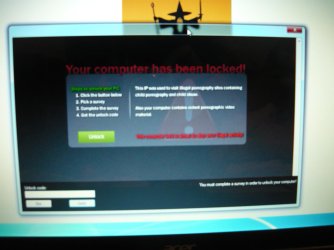
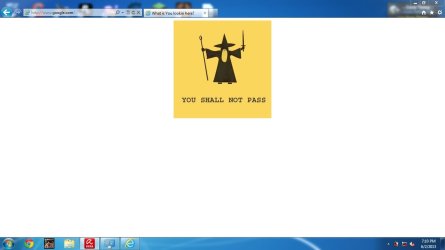
I have a little problem and i don't know how to fix it. Today, my laptop was infected with a virus called "You Shall Not Pass" or something like that. The thing is that when i try to access a popular webpage like facebook or google, my browser displays me a image (help1.jpg). I remove the virus from the computer using malwarebytes, adwcleaner and avira. I also used Microsoft Fix It, but that did nothing. Even after restarting the laptop in safe mode and deleting the virus from there didn't helped. I also put a photo showing the window that appeared twice. Since i couldn't make a screenshot, i used my camera. The photo is called P1040104.png. I even tried to reinstall google chrome using my computer, but that didn't helped either. I still can't get rid of that annoying image!!!
Can someone help me please? Thanks in advance. If you need more information just tell me.
 

Attachments
  • help1.jpg
    help1.jpg
    31.1 KB · Views: 7
  • P1040104.jpg
    P1040104.jpg
    223.5 KB · Views: 8

My Computer My Computer

Computer type
Laptop
Computer Manufacturer/Model Number
Acer
OS
Windows 7 Professional x64
CPU
Inter(R) Pentium (R) CPU B960 @ 2.20GHz
Motherboard
Unknown
Memory
4GB
Graphics Card(s)
NVIDIA GeForce GT 630M
Hard Drives
WDC WD5000BPVT-22HXZT3 ATA Device (500GB)
Antivirus
Avira
Browser
Google Chrome
Vlad64,

A new twist on good ol' ransomware.

Let's use HitmanPro.Kickstart to access your computer, scan it for malware, and remove this infection. The program targets ransomware.


Also, you may want to print these instructions, so they are available to follow.


Now, load a USB flash drive with HitmanPro.Kickstart as follows...
(Note: the contents of the USB flash drive are erased during this process!)


Use a clean (non-infected) computer, and download:
HitmanPro.Kickstart - Anti ransomware, politievirus, bundestrojaner, Reveton, BKA, GVU - SurfRight


Under Download (on the right) select the program applicable to the system: 64-bit?


When HitmanPro opens, click the KickStart icon at the bottom of the screen.


>>Plug in the USB flash drive.


When the USB flash drive is detected, a selection screen is presented.
Select the USB flash drive from the choices, and press: Install Kickstart

A warning that all contents of the selected flash drive will erase is presented.
Press: Yes


As the HitmanPro.Kickstart files are loaded, a progress indicator is shown on the screen.
Once the process is completed a screen is presented with the contents of HitmanPro.Kickstart

Remove the USB flash drive from the clean computer and press: Close


Now, with the ransomed computer shut down, plug the USB flash drive into a USB port, and turn on the power.


When the computer starts, press the key that brings up the Boot Menu. (On some machines its F12, F10, or F2)

From there, select to boot from the USB drive. (It may say 'Removable Drive' in the options.)
Info: How to Remove Ransomware - Select Real Security


Once you select the USB flash drive to boot from, press: Enter


A Kickstart prompt with USB boot options appears.
Select: 1 (Bypass the Master Boot Record (Default))


The system continues to boot from the hard drive and starts Windows.


If you get a message stating that Windows failed to start, etc., just select: Start Windows Normally


When Windows boots, you either get a logon screen, or the Desktop is started.
If you see a logon screen with your User name, logon with it.


In the next prompt that appears, to start the program without installing to the local hard disk, select the option to do a: One-time scan to check the computer.


To start scanning for malware press: Next


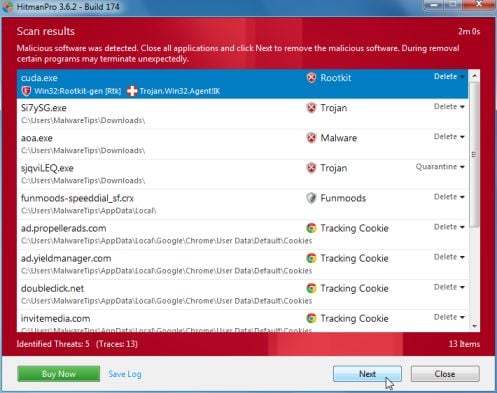
If malware is detected, the program shows what malware is present on the system using a red framed screen as shown below:
hitmanpro-scan-results.jpg

Select Next to quarantine the malware into a secure storage where it can no longer start.


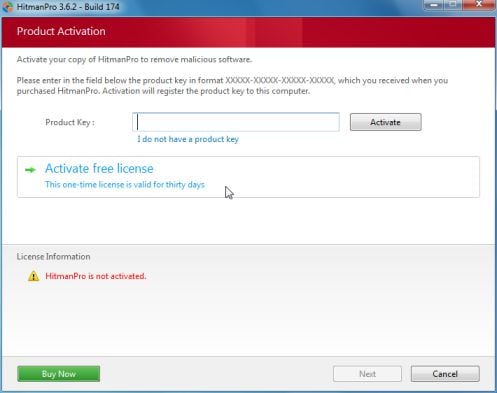
At the next screen, activate the 30-day free license:
hitmanpro-activation.jpg

After successful activation (30 days), press: Next


A screen indicating that the malware was successfully disabled or removed is presented.
Press: Next


To obtain a report of the scan results, press: Save log
>>Save the Notepad log to the Desktop<<

It has a name such as: HitmanPro_xxxxxxxx_xxxx


Remove the USB drive, and press: Reboot
If no malware is found, press: Close


After HitmanPro.Kickstart is done, you should be back into normal Windows.


Please post the HitmanPro log in your reply. <<Important!


~~~~
To remove any remnant malicious files of the ransomware...


Download RogueKiller:
Tlcharger RogueKiller (Site Officiel)

When you get to the website, go to where it says:
(Download link) Lien de téléchargement:
rendu2.png


Select the version that applies to your system: x64 (?)
Click the dark-blue button to download.
Save to the Desktop.


Close all windows and browsers.


Right-click and select: Run as Administrator


At the program console, wait for the prescan to finish. (Under Status, it says: Prescan finished.)


Press: SCAN


When done, a report opens on the Desktop: RKreport.txt

Please provide the RKreport.txt (Mode: Scan) in your reply.
 

My Computer My Computer

Computer type
PC/Desktop
Computer Manufacturer/Model Number
An ol' eMachines
OS
Windows 7 Home Premium
Internet Speed
Fine for me...I'm retired!
Back
Top