How to Open Items with a Single-Click or Double-Click in Windows 7 and Windows 8
Information
This tutorial will show you how to open files and folders with either a single click or double click in Windows 7 and Windows 8.
Note
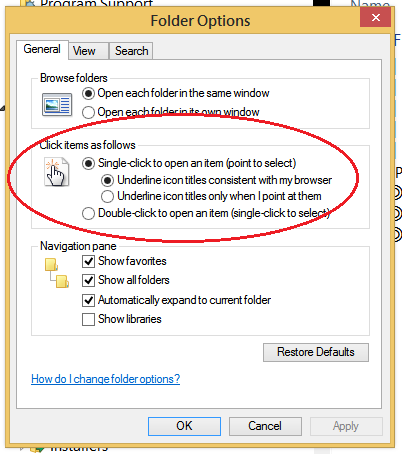
Select the Single-click option to open files and folders with a single left click like links on a webpage. When Single-click is selected, you have the choice to have icon titles either always underlined or only underlined when you hover the mouse pointer over the item. Allowing the mouse pointer to hover over a item will select it.
Select the Double-click option to open files and folders with a double left click instead. When Double-click is selected, a single click will select the item.
Select the Double-click option to open files and folders with a double left click instead. When Double-click is selected, a single click will select the item.
OPTION ONE
Through Folder Options

2. To Single-click to Open an Item A) Select (dot) Single-click to open an Item. (See screenshot above)
B) Select (dot) if you want to have icons titles always underlined, or only underlined when you hover (point at) over the item.
C) Click/tap on OK.
3. To Double-click to Open an Item
NOTE: This is the default setting. A) Select (dot) Double-click to open an Item, then click/tap on OK. (See screenshot below step 1)
OPTION TWO
Using a REG File Download
 pen_Item_A.reg
Download
B) Go to step 4.
2. To Single-click to Open an Item "Underline icon titles only when I point at them"
NOTE: This is the default setting. A) Click/tap on the Download button below to download the file below. Single-Click_t
pen_Item_B.regDownload
B) Go to step 4.
3. To Double-click to Open an Item A) Click/tap on the Download button below to download the file below. Double-Click-t
pen_Item.regDownload
4. Save the .reg file to the desktop.
5. Double click/tap on the downloaded .reg file to merge it.
6. Click/tap on Run, Yes (UAC), Yes, and OK when prompted.
7. Log off and log on, or restart the computer to apply.
8. When done, you can delete the downloaded .reg file if you like.
That's it,
Shawn
Related Tutorials
- How to Select Items with Check Boxes in Windows 7
- How to Enable or Disable Point to Select using Single-click to Open an Item
- How to Activate a Window by Hovering Over it with the Mouse Pointer
- Always Open Shortcut Minimized, Maximized, or Normally in Vista, Windows 7, and Windows 8
- How to Set the Left or Right Mouse Button as Primary in Windows 8 and 8.1
Attachments
Last edited: