
How to Turn DVD Playback Restrictions On or Off in Windows Media Player
Information
This will show you how to set DVD playback restrictions in Windows Media Player to prevent all users (ex: child) with a standard account on your computer from being able to play a DVD movie that is rated higher than the G, PG, PG-13, R, NC-17, or Not rated Motion Picture Association of America (MPAA) rating you set.
You must be logged in as an administrator to be able to do this tutorial.
You must be logged in as an administrator to be able to do this tutorial.
Note
The N and KN editions of Windows 7 have all the features that normally come with each individual Windows 7 edition, except for Windows Media Player 12 and related programs, such as Windows Media Center or Windows DVD Maker.
The N editions of Windows 7 allow you to choose your own media player and software required to manage and play CDs, DVDs, and other digital media files. If you choose to use Windows Media Player 12, downloading it, along with related software, is free. Download Media Feature Pack for Windows 7 N with Service Pack 1 and Windows 7 KN with Service Pack 1 (KB968211) from Official Microsoft Download Center
The N editions of Windows 7 allow you to choose your own media player and software required to manage and play CDs, DVDs, and other digital media files. If you choose to use Windows Media Player 12, downloading it, along with related software, is free. Download Media Feature Pack for Windows 7 N with Service Pack 1 and Windows 7 KN with Service Pack 1 (KB968211) from Official Microsoft Download Center
EXAMPLE: DVD Playback Restrictions Turned On
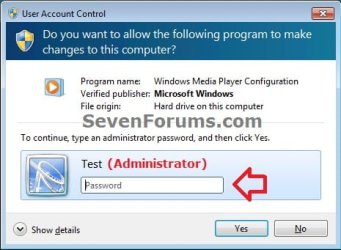
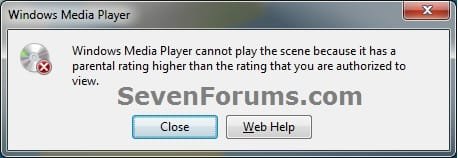
NOTE: When DVD playback restrictions is turned on, then a standard user will be prompted by UAC (left screenshot below) to enter the administrator's password before they will be allowed to play a DVD with a rating higher than you set. If they do not enter the password, then they will get a denied message (right screenshot below).
Here's How: 1. Open Windows Media Player (wmplayer.exe).
Note
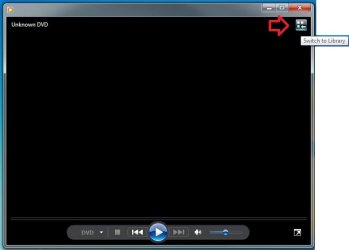
If the WMP is currently open and you’re in Now Playing mode, click the Switch to Library button in the upper-right corner of the Player.
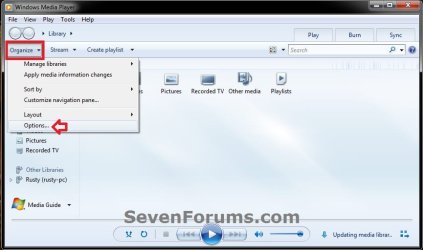
2. Click on the Organize toolbar button, and click on Options. (see screenshot below)
A) Go to step 4.
OR
3. Click on Tools on the menu bar, and click on Options. (see screenshot below)

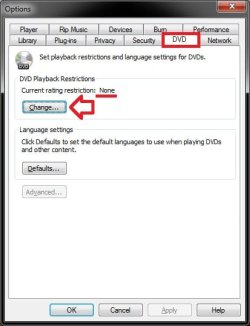
4. Click on the DVD tab, then click on the Change button. (see screenshot below)
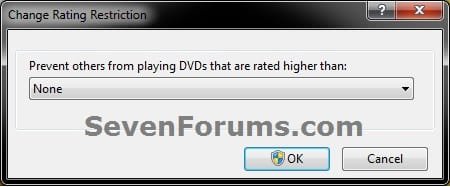
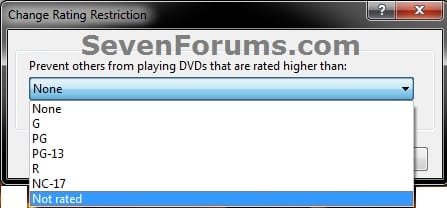
5. To Turn OFF DVD Playback Restrictions in WMP A) Click on the drop down menu arrow and select None. (see screenshots below step 7)
B) Go to step 7.
6. To Turn ON DVD Playback Restrictions in WMP A) Click on the drop down menu arrow and select the highest G, PG, PG-13, R, NC-17, or Not rated Motion Picture Association of America (MPAA) rating to prevent standard users from being able to play and view DVDs that are rated higher than the rating you selected. (see screenshots below step 7)
7. Click on OK. (see screenshot below)
8. If prompted by UAC, then click on Yes.
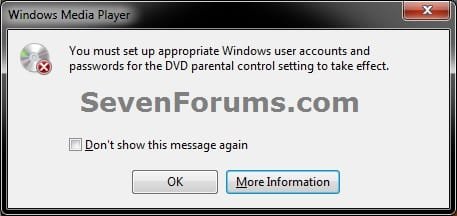
9. Click on OK. (see screenshot below)
NOTE: This prompt is just a reminder that this only affects standard user accounts on your computer.
That's it,
Shawn
Related Tutorials
- How to Setup and Use Parental Controls in Windows 7
- How to Set Time Limits in Windows 7 Parental Controls
- How to Set Game Restrictions in Windows 7 Parental Controls
- How to Allow or Block Specific Programs in Windows 7 Parental Controls
- How to Create a Parental Controls Shortcut in Windows 7
- How to Setup and Use Windows Media Center Parental Controls
- How to Set Disk Quota Limits for Users in Windows 7 and Vista
- How to Turn Media Streaming Using Windows Media Player On or Off in Windows 7
- How to Enable or Disable Media Sharing from Windows Media Player in Windows 7
Last edited:

