Resource Monitor

How to Open Resource Monitor in Windows 7 and Windows 8

   Information
This will show you how to open Resource Monitor to view information about the use of hardware (CPU, memory, disk, and network) and software (file handles and modules) resources from processes and services in real time in Windows 7 and Windows 8.

In addition to monitoring resource usage in real time, Resource Monitor can help you analyze unresponsive processes, identify which applications are using files, and control processes and services.
   Note
Resource Monitor includes the following elements and features below.

Tabs

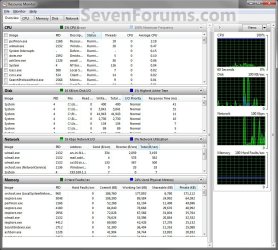
Resource Monitor includes five tabs: Overview, CPU, Memory, Disk, and Network. The Overview tab displays basic system resource usage information; the other tabs display information about each specific resource.
  • Switch between tabs by clicking on the tab titles.
  • If you have filtered results on one tab, only resources used by the selected processes or services will be displayed on the other tabs. Filtered results are denoted by an orange bar below the title bar of each table. To stop filtering results while viewing the current tab, in the key table, clear the check box next to Image.
Tables
Each tab in Resource Monitor includes multiple tables that provide detailed information about the resource featured on that tab.
  • To expand or collapse a table, click the arrow on the right side of the title bar of the table. Not all tables are expanded by default.
  • To add or hide data columns in a table, right-click any column label, and then click Select Columns. Select or clear the check boxes for the columns you want displayed. Not all columns are displayed by default.
  • The first table displayed is always the key table, and it always contains a complete list of processes using the resource included on that tab. (The key table on the Overview tab contains a complete list of processes running on the system.)
  • To sort table data, click the label of the column you want to sort by. To reverse the sort order, click the column label again.
  • You can filter the detailed data in tables other than the key table by one or more processes or services. To filter, in the key table, select the check box next to each process or service you want to highlight. To stop filtering for a single process or service, clear its check box. To stop filtering altogether, in the key table, clear the check box next to Image.
  • If you have filtered results, tables other than the key table will only display data for the selected processes or services.
  • To view definitions of data displayed in the tables, move the mouse pointer over the column title you want more information about.
  • A process that is no longer running, but that is included in the current displayed data, will appear as a gray entry in a table until the data expires.
Chart pane
Each tab in Resource Monitor includes a chart pane on the right side of the window that displays graphs of the resources included on that tab. Resource Monitor displays one graph for each logical processor and core.
  • You can change the size of the graphs by clicking the Views button and selecting a different graph size of Large, Medium, or Small.
  • You can hide the chart pane by clicking the arrow at the top of the pane.
  • If you have filtered results, the resources used by the selected processes or services will be shown in the graphs as an orange line.
  • If you have multiple logical processors, you can choose which ones are displayed in the chart pane. On the CPU tab, click Monitor, and then click Select Processors. In the Select Processors dialog box, clear the All CPUs check box, and then select the check boxes for the logical processors you want to display.


Here's How:
1. Do step 2 or 3 below for how you would like to open Resource Monitor.

2. Press the Windows + R keys to open the Run dialog, type resmon.exe, press Enter, and go to step 4 below.
3. Open Task Manager (Ctrl+Shift_Esc), and click/tap on the Performance tab and Resource Monitor (Windows 7) or Open Resource Monitor (Windows 8), and go to step 4 below. (See screenshots below)
Task_1.jpg

Windows-8_Task_Manager.jpg
4. If prompted by UAC, then click/tap on Yes.


5. Overview Tab
Overview_Tab.jpg
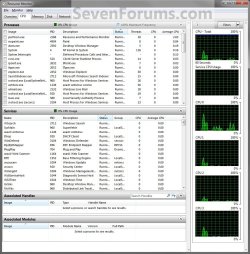
6. CPU Tab
NOTE: Selecting processes will allow you to see all of the associated handles and modules for them.
CPU_Tab.jpg
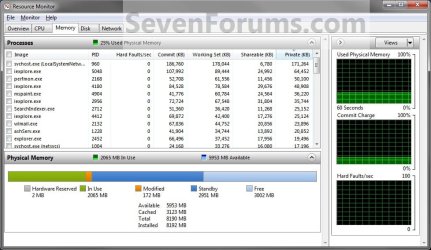
7. Memory Tab
Memory_Tab.jpg
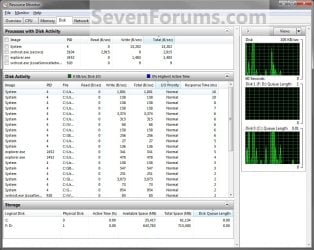
8. Disk Tab
Disk_Tab.jpg
9. Network Tab
Network_Tab.jpg
That's it,
Shawn


Last edited:
:D Excellent series of posts on numerous new options with the Windows 7 Resource Monitor. Your contributions to this site are invaluable !
 

My Computer

OS
Windows 7 Pro x64 & Vista x64 (Dual boot)
CPU
I7-920
Motherboard
Gigabyte GA-EX58-UD5 Motherboard
Memory
6 gb Kingston Hyperx memory PC-12800 DDRIII
Graphics Card(s)
eVGA NVIDIA GeForce 250 GTS 1gb DDR3
Hard Drives
2x120 gb SSD OCZ Vertex MLC
2x1 tb Western Digital Caviar Black WD1001FALS
Thank you BNC123. I'm happy that you find them helpful. :)
 

My Computer

Computer type
PC/Desktop
Computer Manufacturer/Model Number
Self built custom
OS
64-bit Windows 11 Pro for Workstations
CPU
Intel i7-8700K OC'd to 5 GHz
Motherboard
ASUS ROG Maximus XI Formula Z390
Memory
64 GB (4x16GB) G.SKILL TridentZ RGB DDR4 3600 MHz
Graphics Card(s)
ASUS ROG-STRIX-GTX1080TI-O11G-GAMING
Sound Card
Integrated
Monitor(s) Displays
2 x Samsung Odyssey G7 27"
Screen Resolution
2560x1440
Hard Drives
1TB Samsung 990 PRO M.2,
4TB Samsung 990 PRO PRO M.2,
TerraMaster F8 SSD Plus NAS
PSU
Seasonic Prime Titanium 850W
Case
Thermaltake Core P3
Cooling
Corsair Hydro H115i
Keyboard
Logitech wireless K800
Mouse
Logitech MX Master 4
Internet Speed
2 Gb/s Download and 100 Mb/s Upload
Antivirus
Malwarebyte Anti-Malware Premium
Browser
Google Chrome
Other Info
Logitech Z625 speaker system,
Logitech BRIO 4K Pro webcam,
HP Color LaserJet Pro MFP M477fdn,
APC SMART-UPS RT 1000 XL - SURT1000XLI,
Galaxy S23 Plus phone

My Computer

Computer Manufacturer/Model Number
Custom
OS
Windows 7 Home Premium
CPU
E75OO OC ~ 3.7O GHz
Motherboard
Gigabyte P45
Memory
2 GB OC ~ 1066 MHz DualChannel
Graphics Card(s)
96OO GT OC
Sound Card
Onboard
Monitor(s) Displays
LG 22"
Screen Resolution
1920x1080
Hard Drives
Seagate 1000GB 7200.12
Seagate 500GB 7200.12
WDC 500GB 7200 RPM
PSU
Nameless 450W
Case
CiRCLE FullATX
Cooling
Stock
Keyboard
Logitech Combo
Mouse
-
Internet Speed
512 Kbps
Hello Sam,

I didn't mention it there. Only a link was added there.

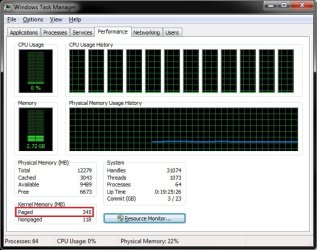
You can see how much kernal memory is paged in Task Manager, but.....
Task.jpg
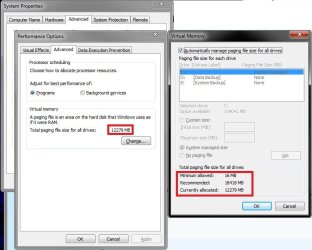
For the page file, it's best to see how much is being used in the Virtual Memory window instead.
Page.jpg
 

My Computer

Computer type
PC/Desktop
Computer Manufacturer/Model Number
Self built custom
OS
64-bit Windows 11 Pro for Workstations
CPU
Intel i7-8700K OC'd to 5 GHz
Motherboard
ASUS ROG Maximus XI Formula Z390
Memory
64 GB (4x16GB) G.SKILL TridentZ RGB DDR4 3600 MHz
Graphics Card(s)
ASUS ROG-STRIX-GTX1080TI-O11G-GAMING
Sound Card
Integrated
Monitor(s) Displays
2 x Samsung Odyssey G7 27"
Screen Resolution
2560x1440
Hard Drives
1TB Samsung 990 PRO M.2,
4TB Samsung 990 PRO PRO M.2,
TerraMaster F8 SSD Plus NAS
PSU
Seasonic Prime Titanium 850W
Case
Thermaltake Core P3
Cooling
Corsair Hydro H115i
Keyboard
Logitech wireless K800
Mouse
Logitech MX Master 4
Internet Speed
2 Gb/s Download and 100 Mb/s Upload
Antivirus
Malwarebyte Anti-Malware Premium
Browser
Google Chrome
Other Info
Logitech Z625 speaker system,
Logitech BRIO 4K Pro webcam,
HP Color LaserJet Pro MFP M477fdn,
APC SMART-UPS RT 1000 XL - SURT1000XLI,
Galaxy S23 Plus phone
Thanks for replying Brink, but still I didn't want to know how to create/change pagefile. Is there anyway to see the actual pagefile usage in task/resource manager like in xp ?
Like of 2 GB pagefile 500 MB is currently paged/being used ... any ideas ? Thanks again.
 

My Computer

Computer Manufacturer/Model Number
Custom
OS
Windows 7 Home Premium
CPU
E75OO OC ~ 3.7O GHz
Motherboard
Gigabyte P45
Memory
2 GB OC ~ 1066 MHz DualChannel
Graphics Card(s)
96OO GT OC
Sound Card
Onboard
Monitor(s) Displays
LG 22"
Screen Resolution
1920x1080
Hard Drives
Seagate 1000GB 7200.12
Seagate 500GB 7200.12
WDC 500GB 7200 RPM
PSU
Nameless 450W
Case
CiRCLE FullATX
Cooling
Stock
Keyboard
Logitech Combo
Mouse
-
Internet Speed
512 Kbps
Sam,

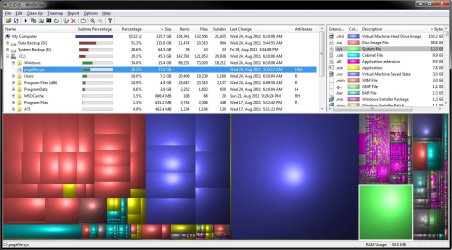
There's a great free program called WinDirStat that you can use to see the percentage used of the pagefile.

example.jpg
 

My Computer

Computer type
PC/Desktop
Computer Manufacturer/Model Number
Self built custom
OS
64-bit Windows 11 Pro for Workstations
CPU
Intel i7-8700K OC'd to 5 GHz
Motherboard
ASUS ROG Maximus XI Formula Z390
Memory
64 GB (4x16GB) G.SKILL TridentZ RGB DDR4 3600 MHz
Graphics Card(s)
ASUS ROG-STRIX-GTX1080TI-O11G-GAMING
Sound Card
Integrated
Monitor(s) Displays
2 x Samsung Odyssey G7 27"
Screen Resolution
2560x1440
Hard Drives
1TB Samsung 990 PRO M.2,
4TB Samsung 990 PRO PRO M.2,
TerraMaster F8 SSD Plus NAS
PSU
Seasonic Prime Titanium 850W
Case
Thermaltake Core P3
Cooling
Corsair Hydro H115i
Keyboard
Logitech wireless K800
Mouse
Logitech MX Master 4
Internet Speed
2 Gb/s Download and 100 Mb/s Upload
Antivirus
Malwarebyte Anti-Malware Premium
Browser
Google Chrome
Other Info
Logitech Z625 speaker system,
Logitech BRIO 4K Pro webcam,
HP Color LaserJet Pro MFP M477fdn,
APC SMART-UPS RT 1000 XL - SURT1000XLI,
Galaxy S23 Plus phone

My Computer

Computer Manufacturer/Model Number
Custom
OS
Windows 7 Home Premium
CPU
E75OO OC ~ 3.7O GHz
Motherboard
Gigabyte P45
Memory
2 GB OC ~ 1066 MHz DualChannel
Graphics Card(s)
96OO GT OC
Sound Card
Onboard
Monitor(s) Displays
LG 22"
Screen Resolution
1920x1080
Hard Drives
Seagate 1000GB 7200.12
Seagate 500GB 7200.12
WDC 500GB 7200 RPM
PSU
Nameless 450W
Case
CiRCLE FullATX
Cooling
Stock
Keyboard
Logitech Combo
Mouse
-
Internet Speed
512 Kbps
You're most welcome Sam. :)
 

My Computer

Computer type
PC/Desktop
Computer Manufacturer/Model Number
Self built custom
OS
64-bit Windows 11 Pro for Workstations
CPU
Intel i7-8700K OC'd to 5 GHz
Motherboard
ASUS ROG Maximus XI Formula Z390
Memory
64 GB (4x16GB) G.SKILL TridentZ RGB DDR4 3600 MHz
Graphics Card(s)
ASUS ROG-STRIX-GTX1080TI-O11G-GAMING
Sound Card
Integrated
Monitor(s) Displays
2 x Samsung Odyssey G7 27"
Screen Resolution
2560x1440
Hard Drives
1TB Samsung 990 PRO M.2,
4TB Samsung 990 PRO PRO M.2,
TerraMaster F8 SSD Plus NAS
PSU
Seasonic Prime Titanium 850W
Case
Thermaltake Core P3
Cooling
Corsair Hydro H115i
Keyboard
Logitech wireless K800
Mouse
Logitech MX Master 4
Internet Speed
2 Gb/s Download and 100 Mb/s Upload
Antivirus
Malwarebyte Anti-Malware Premium
Browser
Google Chrome
Other Info
Logitech Z625 speaker system,
Logitech BRIO 4K Pro webcam,
HP Color LaserJet Pro MFP M477fdn,
APC SMART-UPS RT 1000 XL - SURT1000XLI,
Galaxy S23 Plus phone
Thank You

Just wanted to add my cudos and thanks to Brinks for all the info and help. I find myself on this site whenever I encounter a problem with Windows 7 (so...all the time? haha) and really appreciate the help and guidance you offer! Concise, easy to understand and quick to reply - oh and screen shots, which are my salvation!
THANK YOU from the bottom of my semi-noob heart!
 

My Computer

Computer Manufacturer/Model Number
Dell XPS 410
OS
Windows 7 Pro
CPU
Intel Pen D 2.80GHz/Dual Core
Motherboard
Dell Inc. 0WG855
Memory
RAM 2 G
Graphics Card(s)
INVIDIA GE FORCE 8400 GS
Monitor(s) Displays
Dell 17"
Hard Drives
2 RAID 500 G hard drives
Keyboard
Saitek
Mouse
Wacom Intuos3 Tablet with Pen
Internet Speed
DSL - I don't know
You're most welcome krabkat, and thank you. :)
 

My Computer

Computer type
PC/Desktop
Computer Manufacturer/Model Number
Self built custom
OS
64-bit Windows 11 Pro for Workstations
CPU
Intel i7-8700K OC'd to 5 GHz
Motherboard
ASUS ROG Maximus XI Formula Z390
Memory
64 GB (4x16GB) G.SKILL TridentZ RGB DDR4 3600 MHz
Graphics Card(s)
ASUS ROG-STRIX-GTX1080TI-O11G-GAMING
Sound Card
Integrated
Monitor(s) Displays
2 x Samsung Odyssey G7 27"
Screen Resolution
2560x1440
Hard Drives
1TB Samsung 990 PRO M.2,
4TB Samsung 990 PRO PRO M.2,
TerraMaster F8 SSD Plus NAS
PSU
Seasonic Prime Titanium 850W
Case
Thermaltake Core P3
Cooling
Corsair Hydro H115i
Keyboard
Logitech wireless K800
Mouse
Logitech MX Master 4
Internet Speed
2 Gb/s Download and 100 Mb/s Upload
Antivirus
Malwarebyte Anti-Malware Premium
Browser
Google Chrome
Other Info
Logitech Z625 speaker system,
Logitech BRIO 4K Pro webcam,
HP Color LaserJet Pro MFP M477fdn,
APC SMART-UPS RT 1000 XL - SURT1000XLI,
Galaxy S23 Plus phone
Back
Top