
You've all seen something like this on SevenForums, a YouTube video inside somebody's post:
...and some of you are wondering how to do it yourself.
It's simple, just read along...
1 - First of all, go to YouTube and find your video.

2 - Now look at the URL - the actual web address of the YouTube clip:

3 - The important bit is the code after http://www.youtube.com/watch?v= - in this case, it's Bvu1DU_RZ9w.
Select just the Bvu1DU_RZ9w part with your mouse, right-click and copy it.
4 - Now, if you want to have the video inside one of your posts, click on the YouTube button in the post editor.

5 - The forum software will automagically insert an opening [YOUTUBE] and a closing [/YOUTUBE] 'tag'.
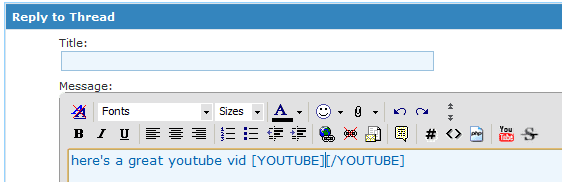
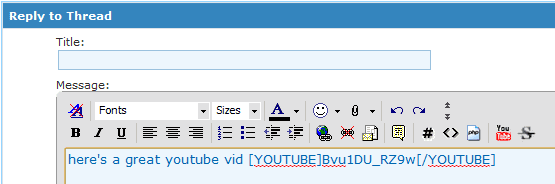
6 - Next, simply paste the Bvu1DU_RZ9w code that we copied earlier in between the two tags, like so:
[YOUTUBE]Bvu1DU_RZ9w[/YOUTUBE]
7 - Finish writing the rest of your post, and the result will be:
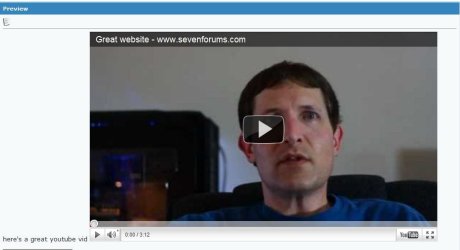
That's it!
Happy posting!
...and some of you are wondering how to do it yourself.
It's simple, just read along...
1 - First of all, go to YouTube and find your video.
2 - Now look at the URL - the actual web address of the YouTube clip:
3 - The important bit is the code after http://www.youtube.com/watch?v= - in this case, it's Bvu1DU_RZ9w.
Select just the Bvu1DU_RZ9w part with your mouse, right-click and copy it.
Tip
Sometimes, depending on the particular YouTube video, you may see something like http://www.youtube.com/watch?v=Bvu1DU_RZ9w&feature=related, if so, ignore the &feature=related bit of the URL, and just copy the Bvu1DU_RZ9w.
4 - Now, if you want to have the video inside one of your posts, click on the YouTube button in the post editor.
5 - The forum software will automagically insert an opening [YOUTUBE] and a closing [/YOUTUBE] 'tag'.
6 - Next, simply paste the Bvu1DU_RZ9w code that we copied earlier in between the two tags, like so:
[YOUTUBE]Bvu1DU_RZ9w[/YOUTUBE]
7 - Finish writing the rest of your post, and the result will be:
That's it!
Happy posting!
Last edited by a moderator:


