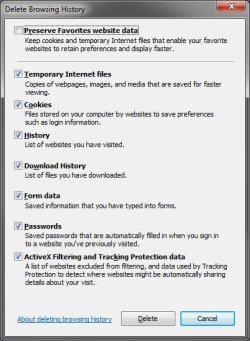
Internet Explorer 9 - Delete Browsing History

How to Delete the Browsing History of Internet Explorer 9 (IE9)


   Information
As you browse the web, IE9 stores information about Temporary Internet Files, Cookies, Websites Visited History, Download History, Form data, Passwords, and ActiveX Filtering and Tracking Protection data.

This tutorial will show you how to delete your browsing history in Internet Explorer 9 (IE9).

   Note

  • You can use the InPrivate Browsing feature in IE9 to avoid saving your browsing history.
  • You can close Internet Explorer at the end of a browsing session to clear temporary cookies that are still in memory. This is especially important when using a public computer.
  • If you are unable to delete your browsing history by following the steps in the tutorial below, then you might need to rebuild the index.


Here's How:
1. Do either steps 2 or 3 below to open the Delete Browsing History window.

2. In IE9, click on the gear icon (tools) in the upper right corner, then click on Safety and Delete browsing history. (see screenshot below)
NOTE: You could also press CTRL+Shift+Del while in a active IE9 window instead.
Step-2.jpg
A) Go to step 4.
OR

3. In IE9, click on the gear icon (tools) in the upper right corner, then click on Internet Options. (see screenshot below)
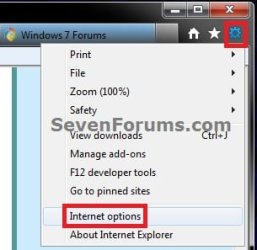
Options-1.jpg
A) In the General tab under Browsing History, click on the Delete button. (see screenshot below)
Step-3.jpg
4. Check the check box next to each category of information you want to delete, and click on the Delete button. (see screenshot below)
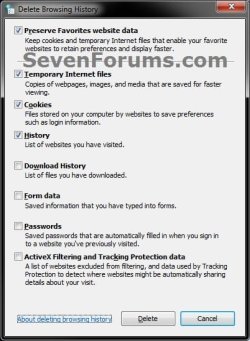
Step-4.jpg
5. When IE browsing history has finished being deleted, you will get the yellow bar pop-up at the bottom of IE to let you know. You can click on the X at the top right corner to close it. (see screenshot below)

IE-Pop-up.jpg
6. If you did step 3, then you can close Internet Options now if you like. (see screenshot below step 3A)
That's it,
Shawn


Last edited:
I had to join and say this. None of this will delete the history in the "Drop down?" In IE9. All the cookies are gone, the history has been deleted, but. Its still there next to the magnifying glass click the little arrow and the history is still there. Go to the end of thread and an " X " will apear and delete will appear. Click all the Xs' and its gone?? No! It shows rightback up again when you open the browser again. Maybe that is why the other person was asking so many questions. I've tried everything and can not erase the page history in the browser. Thank-you.
 

My Computer

OS
vistapremium 64 bit
Last edited:

My Computer

Computer type
PC/Desktop
Computer Manufacturer/Model Number
Self built custom
OS
64-bit Windows 11 Pro for Workstations
CPU
Intel i7-8700K OC'd to 5 GHz
Motherboard
ASUS ROG Maximus XI Formula Z390
Memory
64 GB (4x16GB) G.SKILL TridentZ RGB DDR4 3600 MHz
Graphics Card(s)
ASUS ROG-STRIX-GTX1080TI-O11G-GAMING
Sound Card
Integrated
Monitor(s) Displays
2 x Samsung Odyssey G7 27"
Screen Resolution
2560x1440
Hard Drives
1TB Samsung 990 PRO M.2,
4TB Samsung 990 PRO PRO M.2,
TerraMaster F8 SSD Plus NAS
PSU
Seasonic Prime Titanium 850W
Case
Thermaltake Core P3
Cooling
Corsair Hydro H115i
Keyboard
Logitech wireless K800
Mouse
Logitech MX Master 4
Internet Speed
2 Gb/s Download and 100 Mb/s Upload
Antivirus
Malwarebyte Anti-Malware Premium
Browser
Google Chrome
Other Info
Logitech Z625 speaker system,
Logitech BRIO 4K Pro webcam,
HP Color LaserJet Pro MFP M477fdn,
APC SMART-UPS RT 1000 XL - SURT1000XLI,
Galaxy S23 Plus phone
Thank-you very much for your help. And yes it was the " Auto complete" that was keeping that bit of history. I would never have figured it out without help.
 

My Computer

OS
vistapremium 64 bit
You're most welcome Bamanator. Yeah, it's a bit confusing when the same thing is called "Auto Suggest" in Windows Explorer.
 

My Computer

Computer type
PC/Desktop
Computer Manufacturer/Model Number
Self built custom
OS
64-bit Windows 11 Pro for Workstations
CPU
Intel i7-8700K OC'd to 5 GHz
Motherboard
ASUS ROG Maximus XI Formula Z390
Memory
64 GB (4x16GB) G.SKILL TridentZ RGB DDR4 3600 MHz
Graphics Card(s)
ASUS ROG-STRIX-GTX1080TI-O11G-GAMING
Sound Card
Integrated
Monitor(s) Displays
2 x Samsung Odyssey G7 27"
Screen Resolution
2560x1440
Hard Drives
1TB Samsung 990 PRO M.2,
4TB Samsung 990 PRO PRO M.2,
TerraMaster F8 SSD Plus NAS
PSU
Seasonic Prime Titanium 850W
Case
Thermaltake Core P3
Cooling
Corsair Hydro H115i
Keyboard
Logitech wireless K800
Mouse
Logitech MX Master 4
Internet Speed
2 Gb/s Download and 100 Mb/s Upload
Antivirus
Malwarebyte Anti-Malware Premium
Browser
Google Chrome
Other Info
Logitech Z625 speaker system,
Logitech BRIO 4K Pro webcam,
HP Color LaserJet Pro MFP M477fdn,
APC SMART-UPS RT 1000 XL - SURT1000XLI,
Galaxy S23 Plus phone
To delete in IE 8, 9 and above - must window be closed?

We use IE in some testing, and would like to know two things:
1 ) After we clear all browsing history, and all files - Must all IE browser sessions close to ensure wont retain any? I know in IE 7 it was a must, IE 8 and IE 9 not so sure.

2) After deleting browser hist/cache/cookies - is there a way to turn off the annoying pop-up? I have to say, it is more than a bit nutty, this is not user friendly coding. I have to acknowledge the pop-up and I initiated the action? It happens AFTER deletion.
 

My Computer

OS
Win7 32-bit
Hello Needtoknow2, and welcome to Seven Forums.

Q1) IE doesn't have to be closed to delete it's history. If IE is open, then it'll just start keeping history of what's currently opened, but all previous history would have been deleted.

Q2) If you mean the yellow bar pop-up at the bottom of IE, then I'm not aware of a way to prevent it from showing when IE has finished deleting it's browsing history.

Hope this helps, :)
Shawn
 

My Computer

Computer type
PC/Desktop
Computer Manufacturer/Model Number
Self built custom
OS
64-bit Windows 11 Pro for Workstations
CPU
Intel i7-8700K OC'd to 5 GHz
Motherboard
ASUS ROG Maximus XI Formula Z390
Memory
64 GB (4x16GB) G.SKILL TridentZ RGB DDR4 3600 MHz
Graphics Card(s)
ASUS ROG-STRIX-GTX1080TI-O11G-GAMING
Sound Card
Integrated
Monitor(s) Displays
2 x Samsung Odyssey G7 27"
Screen Resolution
2560x1440
Hard Drives
1TB Samsung 990 PRO M.2,
4TB Samsung 990 PRO PRO M.2,
TerraMaster F8 SSD Plus NAS
PSU
Seasonic Prime Titanium 850W
Case
Thermaltake Core P3
Cooling
Corsair Hydro H115i
Keyboard
Logitech wireless K800
Mouse
Logitech MX Master 4
Internet Speed
2 Gb/s Download and 100 Mb/s Upload
Antivirus
Malwarebyte Anti-Malware Premium
Browser
Google Chrome
Other Info
Logitech Z625 speaker system,
Logitech BRIO 4K Pro webcam,
HP Color LaserJet Pro MFP M477fdn,
APC SMART-UPS RT 1000 XL - SURT1000XLI,
Galaxy S23 Plus phone
Back
Top