
How to Troubleshoot a Problem by Performing a Clean Startup in Windows 7 or Vista
Information
When you start Windows by using a normal startup, several applications and services start automatically, and then run in the background. These programs include basic system processes, antivirus software, system utility applications, and other software that has been previously installed. These applications and services can sometimes cause interference when you install or run a program.
This tutorial describes how to troubleshoot Vista or Windows 7 by starting it using a minimal set of drivers and startup programs so that you can determine whether a background program is interfering with your game or program. This kind of startup is known as a clean boot.
Source:
This tutorial describes how to troubleshoot Vista or Windows 7 by starting it using a minimal set of drivers and startup programs so that you can determine whether a background program is interfering with your game or program. This kind of startup is known as a clean boot.
Source:
Warning
- You must be logged on as an administrator to be able to do the steps in this tutorial.
- Some services may temporarily lose functionality when you perform a clean startup. When you restore the settings, the functionality will be restored. However, the original error message or behavior may return.
- Be aware that if the computer is connected to a network, the network policy settings might prevent you from completing the clean restart procedure. You might have to contact the system administrator for help if you cannot perform a clean startup.
STEP ONE
Perform a Clean Startup
1. Open the Start Menu, type msconfig in the search box, and press Enter.
2. If prompted by UAC, then click on Yes (Windows 7) or Continue (Vista).
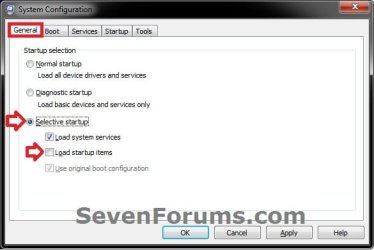
3. In the General tab, select (dot) Selective Startup, and uncheck the Load Startup Items box. (see screenshot below)
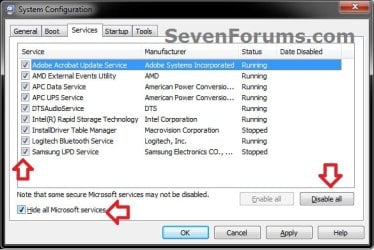
4. Click on the Services tab, check the Hide all Microsoft services box, click on the Disable all button, and click on OK. (see screenshot below)
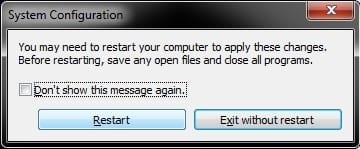
5. When prompted, click on the Restart button. (see screenshot below)
6. After the computer finishes restarting, determine whether the problem is resolved.
- Start the affected game or program to determine whether the problem is resolved.
- If the problem does not occur after you restart, the interference is occurring because of a background program or service. In this case, go to the Determine what is causing the problem section (STEP TWO) below.
- If the problem returns after you perform a clean startup, the interference is not occurring because of a background program or service. In this case, this tutorial cannot resolve your problem. Go to the How to return Windows to Normal startup mode section (STEP THREE) below to return your computer to the original startup mode. Then, go to the "Related Links" section at the bottom for other tutorials that may help you resolve this problem.
STEP TWO
Determine What is Causing the Problem
1. Open the Start Menu, type msconfig in the search box, and press Enter.
2. If prompted by UAC, then click on Yes (Windows 7) or Continue (Vista).
3. Click on the Services tab, check the Hide all Microsoft services box, check only half of the listed Services check boxes, and click on OK. (see screenshot below)
4. When prompted, click on the Restart button. (see screenshot below)
5. After the computer finishes restarting, determine whether the problem is resolved.
- If the problem still occurs after you restart the computer, follow these steps:
- Repeat steps 1-4 above in STEP TWO except that, in step 3, uncheck half of the checked boxes in the Services list that you originally selected.
- If the problem still occurs after another restart, uncheck half of the remaining checked boxes again until only one service is running when the problem occurs.
- If the problem does not occur after another restart, reverse the selection of check boxes. Repeat this process until you can isolate the one service that is running when this problem occurs.
- If the problem does not occur after you restart the computer, follow these steps:
- Repeat steps 1-4 above in STEP TWO except that, in step 3, check half of the cleared check boxes.
- If the problem still does not occur after another restart, check half of the cleared check boxes again. Repeat this process until you have selected all the check boxes and the problem still does not occur.
- If the problem occurs after another restart, uncheck half of the checked boxes that you last selected. Repeat this process until you can isolate the one service that is running when this problem occurs.
- If you can isolate one service that is selected when the problem occurs, that service is the one that causes the problem. If you cannot isolate any service in this manner, a startup item might be causing the problem.
- If you determine that a service is causing the problem, go to step 9. If you determine that no service is causing the problem, go to step 6.
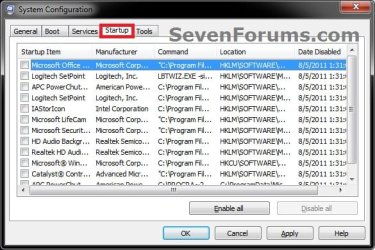
7. When prompted, click on the Restart button. (see screenshot below)
8. After the computer finishes restarting, determine whether the problem is resolved.
- Uncheck the Hide All Microsoft Services check box (step 3). Then, repeat the steps in step 5 above in STEP TWO, except that you are now working in the Startup list instead of in the Services list.
STEP THREE
Return Windows to a Normal Startup Mode
Note
If the problem occurs when your computer is in clean startup mode, then the interference is not being caused by a background program. In this case, return your computer to the normal startup mode. The normal startup mode starts Windows in the usual manner by loading all device drivers and services.
You might also want to return Windows to a normal startup mode if you have problems during any of the troubleshooting procedures that are discussed in this article, and if you want to return the services to the original settings.
You might also want to return Windows to a normal startup mode if you have problems during any of the troubleshooting procedures that are discussed in this article, and if you want to return the services to the original settings.
- If you isolated and disabled the interfering program or service, returning your computer to a normal startup mode will enable that program or service. Also, the original error message or behavior will occur again.
- You do not have to return your computer to a normal startup mode if you followed all of the steps in the Determine what is causing the problem section (STEP TWO) above. This is because you have probably already enabled all the services by performing the procedures in that section.
2. If prompted by UAC, then click on Yes (Windows 7) or Continue (Vista).
3. In the General tab, select (dot) Normal Startup, and click on OK. (see screenshot below)
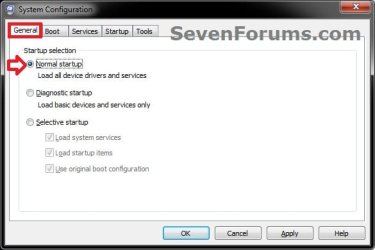
4. When prompted, click on the Restart button. (see screenshot below)
That's it,
Shawn
Related Tutorials
- How to Open Troubleshooting in Windows 7
- How to View the Troubleshooting History in Windows 7
- How to Change Windows 7 Troubleshooting Settings
- How to Create a Windows 7 Troubleshooting Shortcut
- Windows Media Player Troubleshooting Guide
- How to Create a Aero Troubleshoot Shortcut in Windows 7
- How to Create a Connection to Workplace using DirectAccess Troubleshoot Shortcut in Windows 7
- How to Create a Devices and Printers Troubleshoot Shortcut in Windows 7
- How to Create a Hardware and Devices Troubleshoot Shortcut in Windows 7
- How to Create a HomeGroup Troubleshoot Shortcut in Windows 7
- How to Create a Incoming Connections Troubleshoot Shortcut in Windows 7
- How to Create a Internet Connections Troubleshoot Shortcut in Windows 7
- How to Create a Internet Explorer Performance Troubleshoot Shortcut in Windows 7
- How to Create a Internet Explorer Safety Troubleshoot Shortcut in Windows 7
- How to Create a Network Adapter Troubleshoot Shortcut in Windows 7
- How to Create a Performance Troubleshoot Shortcut in Windows 7
- How to Create a Playing Audio Troubleshoot Shortcut in Windows 7
- How to Create a Power Troubleshoot Shortcut in Windows 7
- How to Create a Printing Troubleshoot Shortcut in Windows 7
- How to Create a Program Compatibility Troubleshoot Shortcut in Windows 7
- How to Create a Recording Audio Troubleshoot Shortcut in Windows 7
- How to Create a Search and Indexing Troubleshoot Shortcut in Windows 7
- How to Create a Shared Folders Troubleshoot Shortcut in Windows 7
- How to Create a System Maintenance Troubleshoot Shortcut in Windows 7
- How to Create a Windows Media Player DVD Troubleshoot Shortcut in Windows 7
- How to Create a Windows Media Player Library Troubleshoot Shortcut in Windows 7
- How to Create a Windows Media Player Settings Troubleshoot Shortcut in Windows 7
- How to Create a Windows Update Troubleshoot Shortcut in Windows 7
- How to Add or Remove "Troubleshoot compatibility" from the Context Menu in Windows 7
- How to Turn the "System Maintenance Troubleshooter" On or Off in Windows 7
- Download Debug Diagnostic Tool v2 Update 1
- How to Generate and View a System Performance Report in Windows
Last edited:


