
Manage Windows Backup Disk Space - Create Shortcut
Information
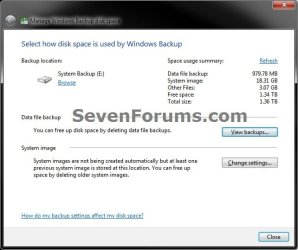
This will show you how to create a Manage Windows Backup Disk Space shortcut in Windows 7 to make it easier to delete user and system file backups that you no longer want to free up hard drive space.
Warning
To be able to use this shortcut:
- You must be logged in as an administrator.
- You would have needed to previously set up backup and created a Windows backup.
OPTION ONE
Download and Setup "Manage Windows Backup Disk Space" Shortcut
1. Click on the Download button below to download the file below.
Manage_Windows_Backup_Disk_Space_Shortcut.zip
Download
2. Click on Save and save the .zip file to your desktop.
3. Open the downloaded .zip file, and extract (drag and drop) all of it's contents to your desktop.
4. Right click on the extracted Manage Windows Backup Disk Space.vbs file, click on Properties, General tab, and click on the Unblock button if available.
NOTE: If you do not have a Unblock button under the General tab, then the file is already unblocked and you can continue on.
5. Right click on the now unblocked Manage Windows Backup Disk Space.vbs file, and click on Cut.
6. Navigate to C:\Windows in Windows Explorer, then right click on a empty area of the window and click on Paste to move the .vbs file here.
7. If prompted by UAC, then click on Continue and Yes.
8. Right click on the extracted Manage Windows Backup Disk Space shortcut, click on Properties, General tab, and click on the Unblock button if available.
NOTE: If you do not have a Unblock button under the General tab, then the file is already unblocked and you can continue on.
9. You can now assign a keyboard shortcut, place in Quick Launch, or move this Manage Windows Backup Disk Space shortcut to where you like for easy use.
OPTION TWO
To Remove the "Manage Windows Backup Disk Space" Shortcut
1. Delete the Manage Windows Backup Disk Space shortcut.
2. In Windows Explorer, navigate to the .vbs file below, right click on it, and click on Delete.
C:\Windows\Manage Windows Backup Disk Space.vbs
3. If prompted by UAC, then click on Yes.
That's it,
Shawn
Related Tutorials
- How to Backup User and System Files in Windows 7
- How to Delete Windows 7 User and System Backup Files
- How to Restore Backup User and System Files in Windows 7
- How to Manually Extract Files from a Backup in Vista and Windows 7
- How to Make a "Create New Backup" Shortcut in Windows 7 and Vista
- How to Make a "Create Incremental Backup" Shortcut in Windows 7 and Vista
- How to Create a "Create a System Image" Shortcut in Windows 7
- How to Create a Windows 7 "Backup and Restore" Shortcut
- How to Create a Windows 7 "Restore Backup User and System Files" Shortcut
- How to Create a "Restore Files from Selected Backup Location" Shortcut
- How to Create a Windows 7 "Backup User and System Files" Shortcut
- How to Make a "Create System Restore Point" Shortcut in Windows 7
Attachments
Last edited:


