
User Account Control (UAC) - Change Prompt Behavior for Standard Users

How to Change Behavior of User Account Control (UAC) Prompt for Standard Users

   Information
This tutorial will show you how to change the behavior of the User Account Control (UAC) elevation prompt for standard users in Vista, Windows 7, and Windows 8.

You must be logged in as an administrator to be able to do the steps in this tutorial.


   Note
Description of Options:
  • Prompt for credentials - When an operation or program requires elevation of privilege, the standard user is prompted by UAC to enter an administrator's user name and password before it is allowed.
  • Prompt for credentials on the secure desktop - When an operation or program requires elevation of privilege, the standard user is prompted by UAC on the secure desktop to enter an administrator's user name and password before it is allowed.
  • Automatically deny elevation requests - When an operation or program requires elevation of privilege, the standard user will only get a access denied message and will not be prompted by UAC.
   Warning
UAC must be turned on with the slider set to a level other than the bottom Never notify level for this policy to be enforced.

If the UAC settings are set to the Never notify level, then standard users will not get a UAC prompt and will automatically be denied access to anything that requires elevation to run or open.

How to Change UAC Notification Settings in Windows 7

OR

How to Change User Account Control (UAC) Settings in Windows 8 and 8.1


OPTION ONE

Using Local Security Policy


1. Open the Local Security Policy editor.

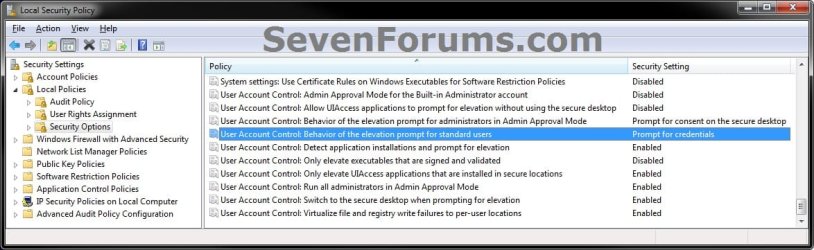
2. In the left pane, expand Local Policies, and click/tap on Security Options. (see screenshot below)
security-1.jpg
3. In the right pane of Security Options, double click/tap on User Account Control: Behavior of the elevation prompt for standard users. (see screenshot above)

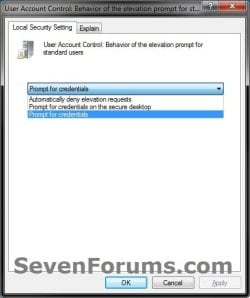
4. Select the behavior you want for the UAC elevation prompt for standard users, and click/tap on OK. (see screenshot below)
NOTE: The default setting is Prompt for credentials. See the blue note box at the top of the tutorial for a description of each setting.
security-2.jpg
5. Close the Local Security Policy editor.


OPTION TWO

Using a REG File Download


1. Do step 2, 3, or 4 below for what you would like the behavior of the UAC elevation prompt for standard users to be.

2. To Have UAC "Prompt for credentials" for Standard Users
NOTE: This is the default setting.
A) Click/tap on the Download button below to download the file below, and go to step 5 below.
Users-UAC_Prompt-for-credentials.reg


Download


3. To Have UAC "Prompt for credentials on the secure desktop" for Standard Users
A) Click/tap on the Download button below to download the file below, and go to step 5 below.
Users-UAC_Prompt-for-credentials-on-secure-desktop.reg


Download


4. To Have UAC "Automatically deny elevation requests" for Standard Users
A) Click/tap on the Download button below to download the file below, and go to step 5 below.
Users-UAC_Automatically-deny-elevation-requests.reg


Download


5. Save the .reg file to your Desktop.

6. Double click/tap on the downloaded .reg file to merge it.

7. If prompted, click/tap on Run, Continue (UAC-Vista) or Yes (UAC-Windows 7/8), Yes, and OK to approve the merge.

8. Log off and log on, or restart the computer to apply the changes.

9. When done, you can delete the downloaded .reg file if you like.
That's it,
Shawn


Attachments

Last edited:
Thanks for that, however, what happens, if with all those changes, the standard user is never given the options to to provide a password?

On all of my machines it works perfectly . . . except for one, and for the life of me I can not figure out why.

All that happens in the standard account is that I get a window that pops up that says something to the effect: "You don't have permission to run this program. Log in to an administrator account and run the install program again." ====> That's not exactly what it says; I can get the exact quote if you like, but that is what I am left with.

I have even tried creating a new user to see if there was something wrong with the Current standard user I have.
I get the same problem.

Does anyone have any ideas as to how I can get it to work again?
(My administrator account does have a password set)

Windows 7 Ultimate 64 bit
 

My Computer My Computer

OS
Windows 7 Ultimate x64
Last edited:

My Computer My Computer

Computer type
PC/Desktop
Computer Manufacturer/Model Number
Self built custom
OS
64-bit Windows 11 Pro for Workstations
CPU
Intel i7-8700K OC'd to 5 GHz
Motherboard
ASUS ROG Maximus XI Formula Z390
Memory
64 GB (4x16GB) G.SKILL TridentZ RGB DDR4 3600 MHz
Graphics Card(s)
ASUS ROG-STRIX-GTX1080TI-O11G-GAMING
Sound Card
Integrated
Monitor(s) Displays
2 x Samsung Odyssey G7 27"
Screen Resolution
2560x1440
Hard Drives
1TB Samsung 990 PRO M.2,
4TB Samsung 990 PRO PRO M.2,
TerraMaster F8 SSD Plus NAS
PSU
Seasonic Prime Titanium 850W
Case
Thermaltake Core P3
Cooling
Corsair Hydro H115i
Keyboard
Logitech wireless K800
Mouse
Logitech MX Master 4
Internet Speed
2 Gb/s Download and 100 Mb/s Upload
Antivirus
Malwarebyte Anti-Malware Premium
Browser
Google Chrome
Other Info
Logitech Z625 speaker system,
Logitech BRIO 4K Pro webcam,
HP Color LaserJet Pro MFP M477fdn,
APC SMART-UPS RT 1000 XL - SURT1000XLI,
Galaxy S23 Plus phone
Thanks for the response Shawn.

Yes I have double checked the settings and it is on for both the Administrator AND the Standard Account user.

I have even set both to the MAX security level, and I still don't get the option.

It really has me baffled as to why it doesn't give me the 'OPTION' to insert a password in order to elevate an install to admin levels.

Anyone else got an idea?
 

My Computer My Computer

OS
Windows 7 Ultimate x64

My Computer My Computer

Computer type
PC/Desktop
Computer Manufacturer/Model Number
Self built custom
OS
64-bit Windows 11 Pro for Workstations
CPU
Intel i7-8700K OC'd to 5 GHz
Motherboard
ASUS ROG Maximus XI Formula Z390
Memory
64 GB (4x16GB) G.SKILL TridentZ RGB DDR4 3600 MHz
Graphics Card(s)
ASUS ROG-STRIX-GTX1080TI-O11G-GAMING
Sound Card
Integrated
Monitor(s) Displays
2 x Samsung Odyssey G7 27"
Screen Resolution
2560x1440
Hard Drives
1TB Samsung 990 PRO M.2,
4TB Samsung 990 PRO PRO M.2,
TerraMaster F8 SSD Plus NAS
PSU
Seasonic Prime Titanium 850W
Case
Thermaltake Core P3
Cooling
Corsair Hydro H115i
Keyboard
Logitech wireless K800
Mouse
Logitech MX Master 4
Internet Speed
2 Gb/s Download and 100 Mb/s Upload
Antivirus
Malwarebyte Anti-Malware Premium
Browser
Google Chrome
Other Info
Logitech Z625 speaker system,
Logitech BRIO 4K Pro webcam,
HP Color LaserJet Pro MFP M477fdn,
APC SMART-UPS RT 1000 XL - SURT1000XLI,
Galaxy S23 Plus phone
Both Accounts have the UAC enabled to the max setting.
Step 2 Checks out.

Checked Group policies as mentioned --- all are "Not Configured"

This is a real head scratcher for me.

This is basically a clean install as well so it is not like it has been running for a while and got corrupeted.

I just ran sfc /verifyonly at the command prompt, and all files seem fine.
 

My Computer My Computer

OS
Windows 7 Ultimate x64
Sorry, but the other "UAC....." settings in Local Security Policy in that screenshot. :)
 

My Computer My Computer

Computer type
PC/Desktop
Computer Manufacturer/Model Number
Self built custom
OS
64-bit Windows 11 Pro for Workstations
CPU
Intel i7-8700K OC'd to 5 GHz
Motherboard
ASUS ROG Maximus XI Formula Z390
Memory
64 GB (4x16GB) G.SKILL TridentZ RGB DDR4 3600 MHz
Graphics Card(s)
ASUS ROG-STRIX-GTX1080TI-O11G-GAMING
Sound Card
Integrated
Monitor(s) Displays
2 x Samsung Odyssey G7 27"
Screen Resolution
2560x1440
Hard Drives
1TB Samsung 990 PRO M.2,
4TB Samsung 990 PRO PRO M.2,
TerraMaster F8 SSD Plus NAS
PSU
Seasonic Prime Titanium 850W
Case
Thermaltake Core P3
Cooling
Corsair Hydro H115i
Keyboard
Logitech wireless K800
Mouse
Logitech MX Master 4
Internet Speed
2 Gb/s Download and 100 Mb/s Upload
Antivirus
Malwarebyte Anti-Malware Premium
Browser
Google Chrome
Other Info
Logitech Z625 speaker system,
Logitech BRIO 4K Pro webcam,
HP Color LaserJet Pro MFP M477fdn,
APC SMART-UPS RT 1000 XL - SURT1000XLI,
Galaxy S23 Plus phone
Where do you do this from so that it sets the policy for all users, not just the one machine? Where are these directions showing these changes being made? On the server? AD? On the end user's pc? The admin pc, or what? What if you want it to prompt for ALL domain users?
 

My Computer My Computer

Computer Manufacturer/Model Number
HP
OS
Windows 8 Pro
Memory
8gb
Monitor(s) Displays
23 inch Acer

My Computer My Computer

Computer type
PC/Desktop
Computer Manufacturer/Model Number
Self built custom
OS
64-bit Windows 11 Pro for Workstations
CPU
Intel i7-8700K OC'd to 5 GHz
Motherboard
ASUS ROG Maximus XI Formula Z390
Memory
64 GB (4x16GB) G.SKILL TridentZ RGB DDR4 3600 MHz
Graphics Card(s)
ASUS ROG-STRIX-GTX1080TI-O11G-GAMING
Sound Card
Integrated
Monitor(s) Displays
2 x Samsung Odyssey G7 27"
Screen Resolution
2560x1440
Hard Drives
1TB Samsung 990 PRO M.2,
4TB Samsung 990 PRO PRO M.2,
TerraMaster F8 SSD Plus NAS
PSU
Seasonic Prime Titanium 850W
Case
Thermaltake Core P3
Cooling
Corsair Hydro H115i
Keyboard
Logitech wireless K800
Mouse
Logitech MX Master 4
Internet Speed
2 Gb/s Download and 100 Mb/s Upload
Antivirus
Malwarebyte Anti-Malware Premium
Browser
Google Chrome
Other Info
Logitech Z625 speaker system,
Logitech BRIO 4K Pro webcam,
HP Color LaserJet Pro MFP M477fdn,
APC SMART-UPS RT 1000 XL - SURT1000XLI,
Galaxy S23 Plus phone
Back
Top