Task Scheduler - Create Task to Display a Message Reminder

How to Display a Message Reminder in Windows with Task Scheduler

   Information
This will show you how to create yourself, or another user or group, a message reminder scheduled to display for when and how often you like in Windows 7 or Vista using Task Scheduler.

All users on the computer will be able to do this.

   Note
The steps may look long and complicated, but this is really quite easy to do. I just included a lot of details to help make it easy. :)

   Warning
The message reminder might not always appear on top of the current active window if you just happen to be typing or clicking in the window (ex: Internet Explorer) at the same time when the message reminder displays causing the message reminder to no longer be the active window and not on top.

The message reminder will also have a icon on the taskbar to indicate that it has displayed.

You could also use what Dwarf's posted below to avoid this as well.


EXAMPLE: Message Reminder
NOTE: This is the type of message reminder pop-up dialog that will be displayed on your desktop with your message title and message you set for when and how often in Task Scheduler.
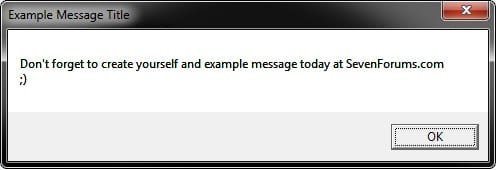
Example.jpg


Here's How:
1. Open the Start Menu, type taskschd.msc, and press Enter.

2. If prompted by UAC, then click on Yes (Windows 7) or Continue (Vista).

3. In the left pane, click on Task Scheduler Library folder to select it, then click on Create Task in the right pane. (see screenshot below)
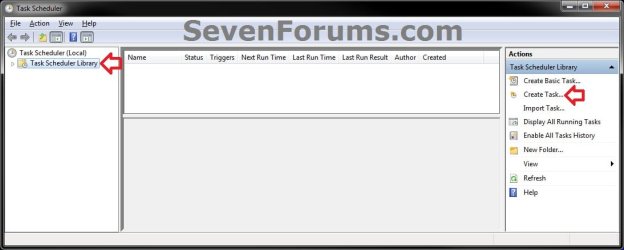
Step1.jpg
4. In the General tab, type in a Name and Description for this task to help let you know what it's for. (see screenshot below)
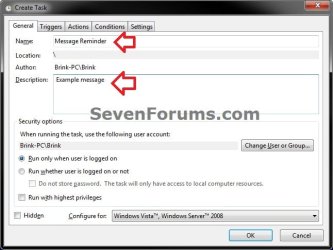
Step2.jpg
5. If you wanted to change what user or group this message reminder will display for other than than the default of your user account, then click on the Change User or Group button and follow the steps in the screenshot below to select a user or group. If not, then skip this step and go to step 6.
NOTE: The steps are numbered in the order to follow for how to select a different user or group. The Users group would be for all users.
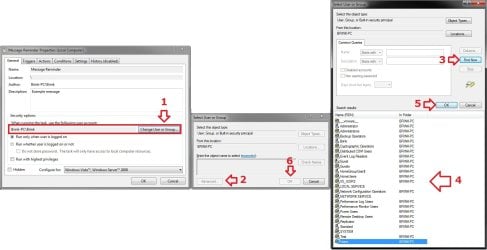
Step2B.jpg
6. Click on the Triggers tab, and click on the New button. (see screenshot below)
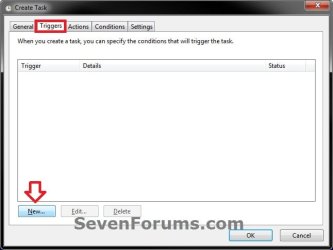
Step3.jpg
7. If not already selected, then select On a schedule. (see screenshot below)
NOTE: You could select what event you would like or works better for you instead, but I'm just using this one as an example. If you select a different option, then you will have different setting to set instead of the ones in steps 7A-7B below.
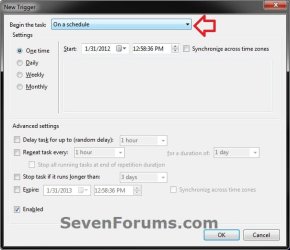
Step4.jpg

A) Select how often you want the message reminder to display. (see screenshot below)
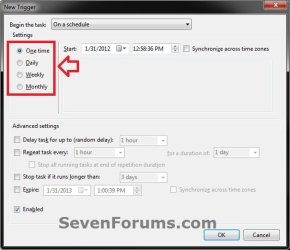
Step5.jpg
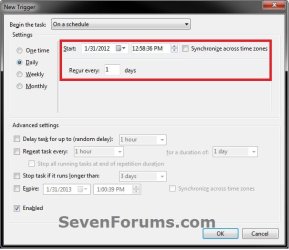
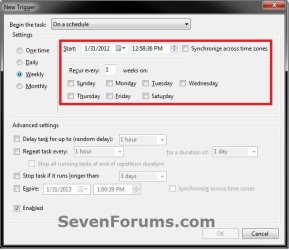
B) Depending on what you selected in step 7A, select and set when (ex: date and time) you want the message reminder to display. (see screenshots below)
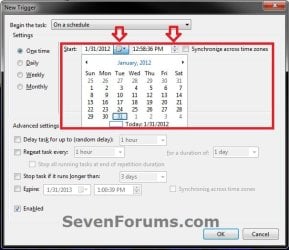
Step6A.jpgStep6B.jpg
Step6C.jpgStep6D.jpg
C) When finished, click on OK. (see screenshot above)
8. Click on the Actions tab, and click on the New button. (see screenshot below)
Step7.jpg
9. In the Action drop down menu, select Display a message. (see screenshot above)
NOTE: See red warning box at the top of the tutorial.
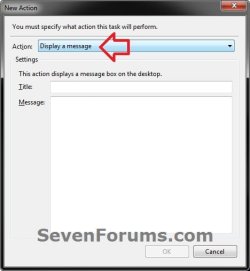
Step8.jpg
10. Type in a Title and Message that you want displayed in the message reminder, and click on OK. (see screenshot above)
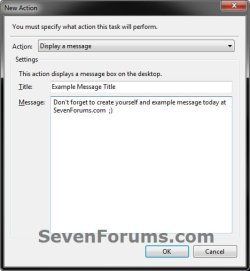
Step9.jpg
11. Click on the Conditions tab, uncheck the Stop if the computer switches to batter power box, and uncheck the Start the task only if the computer is on AC power box. (see screenshot below)
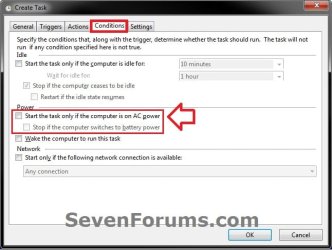
Step10.jpg
12. Click on the Settings tab, check the Run task as soon as possible after a scheduled start is missed box, and check the If the task fails, restart every: box. (see screenshot below)
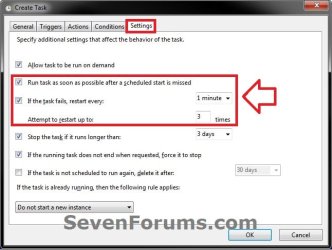
Step11.jpg
13. Click on OK. (see screenshot below)

14. You will now see this task listed in the Task Scheduler Library folder. (see screenshot below)
NOTE: You will always be able to edit or delete this task.
Step12.jpg
15. Close Task Scheduler. You're message reminder will now display for the user or group and when you have it set for in this task.
That's it,
Shawn


Last edited:
You're most welcome Phil. :)
 

My Computer

Computer type
PC/Desktop
Computer Manufacturer/Model Number
Self built custom
OS
64-bit Windows 11 Pro for Workstations
CPU
Intel i7-8700K OC'd to 5 GHz
Motherboard
ASUS ROG Maximus XI Formula Z390
Memory
64 GB (4x16GB) G.SKILL TridentZ RGB DDR4 3600 MHz
Graphics Card(s)
ASUS ROG-STRIX-GTX1080TI-O11G-GAMING
Sound Card
Integrated
Monitor(s) Displays
2 x Samsung Odyssey G7 27"
Screen Resolution
2560x1440
Hard Drives
1TB Samsung 990 PRO M.2,
4TB Samsung 990 PRO PRO M.2,
TerraMaster F8 SSD Plus NAS
PSU
Seasonic Prime Titanium 850W
Case
Thermaltake Core P3
Cooling
Corsair Hydro H115i
Keyboard
Logitech wireless K800
Mouse
Logitech MX Master 4
Internet Speed
2 Gb/s Download and 100 Mb/s Upload
Antivirus
Malwarebyte Anti-Malware Premium
Browser
Google Chrome
Other Info
Logitech Z625 speaker system,
Logitech BRIO 4K Pro webcam,
HP Color LaserJet Pro MFP M477fdn,
APC SMART-UPS RT 1000 XL - SURT1000XLI,
Galaxy S23 Plus phone
Thanks, great article, and great help dwarf.

However still have problems. Trying to give myself a reminder (using dwarf's vbs script) that after sitting at my PC for 45 minutes, to go for a walk as I have back problems. First set the trigger delay from "unlock the PC" to 45 minutes for the reminder and thereafter every minute - the problem with this is that if I lock my laptop (put to sleep) after 40 minutes, 5 minutes after unlocking, I get my reminder. If I have locked the PC after 45 minutes, then when unlock get the reminder 1 minute later and each minute thereafter. In Task scheduler settings, I specify that when a new instance of the program runs (this happens each time coming out of locked state) to stop the existing instance. However this does not help as the instance is not running when this happens, but is called only 45 mins later.

Then tried putting the 45 min sleep command in the vbs script with the 1 minute reminders (the script being called immediately coming out of locked state). Problem is that when come out of locked state the old instance is not actually stopped even though the task scheduler says it has. Is there a way I can force this to happen?

How can I tell the scheduler (or vbs script) to stop the instance when the laptop is locked? Any suggestions of other ways of solving this?
 

My Computer

OS
Windows 7 64bit home premium

My Computer

Computer type
PC/Desktop
Computer Manufacturer/Model Number
Self built custom
OS
64-bit Windows 11 Pro for Workstations
CPU
Intel i7-8700K OC'd to 5 GHz
Motherboard
ASUS ROG Maximus XI Formula Z390
Memory
64 GB (4x16GB) G.SKILL TridentZ RGB DDR4 3600 MHz
Graphics Card(s)
ASUS ROG-STRIX-GTX1080TI-O11G-GAMING
Sound Card
Integrated
Monitor(s) Displays
2 x Samsung Odyssey G7 27"
Screen Resolution
2560x1440
Hard Drives
1TB Samsung 990 PRO M.2,
4TB Samsung 990 PRO PRO M.2,
TerraMaster F8 SSD Plus NAS
PSU
Seasonic Prime Titanium 850W
Case
Thermaltake Core P3
Cooling
Corsair Hydro H115i
Keyboard
Logitech wireless K800
Mouse
Logitech MX Master 4
Internet Speed
2 Gb/s Download and 100 Mb/s Upload
Antivirus
Malwarebyte Anti-Malware Premium
Browser
Google Chrome
Other Info
Logitech Z625 speaker system,
Logitech BRIO 4K Pro webcam,
HP Color LaserJet Pro MFP M477fdn,
APC SMART-UPS RT 1000 XL - SURT1000XLI,
Galaxy S23 Plus phone
Thanks for the reply Shawn, not wanting to logout as often I am in the middle of things, so want a 5 minute break for my back's sake and then want to pick up where I left off. Also wanted the continuous reminder (1 per minute) because then I will rather get up than finish (which never happens) what I am doing. That is why locking the laptop is my best option - is there a way that the scheduler can kill a vbs script (the stop an existing instance does not work - not sure why as the scheduler says it worked, but clearly the vbs script is still running)?
 

My Computer

OS
Windows 7 64bit home premium
Actually it's the time that is still being monitored by the task. The vbs file is just a one shot run then stops. As long as you are logged in, the task will continue to monitor the time and run the task as set by the time frame.

You might see if an alarm clock type program may work best for this instead. Here are a couple of frees ones to try if you like.

Free Alarm Clock for Windows

myfreealarmclock.com | Absolutetly Free Alarm Clock Download
 

My Computer

Computer type
PC/Desktop
Computer Manufacturer/Model Number
Self built custom
OS
64-bit Windows 11 Pro for Workstations
CPU
Intel i7-8700K OC'd to 5 GHz
Motherboard
ASUS ROG Maximus XI Formula Z390
Memory
64 GB (4x16GB) G.SKILL TridentZ RGB DDR4 3600 MHz
Graphics Card(s)
ASUS ROG-STRIX-GTX1080TI-O11G-GAMING
Sound Card
Integrated
Monitor(s) Displays
2 x Samsung Odyssey G7 27"
Screen Resolution
2560x1440
Hard Drives
1TB Samsung 990 PRO M.2,
4TB Samsung 990 PRO PRO M.2,
TerraMaster F8 SSD Plus NAS
PSU
Seasonic Prime Titanium 850W
Case
Thermaltake Core P3
Cooling
Corsair Hydro H115i
Keyboard
Logitech wireless K800
Mouse
Logitech MX Master 4
Internet Speed
2 Gb/s Download and 100 Mb/s Upload
Antivirus
Malwarebyte Anti-Malware Premium
Browser
Google Chrome
Other Info
Logitech Z625 speaker system,
Logitech BRIO 4K Pro webcam,
HP Color LaserJet Pro MFP M477fdn,
APC SMART-UPS RT 1000 XL - SURT1000XLI,
Galaxy S23 Plus phone
Thanks Shawn for the tip, went and had a good look at the alarms, installed about 10 different ones, but none actually was exactly what I wanted. I seem to have the solution, been running it for 3 days now. On Logon (or unlock), a the taskscheduler immediately runs taskkill.exe /im wscript.exe /f (this kills any vbs scripts running at this time - I have no others running). The 1 minute after unlock, taskscheduler calls my stretchlegs vbs script, which esssentially sleeps for 45 minutes before it wakes up and sends a reminder every 1 minute thereafter. Not an elegant solution, but it is working. Here is the vbs script:

WScript.Sleep 2700000
Do Until i=10
MsgBox "Time to give your body a rest, you have been at the computer for more than 45 minutes - to stop this message, put your computer to sleep or logoff", vbSystemModal, "Break Time"
WScript.Sleep 60000
Loop
 

My Computer

OS
Windows 7 64bit home premium
That's great news gsher. Thank you for posting back with your results. :)
 

My Computer

Computer type
PC/Desktop
Computer Manufacturer/Model Number
Self built custom
OS
64-bit Windows 11 Pro for Workstations
CPU
Intel i7-8700K OC'd to 5 GHz
Motherboard
ASUS ROG Maximus XI Formula Z390
Memory
64 GB (4x16GB) G.SKILL TridentZ RGB DDR4 3600 MHz
Graphics Card(s)
ASUS ROG-STRIX-GTX1080TI-O11G-GAMING
Sound Card
Integrated
Monitor(s) Displays
2 x Samsung Odyssey G7 27"
Screen Resolution
2560x1440
Hard Drives
1TB Samsung 990 PRO M.2,
4TB Samsung 990 PRO PRO M.2,
TerraMaster F8 SSD Plus NAS
PSU
Seasonic Prime Titanium 850W
Case
Thermaltake Core P3
Cooling
Corsair Hydro H115i
Keyboard
Logitech wireless K800
Mouse
Logitech MX Master 4
Internet Speed
2 Gb/s Download and 100 Mb/s Upload
Antivirus
Malwarebyte Anti-Malware Premium
Browser
Google Chrome
Other Info
Logitech Z625 speaker system,
Logitech BRIO 4K Pro webcam,
HP Color LaserJet Pro MFP M477fdn,
APC SMART-UPS RT 1000 XL - SURT1000XLI,
Galaxy S23 Plus phone
I'm not sure if this thread is still being monitored, but I have a question about customizing the VBS code.

I have been able to enter the following code...:

MsgBox "Don't forget to create yourself an example message today at SevenForums.com", vbSystemModal

...into Task Scheduler to get the pop-up reminders to appear on the top of whatever programs I have running. That alone has been HUGELY helpful - thank you!

My question is this: The pop-up is currently very small and not very noticeable if you're not currently looking at the computer screen. I need to make the window colored, window huge, and text large and colored - it needs to really scream "LOOK AT ME!!!" to whomever is using the computer and to draw their attention to the message. Can you please format the above code to make the pop-up's font YELLOW, font RED, and box size 1600x1200 pixels?
 

My Computer

Computer type
PC/Desktop
OS
Pennsylvania
Hello RJM, and welcome to Seven Forums.

I'm not aware of a way to do so without the use of some unknown 3rd party reminder type program. :(
 

My Computer

Computer type
PC/Desktop
Computer Manufacturer/Model Number
Self built custom
OS
64-bit Windows 11 Pro for Workstations
CPU
Intel i7-8700K OC'd to 5 GHz
Motherboard
ASUS ROG Maximus XI Formula Z390
Memory
64 GB (4x16GB) G.SKILL TridentZ RGB DDR4 3600 MHz
Graphics Card(s)
ASUS ROG-STRIX-GTX1080TI-O11G-GAMING
Sound Card
Integrated
Monitor(s) Displays
2 x Samsung Odyssey G7 27"
Screen Resolution
2560x1440
Hard Drives
1TB Samsung 990 PRO M.2,
4TB Samsung 990 PRO PRO M.2,
TerraMaster F8 SSD Plus NAS
PSU
Seasonic Prime Titanium 850W
Case
Thermaltake Core P3
Cooling
Corsair Hydro H115i
Keyboard
Logitech wireless K800
Mouse
Logitech MX Master 4
Internet Speed
2 Gb/s Download and 100 Mb/s Upload
Antivirus
Malwarebyte Anti-Malware Premium
Browser
Google Chrome
Other Info
Logitech Z625 speaker system,
Logitech BRIO 4K Pro webcam,
HP Color LaserJet Pro MFP M477fdn,
APC SMART-UPS RT 1000 XL - SURT1000XLI,
Galaxy S23 Plus phone
That's a bummer. Thank you very much for looking into it, though!
 

My Computer

Computer type
PC/Desktop
OS
Pennsylvania
Very neat, anyway to change the ugly looking icon for the message in the taskbar?
 

Attachments

  • how.png
    how.png
    6.8 KB · Views: 818

My Computer

Computer type
PC/Desktop
Computer Manufacturer/Model Number
Asus
OS
Windows 7 Ultimate 64-bit
Browser
Chrome
Hey Matt,

If you mean the default icon on the far right of your taskbar, then it looks like it may be corrupted. See if rebuilding the icon cache may help.
 

My Computer

Computer type
PC/Desktop
Computer Manufacturer/Model Number
Self built custom
OS
64-bit Windows 11 Pro for Workstations
CPU
Intel i7-8700K OC'd to 5 GHz
Motherboard
ASUS ROG Maximus XI Formula Z390
Memory
64 GB (4x16GB) G.SKILL TridentZ RGB DDR4 3600 MHz
Graphics Card(s)
ASUS ROG-STRIX-GTX1080TI-O11G-GAMING
Sound Card
Integrated
Monitor(s) Displays
2 x Samsung Odyssey G7 27"
Screen Resolution
2560x1440
Hard Drives
1TB Samsung 990 PRO M.2,
4TB Samsung 990 PRO PRO M.2,
TerraMaster F8 SSD Plus NAS
PSU
Seasonic Prime Titanium 850W
Case
Thermaltake Core P3
Cooling
Corsair Hydro H115i
Keyboard
Logitech wireless K800
Mouse
Logitech MX Master 4
Internet Speed
2 Gb/s Download and 100 Mb/s Upload
Antivirus
Malwarebyte Anti-Malware Premium
Browser
Google Chrome
Other Info
Logitech Z625 speaker system,
Logitech BRIO 4K Pro webcam,
HP Color LaserJet Pro MFP M477fdn,
APC SMART-UPS RT 1000 XL - SURT1000XLI,
Galaxy S23 Plus phone
Hey Matt,

If you mean the default icon on the far right of your taskbar, then it looks like it may be corrupted. See if rebuilding the icon cache may help.

Yes I mean that icon. How does it normally look though? Also what file extension is it? exe or ico? I tried restoring those two and also rebuilding the icon cache as per your suggestion but it doesn't work.
 

My Computer

Computer type
PC/Desktop
Computer Manufacturer/Model Number
Asus
OS
Windows 7 Ultimate 64-bit
Browser
Chrome
If I remember correctly, I thought it was just a Task Scheduler icon.
 

My Computer

Computer type
PC/Desktop
Computer Manufacturer/Model Number
Self built custom
OS
64-bit Windows 11 Pro for Workstations
CPU
Intel i7-8700K OC'd to 5 GHz
Motherboard
ASUS ROG Maximus XI Formula Z390
Memory
64 GB (4x16GB) G.SKILL TridentZ RGB DDR4 3600 MHz
Graphics Card(s)
ASUS ROG-STRIX-GTX1080TI-O11G-GAMING
Sound Card
Integrated
Monitor(s) Displays
2 x Samsung Odyssey G7 27"
Screen Resolution
2560x1440
Hard Drives
1TB Samsung 990 PRO M.2,
4TB Samsung 990 PRO PRO M.2,
TerraMaster F8 SSD Plus NAS
PSU
Seasonic Prime Titanium 850W
Case
Thermaltake Core P3
Cooling
Corsair Hydro H115i
Keyboard
Logitech wireless K800
Mouse
Logitech MX Master 4
Internet Speed
2 Gb/s Download and 100 Mb/s Upload
Antivirus
Malwarebyte Anti-Malware Premium
Browser
Google Chrome
Other Info
Logitech Z625 speaker system,
Logitech BRIO 4K Pro webcam,
HP Color LaserJet Pro MFP M477fdn,
APC SMART-UPS RT 1000 XL - SURT1000XLI,
Galaxy S23 Plus phone
Hi Brink,

I am a newbie here. Not much of vbs knowledge :(

I tried the vbs file and the pop up window appeared. This solves my search in reminding my staff to check in all their work at the end of the day !! :)

My question why are there two pop up windows appearing? Is this the norm?

I have attached the print screen.

Thanks
Christine
 

Attachments

My Computer

Computer type
PC/Desktop
Computer Manufacturer/Model Number
unknown
OS
Windows 7 Pro 32bit
Hello Christine, and welcome to Seven Forums. :)

Since you used the option to run the .vbs in Task Manager, it will show the command prompt with the message. It'll close when the message is closed.

If you haven't already, you might try the tutorial as is to see if the message will appear on top when displayed to avoid the command prompt showing.
 

My Computer

Computer type
PC/Desktop
Computer Manufacturer/Model Number
Self built custom
OS
64-bit Windows 11 Pro for Workstations
CPU
Intel i7-8700K OC'd to 5 GHz
Motherboard
ASUS ROG Maximus XI Formula Z390
Memory
64 GB (4x16GB) G.SKILL TridentZ RGB DDR4 3600 MHz
Graphics Card(s)
ASUS ROG-STRIX-GTX1080TI-O11G-GAMING
Sound Card
Integrated
Monitor(s) Displays
2 x Samsung Odyssey G7 27"
Screen Resolution
2560x1440
Hard Drives
1TB Samsung 990 PRO M.2,
4TB Samsung 990 PRO PRO M.2,
TerraMaster F8 SSD Plus NAS
PSU
Seasonic Prime Titanium 850W
Case
Thermaltake Core P3
Cooling
Corsair Hydro H115i
Keyboard
Logitech wireless K800
Mouse
Logitech MX Master 4
Internet Speed
2 Gb/s Download and 100 Mb/s Upload
Antivirus
Malwarebyte Anti-Malware Premium
Browser
Google Chrome
Other Info
Logitech Z625 speaker system,
Logitech BRIO 4K Pro webcam,
HP Color LaserJet Pro MFP M477fdn,
APC SMART-UPS RT 1000 XL - SURT1000XLI,
Galaxy S23 Plus phone
Hi Brink,
Thank you for your reply. Yes it closes the moment I click the "X" button.

The tutorials that you are referring to, where can I get them?

Thanks
Christine
 

My Computer

Computer type
PC/Desktop
Computer Manufacturer/Model Number
unknown
OS
Windows 7 Pro 32bit
It's the tutorial on the first page of this thread. :)
 

My Computer

Computer type
PC/Desktop
Computer Manufacturer/Model Number
Self built custom
OS
64-bit Windows 11 Pro for Workstations
CPU
Intel i7-8700K OC'd to 5 GHz
Motherboard
ASUS ROG Maximus XI Formula Z390
Memory
64 GB (4x16GB) G.SKILL TridentZ RGB DDR4 3600 MHz
Graphics Card(s)
ASUS ROG-STRIX-GTX1080TI-O11G-GAMING
Sound Card
Integrated
Monitor(s) Displays
2 x Samsung Odyssey G7 27"
Screen Resolution
2560x1440
Hard Drives
1TB Samsung 990 PRO M.2,
4TB Samsung 990 PRO PRO M.2,
TerraMaster F8 SSD Plus NAS
PSU
Seasonic Prime Titanium 850W
Case
Thermaltake Core P3
Cooling
Corsair Hydro H115i
Keyboard
Logitech wireless K800
Mouse
Logitech MX Master 4
Internet Speed
2 Gb/s Download and 100 Mb/s Upload
Antivirus
Malwarebyte Anti-Malware Premium
Browser
Google Chrome
Other Info
Logitech Z625 speaker system,
Logitech BRIO 4K Pro webcam,
HP Color LaserJet Pro MFP M477fdn,
APC SMART-UPS RT 1000 XL - SURT1000XLI,
Galaxy S23 Plus phone
Good Afternoon Everyone,

I am still having trouble getting this to work. I created a VBS script that I can run. It creates the pop-up window with my message. However, when I use the task scheduler it will not run the script. I continue to see that the task wasn't run.

I am trying to get a pop up reminder to everyone on my domain to log off a certain application. I have been messing with this and trying to create a GPO that will do the same but with no luck.
 

My Computer

Computer type
PC/Desktop
OS
Windows 10 64 bit.
Hello Yoder, and welcome to Seven Forums. :)

You might also see if a log on screen message may work for this.

Logon Title and Text Message
 

My Computer

Computer type
PC/Desktop
Computer Manufacturer/Model Number
Self built custom
OS
64-bit Windows 11 Pro for Workstations
CPU
Intel i7-8700K OC'd to 5 GHz
Motherboard
ASUS ROG Maximus XI Formula Z390
Memory
64 GB (4x16GB) G.SKILL TridentZ RGB DDR4 3600 MHz
Graphics Card(s)
ASUS ROG-STRIX-GTX1080TI-O11G-GAMING
Sound Card
Integrated
Monitor(s) Displays
2 x Samsung Odyssey G7 27"
Screen Resolution
2560x1440
Hard Drives
1TB Samsung 990 PRO M.2,
4TB Samsung 990 PRO PRO M.2,
TerraMaster F8 SSD Plus NAS
PSU
Seasonic Prime Titanium 850W
Case
Thermaltake Core P3
Cooling
Corsair Hydro H115i
Keyboard
Logitech wireless K800
Mouse
Logitech MX Master 4
Internet Speed
2 Gb/s Download and 100 Mb/s Upload
Antivirus
Malwarebyte Anti-Malware Premium
Browser
Google Chrome
Other Info
Logitech Z625 speaker system,
Logitech BRIO 4K Pro webcam,
HP Color LaserJet Pro MFP M477fdn,
APC SMART-UPS RT 1000 XL - SURT1000XLI,
Galaxy S23 Plus phone
Back
Top