Task Scheduler - Create Task to Display a Message Reminder

How to Display a Message Reminder in Windows with Task Scheduler

   Information
This will show you how to create yourself, or another user or group, a message reminder scheduled to display for when and how often you like in Windows 7 or Vista using Task Scheduler.

All users on the computer will be able to do this.

   Note
The steps may look long and complicated, but this is really quite easy to do. I just included a lot of details to help make it easy. :)

   Warning
The message reminder might not always appear on top of the current active window if you just happen to be typing or clicking in the window (ex: Internet Explorer) at the same time when the message reminder displays causing the message reminder to no longer be the active window and not on top.

The message reminder will also have a icon on the taskbar to indicate that it has displayed.

You could also use what Dwarf's posted below to avoid this as well.


EXAMPLE: Message Reminder
NOTE: This is the type of message reminder pop-up dialog that will be displayed on your desktop with your message title and message you set for when and how often in Task Scheduler.
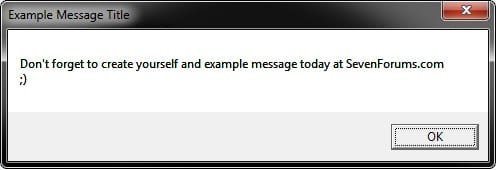
Example.jpg


Here's How:
1. Open the Start Menu, type taskschd.msc, and press Enter.

2. If prompted by UAC, then click on Yes (Windows 7) or Continue (Vista).

3. In the left pane, click on Task Scheduler Library folder to select it, then click on Create Task in the right pane. (see screenshot below)
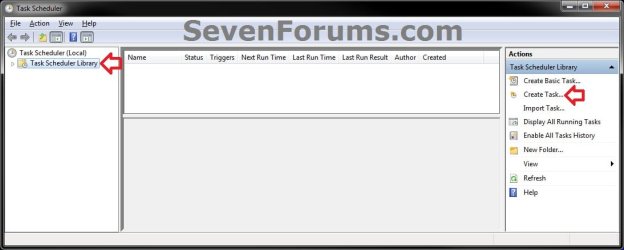
Step1.jpg
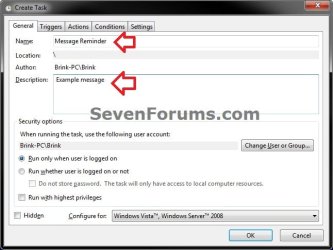
4. In the General tab, type in a Name and Description for this task to help let you know what it's for. (see screenshot below)
Step2.jpg
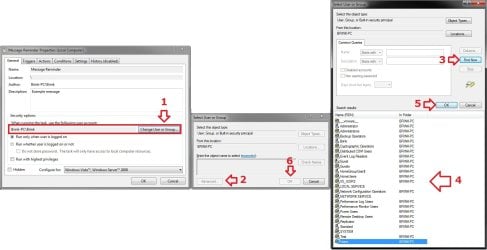
5. If you wanted to change what user or group this message reminder will display for other than than the default of your user account, then click on the Change User or Group button and follow the steps in the screenshot below to select a user or group. If not, then skip this step and go to step 6.
NOTE: The steps are numbered in the order to follow for how to select a different user or group. The Users group would be for all users.
Step2B.jpg
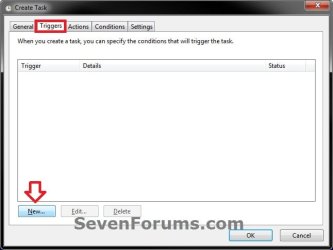
6. Click on the Triggers tab, and click on the New button. (see screenshot below)
Step3.jpg
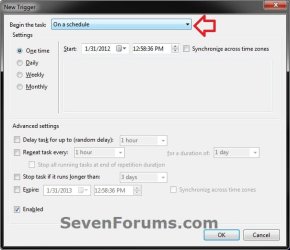
7. If not already selected, then select On a schedule. (see screenshot below)
NOTE: You could select what event you would like or works better for you instead, but I'm just using this one as an example. If you select a different option, then you will have different setting to set instead of the ones in steps 7A-7B below.
Step4.jpg

A) Select how often you want the message reminder to display. (see screenshot below)
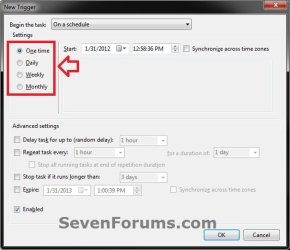
Step5.jpg
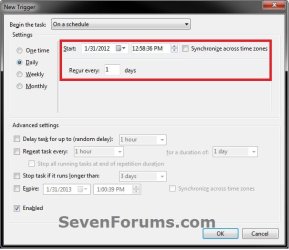
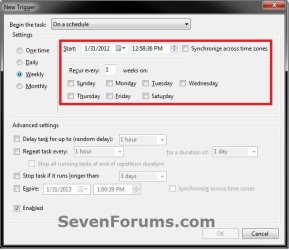
B) Depending on what you selected in step 7A, select and set when (ex: date and time) you want the message reminder to display. (see screenshots below)
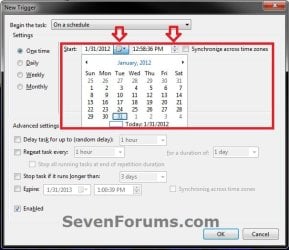
Step6A.jpgStep6B.jpg
Step6C.jpgStep6D.jpg
C) When finished, click on OK. (see screenshot above)
8. Click on the Actions tab, and click on the New button. (see screenshot below)
Step7.jpg
9. In the Action drop down menu, select Display a message. (see screenshot above)
NOTE: See red warning box at the top of the tutorial.
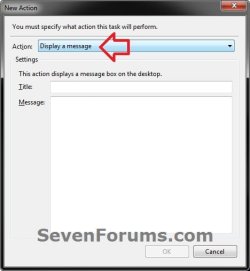
Step8.jpg
10. Type in a Title and Message that you want displayed in the message reminder, and click on OK. (see screenshot above)
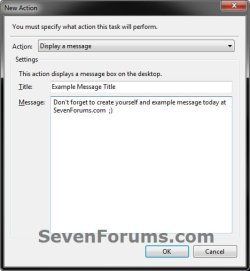
Step9.jpg
11. Click on the Conditions tab, uncheck the Stop if the computer switches to batter power box, and uncheck the Start the task only if the computer is on AC power box. (see screenshot below)
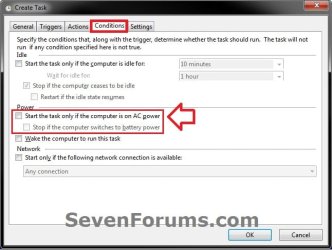
Step10.jpg
12. Click on the Settings tab, check the Run task as soon as possible after a scheduled start is missed box, and check the If the task fails, restart every: box. (see screenshot below)
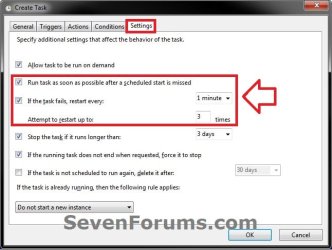
Step11.jpg
13. Click on OK. (see screenshot below)

14. You will now see this task listed in the Task Scheduler Library folder. (see screenshot below)
NOTE: You will always be able to edit or delete this task.
Step12.jpg
15. Close Task Scheduler. You're message reminder will now display for the user or group and when you have it set for in this task.
That's it,
Shawn


Last edited:
I don't have any experience doing this for a domain, but you could try creating a task in Task Scheduler to run a "Net send" command to send the message to domain users.

net send {name | * | /domain[:name] | /users} message


https://technet.microsoft.com/en-us/library/bb490710.aspx
 

My Computer

Computer type
PC/Desktop
Computer Manufacturer/Model Number
Self built custom
OS
64-bit Windows 11 Pro for Workstations
CPU
Intel i7-8700K OC'd to 5 GHz
Motherboard
ASUS ROG Maximus XI Formula Z390
Memory
64 GB (4x16GB) G.SKILL TridentZ RGB DDR4 3600 MHz
Graphics Card(s)
ASUS ROG-STRIX-GTX1080TI-O11G-GAMING
Sound Card
Integrated
Monitor(s) Displays
2 x Samsung Odyssey G7 27"
Screen Resolution
2560x1440
Hard Drives
1TB Samsung 990 PRO M.2,
4TB Samsung 990 PRO PRO M.2,
TerraMaster F8 SSD Plus NAS
PSU
Seasonic Prime Titanium 850W
Case
Thermaltake Core P3
Cooling
Corsair Hydro H115i
Keyboard
Logitech wireless K800
Mouse
Logitech MX Master 4
Internet Speed
2 Gb/s Download and 100 Mb/s Upload
Antivirus
Malwarebyte Anti-Malware Premium
Browser
Google Chrome
Other Info
Logitech Z625 speaker system,
Logitech BRIO 4K Pro webcam,
HP Color LaserJet Pro MFP M477fdn,
APC SMART-UPS RT 1000 XL - SURT1000XLI,
Galaxy S23 Plus phone
Hi!

Can I do something like this for windows 10 and 8? Annoyingly, while the "display a message" option appears in brackets it's claimed that it's obsolete and it wouldn't let me save the task...
 

My Computer

OS
Windows 7 amd64
Hello avada,

I'm afraid that this has been deprecated in Windows 8 and Windows 10. :(
 

My Computer

Computer type
PC/Desktop
Computer Manufacturer/Model Number
Self built custom
OS
64-bit Windows 11 Pro for Workstations
CPU
Intel i7-8700K OC'd to 5 GHz
Motherboard
ASUS ROG Maximus XI Formula Z390
Memory
64 GB (4x16GB) G.SKILL TridentZ RGB DDR4 3600 MHz
Graphics Card(s)
ASUS ROG-STRIX-GTX1080TI-O11G-GAMING
Sound Card
Integrated
Monitor(s) Displays
2 x Samsung Odyssey G7 27"
Screen Resolution
2560x1440
Hard Drives
1TB Samsung 990 PRO M.2,
4TB Samsung 990 PRO PRO M.2,
TerraMaster F8 SSD Plus NAS
PSU
Seasonic Prime Titanium 850W
Case
Thermaltake Core P3
Cooling
Corsair Hydro H115i
Keyboard
Logitech wireless K800
Mouse
Logitech MX Master 4
Internet Speed
2 Gb/s Download and 100 Mb/s Upload
Antivirus
Malwarebyte Anti-Malware Premium
Browser
Google Chrome
Other Info
Logitech Z625 speaker system,
Logitech BRIO 4K Pro webcam,
HP Color LaserJet Pro MFP M477fdn,
APC SMART-UPS RT 1000 XL - SURT1000XLI,
Galaxy S23 Plus phone
Hey Brink,

I sure hope you're still responding and on here. I'm having some trouble with your display window suggestion.

I followed everything to a T.

I work in a library and I have students who are at our help desk. We are trying to record stats--like how often does someone come up to the desk and ask for help. Taking stats is an easy thing to forget, so I tried task scheduler. I have the reminder set to pop up every fifteen minutes, every day from 8:30am-midnight. Everything was working fine for a few days. The pop up would appear and it was really helping us to get those stats.

Now, however, the window pops up and within two second it automatically disappears. I would rather the display window stay up and have the students forced to click the OK button on the reminder. ANY help would be AWESOME!

If it's any help, I'm on a Dell PC, running 64 bit Windows 7.

THANKS!
 

My Computer

Computer type
PC/Desktop
Computer Manufacturer/Model Number
Dell
OS
Window 7 64 bit
Hello brewbombers, and welcome to Seven Forums. :)

Is the message window possibly being hid behind another opened window instead of closed?
 

My Computer

Computer type
PC/Desktop
Computer Manufacturer/Model Number
Self built custom
OS
64-bit Windows 11 Pro for Workstations
CPU
Intel i7-8700K OC'd to 5 GHz
Motherboard
ASUS ROG Maximus XI Formula Z390
Memory
64 GB (4x16GB) G.SKILL TridentZ RGB DDR4 3600 MHz
Graphics Card(s)
ASUS ROG-STRIX-GTX1080TI-O11G-GAMING
Sound Card
Integrated
Monitor(s) Displays
2 x Samsung Odyssey G7 27"
Screen Resolution
2560x1440
Hard Drives
1TB Samsung 990 PRO M.2,
4TB Samsung 990 PRO PRO M.2,
TerraMaster F8 SSD Plus NAS
PSU
Seasonic Prime Titanium 850W
Case
Thermaltake Core P3
Cooling
Corsair Hydro H115i
Keyboard
Logitech wireless K800
Mouse
Logitech MX Master 4
Internet Speed
2 Gb/s Download and 100 Mb/s Upload
Antivirus
Malwarebyte Anti-Malware Premium
Browser
Google Chrome
Other Info
Logitech Z625 speaker system,
Logitech BRIO 4K Pro webcam,
HP Color LaserJet Pro MFP M477fdn,
APC SMART-UPS RT 1000 XL - SURT1000XLI,
Galaxy S23 Plus phone
Nope, it just closes.

Thanks for the fast response!
 

My Computer

Computer type
PC/Desktop
Computer Manufacturer/Model Number
Dell
OS
Window 7 64 bit
If you have Snap To turned on, then it could easily cause a dialog box to get closed by mistake if clicking the left mouse button when it snaps to the dialog. You might check to see if you have this turned on, and see if it stops closing while turned off.

Mouse Pointer - Snap To Default Button

If the above is not the issue, then you might see if deleting the task and creating a new one may help.

Do you have this issue with any other dialog box?
 

My Computer

Computer type
PC/Desktop
Computer Manufacturer/Model Number
Self built custom
OS
64-bit Windows 11 Pro for Workstations
CPU
Intel i7-8700K OC'd to 5 GHz
Motherboard
ASUS ROG Maximus XI Formula Z390
Memory
64 GB (4x16GB) G.SKILL TridentZ RGB DDR4 3600 MHz
Graphics Card(s)
ASUS ROG-STRIX-GTX1080TI-O11G-GAMING
Sound Card
Integrated
Monitor(s) Displays
2 x Samsung Odyssey G7 27"
Screen Resolution
2560x1440
Hard Drives
1TB Samsung 990 PRO M.2,
4TB Samsung 990 PRO PRO M.2,
TerraMaster F8 SSD Plus NAS
PSU
Seasonic Prime Titanium 850W
Case
Thermaltake Core P3
Cooling
Corsair Hydro H115i
Keyboard
Logitech wireless K800
Mouse
Logitech MX Master 4
Internet Speed
2 Gb/s Download and 100 Mb/s Upload
Antivirus
Malwarebyte Anti-Malware Premium
Browser
Google Chrome
Other Info
Logitech Z625 speaker system,
Logitech BRIO 4K Pro webcam,
HP Color LaserJet Pro MFP M477fdn,
APC SMART-UPS RT 1000 XL - SURT1000XLI,
Galaxy S23 Plus phone
Snap To does not seem to be the issue. Snap To is not selected in my mouse settings. I have this set on two computers and it is doing the same on both. I tried deleting the task and doing it all over again, I even tried rebooting the computer, but neither seems to do the trick. The message appears for about a second and then disappears immediately afterwards, without touching the mouse or keyboard.

Is there a way I can set a time expiration thing on this display window? Like command the task scheduler to close the display after x amount of time?
 

My Computer

Computer type
PC/Desktop
Computer Manufacturer/Model Number
Dell
OS
Window 7 64 bit
I must admit that I'm not sure why the message dialog is being automatically closed for you like this.

I tested again on a W7 VM, and it's not closing for me so far. Do you remember making any changes (ex: installing anything) before this started closing that could be responsible?
 

My Computer

Computer type
PC/Desktop
Computer Manufacturer/Model Number
Self built custom
OS
64-bit Windows 11 Pro for Workstations
CPU
Intel i7-8700K OC'd to 5 GHz
Motherboard
ASUS ROG Maximus XI Formula Z390
Memory
64 GB (4x16GB) G.SKILL TridentZ RGB DDR4 3600 MHz
Graphics Card(s)
ASUS ROG-STRIX-GTX1080TI-O11G-GAMING
Sound Card
Integrated
Monitor(s) Displays
2 x Samsung Odyssey G7 27"
Screen Resolution
2560x1440
Hard Drives
1TB Samsung 990 PRO M.2,
4TB Samsung 990 PRO PRO M.2,
TerraMaster F8 SSD Plus NAS
PSU
Seasonic Prime Titanium 850W
Case
Thermaltake Core P3
Cooling
Corsair Hydro H115i
Keyboard
Logitech wireless K800
Mouse
Logitech MX Master 4
Internet Speed
2 Gb/s Download and 100 Mb/s Upload
Antivirus
Malwarebyte Anti-Malware Premium
Browser
Google Chrome
Other Info
Logitech Z625 speaker system,
Logitech BRIO 4K Pro webcam,
HP Color LaserJet Pro MFP M477fdn,
APC SMART-UPS RT 1000 XL - SURT1000XLI,
Galaxy S23 Plus phone
Back
Top