
Jump Lists - Backup and Restore in Windows 7

How to Back Up and Restore Jump Lists in Windows 7

   Information
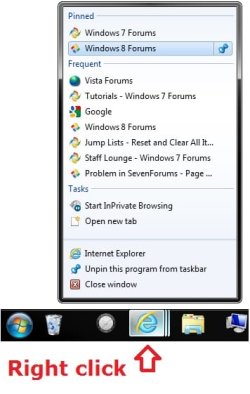
Jump Lists in the Start Menu and on the taskbar are lists of recent items, such as files, folders, or websites, organized by the program that you use to open them. In addition to being able to open recent and frequent items using a Jump List, you can also pin favorites to a Jump List, so you can quickly get to the items that you use every day.

This tutorial will show you how to back up and restore Jump Lists for your user account in Windows 7. This will also include the pinned items in your Jump Lists as well.

   Note
By default, your Jump Lists and pinned items in Jump Lists are saved in the folder locations below. You could copy the shell command below into the Start Menu search box to open these folders. This is what this tutorial will be backing up and restoring for you automatically using a BAT file.

shell:Recent\AutomaticDestinations

Shell:Recent\CustomDestinations


EXAMPLE: Jump Lists and Pinned Items in Jump Lists
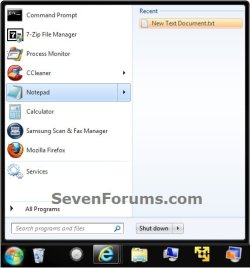
Start_Menu.jpg Taskbar.jpg


OPTION ONE

To Back Up Jump Lists and Pinned Items in Jump Lists

1. Click on the Download button below to download the .bat file below, then run it.
Backup-Jump-Lists.bat


Download


2. If prompted, click on Run.
NOTE: If you like, you can stop getting the Run prompt by unblocking the downloaded .bat file.

3. You will now notice your screen flicker as explorer is restarted.

4. You will now have a Jump-Lists-Backup folder on your desktop that is the backup of your current Jump Lists and pinned items in the Jump Lists.

5. Move this folder to where you like for safe keeping.
NOTE: Do not rename this folder since it must remain the exact same name to be able to use it in OPTION TWO below to restore your pinned taskbar items with.


OPTION TWO

To Restore Jump Lists and Pinned Items in Jump Lists


1. If you have not already, make sure that any 3rd party programs that were pinned in your Jump Lists when the backup was created in OPTION ONE are still installed to the same location first.
NOTE: Since pinned items in Jump Lists are just shortcuts that point to the program, the programs must still be at the same location when the backup was created before restoring the backed up Jump Lists.

2. Move or copy the Jump-Lists-Backup folder created from OPTION ONE above to your desktop.

3. Click on the Download button below to download the .bat file below, then run it.
Restore-Jump-Lists.bat


Download


4. If prompted, click on Run.
NOTE: If you like, you can stop getting the Run prompt by unblocking the downloaded .bat file.

5. You will now notice your screen flicker as explorer is restarted.

6. Your backed up Jump Lists and pinned items in the Jump Lists have now been restored.
That's it,
Shawn


Attachments

Last edited:
Hello again Brink
That was a quick respond from you!
Another great tutorial.I just want to mension something.Those two hidden folders,I cant find them on my computer.
I checked the show hidden files,folders and i also unchecked the hide system protected items,i loged off -logged on and still i cant see them.
The bat files work fine.I backed up,unpinned some items and they restored like they were before.
Thank you again,that is very helpful.
Stathis.
 

My Computer

OS
Microsoft Windows 7 Home Premium 32-bit 7601 Multiprocessor Free Service Pack 1
CPU
Intel(R) Core(TM)2 Duo CPU T5800 @ 2.00GHz
Motherboard
FUJITSU SIEMENS XY680
Memory
4,00 GB
Graphics Card(s)
(1) NVIDIA GeForce 9600M GT (2) Mobile Intel(R) 4 Series E
Sound Card
Realtek High Definition Audio
Screen Resolution
1680 x 945 x 32 bits (4294967296 colors) @ 60 Hz
Hard Drives
FUJITSU MHZ2320BH G2
You're most welcome Stathis.

You could use the shell commands in the NOTE box instead now to make opening those folders easier to do. :)
 
Last edited:

My Computer

Computer type
PC/Desktop
Computer Manufacturer/Model Number
Self built custom
OS
64-bit Windows 11 Pro for Workstations
CPU
Intel i7-8700K OC'd to 5 GHz
Motherboard
ASUS ROG Maximus XI Formula Z390
Memory
64 GB (4x16GB) G.SKILL TridentZ RGB DDR4 3600 MHz
Graphics Card(s)
ASUS ROG-STRIX-GTX1080TI-O11G-GAMING
Sound Card
Integrated
Monitor(s) Displays
2 x Samsung Odyssey G7 27"
Screen Resolution
2560x1440
Hard Drives
1TB Samsung 990 PRO M.2,
4TB Samsung 990 PRO PRO M.2,
TerraMaster F8 SSD Plus NAS
PSU
Seasonic Prime Titanium 850W
Case
Thermaltake Core P3
Cooling
Corsair Hydro H115i
Keyboard
Logitech wireless K800
Mouse
Logitech MX Master 4
Internet Speed
2 Gb/s Download and 100 Mb/s Upload
Antivirus
Malwarebyte Anti-Malware Premium
Browser
Google Chrome
Other Info
Logitech Z625 speaker system,
Logitech BRIO 4K Pro webcam,
HP Color LaserJet Pro MFP M477fdn,
APC SMART-UPS RT 1000 XL - SURT1000XLI,
Galaxy S23 Plus phone
Hi Brink,

Thank you for this great tool. I've backed up my jump lists but it seems that my computer is completely gone and I will have to purchase a new one with Windows 8. I'm going to purchase Stardock's Start8 so my question is: is there any way to get my backed up jump lists to integrate into this program in Windows 8?

Thanks.
 

My Computer

Computer Manufacturer/Model Number
HP dv4-2048ca
OS
Windows 7 x64
CPU
AMD Turion II M500 @ 2200MHz
Motherboard
HP 3642
Memory
4096MB (2 x 2048 DDR2-SDRAM )
Graphics Card(s)
AMD M880G with ATI Mobility Radeon HD 4200
Sound Card
HP SB600 High Definition Audio Controller
Monitor(s) Displays
SAMSUNG - 14 inches
Screen Resolution
1280 x 800
Hard Drives
Western Digital WD50 00BEVT-60ZAT1 SATA Disk Device (500GB)
Keyboard
Microsoft Natural PS/2 Keyboard with HP QLB
Mouse
HID-compliant mouse
Hello Raj,

If you install and place everything you had in the jump lists where they were when the backup was created, then it should since that program references the same locations used by the Start Menu in Windows 7. :)
 

My Computer

Computer type
PC/Desktop
Computer Manufacturer/Model Number
Self built custom
OS
64-bit Windows 11 Pro for Workstations
CPU
Intel i7-8700K OC'd to 5 GHz
Motherboard
ASUS ROG Maximus XI Formula Z390
Memory
64 GB (4x16GB) G.SKILL TridentZ RGB DDR4 3600 MHz
Graphics Card(s)
ASUS ROG-STRIX-GTX1080TI-O11G-GAMING
Sound Card
Integrated
Monitor(s) Displays
2 x Samsung Odyssey G7 27"
Screen Resolution
2560x1440
Hard Drives
1TB Samsung 990 PRO M.2,
4TB Samsung 990 PRO PRO M.2,
TerraMaster F8 SSD Plus NAS
PSU
Seasonic Prime Titanium 850W
Case
Thermaltake Core P3
Cooling
Corsair Hydro H115i
Keyboard
Logitech wireless K800
Mouse
Logitech MX Master 4
Internet Speed
2 Gb/s Download and 100 Mb/s Upload
Antivirus
Malwarebyte Anti-Malware Premium
Browser
Google Chrome
Other Info
Logitech Z625 speaker system,
Logitech BRIO 4K Pro webcam,
HP Color LaserJet Pro MFP M477fdn,
APC SMART-UPS RT 1000 XL - SURT1000XLI,
Galaxy S23 Plus phone
.bat file worked, but...

I downloaded and ran the .bat file to backup my Jump Lists. It worked and the folder with the backed-up lists was created.

It is called Jump-List Backup and contains 2 folders. One called AutomaticDestinations and the other called CustomDestinations.

What is the difference between Automatic and Custom destinations?

The items in these folders are .ms files. Are they meant to be read? Since I cannot read them I don't know what shortcut it is for. I say that to find out if these .ms files files are meant to be replaced individually if one of my Jump-List items disappeared. Or is this just meant to restore the whole set of Jump-Lists when a
problem occurs?

That has happened frequently to me and this is my second Windows 7 Pro computer. So, I am supremely
happy to find this Jump-List Backup item. This is also not the first time I have solved a problem on my PC(s) by coming to Windows 7 Forums.

Thank you very much,

Azdec
 

My Computer

Computer type
PC/Desktop
OS
Windows 7 Pro 64 bit
Hello Azdec, and welcome to Seven Forums. :)

It's really meant to restore the entire backup since the only way to know which .ms files is for what jump list item is to check the jump list before and after restoring the file.
 

My Computer

Computer type
PC/Desktop
Computer Manufacturer/Model Number
Self built custom
OS
64-bit Windows 11 Pro for Workstations
CPU
Intel i7-8700K OC'd to 5 GHz
Motherboard
ASUS ROG Maximus XI Formula Z390
Memory
64 GB (4x16GB) G.SKILL TridentZ RGB DDR4 3600 MHz
Graphics Card(s)
ASUS ROG-STRIX-GTX1080TI-O11G-GAMING
Sound Card
Integrated
Monitor(s) Displays
2 x Samsung Odyssey G7 27"
Screen Resolution
2560x1440
Hard Drives
1TB Samsung 990 PRO M.2,
4TB Samsung 990 PRO PRO M.2,
TerraMaster F8 SSD Plus NAS
PSU
Seasonic Prime Titanium 850W
Case
Thermaltake Core P3
Cooling
Corsair Hydro H115i
Keyboard
Logitech wireless K800
Mouse
Logitech MX Master 4
Internet Speed
2 Gb/s Download and 100 Mb/s Upload
Antivirus
Malwarebyte Anti-Malware Premium
Browser
Google Chrome
Other Info
Logitech Z625 speaker system,
Logitech BRIO 4K Pro webcam,
HP Color LaserJet Pro MFP M477fdn,
APC SMART-UPS RT 1000 XL - SURT1000XLI,
Galaxy S23 Plus phone
Back
Top