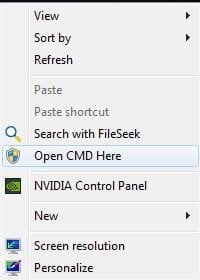
Add or Remove "Open Command Window Here as Administrator" to Context Menu
Information
This will show you how to add or remove Open Command Window Here as Administrator to the context menu of a folder, drive, and desktop of all users to open an elevated command prompt with the focus at the library, folder, drive, and desktop location in Windows 7 and Windows 8.
You must be logged in as an administrator to be able to do the steps in this tutorial.
You must be logged in as an administrator to be able to do the steps in this tutorial.
Note
This is just like the Open Command Window Here context menu item, except that it opens an elevated "run as administrator" command prompt at the library, folder, or drive location instead.
When added, you can right click on a library, folder, or drive to see the Open Command Window Here as Administrator context menu item. You will then be prompted by UAC to click on YES or type in the administrator's password.
When added, you can right click on a library, folder, or drive to see the Open Command Window Here as Administrator context menu item. You will then be prompted by UAC to click on YES or type in the administrator's password.
Warning
This will not work with Library folders.
If you added the Take Ownership context menu item, then adding Open Command Window Here as Administrator will remove and replace it for folders and drives.
If you added the Take Ownership context menu item, then adding Open Command Window Here as Administrator will remove and replace it for folders and drives.
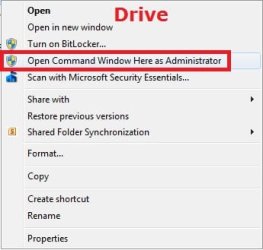
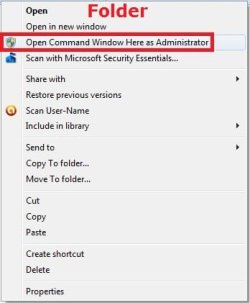
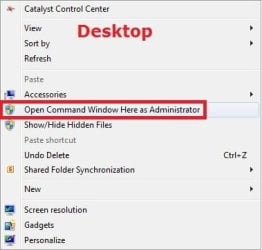
EXAMPLE: Open Command Window Here as Administrator
NOTE: This is the context menu with this added and you right click on a drive, folder, or on the desktop.
Here's How:
1. Do step 2, 3, or 4 below for what you would like to do.
2. Add "Open Command Window Here as Administrator" to Context Menu
A) Click/tap on the download button below to download the file below, and go to step 5 below.
Add_Open_Command_Window_Here_as_Administrator.reg
Download
3. Add Shift + Right Click "Open Command Window Here as Administrator" to Context Menu
A) Click/tap on the download button below to download the file below, and go to step 5 below.
Add_Shift+Open_Command_Window_Here_as_Administrator.reg
Download
4. Remove "Open Command Window Here as Administrator" from Context Menu
A) Click/tap on the download button below to download the file below, and go to step 5 below.
Remove_Open_Command_Window_Here_as_Administrator.reg
Download
5. Save the .reg file to your desktop.
6. Double click/tap on the downloaded .reg file to merge it.
7. When prompted, click on Run, Yes (UAC), Yes, and OK to approve merging the .reg file.
8. You can now delete the downloaded .reg file if you like.
That's it
Shawn
Related Tutorials
- How to Use "Open Command Window Here" in Windows 7
- How to Add or Remove "Open Command Window Here" from the Context Menu
- How to Use "Open Command Window Here" Context Menu Item without Shift+ Right Click
- How to Open a Command Prompt in Windows 7
- How to Open a Command Prompt at Startup in Windows 7
- How to Open an Elevated Command Prompt in Windows 7
- How to Enable Copy to Clipboard from the Window 7 Command Prompt
- How to Personalize the Command Prompt Window
- How to Create an Elevated Command Prompt Shortcut in Windows 7 and Windows 8
Attachments
Last edited: