
Display Color Calibration

How to Open and Use Display Color Calibration in Windows 7

   Information
Calibrating your display helps to ensure that colors are represented accurately on your monitor. This will show you how to use Display Color Calibration to calibrate your display in Windows 7.
   Note
Display Color Calibration improves your display color by enabling you to change different color settings. After you adjust the different color settings using Display Color Calibration, you will have a new calibration that contains your new color settings. The new calibration will be associated with your screen display and used by color-managed programs.

The color settings that you can change, as well as how you change those color settings, depend on your monitor's display and its capabilities. Not all monitors have the same color capabilities and settings, so you might not be able to change all the different color settings when using Display Color Calibration.
   Tip
If you have a display calibration device that came with other software, consider using the color measurement device with the accompanying software instead of Display Color Calibration. Using the calibration device with the accompanying calibration software that often comes with it can help you get the best color on your display. In general, using a color measurement instrument to calibrate your display will result in a better calibration compared to the results of doing a visual calibration (which is done in Display Color Calibration).
   Warning
Color corrections made to the Intel integrated graphics by Windows Color Management or other third-party utilities will be reset to the driver’s default settings after hibernation or sleep. Intel integrated graphics settings have priority over Operating System or third party applications for Color Management.

More: Graphics; Color corrections reset after hibernation or sleep


UPDATE:
It has been reported that disabling the igfxpers.exe Intel's persistence module process in Task Manager will allow the color profile to stick after restarting the computer.

On ASUS laptops, turning off and uninstalling the ASUS Splendid utility will stop this.


Here's How:
1. Before starting Display Color Calibration, make sure that your display is set to its native screen resolution.
NOTE: This helps to improve the accuracy of the resulting calibration.

2. Open the Control Panel (Icons View), and click on the Color Management icon.

3. Click on the Advanced tab, and on the Change system defaults button. (see screenshot below)
Advanced-1.jpg
4. If prompted by UAC, then click on Yes.

5. Click on the Advanced tab, and on the Calibrate display button. (see screenshot below)
Advanced-2.jpg
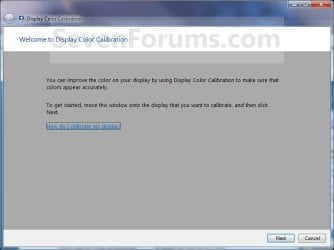
6. Move the window to display on the display monitor that you want to calibrate, then click on Next. (see screenshot below)
Step1.jpg
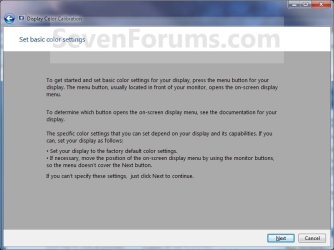
7. Set the display that you want to calibrate to it's default basic color settings, then click on Next. (see screenshot below)
Step2.jpg
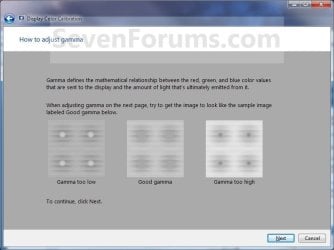
8. Read the how to adjust gamma instructions, then click on Next when ready. (see screenshot below)
Step3.jpg
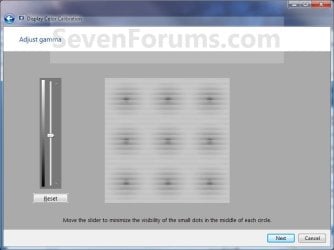
9. Adjust your gamma settings, then click on Next. (see screenshot below)
Step4.jpg
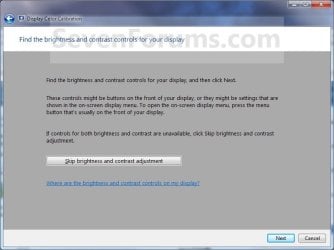
10. If you want to adjust the brightness and contrast settings for the display, then click on Next and continue on to step 11. If not, then click on the Skip brightness and contrast adjustment button, then go to step 15. (see screenshot below)
Step5.jpg
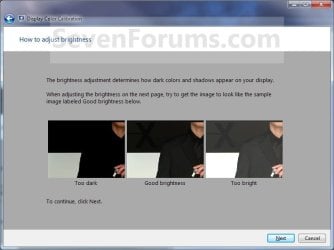
11. Read the how to adjust brightness instructions, then click on Next when ready. (see screenshot below)
Step6.jpg
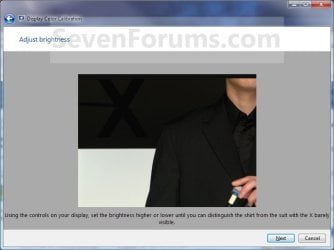
12. Adjust your brightness settings, then click on Next. (see screenshot below)
Step7.jpg
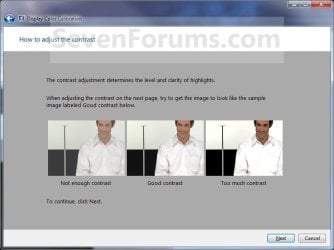
13. Read the how to adjust the contrast instructions, then click on Next when ready. (see screenshot below)
Step8.jpg
14. Adjust your contrast settings, then click on Next. (see screenshot below)

Step9.jpg
15. Read the how to adjust color balance instructions, then click on Next when ready. (see screenshot below)
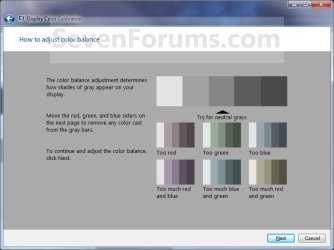
Step10.jpg
16. Adjust your color balance settings, then click on Next. (see screenshot below)
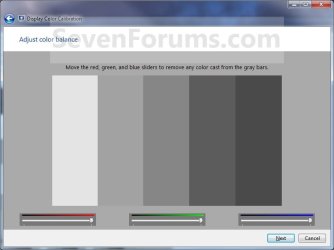
Step11.jpg
17. The display is now calibrated. You can compare this new Current calibration with the Previous calibration. (see screenshot below step 19)

18. If you wish to start ClearType Tuner to help make the text on your screen sharp and clear after you click on Finish below, then leave the box checked. Uncheck the box if you do not want to have ClearType Tuner open. (see screenshot below step 19)

19. Click on Finish to save and use this new Current calibration, or click on Cancel to cancel these changes and use the Previous calibration. (see screenshot below)
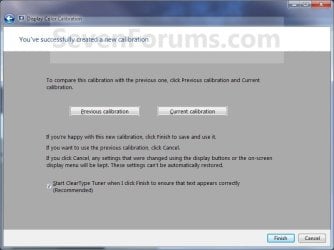
Step12.jpg
20. From the screenshot under step 3 above, click on the Devices tab, select the monitor that you just calibrated, select the "calibrated" profile you want, click on the Set as Default Profile button, and click on Close. (see screenshot below)
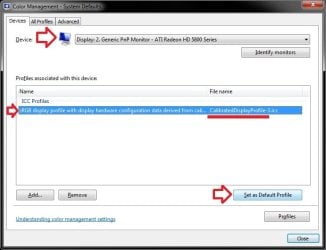
Advanced-3.jpg
21. Click on Close. (see screenshot below step 3)
   Note
It has been reported that the Sony Vaio"VGN-NW240F" has a proprietary Sony service that conflicts with the display driver and does not allow the display driver to save settings permanently. For example, the saved color calibration. They will be reset on log-off or re-boot producing a very pink looking hue. Disabling the Sony Vaio service has been reported to resolve this problem.

The side affect is that you lose the function keys that dim and brighten the display, but a simple desktop gadget could be used to replace the keys.


That's it,
Shawn


Last edited:
So, I have an issue. Intel Common User Interface Module nor igfxpers.exe is listed in msconfig "startup" tab or "programs and features".

I searched for it by going to start>search. It listed the program and I right clicked on it and selected open file location. It's listed under computer>local disk (C: )>windows>system32. Would it be safe to delete it from here??

No, you wouldn't want to just delete it like that.

If you like, go ahead and post screenshots showing everything in the right pane of these registry locations below to see what all you have in your startup options. I'll be happy to take a look to see if it may be hiding here somewhere. :)

  • HKEY_CURRENT_USER\Software\Microsoft\Windows\CurrentVersion\Run
  • HKEY_LOCAL_MACHINE\SOFTWARE\Microsoft\Windows\CurrentVersion\Run
  • HKEY_CURRENT_USER\Software\Microsoft\Windows\CurrentVersion\Policies\Explorer\Run
  • HKEY_LOCAL_MACHINE\SOFTWARE\Microsoft\Windows\CurrentVersion\Policies\Explorer\Run
  • HKEY_LOCAL_MACHINE\SOFTWARE\Wow6432Node\Microsoft\Windows\CurrentVersion\Run
 
Last edited:

My Computer

Computer type
PC/Desktop
Computer Manufacturer/Model Number
Self built custom
OS
64-bit Windows 11 Pro for Workstations
CPU
Intel i7-8700K OC'd to 5 GHz
Motherboard
ASUS ROG Maximus XI Formula Z390
Memory
64 GB (4x16GB) G.SKILL TridentZ RGB DDR4 3600 MHz
Graphics Card(s)
ASUS ROG-STRIX-GTX1080TI-O11G-GAMING
Sound Card
Integrated
Monitor(s) Displays
2 x Samsung Odyssey G7 27"
Screen Resolution
2560x1440
Hard Drives
1TB Samsung 990 PRO M.2,
4TB Samsung 990 PRO PRO M.2,
TerraMaster F8 SSD Plus NAS
PSU
Seasonic Prime Titanium 850W
Case
Thermaltake Core P3
Cooling
Corsair Hydro H115i
Keyboard
Logitech wireless K800
Mouse
Logitech MX Master 4
Internet Speed
2 Gb/s Download and 100 Mb/s Upload
Antivirus
Malwarebyte Anti-Malware Premium
Browser
Google Chrome
Other Info
Logitech Z625 speaker system,
Logitech BRIO 4K Pro webcam,
HP Color LaserJet Pro MFP M477fdn,
APC SMART-UPS RT 1000 XL - SURT1000XLI,
Galaxy S23 Plus phone
No, you wouldn't want to just delete it like that.

If you like, go ahead and post screenshots showing everything in the right pane of these registry locations below to see what all you have in your startup options. I'll be happy to take a look to see if it may be hiding here somewhere. :)

  • HKEY_CURRENT_USER\Software\Microsoft\Windows\CurrentVersion\Run
  • HKEY_LOCAL_MACHINE\SOFTWARE\Microsoft\Windows\CurrentVersion\Run
  • HKEY_CURRENT_USER\Software\Microsoft\Windows\CurrentVersion\Policies\Explorer\Run
  • HKEY_LOCAL_MACHINE\SOFTWARE\Microsoft\Windows\CurrentVersion\Policies\Explorer\Run
  • HKEY_LOCAL_MACHINE\SOFTWARE\Wow6432Node\Microsoft\Windows\CurrentVersion\Run
Well, after searching on the web some more I found a post where someone went into Intel Graphics and Media from the control panel. Here he was able to adjust hue, saturation, gamma, contrast, and brightness and save those settings. Apparently it fixed his problem of the display settings not saving. I tried this trick myself, and so far I'm happy to report that it has worked. The settings haven't once reverted back to factory default. I hope this is a permanent solution for me. I was getting very irritated with it:o. I want to thank you for being so helpful and patient!
 

My Computer

Computer Manufacturer/Model Number
Samsung Series 3 NP300E5C-A01US
OS
Win 7 Home Premium 64-bit
I'm happy to hear that you got it sorted. Thank you for posting back with your results and solution. :)
 

My Computer

Computer type
PC/Desktop
Computer Manufacturer/Model Number
Self built custom
OS
64-bit Windows 11 Pro for Workstations
CPU
Intel i7-8700K OC'd to 5 GHz
Motherboard
ASUS ROG Maximus XI Formula Z390
Memory
64 GB (4x16GB) G.SKILL TridentZ RGB DDR4 3600 MHz
Graphics Card(s)
ASUS ROG-STRIX-GTX1080TI-O11G-GAMING
Sound Card
Integrated
Monitor(s) Displays
2 x Samsung Odyssey G7 27"
Screen Resolution
2560x1440
Hard Drives
1TB Samsung 990 PRO M.2,
4TB Samsung 990 PRO PRO M.2,
TerraMaster F8 SSD Plus NAS
PSU
Seasonic Prime Titanium 850W
Case
Thermaltake Core P3
Cooling
Corsair Hydro H115i
Keyboard
Logitech wireless K800
Mouse
Logitech MX Master 4
Internet Speed
2 Gb/s Download and 100 Mb/s Upload
Antivirus
Malwarebyte Anti-Malware Premium
Browser
Google Chrome
Other Info
Logitech Z625 speaker system,
Logitech BRIO 4K Pro webcam,
HP Color LaserJet Pro MFP M477fdn,
APC SMART-UPS RT 1000 XL - SURT1000XLI,
Galaxy S23 Plus phone
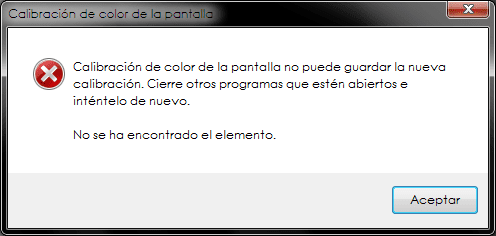
I have an error with this, and when i saved the calibration, it says not found..
 

My Computer

Computer Manufacturer/Model Number
Acer Aspire GX
OS
Windows 7 Ultimate x64
Memory
6gb
Graphics Card(s)
Geforce 315
Sound Card
Realtek
Monitor(s) Displays
SyncMaster 710v
Hard Drives
2
Hello TheKloowner,

Could you please post back with the exact error message, and give more details? :)
 

My Computer

Computer type
PC/Desktop
Computer Manufacturer/Model Number
Self built custom
OS
64-bit Windows 11 Pro for Workstations
CPU
Intel i7-8700K OC'd to 5 GHz
Motherboard
ASUS ROG Maximus XI Formula Z390
Memory
64 GB (4x16GB) G.SKILL TridentZ RGB DDR4 3600 MHz
Graphics Card(s)
ASUS ROG-STRIX-GTX1080TI-O11G-GAMING
Sound Card
Integrated
Monitor(s) Displays
2 x Samsung Odyssey G7 27"
Screen Resolution
2560x1440
Hard Drives
1TB Samsung 990 PRO M.2,
4TB Samsung 990 PRO PRO M.2,
TerraMaster F8 SSD Plus NAS
PSU
Seasonic Prime Titanium 850W
Case
Thermaltake Core P3
Cooling
Corsair Hydro H115i
Keyboard
Logitech wireless K800
Mouse
Logitech MX Master 4
Internet Speed
2 Gb/s Download and 100 Mb/s Upload
Antivirus
Malwarebyte Anti-Malware Premium
Browser
Google Chrome
Other Info
Logitech Z625 speaker system,
Logitech BRIO 4K Pro webcam,
HP Color LaserJet Pro MFP M477fdn,
APC SMART-UPS RT 1000 XL - SURT1000XLI,
Galaxy S23 Plus phone
Element not found...
Attached in image

Close another programs that it can be open.. etc etc
 

Attachments

  • Letra.png
    Letra.png
    7.4 KB · Views: 1,325

My Computer

Computer Manufacturer/Model Number
Acer Aspire GX
OS
Windows 7 Ultimate x64
Memory
6gb
Graphics Card(s)
Geforce 315
Sound Card
Realtek
Monitor(s) Displays
SyncMaster 710v
Hard Drives
2
You might see if you may be able to do this in Safe Mode.

If not, then check to make sure that you have the correct and lastest video driver installed, and try running a sfc /scannow command to see if you have any corrupted system files that may responsible.

Hope this helps for now. :)
 

My Computer

Computer type
PC/Desktop
Computer Manufacturer/Model Number
Self built custom
OS
64-bit Windows 11 Pro for Workstations
CPU
Intel i7-8700K OC'd to 5 GHz
Motherboard
ASUS ROG Maximus XI Formula Z390
Memory
64 GB (4x16GB) G.SKILL TridentZ RGB DDR4 3600 MHz
Graphics Card(s)
ASUS ROG-STRIX-GTX1080TI-O11G-GAMING
Sound Card
Integrated
Monitor(s) Displays
2 x Samsung Odyssey G7 27"
Screen Resolution
2560x1440
Hard Drives
1TB Samsung 990 PRO M.2,
4TB Samsung 990 PRO PRO M.2,
TerraMaster F8 SSD Plus NAS
PSU
Seasonic Prime Titanium 850W
Case
Thermaltake Core P3
Cooling
Corsair Hydro H115i
Keyboard
Logitech wireless K800
Mouse
Logitech MX Master 4
Internet Speed
2 Gb/s Download and 100 Mb/s Upload
Antivirus
Malwarebyte Anti-Malware Premium
Browser
Google Chrome
Other Info
Logitech Z625 speaker system,
Logitech BRIO 4K Pro webcam,
HP Color LaserJet Pro MFP M477fdn,
APC SMART-UPS RT 1000 XL - SURT1000XLI,
Galaxy S23 Plus phone
You might see if you may be able to do this in Safe Mode.

If not, then check to make sure that you have the correct and lastest video driver installed, and try running a sfc /scannow command to see if you have any corrupted system files that may responsible.

Hope this helps for now. :)

Ok, no one corrupted files, all okay because yesterday i do a repair install.

Now i will check in safe mode, thanks.


Another error, in safe MODE:

Calibration screen can not calibrate the screen because it can not determine whether is reflected.
Screen color calibration can not calibrate a screen that reflected
 

My Computer

Computer Manufacturer/Model Number
Acer Aspire GX
OS
Windows 7 Ultimate x64
Memory
6gb
Graphics Card(s)
Geforce 315
Sound Card
Realtek
Monitor(s) Displays
SyncMaster 710v
Hard Drives
2
Any help? i reinstalled graphic driver and nothin..
 

My Computer

Computer Manufacturer/Model Number
Acer Aspire GX
OS
Windows 7 Ultimate x64
Memory
6gb
Graphics Card(s)
Geforce 315
Sound Card
Realtek
Monitor(s) Displays
SyncMaster 710v
Hard Drives
2
I'm afraid that I don't know what else to try other than adjusting the color settings on the monitor itself. :(
 

My Computer

Computer type
PC/Desktop
Computer Manufacturer/Model Number
Self built custom
OS
64-bit Windows 11 Pro for Workstations
CPU
Intel i7-8700K OC'd to 5 GHz
Motherboard
ASUS ROG Maximus XI Formula Z390
Memory
64 GB (4x16GB) G.SKILL TridentZ RGB DDR4 3600 MHz
Graphics Card(s)
ASUS ROG-STRIX-GTX1080TI-O11G-GAMING
Sound Card
Integrated
Monitor(s) Displays
2 x Samsung Odyssey G7 27"
Screen Resolution
2560x1440
Hard Drives
1TB Samsung 990 PRO M.2,
4TB Samsung 990 PRO PRO M.2,
TerraMaster F8 SSD Plus NAS
PSU
Seasonic Prime Titanium 850W
Case
Thermaltake Core P3
Cooling
Corsair Hydro H115i
Keyboard
Logitech wireless K800
Mouse
Logitech MX Master 4
Internet Speed
2 Gb/s Download and 100 Mb/s Upload
Antivirus
Malwarebyte Anti-Malware Premium
Browser
Google Chrome
Other Info
Logitech Z625 speaker system,
Logitech BRIO 4K Pro webcam,
HP Color LaserJet Pro MFP M477fdn,
APC SMART-UPS RT 1000 XL - SURT1000XLI,
Galaxy S23 Plus phone
I'm afraid that I don't know what else to try other than adjusting the color settings on the monitor itself. :(

No problem, thanks.
 
Last edited by a moderator:

My Computer

Computer Manufacturer/Model Number
Acer Aspire GX
OS
Windows 7 Ultimate x64
Memory
6gb
Graphics Card(s)
Geforce 315
Sound Card
Realtek
Monitor(s) Displays
SyncMaster 710v
Hard Drives
2
hi
yesterday i used a software to calibrate my monitor and x-rite photo calibrator and when i uninstalled it , it did a mess up

are there default screenshots about windows 7 Color Management ?

i did a mess up even on my windows 8.1 , but i guess the default are the same
thanks
 

My Computer

Computer type
PC/Desktop
OS
windows 7 ultimate 64bit
Hello Drugo,

If you like, you should be able to run the Display Color Calibration in Windows to see if it may be able to correct it for you.
 

My Computer

Computer type
PC/Desktop
Computer Manufacturer/Model Number
Self built custom
OS
64-bit Windows 11 Pro for Workstations
CPU
Intel i7-8700K OC'd to 5 GHz
Motherboard
ASUS ROG Maximus XI Formula Z390
Memory
64 GB (4x16GB) G.SKILL TridentZ RGB DDR4 3600 MHz
Graphics Card(s)
ASUS ROG-STRIX-GTX1080TI-O11G-GAMING
Sound Card
Integrated
Monitor(s) Displays
2 x Samsung Odyssey G7 27"
Screen Resolution
2560x1440
Hard Drives
1TB Samsung 990 PRO M.2,
4TB Samsung 990 PRO PRO M.2,
TerraMaster F8 SSD Plus NAS
PSU
Seasonic Prime Titanium 850W
Case
Thermaltake Core P3
Cooling
Corsair Hydro H115i
Keyboard
Logitech wireless K800
Mouse
Logitech MX Master 4
Internet Speed
2 Gb/s Download and 100 Mb/s Upload
Antivirus
Malwarebyte Anti-Malware Premium
Browser
Google Chrome
Other Info
Logitech Z625 speaker system,
Logitech BRIO 4K Pro webcam,
HP Color LaserJet Pro MFP M477fdn,
APC SMART-UPS RT 1000 XL - SURT1000XLI,
Galaxy S23 Plus phone
Hello Drugo,

If you like, you should be able to run the Display Color Calibration in Windows to see if it may be able to correct it for you.
Hi Brink
but the hardware system is really more accurate then the display color calibration in windows

i 'm looking for default settings of windows 7 color management (a clean install), like this (but i don't think they are default the screenshot) above
http://www.timelessme.com/temp/postings/ColorManagement-Win7Issue_01.jpg

thanks
 

My Computer

Computer type
PC/Desktop
OS
windows 7 ultimate 64bit
The default is based off of your monitor and graphics card, so it will not always be the same from system to system. About all you can do is run the calibration again until you have it set how you like.

Doing a system restore using a restore point dated before you did the calibration will undo it for you though.
 

My Computer

Computer type
PC/Desktop
Computer Manufacturer/Model Number
Self built custom
OS
64-bit Windows 11 Pro for Workstations
CPU
Intel i7-8700K OC'd to 5 GHz
Motherboard
ASUS ROG Maximus XI Formula Z390
Memory
64 GB (4x16GB) G.SKILL TridentZ RGB DDR4 3600 MHz
Graphics Card(s)
ASUS ROG-STRIX-GTX1080TI-O11G-GAMING
Sound Card
Integrated
Monitor(s) Displays
2 x Samsung Odyssey G7 27"
Screen Resolution
2560x1440
Hard Drives
1TB Samsung 990 PRO M.2,
4TB Samsung 990 PRO PRO M.2,
TerraMaster F8 SSD Plus NAS
PSU
Seasonic Prime Titanium 850W
Case
Thermaltake Core P3
Cooling
Corsair Hydro H115i
Keyboard
Logitech wireless K800
Mouse
Logitech MX Master 4
Internet Speed
2 Gb/s Download and 100 Mb/s Upload
Antivirus
Malwarebyte Anti-Malware Premium
Browser
Google Chrome
Other Info
Logitech Z625 speaker system,
Logitech BRIO 4K Pro webcam,
HP Color LaserJet Pro MFP M477fdn,
APC SMART-UPS RT 1000 XL - SURT1000XLI,
Galaxy S23 Plus phone
Back
Top