
How to Turn DVD Subtitles On or Off in Windows Media Center
Information
Unlike closed captions, subtitles are a more general term used to describe the spoken audio in a movie. Subtitles are often displayed in a different language than the audio. If you're watching a DVD that includes subtitle options, you can turn them on in Media Center.
By default, subtitles appear automatically in Media Center when the audio is muted. This will show you how to turn DVD subtitles on or off in Windows Media Center.
By default, subtitles appear automatically in Media Center when the audio is muted. This will show you how to turn DVD subtitles on or off in Windows Media Center.
Note
Windows Media Center is not available in the Windows 7 Starter and Windows 7 Home Basic editions.
The N and KN editions of Windows 7 have all the features that normally come with each individual Windows 7 edition, except for Windows Media Player 12 and related programs, such as Windows Media Center or Windows DVD Maker.
The N editions of Windows 7 allow you to choose your own media player and software required to manage and play CDs, DVDs, and other digital media files. If you choose to use Windows Media Player 12, downloading it, along with related software, is free.
Download Media Feature Pack for Windows 7 N with Service Pack 1 and Windows 7 KN with Service Pack 1 (KB968211) from Official Microsoft Download Center
Windows 8/8.1 Enterprise will not have Add features to Windows 8/8.1 available since there are not any features available to add in that edition.
Windows Media Center is available as an economical “media pack” add-on to your installed and activated Windows 8/8.1 Pro.
If you have Windows 8 Pro installed, then you can add Windows Media Center by buying the Windows 8 Media Center Pack.
If you have Windows 8.1 Pro installed, then you can add Windows Media Center by buying the Windows 8.1 Media Center Pack.
If you have Windows 8 installed, then you will need to buy the Windows 8 Pro Pack to have Media Center added and all the features of Windows 8 Pro.
If you have Windows 8.1 installed, then you will need to buy the Windows 8.1 Pro Pack to have Media Center added and all the features of Windows 8.1 Pro.
See: How to Add "Windows Media Center" to Windows 8 and 8.1
The N and KN editions of Windows 7 have all the features that normally come with each individual Windows 7 edition, except for Windows Media Player 12 and related programs, such as Windows Media Center or Windows DVD Maker.
The N editions of Windows 7 allow you to choose your own media player and software required to manage and play CDs, DVDs, and other digital media files. If you choose to use Windows Media Player 12, downloading it, along with related software, is free.
Download Media Feature Pack for Windows 7 N with Service Pack 1 and Windows 7 KN with Service Pack 1 (KB968211) from Official Microsoft Download Center
Windows 8/8.1 Enterprise will not have Add features to Windows 8/8.1 available since there are not any features available to add in that edition.
Windows Media Center is available as an economical “media pack” add-on to your installed and activated Windows 8/8.1 Pro.
If you have Windows 8 Pro installed, then you can add Windows Media Center by buying the Windows 8 Media Center Pack.
If you have Windows 8.1 Pro installed, then you can add Windows Media Center by buying the Windows 8.1 Media Center Pack.
If you have Windows 8 installed, then you will need to buy the Windows 8 Pro Pack to have Media Center added and all the features of Windows 8 Pro.
If you have Windows 8.1 installed, then you will need to buy the Windows 8.1 Pro Pack to have Media Center added and all the features of Windows 8.1 Pro.
See: How to Add "Windows Media Center" to Windows 8 and 8.1
Here's How:
1. In Vista and Windows 7, open the Start Menu, and click on All Programs and Windows Media Center.
In Windows 8 and 8.1, open the Apps screen, and click/tap on Windows Media Center.
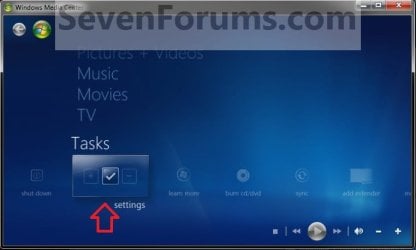
2. In Media Center, scroll down to Tasks and select Settings. (see screenshot below)
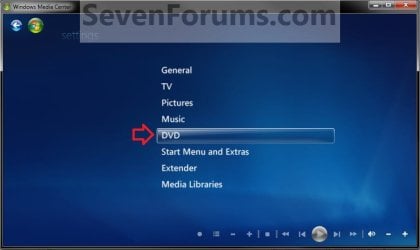
3. Select the DVD option. (see screenshot below)
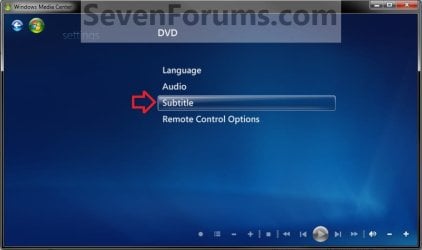
4. Select the Subtitle option. (see screenshot below)
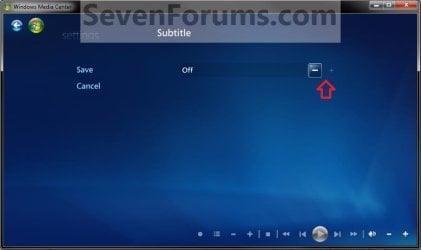
5. Click on the plus (+) and minus (-) buttons to select either the On, Off, or On when muted (default) option, then click on Save. (see screenshots below)


6. You can now close Windows Media Center when finished if you like.
That's it,
Shawn
Last edited:


