How to Remove the Desktop Background Picture Location History in Windows 7 and Windows 8
Information
EXAMPLE: Desktop Background Picture Location
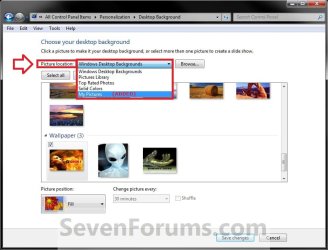
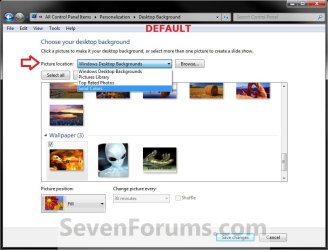
OPTION ONE
To Reset Picture Location to Default using a REG Download
NOTE: This option will reset the picture location drop down menu list back to only having the default folders removing any folders that you have added (Option Three below) by browsing to them. 1. Click on the Download button below to download the file below. Reset_Desktop_Background_Picture_Location_History.reg
Download
2. Save the .reg file to your desktop.
3. Double click/tap on the downloaded .reg file to merge it.
4. Click/tap on Run, Yes (UAC), Yes, and OK when prompted.
5. When finished, you can delete the downloaded .reg file if you like.
6. Close and reopen Desktop Background in Windows 7 or Windows 8 to see the change.
OPTION TWO
Reset or Remove a Picture Location Through Registry
NOTE: This option will allow you to either manually reset the picture location drop down menu list back to only having the default folders removing any folders that you have added (Option Three below) by browsing to them, or only remove one or more folders listed in the picture location drop down menu list. 1. Press the Windows + R keys to open the Run dialog, type regedit, and press Enter.
2. If prompted by UAC, then click/tap on Yes to approve or type in the administrator's password.
3. In regedit, navigate to the location below: (see screenshot below)
HKEY_CURRENT_USER\Software\Microsoft\Windows\CurrentVersion\Explorer\Wallpapers\Images
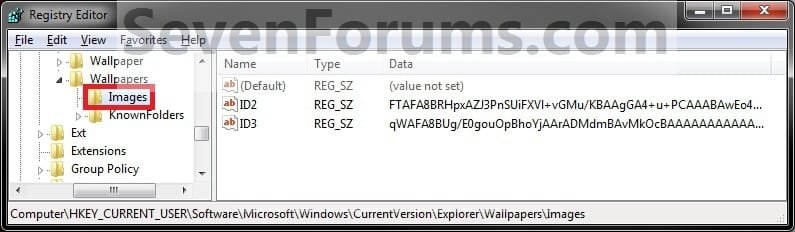
4. To Reset Desktop Background Picture Location History A) In the left pane of regedit, right click on Images, and click/tap on Delete. (see screenshot above)
NOTE: Images is restored automatically the first time that you add (Option Three below) a folder by browsing to.
B) Click/tap on Yes to confirm deletion. (see screenshot below)
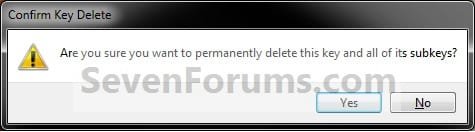
C) Go to step 6.
5. To Remove a Listed Folder in Picture Location A) In the right pane of Images, right click on one of the listed ID# (0-9) that you want to remove, and click/tap on Delete. (see screenshot below)
Tip
The top 4 Windows Desktop Backgrounds, Pictures Library, Top Rated Photos, and Solid Colors default folders will not be included in the listed ID#'s.
The folders that you added will be listed in order under the default ones above with the same ID# order listed in the registry.
The folders that you added will be listed in order under the default ones above with the same ID# order listed in the registry.
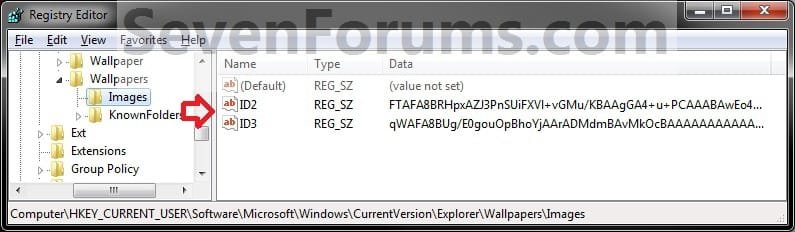
B) Click/tap on Yes to confirm deletion. (see screenshot below)
NOTE: If you made a mistake and deleted the wrong picture location folder, then you can add it back by just browsing to and selecting it in Option Three below.

C) Repeat steps 6A/B if you wish to removed another added picture location folder.
6. Close regedit.
7. Close and reopen Desktop Background in Windows 7 or Windows 8 to see the change.
OPTION THREE
Add a Picture Location Through Desktop Background
2. To the right of Picture location, click on the Browse button. (see screenshot below)
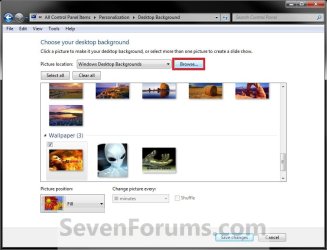
3. Navigate to and select the folder you want to be added to the picture location history, and click/tap on OK. (see screenshot below)

4. It will be listed in the Picture location drop down arrow box.
That's it,
Shawn
Related Tutorials
- How to Change the Windows 7 Desktop Background
- How to Change Your Desktop Background and Slide Show in Windows 8 and Windows 8.1
- How to Create a Change "Desktop Background" Shortcut in Vista and Windows 7
- How to Allow or Prevent Changing Desktop Background in Vista, Windows 7, and Windows 8
- How to Specify a Desktop Background for Users in Vista, Windows 7, and Windows 8
Attachments
Last edited: