Single-Click Mode Point to Select - Enable or Disable

How to Enable or Disable Point to Select using Single-click to Open an Item

   Information
This will show you how to enable or disable selecting a item by hovering the mouse pointer over it (point to select) when you have Folder Options set to Single-click to Open an Item in Windows 7.

   Note
Credit goes to our member Msafi for finding this and bringing it to my attention.
   Warning
A side effect of disabling point to select is that a taskbar icon's thumbnail previews (if using a Aero theme) for it's open window will not display automatically since it cannot be selected automatically anymore.

A workaround for this is to either:
  • Use the Windows Key + T and Windows Key + Shift + T shortcut keys to cycle through programs on the taskbar, and press Enter to open the one selected.
  • Right click and then double left click on the taskbar icon of the opened window. The thumbnail preview will now display.
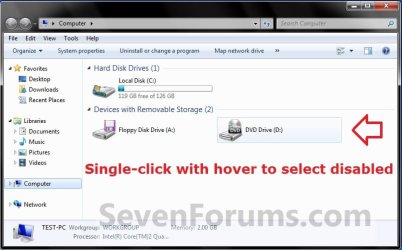
EXAMPLE: Point to Select Enable and Disabled
NOTE: This is only for when you have the Single-click to Open an Item Folder Option set, and not when you have Double-click to open an item (single-click to select) set.
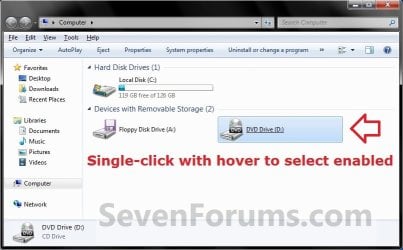
Enabled.jpg

Disabled.jpg


OPTION ONE

Through a REG File Download


1. To Enable Single Click Point to Select
NOTE: This is the default setting.
A) Click on the download button below to download the file below.
Enable_Single-Click_Point_to_Select.reg

Download


B) Go to step 3.
2. To Disable Single Click Point to Select
A) Click on the download button below to download the file below.
Disable_Single-Click_Point_to_Select.reg

Download


3. Save the .reg file to the desktop.

4. Right click the downloaded .reg file and click on Merge.

5. Click on Run, Yes (UAC), Yes, and OK when prompted.

6. Log off and log on, or restart the computer to apply the changes.

7. When done, you can delete the downloaded .reg file if you like.


OPTION TWO

Manually Through the Registry


1. Open the Start Menu, then type regedit in the search boxand press Enter.

2. In regedit, go to: (see screenshot below)

Code:
HKEY_CURRENT_USER\Control Panel\Mouse
Step1.jpg
3. To Enable Single Click Point to Select
NOTE: This is the default setting.
A) In the right pane, double click on MouseHoverHeight. (see screenshot above)
B) Type in 4, then click on OK. (see screenshots below)
Enable-1.jpg

Enable-2.jpg
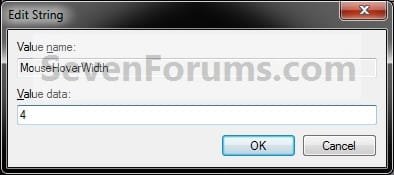
C) Repeat steps 3A and 3B for MouseHoverWidth.

D) Go to step 5.
4. To Disable Single Click Point to Select
A) In the right pane, double click on MouseHoverHeight. (see screenshot below step 2)
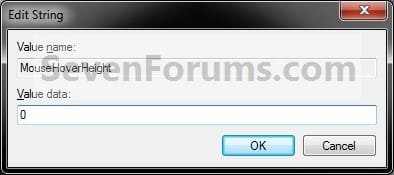
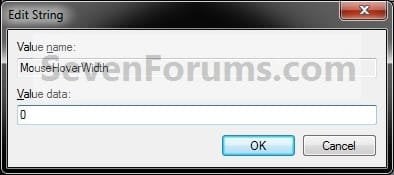
B) Type in 0, then click on OK. (see screenshots below)
Disable-1.jpg

Disable-2.jpg
C) Repeat steps 4A and 4B for MouseHoverWidth.
5. Close regedit.

6. Log off and log on, or restart the computer to apply the changes.
That's it,
Shawn


Attachments

Last edited:
A possibly undesirable side-effect to this is that taskbar thumbnail preview would be disabled as well.

Personally, I wish the effect didn't spill over to the taskbar thumbnail previews, but I'll continue to use this tweak.
 
Last edited:

My Computer

Computer Manufacturer/Model Number
ThinkPad T410
OS
Windows 7 Professional 64-bit
Hello Msafi,

It is a unfortunate side effect, but I found a workaround for this is to right click and then left click twice on the taskbar icon that has the open window. You will then have a thumbnail preview of the opened window for the taskbar icon.
 

My Computer

Computer type
PC/Desktop
Computer Manufacturer/Model Number
Self built custom
OS
64-bit Windows 11 Pro for Workstations
CPU
Intel i7-8700K OC'd to 5 GHz
Motherboard
ASUS ROG Maximus XI Formula Z390
Memory
64 GB (4x16GB) G.SKILL TridentZ RGB DDR4 3600 MHz
Graphics Card(s)
ASUS ROG-STRIX-GTX1080TI-O11G-GAMING
Sound Card
Integrated
Monitor(s) Displays
2 x Samsung Odyssey G7 27"
Screen Resolution
2560x1440
Hard Drives
1TB Samsung 990 PRO M.2,
4TB Samsung 990 PRO PRO M.2,
TerraMaster F8 SSD Plus NAS
PSU
Seasonic Prime Titanium 850W
Case
Thermaltake Core P3
Cooling
Corsair Hydro H115i
Keyboard
Logitech wireless K800
Mouse
Logitech MX Master 4
Internet Speed
2 Gb/s Download and 100 Mb/s Upload
Antivirus
Malwarebyte Anti-Malware Premium
Browser
Google Chrome
Other Info
Logitech Z625 speaker system,
Logitech BRIO 4K Pro webcam,
HP Color LaserJet Pro MFP M477fdn,
APC SMART-UPS RT 1000 XL - SURT1000XLI,
Galaxy S23 Plus phone
That's cool.

For me, I can live without the taskbar thumbnails, but the point-to-select feature was too annoying to tolerate.

In case I really needed to see the thumbnails, I can use this mouse clicks workaround or press Win+T and use the arrow keys to move through the icons and see their thumbnails! :D

I usually just use Alt+Tab. It provides window previews.
 
Last edited:

My Computer

Computer Manufacturer/Model Number
ThinkPad T410
OS
Windows 7 Professional 64-bit
:doh:

LOL, I forgot about the shortcut keys. Added. Thank you.
 

My Computer

Computer type
PC/Desktop
Computer Manufacturer/Model Number
Self built custom
OS
64-bit Windows 11 Pro for Workstations
CPU
Intel i7-8700K OC'd to 5 GHz
Motherboard
ASUS ROG Maximus XI Formula Z390
Memory
64 GB (4x16GB) G.SKILL TridentZ RGB DDR4 3600 MHz
Graphics Card(s)
ASUS ROG-STRIX-GTX1080TI-O11G-GAMING
Sound Card
Integrated
Monitor(s) Displays
2 x Samsung Odyssey G7 27"
Screen Resolution
2560x1440
Hard Drives
1TB Samsung 990 PRO M.2,
4TB Samsung 990 PRO PRO M.2,
TerraMaster F8 SSD Plus NAS
PSU
Seasonic Prime Titanium 850W
Case
Thermaltake Core P3
Cooling
Corsair Hydro H115i
Keyboard
Logitech wireless K800
Mouse
Logitech MX Master 4
Internet Speed
2 Gb/s Download and 100 Mb/s Upload
Antivirus
Malwarebyte Anti-Malware Premium
Browser
Google Chrome
Other Info
Logitech Z625 speaker system,
Logitech BRIO 4K Pro webcam,
HP Color LaserJet Pro MFP M477fdn,
APC SMART-UPS RT 1000 XL - SURT1000XLI,
Galaxy S23 Plus phone
Alternate option to registry edits

If you are sceptical or just dont want to mess with the registry you can do this through the graphical interface.

http://www.sevenforums.com/tutorials/10117-single-click-double-click-open-item.html

Step 1
Navigate to the Control panel usualy located under START>CONTROL PANEL

Step 2
Once in the control panel change the drop down menu in the top right corner to "Small Options"

Step 3
Now find the icon that is named "Folder Options" and point and click

Step 4
Once in the folder options window under the General tab find the box that is labeled Click Items as Follows. In this box is an option that says Double Click to Open an Item (single click to select) To the left of this is a circle be sure to click this circle and choose Apply then OK
 
Last edited by a moderator:

My Computer

Computer Manufacturer/Model Number
HP Mini 1010NR
OS
Windows 7 Ultimate 86x
CPU
Atom 2Thread 1.6ghz
Memory
2Gig
Hard Drives
8Gig SSD
Hello Tom, and welcome to Seven Forums.

That it fine, but you misunderstood what the tutorial is for. This tutorial is to show people how to enable or disable selecting a item by hovering the mouse pointer over it (point to select) when they have Single-click to Open an Item option selected in Folder Options instead. ;)
 

My Computer

Computer type
PC/Desktop
Computer Manufacturer/Model Number
Self built custom
OS
64-bit Windows 11 Pro for Workstations
CPU
Intel i7-8700K OC'd to 5 GHz
Motherboard
ASUS ROG Maximus XI Formula Z390
Memory
64 GB (4x16GB) G.SKILL TridentZ RGB DDR4 3600 MHz
Graphics Card(s)
ASUS ROG-STRIX-GTX1080TI-O11G-GAMING
Sound Card
Integrated
Monitor(s) Displays
2 x Samsung Odyssey G7 27"
Screen Resolution
2560x1440
Hard Drives
1TB Samsung 990 PRO M.2,
4TB Samsung 990 PRO PRO M.2,
TerraMaster F8 SSD Plus NAS
PSU
Seasonic Prime Titanium 850W
Case
Thermaltake Core P3
Cooling
Corsair Hydro H115i
Keyboard
Logitech wireless K800
Mouse
Logitech MX Master 4
Internet Speed
2 Gb/s Download and 100 Mb/s Upload
Antivirus
Malwarebyte Anti-Malware Premium
Browser
Google Chrome
Other Info
Logitech Z625 speaker system,
Logitech BRIO 4K Pro webcam,
HP Color LaserJet Pro MFP M477fdn,
APC SMART-UPS RT 1000 XL - SURT1000XLI,
Galaxy S23 Plus phone
One little problem with this method. If you apply these settings I noticed that hovering over taskbar running app icons you only get the balloon (if switched on) and not the toasters. Like winamp not toasting the play controls, explorer not showing the active explorer windows toast, etc.

Has anyone fixed this? (desktop window manager service enabled/disabled made no difference)

EDIT: OK, just found out that IF you have single click select on and leave default mousehover values, you can get explorer to not select the files when hovering over them. BUT you need to use "Use check boxes to select files" or in the registry "HKCU\Software\Microsoft\Windows\CurrentVersion\Explorer\Advanced\AutoCheckSelect dword 0x1"

Cheers
 
Last edited:

My Computer

OS
win7
Hello Tweakradje,

Does using any of the options in the red warning box at the top of the tutorial as well help? :)
 

My Computer

Computer type
PC/Desktop
Computer Manufacturer/Model Number
Self built custom
OS
64-bit Windows 11 Pro for Workstations
CPU
Intel i7-8700K OC'd to 5 GHz
Motherboard
ASUS ROG Maximus XI Formula Z390
Memory
64 GB (4x16GB) G.SKILL TridentZ RGB DDR4 3600 MHz
Graphics Card(s)
ASUS ROG-STRIX-GTX1080TI-O11G-GAMING
Sound Card
Integrated
Monitor(s) Displays
2 x Samsung Odyssey G7 27"
Screen Resolution
2560x1440
Hard Drives
1TB Samsung 990 PRO M.2,
4TB Samsung 990 PRO PRO M.2,
TerraMaster F8 SSD Plus NAS
PSU
Seasonic Prime Titanium 850W
Case
Thermaltake Core P3
Cooling
Corsair Hydro H115i
Keyboard
Logitech wireless K800
Mouse
Logitech MX Master 4
Internet Speed
2 Gb/s Download and 100 Mb/s Upload
Antivirus
Malwarebyte Anti-Malware Premium
Browser
Google Chrome
Other Info
Logitech Z625 speaker system,
Logitech BRIO 4K Pro webcam,
HP Color LaserJet Pro MFP M477fdn,
APC SMART-UPS RT 1000 XL - SURT1000XLI,
Galaxy S23 Plus phone
Thx. It is big and red and I missed it. :confused: But those tricks are not very usefull in everyday use. I choose to use single click, and then I have to click 3 times to see the toasters? Pehaps some day one will find another workarround. I stick to the check boxes.

Cheers

edit: just wanted to say what a great place you have here. A lot of knowhow and very nice presented.
 

My Computer

OS
win7
Yeah, unfortunately that's the side effect of disabling point (hover) to select. :(
 

My Computer

Computer type
PC/Desktop
Computer Manufacturer/Model Number
Self built custom
OS
64-bit Windows 11 Pro for Workstations
CPU
Intel i7-8700K OC'd to 5 GHz
Motherboard
ASUS ROG Maximus XI Formula Z390
Memory
64 GB (4x16GB) G.SKILL TridentZ RGB DDR4 3600 MHz
Graphics Card(s)
ASUS ROG-STRIX-GTX1080TI-O11G-GAMING
Sound Card
Integrated
Monitor(s) Displays
2 x Samsung Odyssey G7 27"
Screen Resolution
2560x1440
Hard Drives
1TB Samsung 990 PRO M.2,
4TB Samsung 990 PRO PRO M.2,
TerraMaster F8 SSD Plus NAS
PSU
Seasonic Prime Titanium 850W
Case
Thermaltake Core P3
Cooling
Corsair Hydro H115i
Keyboard
Logitech wireless K800
Mouse
Logitech MX Master 4
Internet Speed
2 Gb/s Download and 100 Mb/s Upload
Antivirus
Malwarebyte Anti-Malware Premium
Browser
Google Chrome
Other Info
Logitech Z625 speaker system,
Logitech BRIO 4K Pro webcam,
HP Color LaserJet Pro MFP M477fdn,
APC SMART-UPS RT 1000 XL - SURT1000XLI,
Galaxy S23 Plus phone
Back
Top