
How to Change the Default Action of the Alt+F4 "Shut Down Windows" Dialog
Information
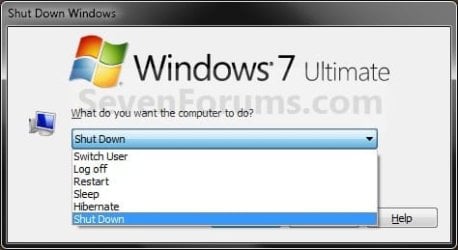
This will show you how to change what the default action that the Shut Down Windows dialog will open to in Windows 7 when you click on a empty space on your desktop and press Alt+F4.
Note
If you have Install Updates and Shut Down as the default option, then see:
How to Enable or Disable "Install Updates and Shut Down" Option in Windows 7
and
How to Change "Install Updates and Shut Down" as Default Choice in Shut Down Windows Dialog
How to Enable or Disable "Install Updates and Shut Down" Option in Windows 7
and
How to Change "Install Updates and Shut Down" as Default Choice in Shut Down Windows Dialog
EXAMPLE: Shut Down Windows
NOTE: This is with all of the options expanded.
Here's How:
1. Open the Start Menu power button settings window.
2. In the Power button action drop down menu, select what action you would like to be the default for the Alt+F4 Shut Down Windows dialog. (see screenshot below)
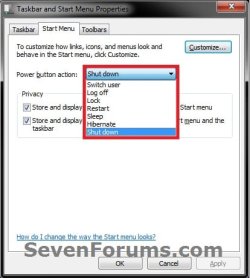
3. Click on OK. (see screenshot above)
That's it,
Shawn
Related Tutorials
- How to Enable or Disable "Install Updates and Shut Down" Option in Windows 7
- How to Change "Install Updates and Shut Down" as Default Choice in Shut Down Windows Dialog
- How to Change the Default Windows 7 Start Menu Power Button Action
- How to Change the Power Plan Settings in Windows 7
- How to Enable or Disable Hibernate in Windows 7
- How to Create a "Shut Down Windows" Shortcut in Windows 7
- How to Create a "Shut Down Computer" Shortcut in Windows
- How to Enable or Disable Shut Down without Having to Log On
- How to Change the "Logging off..." Text Message at Shut Down in Windows 7 and Vista
- How to Change the "Shutting down..." Text Message at Shut Down in Windows 7 and Vista
- How to Allow or Prevent Users and Groups to Shut Down the Computer
- How to Add or Remove the Shut Down, Restart, Sleep, and Hibernate Commands in Windows 7
- How to See the Last Shutdown Time of Your Windows PC
Last edited:


