How to Open and Use Windows 7 Sound Recorder
Information
Sound Recorder lets you record a sound and save it as an audio file on your computer. This will show you how to open and use Sound Recorder in Windows 7.
Note
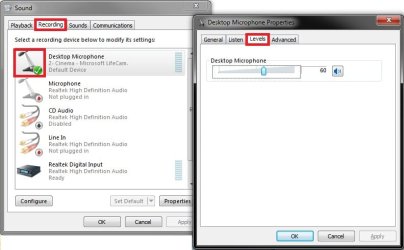
You can record sound from different audio devices, such as a microphone that's plugged into the sound card or motherboard audio line in jack on your computer. The types of audio input sources you can record from depend on the audio devices you have and the input sources on your sound card or motherboard.
Warning
To use Sound Recorder, you must have a sound card or motherboard with a audio line in jack and speakers installed on your computer. If you want to record sound, you will also need a microphone or some other audio input device.
Here's How:
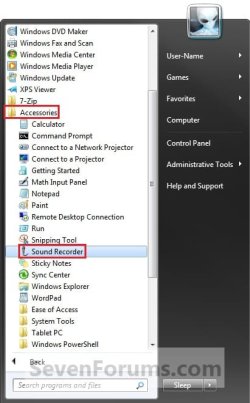
1. Open the Start Menu, click on All Programs, Accessories folder, and double click on Sound Recorder. (See screenshot below)
NOTE: The Sound Recorder exe file is located at C:\Windows\system32\SoundRecorder.exe.
A) Go to step 3.
OR
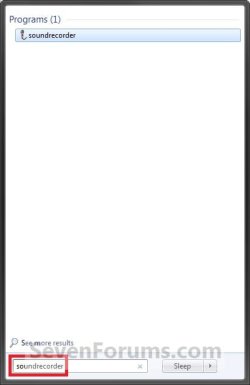
2. Open the Start Menu, and type soundrecorder in the search line and press Enter. (See screenshot below)
3. To Start Recording
A) Click on Start Recording. (See screenshot below)

4. To Stop Recording and Save
A) Click on Stop Recording. (See screenshot below)

B) Navigate to where you want to save this .wma file, type in a name for the file, then click on the Save button. (See screenshot below)
NOTE: In this Save As window you can also specify information for the Contributing artists name, Album title, or Genre by clicking on each one of them and typing the information before clicking on Save.

Tip
If you decide to continue recording audio instead of saving it to file right now, then click on the Cancel button instead. (See screenshot above)
When ready to continue recording, click on Resume Recording. (See screenshot below)

When ready to continue recording, click on Resume Recording. (See screenshot below)
5. When finished, close Sound Recorder. (See screenshot below step 3A)
That's it,
Shawn
Last edited: