

How to Apply Local Group Policies to Specific User or Group in Windows
InformationWindows has three layers of local GPOs:
- Local Group Policy Local Group Policy is the only local GPO that allows both computer configuration and user configuration settings to be applied to all users of the computer.
- Administrators and Non-Administrators local Group Policy Administrators and Non-Administrators local Group Policy contains only user configuration settings. This policy is applied based on whether the user account being used is a member of the local Administrators group.
- User-specific local Group Policy User-specific local Group Policy contains only user configuration settings. This policy is applied to individual users and groups.
These layers of local GPOs are processed in the following order: local Group Policy, Administrators and Non-Administrators local Group Policy, user-specific local Group Policy.
This tutorial will show you how to apply local group policies to only a specific user or group instead of all users in Vista, Windows 7, Windows 8, and Windows 10.
You must be logged in as an administrator to be able to do this tutorial.
NoteA computer running Windows can have one or more local policy objects associated with it. Local Group Policy is managed through the local Group Policy object (GPO).
The local GPO is stored on individual computers in the hidden C:\Windows\System32\GroupPolicy system folder.
User-specific and group-specific local GPOs are stored in the hidden C:\Windows\System32\GroupPolicyUsers system folder.
WarningThe Local Group Policy Editor will only be available in:
- Vista Business, Ultimate, and Enterprise editions.
- Windows 7 Professional, Ultimate, and Enterprise editions
- Windows 8/8.1 Pro and Enterprise editions.
- Windows 10 Pro and Enterprise editions.
Here's How:1. Open the Start Menu, then type mmc.exe in the search box and press Enter.
NOTE: In Windows 8, you could press Windows+R keys to open the Run dialog, then type mmc.exe, and click/tap on OK instead.
2. If prompted by UAC, then click on Yes (Windows 7/8) or Continue (Vista).
3. In the MMC Console window, click on File (Menu bar) and Add/Remove Snap-in. (see screenshot below)4. In the left pane, select Group Policy Object Editor, and click on the Add button. (see screenshot below) 5. Click on the Browse button. (see screenshot below)
 6. Click on the Users tab, select an available user account (ex: Test) or a group from the list that you want to only have group policy applied to, and click on OK. (see screenshot and table below)
 7. Click on the Finish button. (see screenshot below)NoteThe other names (Test and User-name) listed are user accounts on my computer. You will have your own user account names listed instead.
Group Name Description Administrator Name of Built-in Administrator account user HomeGroupUser$ All HomeGroup Users group Administrators All Users in the administrators group Non-Administrators All users except administrators group
8. Click on OK. (see screenshot below)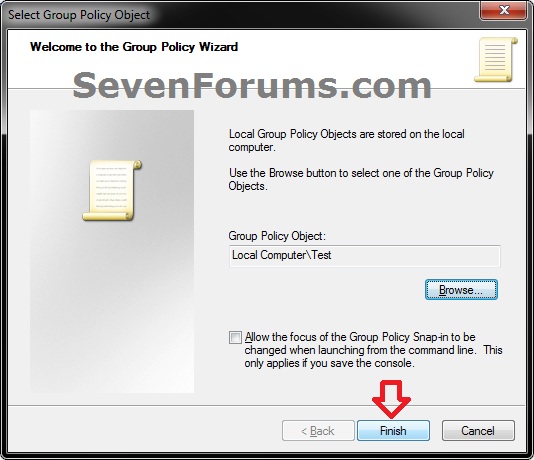 9. In the MMC Console window, click on File (Menu bar) and Save As. (see screenshot below)
 10. Select to save to your Desktop, type in a name (ex: Test_Group_Policy) that you would like to have for this "specific" group policy MSC file, then click on the Save button. (see screenshot below)
NOTE: You can use any name you like, but it would make it easier for you to know what user (ex: Test) or group this "specific" group policy MMC console was for later if you included the user or group name.11. Move the MSC file (ex: Test_Group_Policy.msc) for the specific user or group to where you would to keep it saved at. (see screenshot below)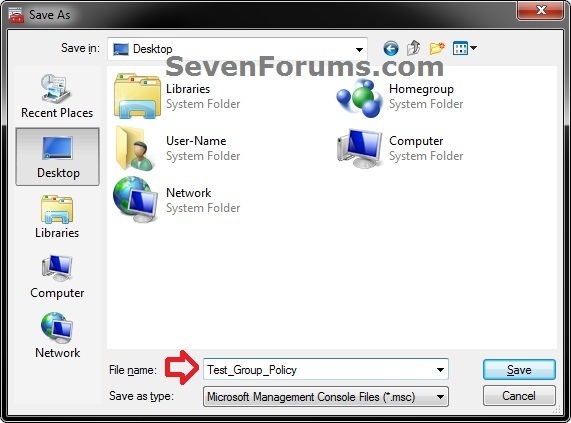
NOTE: You can also Pin to Taskbar or Pin to Start Menu this MSC file.12. Whenever you open this MSC file (ex: Test_Group_Policy.msc), you will be able to apply group policies to only this specific user (ex: Test) or group. (see screenshot below) 13. Repeat the above steps if you wish to create a new MSC group policy file for a different specific user or group.
That's it,
Shawn Brink
Related Tutorials
- How to Open the Local Group Policy Editor in Windows
- How to Apply Local Group Policies to All Users Except Administrators
- How to Back Up and Restore Local Group Policy in Windows
- How to Reset Local Group Policy to Default in Vista, Windows 7, and Windows 8
- How to Quickly View Enabled Group Policies in Windows
- How to Force Group Policy Updates to be Applied Instantly in Windows
Group Policy - Apply to a Specific User or Group
-
New #1
Hi,
I am trying to manage some users via a group. I made a group and added some users to it. Thus far no problem.
After that in MMC I wanted to add a module to the editor as discribed above. After clicking on the Brows button I did not see my new Group! Only all users and the Group Administrators and the group all nonadministrators.
What do I have to do to see my own new Group? Or is this not possible this way?
Windows 7 Pro 64 bit
Hope you can help me.
Ruud AmeszLast edited by ruudamesz; 29 Aug 2011 at 10:25. Reason: I made some typig errors.
-
New #2
Hello Ruud, and welcome to Seven Forums.
It appears that new custom groups are not available to be selected for this. :)
You could create one per specific user of the group, or use Local Security Policy in Local Policies -> User Rights Assignment to add and set for a custom new group.
-
New #3
group policy editor
um yeah i read through the steps did 1 by 1 then i got stopped bc i dont have group policy editor in the scroll list to choose from so im stumped
-
New #4
Hello Grinreaper,
What edition of Windows 7 do you have?
The Windows 7 Starter, Home Basic, and Home Premium editions do not have the Local Group Policy Editor available in them.
-
New #5
Exporting the policy settings
How do you export the settings once you have created the changes?
Thanks
JAy
-
New #6
Hello Jay, and welcome to Seven Forums.
The MSC file at the end of the tutorial is basically the export of your settings and shortcut all in one for that specific user or group. :)
If you would like a .txt file listing of a setting, then you could select and right click on a policy in the left pane, and click on Export. This will export only what you see in the middle pane for the selected policy though. For a list of all settings, select the All Settings option in the left pane instead.
Hope this helps,
Shawn
-
-
New #8
Jay,
I haven't tried it, but it would have to be for a specific group and not user. If you wanted to give it a try, you could see if copying the MSC file at the end of the tutorial to another machine to see if it works or not with the same policy settings set.
Please let us know how it went. :)
-
New #9
Apply to Startup folder?
HI,
I'm trying to lock down some public use PCs for a library so they only access the Internet. I've created an MMC file(?) based on the instructions above, for one specific user/profile on my PC and I saved it, but I am stuck at step #10 - I don't understand how to APPLY it - and it sounds like it is only applied if I RUN it, correct? So, my question is, can I send it to startup and will doing so automatically apply it/run it every time that user profile is logged in?
Or can I make a change in the registry to make these settings stick permanently and ONLY for THIS SPECIFIC USER (Not for the Admin profile)?
I am new to all of this and somewhat overwhelmed by some of the options available for managing a Windows 7 user profile. Most of what I've been reading I have never heard of before and I am afraid of changing anything for fear that I won't be able to undo it or understand how to describe it if I need help!
I will say I need some way to be able to log out of this profile and switch to the Admin profile if/when I need to fix anything, test, apply updates manually, etc.
Thanks!
Group Policy - Apply to a Specific User or Group
How to Apply Local Group Policies to Specific User or Group in WindowsPublished by Brink


 Quote
Quote
Related Discussions