

How to Set Internet Explorer to "Empty Temporary Internet Files folder when browser is closed"
InformationThe Temporary Internet Files folder is the cache folder where copies of webpages, images, and media are saved at for faster viewing in Internet Explorer. By default, the Temporary Internet Files folder is a hidden protected operating system file located below:
C:\Users\user-name\AppData\Local\Microsoft\Windows\Temporary Internet FilesThis tutorial will show you how to turn on or off to Empty Temporary Internet Files folder when browser is closed for only your user account's Internet Explorer.
OPTION ONETo Turn On or Off in Internet Options
1. Open the Control Panel (icons view), click/tap on the Internet Options icon, and go to step 3 below.
OR
2. In Internet Explorer, click/tap on Tools (Menu bar or gear icon) and Internet Options, then go to step 3 below. (see screenshot below)
3. Click/tap on the Advanced tab, scroll down to the Security section in the Settings box until you see the Empty Temporary Internet Files folder when browser is closed option. (see screenshot below)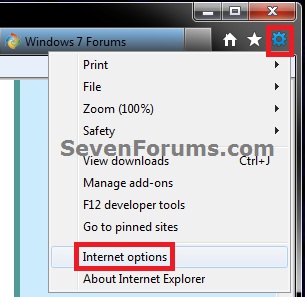
4. To Turn On "Empty Temporary Internet Files folder when browser is closed"
A) Check the Empty Temporary Internet Files folder when browser is closed box, and click/tap on OK. (see screenshot below step 3)5. To Turn Off "Empty Temporary Internet Files folder when browser is closed"
NOTE: This is the default setting.
A) Uncheck the Empty Temporary Internet Files folder when browser is closed box, and click/tap on OK. (see screenshot below step 3)
OPTION TWOTo Turn On or Off Using a REG File Download
1. To Turn On "Empty Temporary Internet Files folder when browser is closed"
A) Click/tap on the Download button below to download the file below.2. To Turn Off "Empty Temporary Internet Files folder when browser is closed"
Turn_On_Empty_Temporary_Internet_Files_folder_when_browser_is_closed.regB) Go to step 3.
NOTE: This is the default setting.
A) Click/tap on the Download button below to download the file below.3. Save the .reg file to the desktop.
Turn_Off_Empty_Temporary_Internet_Files_folder_when_browser_is_closed.reg
4. Double click/tap on the downloaded .reg file to merge it.
5. Click/tap on Run, Yes (UAC-Windows 7/8) or Continue (UAC-Vista), Yes, and OK when prompted.
6. When done, you can delete the downloaded .reg file if you like.
OPTION THREETo Turn On or Off Manually in Registry Editor
1. Press the Windows + R keys to open the Run dialog, type regedit, and press Enter.
2. If prompted by UAC, then click/tap on Yes (Windows 7/8) or Continue (Vista).3. In regedit, navigate to the location below. (see screenshot below)Code:HKEY_CURRENT_USER\Software\Microsoft\Windows\CurrentVersion\Internet Settings\CACHEThat's it,4. In the right pane of CACHE, double click/tap on Persistent to modify it. (see screenshot above)
5. To Turn On "Empty Temporary Internet Files folder when browser is closed"
A) Type 0 (number zero) and click/tap on OK. (see screenshot below)6. To Turn Off "Empty Temporary Internet Files folder when browser is closed"
B) Go to step 6.
NOTE: This is the default setting.
A) Type 1 and click/tap on OK. (see screenshot above)7. Close regedit.
Shawn
Related Tutorials
- How to Delete the Browsing History of Internet Explorer 9 (IE9)
- How to Enable or Disable Access to Internet Explorer Delete Browsing History
- How to Delete and Clear the Download History in Internet Explorer 9
- How to Create a Shortcut to Delete Internet Explorer Temporary Files
- How to Create "Delete Browsing History" in Internet Explorer Shortcuts
- How to Delete the Browsing History in IE7 and IE8
- How to Set IE8 and IE9 to "Delete browsing history on exit"
- How to Browse the "Temporary Internet Files" of Internet Explorer
- How to Change Disk Space to be Used by Internet Explorer "Temporary Internet Files"
Internet Explorer - Empty Temporary Internet Files folder when closed

Internet Explorer - Empty Temporary Internet Files folder when closed
How to Set Internet Explorer to "Empty Temporary Internet Files folder when browser is closed"Published by Brink


Related Discussions