

How to Open and Set "Customize Start Menu" Settings in Windows 7
InformationThis will show you how to customize the links, icons, and menus look and behave in the Windows 7 Start Menu using the Taskbar Start Menu Propertes page settings.Note
- Display as a link - When the Start Menu button is clicked on, it opens a window for it.
- Display as a menu - When the Start Menu button is clicked on or hovered over, it expands a menu for it.
EXAMPLE: Customized Windows 7 Start Menu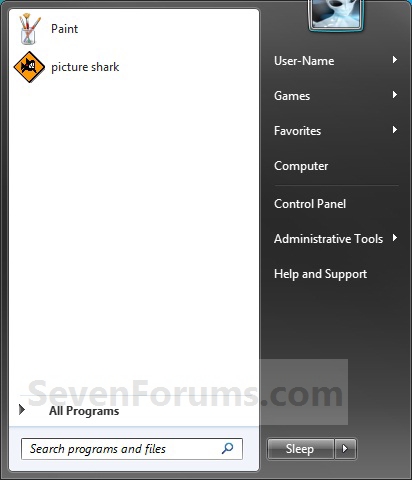
OPTION ONEThrough Customize Start Menu Property Settings
1. Right click on the Start button and click on Properties.
2. Click on the Customize button. (See screenshot below)3. To Customize the Start MenuA) Dot, check, and uncheck the settings for how you want them to look and behave in the Start Menu.4. To Restore All Default Customize Settings
NOTE: The four screenshots below show all available customize settings.B) Go to step 5.
A) Click on the Use Default Settings button at the bottom. (See bottom right screenshot above)5. Click on OK. (See screenshots below step 3A)
6. Click on OK. (See screenshot below step 2)
OPTION TWOManually Through Registry Editor
1. Open the Start Menu, then type regedit in the search box and press Enter.4. For User Folder, Computer, and Control Panel Links or Menu Buttons
2. If prompted by UAC, then click on Yes.
3. In regedit, navigate to the location below. (see screenshot below)
Code:HKEY_CURRENT_USER\Software\Microsoft\Windows\CurrentVersion\Explorer\AdvancedA) In the right pane of Advanced, double click on the DWORD value for the Customize Start Menu option that you want to set. (see screenshot above and table below)5. For Enable or Disable Only Options
NOTE: If the DWORD value is not here, then right click on a blank space in the right pane of Advanced, click on New and DWORD (32-bit) value, type in the DWORD value name below and press enter.
Customize Start Menu option DWORD value Computer Start_ShowMyComputer Control Panel Start_ShowControlPanel Documents Start_ShowMyDocs Downloads Start_ShowDownloads Games Start_ShowMyGames Music Start_ShowMyMusic Personal folder Start_ShowUser Pictures Start_ShowMyPics Recorded TV Start_ShowRecordedTV Videos Start_ShowVideos
B) Type in the Data value for the Display option that you want for the selected Customize Start Menu option (step 4A), then click on OK. (see screenshot below)
Display option Data value Don't display this item 0 Display as link 1 Display as a menu 2
A) In the right pane of Advanced, double click on the DWORD value for the Customize Start Menu option that you want to set. (see screenshot below step 3 and table below)6. For the "Search other files and libraries" Option
NOTE: If the DWORD value is not here, then right click on a blank space in the right pane of Advanced, click on New and DWORD (32-bit) value, type in the DWORD value name below and press enter.
Customize Start Menu option DWORD value Connect To Start_ShowNetConn Default Programs Start_ShowSetProgramAccessAndDefaults Devices and Printers Start_ShowPrinters Enable context menus and dragging and dropping Start_EnableDragDrop Favorites menu StartMenuFavorites Help Start_ShowHelp Highlight newly installed programs Start_NotifyNewApps Homegroup Start_ShowHomegroup Network Start_ShowNetPlaces Open submenus when I pause on them with the mouse pointer Start_AutoCascade Recent Items Start_ShowRecentDocs Run command Start_ShowRun Search programs and Control Pane Start_SearchPrograms Sort All Programs menu by name Start_SortByName Use large icons Start_LargeMFUIcons
B) Type in the Data value for the Display option that you want for the selected Customize Start Menu option (step 4A), then click on OK. (see screenshot below)
Display option Data value Disable this item 0 Enable this item 1
A) In the right pane of Advanced, double click on the Start_SearchFiles. (see screenshot below step 3)7. For the "System administrative tools" Option
NOTE: If the Start_SearchFiles DWORD value is not here, then right click on a blank space in the right pane of Advanced, click on New and DWORD (32-bit) value, type in Start_SearchFiles and press enter.
B) Type in the Data value for the Display option that you want for this Customize Start Menu option, then click on OK. (see screenshot below)
Display option Data value Don't search 0 Search without public folders 1 Search with public folders 2
A) See OPTION TWO or OPTION THREE at this tutorial link below for how.8. Close regedit.That's it,
9. Log off and log on, or restart the computer to apply.
Shawn Brink
Related Tutorials
- Download a Shortcut that Opens the Start Menu in Windows
- How to Change the Start Menu Button in Windows 7
- How to Add or Delete Start Menu All Programs Shortcuts in Windows 7
- How to Use Small or Large Icons in the Windows 7 Start Menu
- How to Change the Default Windows 7 Start Menu Power Button Action
- How to Change the Active Navigation Folder Icon in Windows 7
- How to Pin or Unpin a Program to the Windows 7 Start Menu
- How to Pin or Unpin a Folder to the Windows 7 Start Menu
- How to Enable or Disable Pin Folders and Libraries to Windows 7 Start Menu
- How to Turn Recent Programs On or Off in Windows 7
- How to Turn Recent Items On or Off in Windows 7
- How to Change the Number of Recent Items to Display in Windows 7 Jump Lists
- How to Change the Number of Recent Programs to Display in Windows 7 Start Menu
- How to Add or Remove Administrative Tools in Windows 7 Start Menu
- How to Add or Remove Switch User from CTRL+ALT+DEL Screen and Start Menu
- How to Make Windows 7 Start Menu User Folder Buttons Open to Users Instead of Libraries Location
- How to Enable or Disable Recent Programs in Windows 7
- How to Enable or Disable Recent Items in Windows 7 and Vista
- How to Create a Start Menu Properties Shortcut in Windows 7 and Vista
- How to Add or Remove the Search Button in the Windows 7 Start Menu
- How to Disable or Enable "Context Menus" and "Dragging and Dropping" in the Start Menu
- How to Enable or Disable Start Menu Auto Arrange by Name in Vista and Windows 7
Start Menu - Customize
-
New #1
Hi.
You are really proficient at displaying these useful little help items. Maybe you could supplement the above.
What you have outlined, customises the right hand panel and associated windows.
I am a customise freak. I like to move quite a few of the Program items around into fiolders of my choice. In Vista, I found that to do this, I needed to go into classic mode. Unfortunately, in "7", for the time being, the option is not available. Nerds like me will find they cannot drag and drop. Not all the items appear under the Users - username - Appdata - Roaming - Microsoft - Windows - Startmenu. It is necessary to also open Program data - Microsoft - Windows - Startmenu, and drag and drop between those two.
-
New #2
Hello Dave,
I'm not sure why they did not include (yet) that Start Menu button's context menu item in Windows 7 to make it easier to open those locations to Customize the Start Menu shortcuts like it is in Vista.
It is on the list on tutorials to make though.
Thank you,
Shawn
-
-
-
New #5
Better than the Registry Editor
Thanks for that little Tip after me being in there and tweaking, I never seen it LOL better then going in the Registry Thanks Man
-
-
New #7
My Customize Start Menu is missing the Pictures link. I could just click my username, and then the My Pictures folder, but that defeats the purpose.
Seen below, I have no Pictures choices like in the 2nd picture in step 3 above.
Does any one else have this problem, or have any idea how to fix it? I didn't have this problem in the beta or the RC.
Thanks for any replies.
-
New #8
Hello Inskipp,
Double check in the Local Group Policy Editor to make sure that the policy highlighted in blue below is set to Not Configured.
Downloading and merging this registry file should restore Pictures back to the Start Menu as well for you. It sets the group policy back to default for you automatically.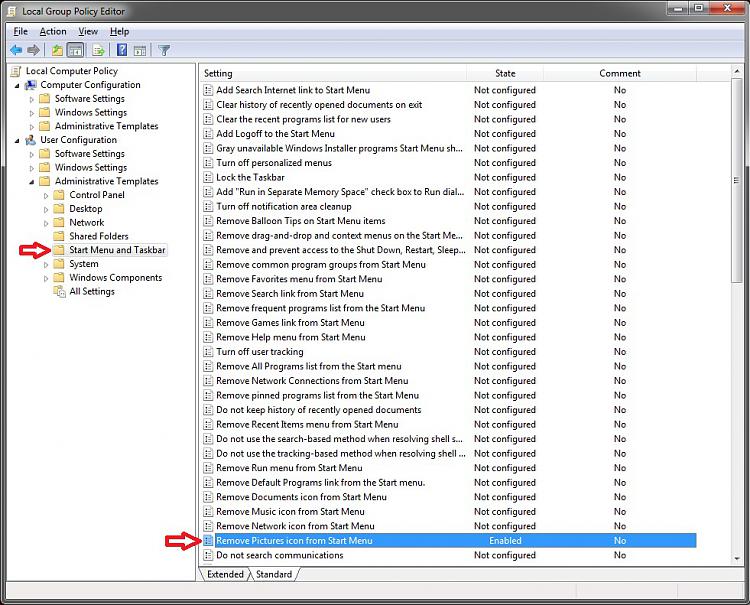
Hope this helps,
Shawn
-
New #9
The group policy was not configured.
The registry had the difference, I had a 1 in NoSMMyPictures in the HKCU\Software\Microsoft\Windows\CurrentVersion\Policies\Explorer folder.
Your fix took care of it, thank you very much.
Start Menu - Customize
How to Open and Set "Customize Start Menu" Settings in Windows 7Published by Brink


 Quote
Quote

Related Discussions