

How to Set Time Limits in Windows 7 Parental Controls
InformationUsing Parental Controls, you can set time limits to control when standard user accounts are allowed to log on to the computer. Time limits prevent them from logging on during specified hours for every day of the week. If they're logged on when their allotted time ends, they'll be automatically logged off.
Here's How:
1. Open the Control Panel (icons view), and click on Parental Controls.That's it,
2. If prompted by UAC, then click on Yes.
3. Select and click on the listed standard user account that you want to use Parental Controls to set time limits on. (see screenshot below)
4. Turn on Parental Controls for this standard user account if it is not already turned on for it.
5. Under Windows Settings, click on the Time limits link. (see screenshot below)
6. To Block Hours
A) Click on a white box, or left click and hold and drag over a group of white boxes and release, to mark it blue for each hour of each day that you want to block. (see screenshot below)7. To Unblock Hours
A) Click on a blue box, or left click and hold and drag over a group of blue boxes and release, to mark it white for each hour of each day that you want to unblock. (see screenshot above)8. When done, click on OK. (see screenshot below step 6A)
9. Click on OK. (see screenshot below step 5)
10. Close the Parental Controls window. (see screenshot below step 3)
Shawn
Related Tutorials
- How to Setup and Use Parental Controls in Windows 7
- How to Set Game Restrictions in Windows 7 Parental Controls
- How to Allow or Block Specific Programs in Windows 7 Parental Controls
- How to Create a Parental Controls Shortcut in Windows 7
- How to Setup and Use Windows Media Center Parental Controls
- How to Turn DVD Playback Restrictions On or Off in Windows 7 Media Player
Parental Controls - Set Time Limits
-
New #1
All works fine in my daughters PCs but close ;-)
Looks like the kids can change the time seting without any restriction ... so if I block the time from 10PM till 12PM they manage to modify the PC real time as it approaches towards 10PM. So my clever girls can keep playing with the PC although the "Time Limit" feature is set.
I have tried to block the time change feature in a standard account but this is not allowed in Win7 Home Premium version :-0
Right now this Time Limit Parental Control does not work at home. Anyone has an easy option?
Regards
Xavier
-
New #2
Hello Xavier, and welcome to Seven Forums.
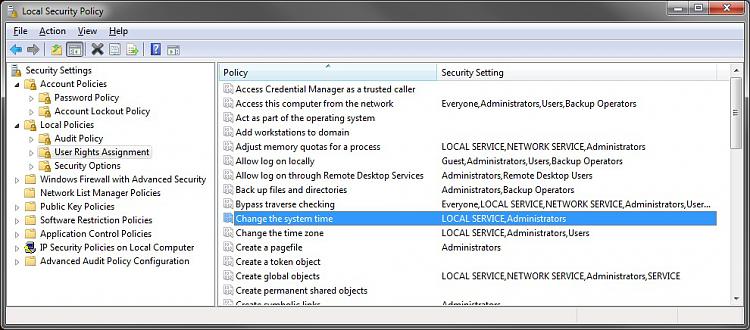
You might change your administrator account password to be safe. By default in Windows 7, a Standard user cannot change the system time without having to enter the administrator's password first. Be sure that you also have the built-in Administrator account password protected as well in case they are using it.
-
New #3
You are right, It was my fault. Thanks for the assessment!
That "clever girls" did stolen the administrator password, I feel embarrassed but now is fixed.
Next time I will be more cautious.
Regards
Xavier
-
New #4
It's no problem at all Xavier. They can be sneaky and clever little 's. I'm happy that you got it sorted out. :)
-
New #5
hello Brink,whats the source of time counting?I mean if I pick up the motherboards battery does it work yet?in other words,the time of the system depends on this battery or am i wrong? 10x
-
New #6
Hello Sali,
It's based on the system clock's time. Whatever time it has, it what Parental Control goes by.
You have to be logged in as an administrator to be able to change the time normally, but resetting BIOS/CMOS and the time in it by yanking the battery for a bit may or may not affect the system clock in Windows 7 much.
-
New #7
i know about the admin privileges,but when we turn off the computer the next that we turn it on,the system time is correct,so if we yanking the battery,system wont have any power source for the time...is it right?
-
New #8
Wrong. The battery only affects the BIOS on the motherboard to keep accurate time and it's settings while the computer is turned off. If you yank the battery, Windows 7 will still keep the time, but may be off a bit after powering the computer back up until it checks in automatically every so often with internet time synchronization.
In other words, you're not going to bypass Parental Controls as a standard user.Last edited by Brink; 05 Mar 2012 at 13:13. Reason: typo
-
New #9
10x Brink for this gr8 description,i didnt know this,thank u.

Parental Controls - Set Time Limits
How to Set Time Limits in Windows 7 Parental ControlsPublished by Brink


 Quote
Quote
Related Discussions