


How to Include a Folder in a Library in Windows 7
InformationThis will show you how to add a folder so that it's contents will also be included in the library as well in Windows 7.NoteLibraries let you access and arrange items from one or more folders quickly without moving them from their original location. Libraries themselves don't store your files or folders. Instead, they point to different locations on a hard disk or external drive attached to your computer. This gives you easy access to a category of files no matter where they are stored. For instance, if you have music files on your hard disk and on an external drive, you can access all of your music files from within the "Music" library.
For more information about Windows 7 Libraries see:
By default, you will have the folder from the C:\Users\(user-name)\(same name as library folder) and C:\Users\Public\(same name as library folder) locations included in a libary.
- Windows 7 Libraries: Frequently Asked Questions
- Understanding Windows 7 Libraries - Windows 7 for Developers - The Windows Blog
- Inside Windows 7:Introducing Libraries
You can include folders from locations that aren't always accessible by your computer (such as removable drives or networks), but you will not be able to access the contents of those folders unless the drive or network is connected. Although network folders can be included in libraries, searches will likely be slow because the contents of those folders can't be indexed. For more information about Windows 7 Libraries see Understanding Windows 7 Libraries - Windows 7 for Developers - The Windows Blog.TipThe full path to the hidden Libraries folder is below.
C:\Users\(User-Name)\AppData\Roaming\Microsoft\Windows\Libraries
OR
%AppData%\Microsoft\Windows\Libraries
Warning
- You will not be able to include a library in another library, or include the Computer folder in a library.
- You can only include up to 50 folders in one library parent folder.
- Included folders from external hard drives or USB flash drives are only accessible in the library when the device is connected.
- To be able to search in libraries, the Windows Search service needs to be Started and set to Automatic. Libraries require it's included folders to also be added to the index to be tracked properly even though they will still open properly.
OPTION ONEInclude Folder in Library from the Folder
1. Open a Windows Explorer window.
2. Navigate to the folder you want to include into a library, and select (highlight) it.
3. Click on the Include in library toolbar button, and click on an available library to include the folder in. (See screenshot below)
OR
A) Go to step 5.
4. Right click on the folder and click on Include in Library, and click on an available library to include the folder in. (See screeshot below)
5. The selected folder (step 2) contents will now also be included (linked) in the library (step 3).
6. Close Windows Explorer when done.
OPTION TWOInclude Folder in Library from the Library
1. Open the Start Menu.
2. Right click on the User Name button and click on Open. (See screenshot below)
3. Right click on the library (ex: Music) and click on Properties. (See screenshot below)
A) Go to step 5. (See right screenshot below step 5)OR
4. Open the library (ex: Music) that you want to include a folder in. (See screenshot below step 3)
A) Click on the # Library Locations toolbar button. (See left screenshot below)5. Click on the Add button (left screenshot below), or Include a folder button (tight screenshot below).
NOTE: If this is a new or empty library, then you will see the right screenshot below instead. Click on the Include a folder button, and go to step 6.
NOTE: The right screenshot would be from step 3.
6. Navigate to the folder you want to include in the library, then select the folder and click on the Include Folder button. (See screenshot below)
7. Click on OK. (See screenshots below)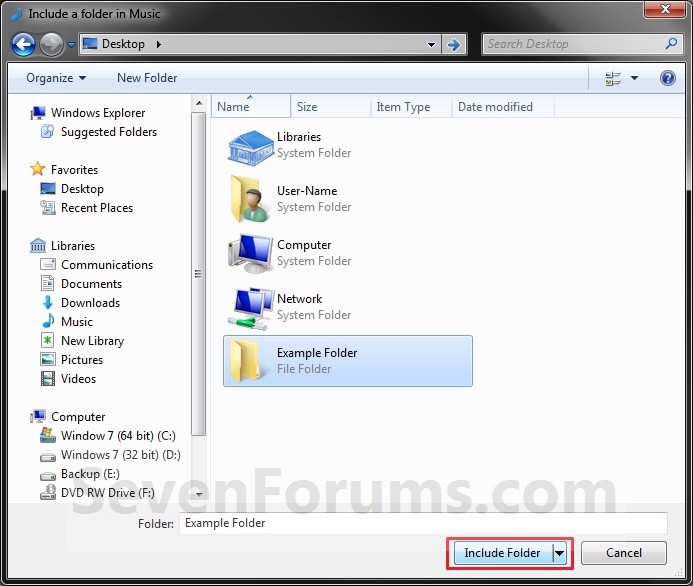
NOTE: If this was a new or empty library (note under step 4A), then you will not see this. The folder will automatically be included instead.
8. The folder (step 6) contents will now be included (linked) in the selected library (step 4).
9. Close the library window when done. (See screenshots below step 4A)
OPTION THREEInclude a Network Folder in Library
1. For how, please see: How to Include a Network Drive or Folder in a Library in Windows 7That's it,
Shawn
Related Tutorials
- How to Include a Network Drive or Folder in a Library in Windows 7
- User Folders in Windows 7 Libraries
- How to Restore the Default Libraries in Windows 7
- How to Fix Libraries when Hidden and Empty in Windows 7
- How to Hide or Show a Library in the Windows 7 Navigation Pane
- How to Create a New Library in Windows 7
- How to Remove a Included Folder from a Library in Windows 7
- How to Set the Default Save Folder for a Library in Windows 7
- How to Change a Library Icon in Windows 7
- How to Create a Windows 7 Downloads Library with the Correct Icon
- How to Create a Windows 7 Games Library with the Correct Icon
- How to Create a Windows 7 Favorites Library with the Correct Icon
- How to Create a Windows 7 "Searches" Library with the Correct Icon
- How to Create a Windows 7 "Links" Library with the Correct Icon
- How to Turn the Library Pane On or Off in Windows 7
- How to Add or Remove "Include in library" in Windows 7 Context Menu
- How to Arrange Folders Included in a Library in Any Order in Windows 7 and Windows 8
- How to Clear Changes made to Library View in Windows 7 and Windows 8
Library - Include a Folder
-
New #1
This will certainly make things easier for me. Thank you for another great tutorial.
Gary
-
-
New #3
Is there a way to include subfolders just in one click?
-
New #4
Hello Eiber,
METHOD ONE is the only way that I know of to add a folder to a Library.
Sorry,
Shawn
-
New #5
I too believe this is a great feature! maybe I didn't explained myself....
I mean... for example... I use a hard disk as a media library.. (since Win98 )... so in XP, I just added the specific music folder to my windows media player and I could manage my whole music folder from there.... Now... In Windows 7, I added the same library I use for XP in the Windows Media Player but I only see the files in the first branch.... (as: G:\Public_Library\Music\song.wma)... my question in more related to the songs in the folders inside "Music".... (as in: G:\Public_Library\Music\Jazz\song_2.wma)... I know I can add them manually one by one... so there's my question mark: ¿Is there a way to include subfolders in a especific folder into the Library?
I know it's kind of boring, but I only remember my dad telling me "it's the small things the ones that make a difference".... Windows 7 ain't small, but so far I don't ever want to go back to XP or Vista....
-
New #6
Eiber,
You might see if you changed the Arrange by to Folders inside the Library folder if you can then add the subfolders to only be displayed in the included folders that you want.
-
New #7
NAS
The problem seems not to be able to solve if the folder is on a NAS,
i.e. a WD My Book World Edition. I can find no way to inclute a NAS share or a folder into a library, and I cannot find any way to index a NAS share or a folder.
-
New #8
Hello Sigbjornbrun, and welcome to Seven Forums.
It just may be that, but I'm not sure.
I can include a folder on a separate hard drive in my computer to a Library, or create a new Library with that folder without any problems.
-
New #9
I have a folder that I added to my Library, but it doesn't sync. How do I get those folders to be in sync? After I add something to the folder, the only way I can see what I just added, is to find it on the C:\\ drive. What am I doing wrong?
Thanks in advance for any help.


 Quote
Quote
Related Discussions