


Windows 7 Forums


Windows 7: Command Prompt at Startup


Command Prompt at Startup

How to Open a Command Prompt at Boot in Windows 7
Published 24 Nov 2008
Published by

Featured Tutorial

Clean Reinstall - Factory OEM Windows 7

How to Clean Reinstall a Factory OEM Windows 7

System Preparation Tool - Use to Customize Windows

How to Use Sysprep to Customize Windows 7 and Windows 8

Bootmgr - Move to C:\ with EasyBCD

How to Move Bootmgr to C:\ with EasyBCD

Safe Internet Browsing

How to safely operate on the internet and stay free from malware infections

User Profile - Customize During Installation

How to Customize Default User Profile in Audit Mode

Microsoft Outlook Desktop Shortcut - Create

How to Create a Special Outlook Desktop (Office XP style) Shortcut
How to Open a Command Prompt at Boot in Windows 7

information   Information
This will show you how to open a command prompt at boot from the System Recovery Options or Advanced Boot Options screen in Windows 7.
Note   Note
Command Prompt is a feature of Windows 7 that provides an entry point for typing MS‑DOS (Microsoft Disk Operating System) commands and other computer commands. The most important thing to know is that by typing commands, you can perform tasks on your computer without using the Windows 7 graphical interface (GUI). Command Prompt is typically only used by advanced users.


OPTION ONE
To Open a Command Prompt at Boot
1. Boot from either your Windows 7 installation disc or Windows 7 System Repair Disc, and press Shift + F10 when at either screen below.
Command Prompt at Startup-step3.jpgCommand Prompt at Startup-step4.jpg
A) Go to step 3.
OR

2. Boot to the System Recovery Options screen, and select the Command Prompt option. (see screenshot below)
Command Prompt at Startup-command.jpg
A) Continue on to step 3.
3. A command prompt window will now open. (see screenshot below)
NOTE: To exit and restart to the Windows 7 logon screen, close the command prompt window and click on the Restart button on the screenshot below step 2.
Command Prompt at Startup-command_prompt-1.jpg


OPTION TWO
To Boot to "Safe Mode with Command Prompt"

Note   Note
This starts Windows 7 in safe mode with a command prompt window instead of the usual Windows interface.
1. Boot to the Advanced Boot Options screen.

2. Select Safe Mode with Command Prompt and press Enter. (See screenshot below)
Command Prompt at Startup-command-2.jpg
3. Windows 7 will now start loading Safe Mode with Command Prompt. (See screenshot below)
Command Prompt at Startup-command-3.jpg
4. When finished, you are now in Safe Mode with Command Prompt. (See screenshot below)
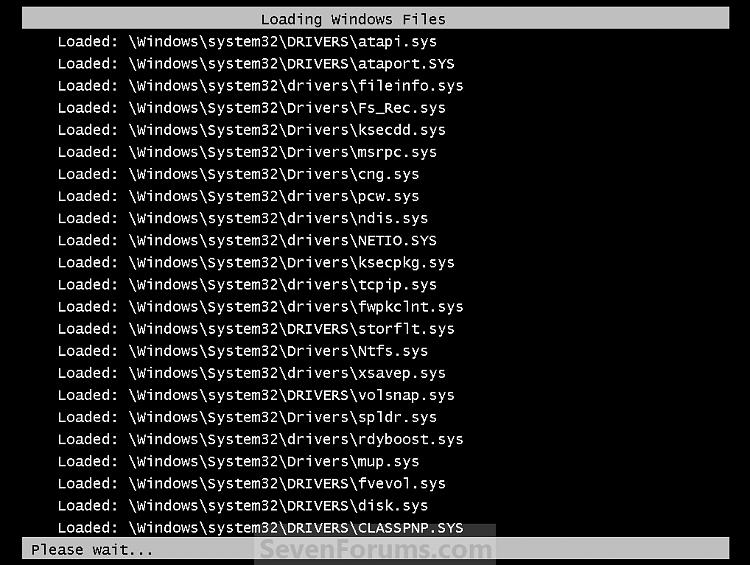
NOTE: To exit from here, press Ctrl+Alt+Delete or type Exit and press Enter to restart the computer.
Command Prompt at Startup-safe-mode_command-4.jpg
That's it,
Shawn


Need more help? Try searching our extensive help and support site.
Loading
24 Nov 2008   #1
MegaFixer

Microsoft Windows 6.1 (Build 6801)


You can always open a command prompt during install by pressing Shift+F10

My System SpecsSystem Spec

26 Oct 2010   #2
need4steer

Windows 7 Ultimate 32bit


Great tutorial.
Thanks a lot!.

Brink & MegaFixer, The "SHIFT+F10" is a great tip.

Last edited by need4steer; 27 Oct 2010 at 10:46 AM..
My System SpecsSystem Spec
27 Jun 2011   #3
KingZeph

Windows 7 Ultimate x64


Quote   Quote: Originally Posted by MegaFixer View Post
You can always open a command prompt during install by pressing Shift+F10
I tried this the other day, trying to set up a VHD that I can boot from, and when I'm at the start of the windows 7 installation screen I press shift+f10 and nothing happens.

My System SpecsSystem Spec
.


27 Jun 2011   #4
Brink

64-bit Windows 7 Ultimate SP1 & Windows 8 Enterprise
Texas


Hello Zeph, and welcome to Seven Forums.

You could also select the Command Prompt option instead in step 3 of Option Two to be able to open a command prompt at boot.

Hope this helps,
Shawn
My System SpecsSystem Spec
30 Jul 2011   #5
bokisaacdc

Windows 7 Ultimate 32bit


MegaFixer Shift+F10 tip is very important to me, and thank you for that man!
My System SpecsSystem Spec
25 Jan 2012   #6
ankitgoyal1009

windows7


i have tried option2 but it is not showing command prompt instead it is showing normal windows login screen.
My System SpecsSystem Spec
25 Jan 2012   #7
Brink

64-bit Windows 7 Ultimate SP1 & Windows 8 Enterprise
Texas


Hello Ankitgoyal, and welcome to Seven Forums.

How does OPTION ONE work for you? It would be a better option.
My System SpecsSystem Spec
26 Jan 2012   #8
ankitgoyal1009

windows7


Thanks Brink,
Actually I have forgot my account password and I want to enable my built-in admin account so that i can reset my account's password from there. will i be able to do it with option 1?
My System SpecsSystem Spec
26 Jan 2012   #9
Brink

64-bit Windows 7 Ultimate SP1 & Windows 8 Enterprise
Texas


Ankitgoyal,

To reset the password, you might see if these may help better instead.

Password Reset

or

Reset User Account Password - Vista Forums
My System SpecsSystem Spec
Comment

 Command Prompt at Startup problems?


Tutorial Tools


Similar help and support threads for: Command Prompt at Startup
Windows 7 Tutorial Category
command prompt General Discussion
Run administrative command prompt from command prompt General Discussion
Solved Command Prompt General Discussion
command prompt bug ? General Discussion
Command Prompt command <ipconfig> not working Network & Sharing


All times are GMT -5. The time now is 05:52 AM.


Seven Forums Android App Seven Forums IOS App Follow us on Facebook

Windows 7 Forums is an independent web site and has not been authorized,
sponsored, or otherwise approved by Microsoft Corporation.
"Windows 7" and related materials are trademarks of Microsoft Corp.
© Designer Media Ltd
  

1 2 3 4 5 6 7 8 9 10 11 12 13 14 15 16 17 18 19 20 21 22 23 24 25 26 27 28 29 30 31 32