
Search box in start menu does not work

Thanks a bunch! HOW DID THIS GET TURNED OFF? Have been going crazy trying to figure this out. Your suggestion fixed it perfectly!:D

Hi iinlane, welcome to the forums.

Check your start menu settings (right-click taskbar-Properties-Start Menu-Customize)
View attachment 12066

You might also want to reset your advanced internet settings (Control Panel-Network and Internet-Internet Settings-Advanced-Restore advanced setting).

Hope this helps :)


Jeff
 

My Computer My Computer

At a glance

Windows 7 Pro x64 (Upgrade, Clean Install)
Computer type
Laptop
OS
Windows 7 Pro x64 (Upgrade, Clean Install)
That's good to hear, glad I could help :)
 

My Computer My Computer

At a glance

Windows 7 Ultimate x64AMD Sempron Dual Core3GBNVIDIA GeForce 6150SE nForce 430
Computer Manufacturer/Model Number
Compaq Desktop
OS
Windows 7 Ultimate x64
CPU
AMD Sempron Dual Core
Memory
3GB
Graphics Card(s)
NVIDIA GeForce 6150SE nForce 430
Screen Resolution
1024x768
Hard Drives
150GB Sata
:) I still don't know HOW it happened, but at least I know where to come fix it, if it does.

Got a few other oddities going on now, but I'm working on it.

Such a great forum! Wish I were here reading during RC!:D
 

My Computer My Computer

At a glance

Windows 7 Pro x64 (Upgrade, Clean Install)
Computer type
Laptop
OS
Windows 7 Pro x64 (Upgrade, Clean Install)
This registry hack fixed my problem.

I had the same problem with my Win7 64 home "search on start menu not working"
tryied a lot but finally this registry hack + system restart gave me my search function back.

It worked for me to :D
Thanks for your help.
//perno


I tried that :S
No result, I'm attempting to look through the registry but I have no idea what to do in it. I also have another user account to test stuff out

I found this answer on a similar thread

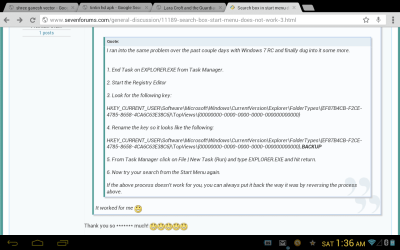
I ran into the same problem over the past couple days with Windows 7 RC and finally dug into it some more.


1. End Task on EXPLORER.EXE from Task Manager.

2. Start the Registry Editor

3. Look for the following key:

HKEY_CURRENT_USER\Software\Microsoft\Windows\CurrentVersion\Explorer\FolderTypes\{EF87B4CB-F2CE-4785-8658-4CA6C63E38C6}\TopViews\{00000000-0000-0000-0000-000000000000}

4. Rename the key so it looks like the following:

HKEY_CURRENT_USER\Software\Microsoft\Windows\CurrentVersion\Explorer\FolderTypes\{EF87B4CB-F2CE-4785-8658-4CA6C63E38C6}\TopViews\{00000000-0000-0000-0000-000000000000}.BACKUP

5. From Task Manager click on File | New Task (Run) and type EXPLORER.EXE and hit return.

6. Now try your search from the Start Menu again.

If the above process doesn't work for you, you can always put it back the way it was by reversing the process above.
It worked for me :D
 

My Computer My Computer

At a glance

Win7 home premium 64ULV SU73004G
Computer Manufacturer/Model Number
ASUS UL30A
OS
Win7 home premium 64
CPU
ULV SU7300
Memory
4G
Hard Drives
500Gb
I tried that :S
No result, I'm attempting to look through the registry but I have no idea what to do in it. I also have another user account to test stuff out

I found this answer on a similar thread

I ran into the same problem over the past couple days with Windows 7 RC and finally dug into it some more.


1. End Task on EXPLORER.EXE from Task Manager.

2. Start the Registry Editor

3. Look for the following key:

HKEY_CURRENT_USER\Software\Microsoft\Windows\CurrentVersion\Explorer\FolderTypes\{EF87B4CB-F2CE-4785-8658-4CA6C63E38C6}\TopViews\{00000000-0000-0000-0000-000000000000}

4. Rename the key so it looks like the following:

HKEY_CURRENT_USER\Software\Microsoft\Windows\CurrentVersion\Explorer\FolderTypes\{EF87B4CB-F2CE-4785-8658-4CA6C63E38C6}\TopViews\{00000000-0000-0000-0000-000000000000}.BACKUP

5. From Task Manager click on File | New Task (Run) and type EXPLORER.EXE and hit return.

6. Now try your search from the Start Menu again.

If the above process doesn't work for you, you can always put it back the way it was by reversing the process above.
It worked for me :D

Thank you so ******* much! :D:D:D:D:D
 

My Computer My Computer

At a glance

Windows 7 Home Premium 64bit.
OS
Windows 7 Home Premium 64bit.
Thank you so ******* much! :D:D:D:D:D

Does anyone have any advice for this, if I do not have the above registry file. I have four keys in the Folder Types but none with that string. =/
 

My Computer My Computer

At a glance

Windows 7 x64 Home Premium
OS
Windows 7 x64 Home Premium
bump...
 

My Computer My Computer

At a glance

Windows 7 x64 Home Premium
OS
Windows 7 x64 Home Premium
To whomever wrote this I am having the same issues...........PLEASE tell me how you fixed it because im having all the same issues
 

My Computer My Computer

At a glance

Windows 7 64 bit
OS
Windows 7 64 bit
to whomever wrote this i am having the same issues...........please tell me how you fixed it because im having all the same issues


thank-you very much this tricks work for me
 

Attachments

  • Screenshot_2012-09-29-01-37-00.png
    Screenshot_2012-09-29-01-37-00.png
    61.1 KB · Views: 52

My Computer My Computer

At a glance

Windows 7 Ultimate x64
OS
Windows 7 Ultimate x64
Thanks very much jonny163, it worked like a charm....you saved my day...It worked for me too :D
Searched the net and tried many options but none worked, finally landed here and jonny163's suggestion worked..

I tried that :S
No result, I'm attempting to look through the registry but I have no idea what to do in it. I also have another user account to test stuff out

I found this answer on a similar thread

I ran into the same problem over the past couple days with Windows 7 RC and finally dug into it some more.


1. End Task on EXPLORER.EXE from Task Manager.

2. Start the Registry Editor

3. Look for the following key:

HKEY_CURRENT_USER\Software\Microsoft\Windows\CurrentVersion\Explorer\FolderTypes\{EF87B4CB-F2CE-4785-8658-4CA6C63E38C6}\TopViews\{00000000-0000-0000-0000-000000000000}

4. Rename the key so it looks like the following:

HKEY_CURRENT_USER\Software\Microsoft\Windows\CurrentVersion\Explorer\FolderTypes\{EF87B4CB-F2CE-4785-8658-4CA6C63E38C6}\TopViews\{00000000-0000-0000-0000-000000000000}.BACKUP

5. From Task Manager click on File | New Task (Run) and type EXPLORER.EXE and hit return.

6. Now try your search from the Start Menu again.

If the above process doesn't work for you, you can always put it back the way it was by reversing the process above.
It worked for me :D
 

My Computer My Computer

At a glance

Windows 7 Ultimate x64Intel Core i7 3770k
Computer type
PC/Desktop
Computer Manufacturer/Model Number
custom build
OS
Windows 7 Ultimate x64
CPU
Intel Core i7 3770k
Motherboard
GIGABYTE Z77X-UP7
This... worked for Windows 10.

I deleted:
Code:
HKEY_LOCAL_MACHINE\SOFTWARE\Microsoft\Windows\CurrentVersion\Explorer\FolderTypes\{ef87b4cb-f2ce-4785-8658-4ca6c63e38c6}\TopViews\{00000000-0000-0000-0000-000000000000}

I have no idea what I have broken/fixed and what will the consequences be. But hey... it works for now.
 

My Computer My Computer

At a glance

Windows 7 x64
OS
Windows 7 x64
Back
Top