Lights - Add An On/Off Switch

How to Create your Fan Light Switch


   Information
This tutorial will show you how to add a switch to turn off those bright LED fan lights they use.

   Warning
This project involves soldering and bare wire leads. Always take the appropriate cautions when working with electrical parts.

While it may seem very daunting at first, this tutorial is actually extremely simple once you see what to do.


Items needed:
  • Computer fan
  • 22 Gauge Wire
  • 4 pin FEMALE (and male if you want) MOLEX connectors (to connect to PSU)
  • Wire clippers
  • Heat Shrink (optional, but highly recommended)
  • Solder and Soldering Iron (or pliers and cable connectors if you don't mind it)
    • *This tutorial will assume that you know how to solder, and that is the method you will use. If you have any questions about soldering or using connectors, feel free to ask*
Set up:
Set up your Soldering station to your preference, and make sure you have wire (and connectors) and solder. I used 22 Gauge wire because it is about the same size as the wire used in the fan already. I also recommend you use a Test PSU to test this mod until you are sure it works.
   Warning
When you touch two leads from the power supply (i.e. The yellow and red wires, or the yellow and black, etc) you will short out the power supply. If this occurs, immediately unplug the PSU and take the wires apart. This is why I recommend heat shrink.


Step 1:
Remove the plastic sticker covering the back of the fan. This will be the side with the wires leading to it, generally the one with the voltage information on it (just the one you SHOULDN'T remove...)

Step 2:
Locate each of the fan LED wires. My fan was cool enough to have the + and - symbols located on the circuit board, so it was easy to figure out which was which.
You will need to desolder the NEGATIVE wire from the circuit board (all of them)
   Warning
If you solder the positive side, and then attach them directly to the PSU, you WILL blow out your LEDs, rendering them so much junk


Step 3:
This is the hardest step. You need to take a small wire, and solder it to each LED wire. It would look better if you could run the wire under the plastic to keep it down, but this was EXTREMELY difficult to do, so I lift some of it over the plastic. How much you want to struggle with that is your decision, but the step remains the same.

Step 4:
Now you have an extra fan wire that needs to be grounded for the lights to work. It needs to be attached to a black PSU wire (the middle 2 connectors on the 4 pin molex).
This can be accomplished by merely adding a switch in the line, then sending it out to a molex pin with the fan plug.
I know this step may sound very confusing right now, but I have yet to actually do this part. When I do, I will add pictures and more detail to clear it up.

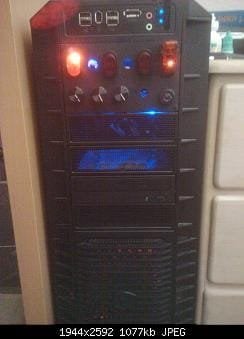
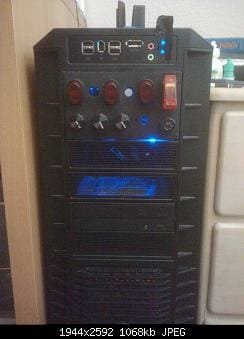
Here is my semi-completed project. I have utilized all 5 sections of this series. To the right is my keyed start switch (the key switch at bottom right and aircraft safety toggle switch). On the top is my cathode switch and my soon-to-be fan light switches. The bottom has 3 of my 4 potentiometer speed controllers.
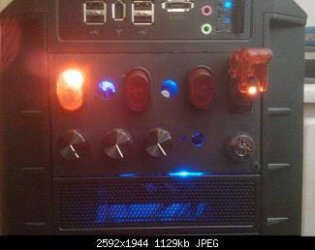
finished close.jpg
finished lit.jpg
finished dark.jpg


Hope this helps out the modders!

~Lordbob


Related Tutorials

Computer Mod Series:
1. PSU - Jump Start
2. Start Button - Customize
3. Fans - Speed Controller
4. Lights - Add An On/Off Switch​
 
Last edited:
Some pictures of your fan mod would be extremely nice. :)
 

My Computer

Computer type
PC/Desktop
Computer Manufacturer/Model Number
Dell OP7010
OS
Windows 7 Enterprise (x64); Windows Server 2008 R2 (x64)
Memory
16GB
Monitor(s) Displays
4 Dell 24" LCD
Screen Resolution
1280x1024
Keyboard
Dell
Mouse
Dell Optical
Internet Speed
40meg
Some pictures of your fan mod would be extremely nice. :)
Yes, it would.
I only took one, but I will add it in soon.

When I fix up my second LED fan, I will take many more.

~Lordbob
 

My Computer

Computer Manufacturer/Model Number
Hera
OS
Windows 7 Ultimate x64, Mint 9
CPU
Intel i5-2500k
Motherboard
ASUS P8P67 Pro
Memory
2x 4Gb Corsair VENGEANCE DDR3-1600
Graphics Card(s)
NVidia GeForce N260GTX Twin Frozr
Sound Card
Realtek HD OnBoard Audio
Monitor(s) Displays
ASUS 24" Monitor
Screen Resolution
1920x1080
Hard Drives
G.SKILL Phoenix Series 60GB SATA II MLC Internal Solid State Drive (SSD)
SAMSUNG Spinpoint F3R 1TB 7200 RPM 32MB Cache SATA II
PSU
Cooler Master Real Power Pro 750W
Case
Cooler Master Haf 932
Cooling
Fans
Keyboard
Razer Tarantula
Mouse
Razer Lachesis
Internet Speed
not fast enough
Looking like the cockpit of a 767 ... hehehe
 

Attachments

  • Boeing_767_cockpit.jpg
    Boeing_767_cockpit.jpg
    430.1 KB · Views: 524

My Computer

Computer type
PC/Desktop
Computer Manufacturer/Model Number
Dell OP7010
OS
Windows 7 Enterprise (x64); Windows Server 2008 R2 (x64)
Memory
16GB
Monitor(s) Displays
4 Dell 24" LCD
Screen Resolution
1280x1024
Keyboard
Dell
Mouse
Dell Optical
Internet Speed
40meg

My Computer

Computer Manufacturer/Model Number
Hera
OS
Windows 7 Ultimate x64, Mint 9
CPU
Intel i5-2500k
Motherboard
ASUS P8P67 Pro
Memory
2x 4Gb Corsair VENGEANCE DDR3-1600
Graphics Card(s)
NVidia GeForce N260GTX Twin Frozr
Sound Card
Realtek HD OnBoard Audio
Monitor(s) Displays
ASUS 24" Monitor
Screen Resolution
1920x1080
Hard Drives
G.SKILL Phoenix Series 60GB SATA II MLC Internal Solid State Drive (SSD)
SAMSUNG Spinpoint F3R 1TB 7200 RPM 32MB Cache SATA II
PSU
Cooler Master Real Power Pro 750W
Case
Cooler Master Haf 932
Cooling
Fans
Keyboard
Razer Tarantula
Mouse
Razer Lachesis
Internet Speed
not fast enough
Hey LordBob, I just thought of something that might improve this process a bit... I'm not sure of the correct name, so trying to Google a picture for it is a bit tricky, but you know the plugs used to connect the power / HDD access lights to the motherboard? What about plugging the LED straight into that and doing the solder work on the cables from the plug instead?

I'm sure the LED pins would fit quite nicely in one of those plugs, and if so, that would make the process of connecting an LED much easier.
 

My Computer

Computer type
PC/Desktop
OS
Win 10 x64 Pro x64 / Ubuntu 15.10 x64
CPU
Intel i7-4960X
Motherboard
Asus Rampage IV Black Edition
Memory
4x8GB Corsair Dominator Platinum @2400MHz 10-12-12-31
Graphics Card(s)
2x MSI GTX780Ti 3GB (SLI)
Sound Card
Onboard SupremeFX (Cirrus Logic CS4398)
Monitor(s) Displays
3x LG Cinema 27" IPS LED (27MP65)
Screen Resolution
[1920x1080]x3
Hard Drives
Crucial M500 120GB, Crucial M500 480GB, Toshiba DT01ACA200 2TB
PSU
CoolerMaster V1000
Case
Corsair Obsidian 750D
Cooling
ThermalTake Water 3.0 Extreme, 4xSP120, 3xAF120
Keyboard
Moshi Luna
Mouse
Logitech G700s / Roccat Tyon
Internet Speed
4Mb uncapped ADSL (Afrihost)
Antivirus
MS Security Essentials
Browser
Chrome... Duh. (:
Hey LordBob, I just thought of something that might improve this process a bit... I'm not sure of the correct name, so trying to Google a picture for it is a bit tricky, but you know the plugs used to connect the power / HDD access lights to the motherboard? What about plugging the LED straight into that and doing the solder work on the cables from the plug instead?

I'm sure the LED pins would fit quite nicely in one of those plugs, and if so, that would make the process of connecting an LED much easier.
You can just use the 3 pin fan connectors (male) to connect to the case lights, but plugging into the mobo would need the right kind. Easiest thing to do would be to find an old case and unplug those :p

I wish I had thought of this sooner. Would have saved my case connectors.

~Lordbob
 

My Computer

Computer Manufacturer/Model Number
Hera
OS
Windows 7 Ultimate x64, Mint 9
CPU
Intel i5-2500k
Motherboard
ASUS P8P67 Pro
Memory
2x 4Gb Corsair VENGEANCE DDR3-1600
Graphics Card(s)
NVidia GeForce N260GTX Twin Frozr
Sound Card
Realtek HD OnBoard Audio
Monitor(s) Displays
ASUS 24" Monitor
Screen Resolution
1920x1080
Hard Drives
G.SKILL Phoenix Series 60GB SATA II MLC Internal Solid State Drive (SSD)
SAMSUNG Spinpoint F3R 1TB 7200 RPM 32MB Cache SATA II
PSU
Cooler Master Real Power Pro 750W
Case
Cooler Master Haf 932
Cooling
Fans
Keyboard
Razer Tarantula
Mouse
Razer Lachesis
Internet Speed
not fast enough
You can just use the 3 pin fan connectors (male) to connect to the case lights, but plugging into the mobo would need the right kind. Easiest thing to do would be to find an old case and unplug those :p

I wish I had thought of this sooner. Would have saved my case connectors.

~Lordbob
Sorry, I wasn't referring to actually connecting the lights directly to the motherboard... Simply using those same plugs to plug the LED into, as opposed to soldering the wires onto the LED connectors.
 

My Computer

Computer type
PC/Desktop
OS
Win 10 x64 Pro x64 / Ubuntu 15.10 x64
CPU
Intel i7-4960X
Motherboard
Asus Rampage IV Black Edition
Memory
4x8GB Corsair Dominator Platinum @2400MHz 10-12-12-31
Graphics Card(s)
2x MSI GTX780Ti 3GB (SLI)
Sound Card
Onboard SupremeFX (Cirrus Logic CS4398)
Monitor(s) Displays
3x LG Cinema 27" IPS LED (27MP65)
Screen Resolution
[1920x1080]x3
Hard Drives
Crucial M500 120GB, Crucial M500 480GB, Toshiba DT01ACA200 2TB
PSU
CoolerMaster V1000
Case
Corsair Obsidian 750D
Cooling
ThermalTake Water 3.0 Extreme, 4xSP120, 3xAF120
Keyboard
Moshi Luna
Mouse
Logitech G700s / Roccat Tyon
Internet Speed
4Mb uncapped ADSL (Afrihost)
Antivirus
MS Security Essentials
Browser
Chrome... Duh. (:
You can just use the 3 pin fan connectors (male) to connect to the case lights, but plugging into the mobo would need the right kind. Easiest thing to do would be to find an old case and unplug those :p

I wish I had thought of this sooner. Would have saved my case connectors.

~Lordbob
Sorry, I wasn't referring to actually connecting the lights directly to the motherboard... Simply using those same plugs to plug the LED into, as opposed to soldering the wires onto the LED connectors.
That would work as well.

~Lordbob
 

My Computer

Computer Manufacturer/Model Number
Hera
OS
Windows 7 Ultimate x64, Mint 9
CPU
Intel i5-2500k
Motherboard
ASUS P8P67 Pro
Memory
2x 4Gb Corsair VENGEANCE DDR3-1600
Graphics Card(s)
NVidia GeForce N260GTX Twin Frozr
Sound Card
Realtek HD OnBoard Audio
Monitor(s) Displays
ASUS 24" Monitor
Screen Resolution
1920x1080
Hard Drives
G.SKILL Phoenix Series 60GB SATA II MLC Internal Solid State Drive (SSD)
SAMSUNG Spinpoint F3R 1TB 7200 RPM 32MB Cache SATA II
PSU
Cooler Master Real Power Pro 750W
Case
Cooler Master Haf 932
Cooling
Fans
Keyboard
Razer Tarantula
Mouse
Razer Lachesis
Internet Speed
not fast enough
Back
Top