Hi Night Hawk
Many thanks for your response.
Just so I'm sure I've understood the methodology correctly:
1. Step 1, create backup image of OS volume (Drive 1) onto Drive 2.
2. Step 2, unplug Drive 1.
3. Step 3, boot using Win7 DVD and select to restore an image file.
4. Step 4, restore image from Drive 2 to Drive 3.
Do I then need to change the boot order in my Bios when I reconnect Drive 1? How will the system know which Win7 volume to boot from, and how do I then go about setting up a multi-boot environment so I can boot into Drive 3 for testing and Drive 1 for working?
Thanks again for your help, and sorry if I'm being a little dumb here.
Jules
Greg is quite correct about both WD and Seagate having their own free versions of the Acronis Disk Director suite. I used the WD version on the WD drives here at times but went for the full version I grabbed up at a local office supply store.
1) The first step is deciding which method you will use. 1) direct clone or 2) restore image made from original source drive(Drive #1)
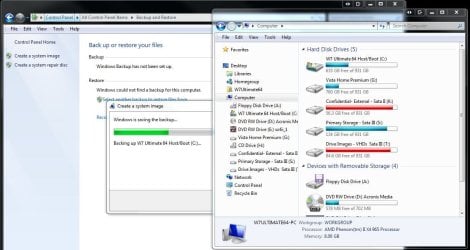
2) The setup for seeing a dual boot of two drives gets involved to see the best actual working results. The host/boot was first backed up with the image option found in the CP>Backup & Restore for that drive. The second drive saw an image of the first drive made with Acronis.
Note the 3rd drive is the last since that will first need to hold the image to be restored on the new host/boot drive. Once the image is created you will need to shuffle drives around then seeing the source drive become the new storage drive for the Acronis image actually best made from the new host once the first image restored is found to be good and in working order.
3) Restore 7 made image to new host now plugged into sata port #1 and made default. Run everything from this drive to insure all is well. Download and install the EasyBCD 2.0.2 release and install but wait for adding new entry in for the to be test drive.
3) Once the new host drive is found good and old drive plugged in as 3rd drive Secondary sata master(note all three have to be same type for this to work) the next step is creating the second image with the Acronis suite(free or retail) and store image on old host drive.
(note restoring an image to a drive will mean anything present on the drive will be wiped completely. Be sure to back things up from the new host drive and later to be second drive before proceeding.)
4) The second drive to be the test drive cannot see the 7 made image restored there and added into the new host drive's boot loader since a new boot entry will result in trashing the host! The drive number and id the 7 backup tool uses creates a unigue id for that drive alone unlike Acronis which works independently.
The image made with Acronis will be suitable for the second drive when imaging the new host drive and seeing that image restored on the new Drive #2. If you decide to restore a 7 made image to the second drive you would also need to unplug the new host or first drive while doing so since that will effectively clone the first as if you saw a direct clone and made into a stand alone drive.
5) With the acronis image restored to the planned second test drive you can then create a new boot entry once the drive letter is assigned for it on the host drive's Disk Management tool there.
You have to that taken care and entry that drive letter to associate the new entry to that. If F in the DM you would choose F in the add new entry option from the dropdown list of available drive letters.
Once you have both drives running your regular image backup of the new host should be performed with the built-in system image option and stored on a separate drive. The test drive backup would be a second Acronis image of the host requiring the old drive or other 3rd drive designated to store two images.
That's a bit to take in at first since I'm working with 4 internal and one external drive here. When going to create any new image of the host drive later you will first need to remove the entry for the second test drive when planning to restore that to the second drive to avoid seeing the useless entry when going to load the test drive.
You will still want to keep the host drive as the default OS or without any entry for the second test opt for the boot device menu each time you plan to boot into the test drive without any option for that when starting the system. The idea of using the 7 option for creating images of the host and restoring them is the option to start the restoration while booted in Windows and watch as it restarts and runs the restoration tool loaded into memory without any need to boot from the 7 dvd or repair cd.
3rd party programs like Acronis will require the use of a live recovery cd for restoring an image to the host drive while secondary drives can be restored while still booted in the host drive''s own copy of 7 there. You can be doing other things while Acronis restores the latest image to the second drive without any system restart making that the ideal option.
Later when having the entry for the test drive added in the host BCD you simply select that from the boot options or pressing the designated F key for the boot device options menu you boot into the test drive then seeing an updated image restored.
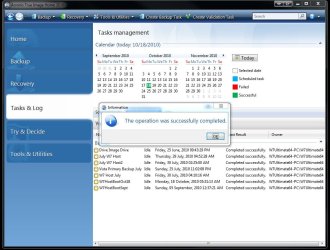
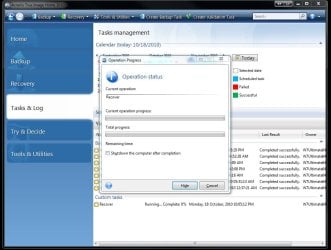
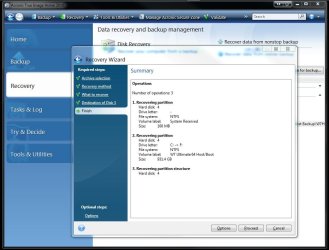
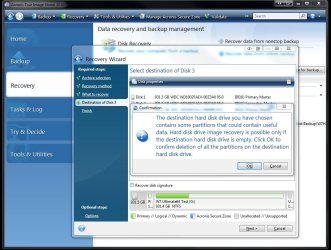
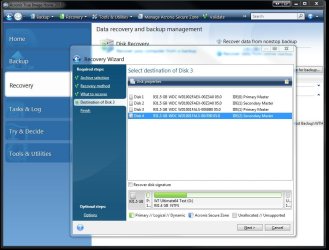
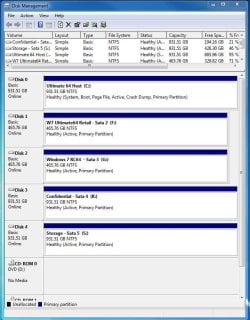
In fact while posting this reply the image just made of the host with Acronis here is being restored to the second. The captures attached here will show how that looks.





 The second effort saw Vista once again running but the IE 9 Beta install for the 32bit version failed repeatedly indicating a problem despite the 35+updates since June being downloaded and installed.