

TeamViewer Installation & a few useful features
This is one of my favorite programs for remote connection to other computers
across the internet.
Download the Free personal / non-commercial version.
http://www.teamviewer.com/index.aspx
Setup is easy and straight forward.
You can install it to your HD for repeated use or run it for a once only use.
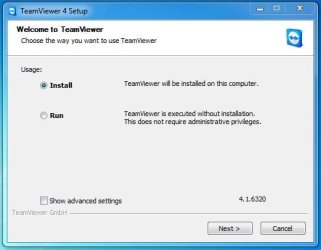
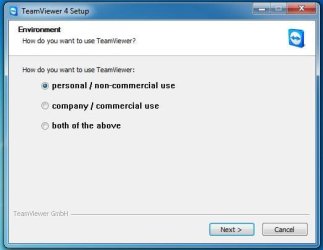
I installed it as personal / non-commercial use.
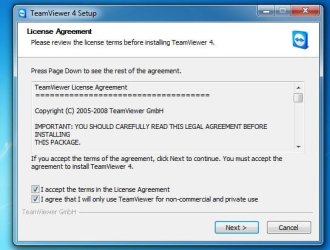
Put check marks in the two License Agreement boxes to continue.
I used the Normal (default) installation as you can change the advanced options later.

It is best to install with full access if you want somebody to help work on your computer
or you want to set up yours for remote access from another location.
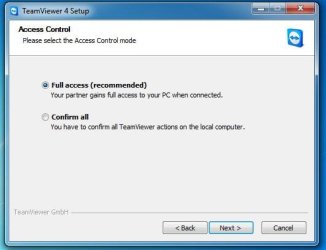
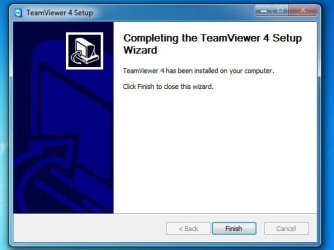
Then the basic installation is finished.
Now you can test it with another TeamViewer user or another remote computer you have set up.
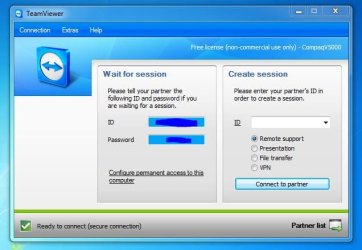
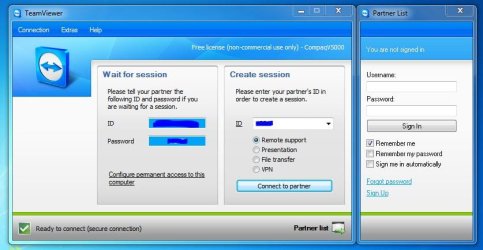
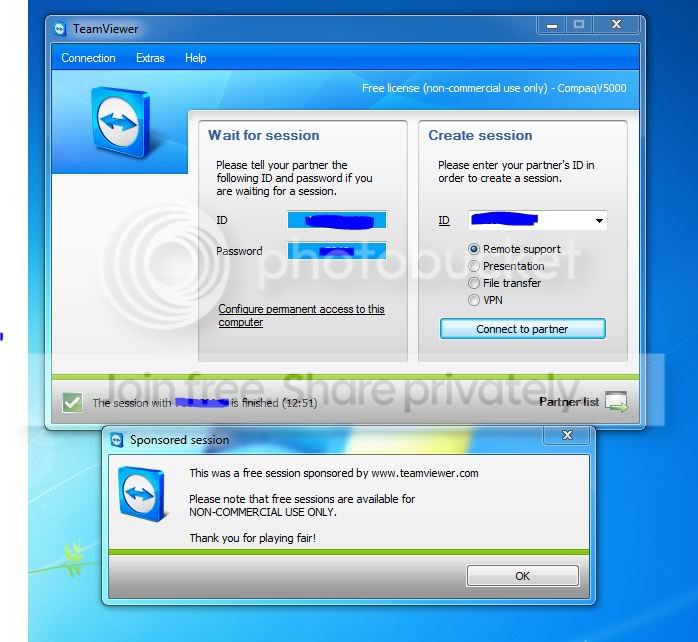
The Connection screen will show you two panels when connected to the internet. The left side panel
shows your waiting for session ID ( usually a 9 digit code ) and a password code. These are what you
provide to your connection partner to allow them to access YOUR computer. A new password code will be
generated each time you end Team Viewer & exit it, & then run it again. This is for security purposes.
The right side panel is for you to connect to a partner's computer. They provide you with their ID &
password codes for easy connection.
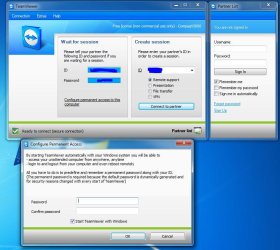
In the next screen snip, it shows how you can setup your computer for remote unattended access from any other
computer where you are. You assign TeamViewer a permanent password, secure to you. Therefore it is best to
check the box "Start TeamViewer with Windows"
Now I have entered an ID & password for one of my network computers & connected to it remotely. I have chosen
an option to have the wallpaper of the remote computer blacked out for easier viewing. The menu bar is located
at the top of the remote computer screen in the center. The big X on the left of the menu Exits & terminates the
connection.

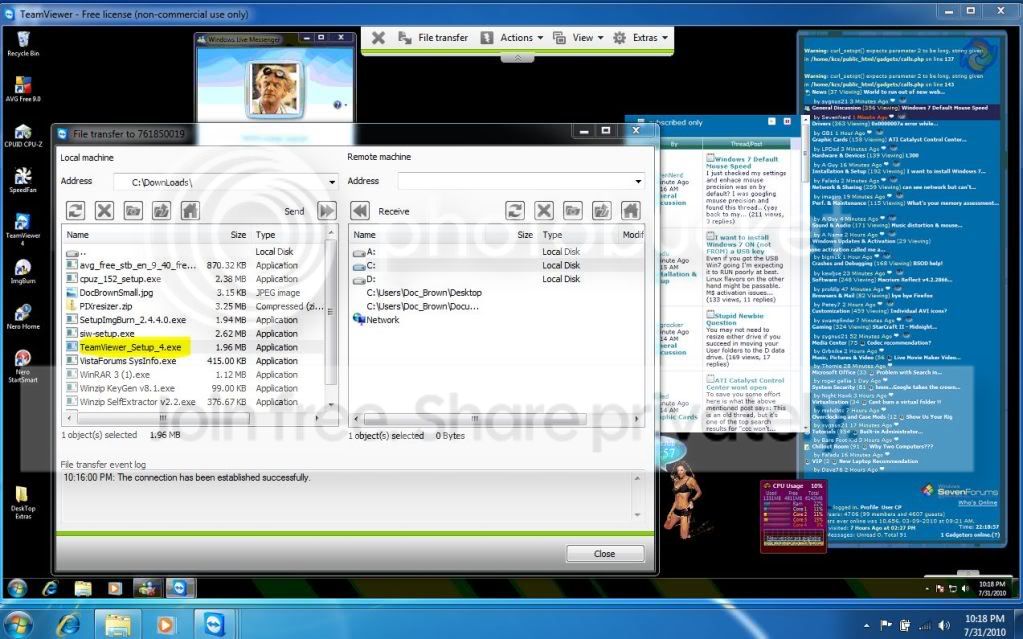
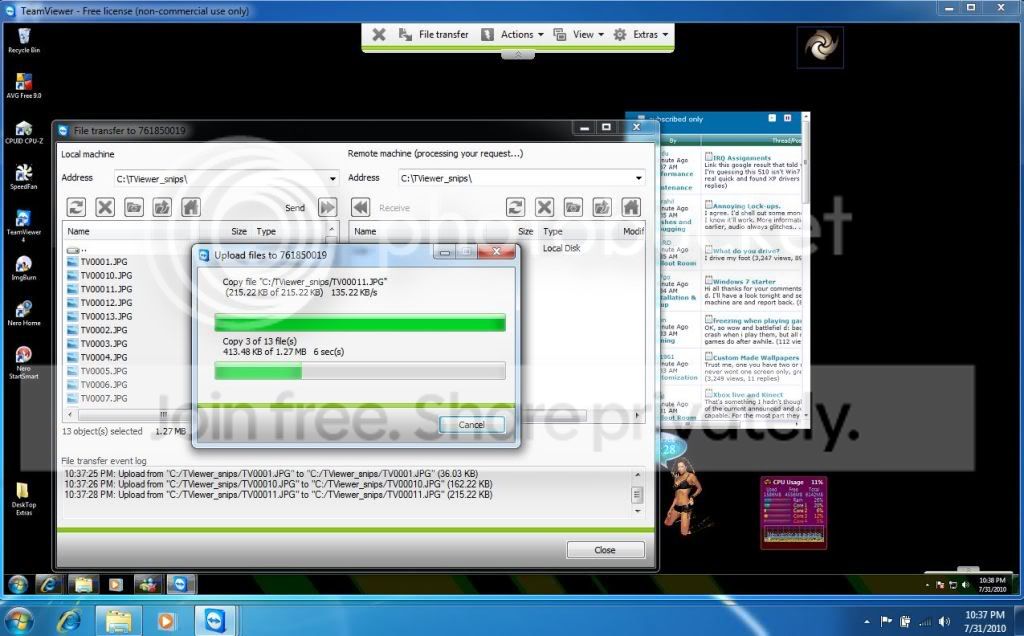
The File Transfer window lets you transfer files back & forth between both computers.
The only problem I found was Win7 does not like letting TeamViewer access to User & Library files,
so I have had to move them to a different folder, usually off the root directory of any of the HDs.
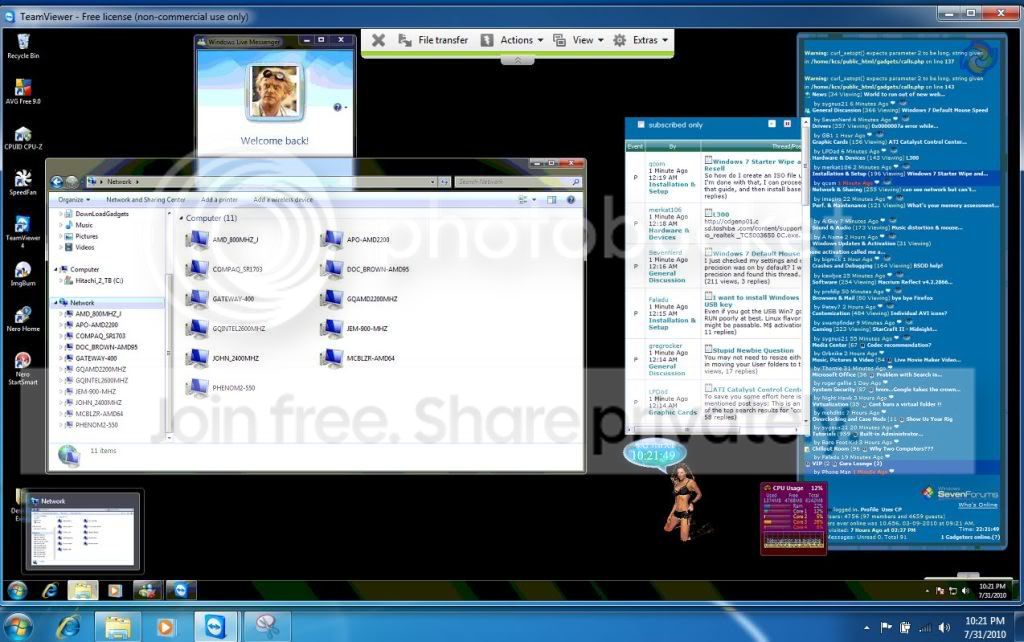
If the remote computer is connected to other computers on a network, it is possible to access certain HD's
and folders that have sharing permissions. By using Windows Explorer on the remote computer.
You can even browse the internet with the browser on the remote computer.

I have had several remote connections running 24/7 for weeks at a time as long as there were NO power failures
or internet (ISP) dropping of the connection. I have even connected a webcam to see views from inside the
building at the remote computer location. The webcam could be turned off or on via the TeamViewer connection.
I hope this forum post was informative and that it may encourage you to try and use TeamViewer.
 rb:
rb:
This is one of my favorite programs for remote connection to other computers
across the internet.
Download the Free personal / non-commercial version.
http://www.teamviewer.com/index.aspx
Setup is easy and straight forward.
You can install it to your HD for repeated use or run it for a once only use.
I installed it as personal / non-commercial use.
Put check marks in the two License Agreement boxes to continue.
I used the Normal (default) installation as you can change the advanced options later.
It is best to install with full access if you want somebody to help work on your computer
or you want to set up yours for remote access from another location.
Then the basic installation is finished.
Now you can test it with another TeamViewer user or another remote computer you have set up.
The Connection screen will show you two panels when connected to the internet. The left side panel
shows your waiting for session ID ( usually a 9 digit code ) and a password code. These are what you
provide to your connection partner to allow them to access YOUR computer. A new password code will be
generated each time you end Team Viewer & exit it, & then run it again. This is for security purposes.
The right side panel is for you to connect to a partner's computer. They provide you with their ID &
password codes for easy connection.
In the next screen snip, it shows how you can setup your computer for remote unattended access from any other
computer where you are. You assign TeamViewer a permanent password, secure to you. Therefore it is best to
check the box "Start TeamViewer with Windows"
Now I have entered an ID & password for one of my network computers & connected to it remotely. I have chosen
an option to have the wallpaper of the remote computer blacked out for easier viewing. The menu bar is located
at the top of the remote computer screen in the center. The big X on the left of the menu Exits & terminates the
connection.
The File Transfer window lets you transfer files back & forth between both computers.
The only problem I found was Win7 does not like letting TeamViewer access to User & Library files,
so I have had to move them to a different folder, usually off the root directory of any of the HDs.
If the remote computer is connected to other computers on a network, it is possible to access certain HD's
and folders that have sharing permissions. By using Windows Explorer on the remote computer.
You can even browse the internet with the browser on the remote computer.
I have had several remote connections running 24/7 for weeks at a time as long as there were NO power failures
or internet (ISP) dropping of the connection. I have even connected a webcam to see views from inside the
building at the remote computer location. The webcam could be turned off or on via the TeamViewer connection.
I hope this forum post was informative and that it may encourage you to try and use TeamViewer.
rb:My Computer
- Computer type
- PC/Desktop
- Computer Manufacturer/Model Number
- Built them myself, Science Experiments !
- OS
- Win7 Enterprise, Win7 x86 (Ult 7600), Win7 x64 Ult 7600, TechNet RTM on AMD x64 (2.8Ghz)
- CPU
- AMD fx8350 4ghz, AMD-32 2400mhz, AMD-64 3200mhz, AMDx64 2.8G
- Motherboard
- SIS 755, ECS-K8M890M-M (Ult 7600), GigaByte & others
- Memory
- 2gb, 4gb on the Ult 7600, 4gb on Technet RTM, 32gb on FX8350
- Graphics Card(s)
- Draw my own Graphics, several nVidia cards
- Sound Card
- on motherboard
- Monitor(s) Displays
- 19" flat scr, 28" I-Inc widescr,22" Emprex Widescr, 23" Acer
- Screen Resolution
- 1280 x 1024, 1440 x 900, 1920 x 1080
- Hard Drives
- 6 pata Ide HD's & 2 Sata HD's
added 80gb external on Ult 7600 computer,
numerous extra 1tb, 2TB, 3Tb SATA HD's
A collection of ext HD Docks w/ HDs
- PSU
- 430w, 550w, 600w, 700, 800, etc
- Case
- All Generic Full Towers
- Cooling
- Open Air & a few fans, some w/ colored LEDs
- Keyboard
- Compaq & Dell recycled from GoodWill
- Mouse
- Made in China Optical Wired Mouse
- Internet Speed
- Fast Cable InterNet
- Antivirus
- AVG Free on 24 different Desktops, NO Problems!
- Browser
- IE 8 is preferred, but use FireFox sometimes
- Other Info
- Linksys Routers, switches, & Hubs
Too Many USB Flash Drives to count, Biggest is 64GB !
Eight computers in my home network.
Sixteen computers at my business network.
Linked via TeamViewer !
Lots of old used spare computer parts everywhere!


