Win7, XP Dual boot- Install OS's to logical or primary partition? Pro

WeAreNotAlone

Banned
Local time
10:55 AM
Messages
15
Win7, XP Dual boot- Install OS's to logical or primary partition? Pros and Cons


As many of you know here some versions of Win7 create a "100 /200mb System Reserved" partition which the Win7 installer installs the boot files to.
(Because of this Win7, XP don't "have to" be on a primary partition but instead can be installed to logical partitions.)


Q: What are the PRO's and CON's of installing to logical partitions, instead of primary - as it applies to these (2) OS's?

My concerns are reliability, accessibility to partition (OS) which may need manual editing to restore to working condition, being able to image, restore from images without issues via Acronis True Image mostly.

My other main concern is I'm looking to HIDE the "system reserved" partition in XP as is done by the Win7 OS so XP is on "C" instead of "D" as some programs freak out if they don't see "C", but D instead.

Currently I have:

System Reserved 200mb (System, Active-Primary)
Win7 on first logical (Boot, page,crash)
XP PRO SP2/3 on 2nd logical
DATA on Primary.
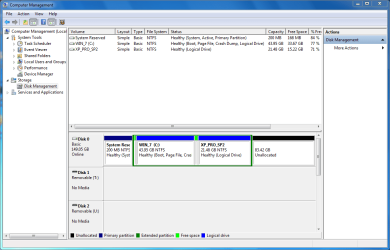
System200mb-Win7-XP-logical-Xp drive letter D.PNG


Was thinking about deleting all partitions (again) and getting rid of the 200mb system reserved partition as "some" programs in XP might not like being on "D:\"

(XP unlike Win7 "sees" the System reserved partition as "C:")

Scenario#2 - re-install as below:
XP PRO SP2/3 (1st Primary)- Win7, XP boot files
Win7 (2nd Primary)
DATA on Primary (or logical).
4th primary could be used to create a on-the-hard-disc "recovery" partition via something like Acronis Secure Zone.


I figured above would give XP it's "C", and Win7 and it's newer apps wouldn't complain about being on D..

Q: If boot files are on C (XP) partition is Win7 smart enough to "hide" the XP partition (EG not give it a drive letter) as it does with the "System Reserved partition?


.
 
Last edited:

My Computer My Computer

At a glance

XP Pro 32, Win7 Pro 64, Windows 7 Ultimate 32/64
OS
XP Pro 32, Win7 Pro 64, Windows 7 Ultimate 32/64
Read the guide! :D http://www.sevenforums.com/tutorials/8057-dual-boot-installation-windows-7-xp.html

When XP is installed onto the first primary followed by 7 afterwards on a second the 7 boot files taking over as the default OS in the process are found at the root of the XP primary being already present. When booted in 7 you simply select the drive letter to be used for XP when going into the Disk Management tool to make that partition available.

Typically D is best reserved for the optical drive leaving E, F, G, as the suitable alternatives for a second OS's drive letter. Having two dvd burner here any secondary install on a second drive is bumped upto G while flash drives may be seen as F since D and E are reserved for the two opticals.

IF 7 is installed before XP as detailed in Method #2 you can opt to prepare the primary prior to the 7 install using the drive tools on the 7 dvd, Disk Part, or some 3rd party drive partitioning program. If the 7 dvd's drive tools are used to create the primary you will then likely see the 100mb reserved if proceeding right into the fresh install.

To avoid seeing the 100mb as a separate partition you either cancel the install once the primary is made to reboot and reload the installer to use the custom install option or prepare the primary ahead of time with another option for 7 install to that alone and no 100mb reserved is seen.

The option for not seeing XP available of course would be installing XP after 7 but then need to repair the 7 startup but need to add XP into the 7 BCD. As for not making the 100mb available in XP you simply forget to assign a drive letter during the "Add New Volume" wizard that would appear when right clicking on the DM item for it. Then it won't be mounted and initialized as a new logical drive.

If XP is installed first on it's own primary there won't be any worries about the 100mb regardless since the 7 installer only creates that on a drive found "raw" lacking any partitions for Windows to install onto already present and wouldn't be able to anyways with XP already installed.
 

My Computers My Computers

  • At a glance

    W7 Ultimate x64/W10 Pro x64/W11 Pro Triple Bo...AMD Phenom II X4 975 Deneb 3.6ghz - 965 2nd r...Kingston Hyper X DDR3 1600 1.5v 16gb - Hyper ...MSI HD Radeon 5750 1gb - MSI HD Radeon 6450 o...
    Computer type
    PC/Desktop
    Computer Manufacturer/Model Number
    Custom builds = 2
    OS
    W7 Ultimate x64/W10 Pro x64/W11 Pro Triple Boot - Main PC W7 Remote PC Micro ATX W7 Pro x64/W11 Pro
    CPU
    AMD Phenom II X4 975 Deneb 3.6ghz - 965 2nd remote pc
    Motherboard
    Gigabyte GA-790XTA-UD4-Gigabyte GA-880GM-D2H remote pc
    Memory
    Kingston Hyper X DDR3 1600 1.5v 16gb - Hyper X Fury 8gb 2nd
    Graphics Card(s)
    MSI HD Radeon 5750 1gb - MSI HD Radeon 6450 on mini tower
    Sound Card
    Creative Labs X-Fi Xtreme Audio P - Realtek onooard 2nd case
    Monitor(s) Displays
    ASUS VW199T-P 19" HP 2082a Main-HP 2082a 20" remote pc
    Screen Resolution
    Asus 1440x900 - HP 1600x900
    Hard Drives
    WD Black 1TB HD per OS W7, W10, and pending W11 presently on 500gb OS Drive - Pending Triple 1TB HDs for Spanned Storage/backup volume
    Single 2TB external USB enclosure, single 1TB System 7 Host/Boot drive, Pending 8TB external HD for system image b
    PSU
    Corsair 750TX - primary / Corsair CX600 - second
    Case
    Antec 900-2 - SSD compatible / NZXT Vulcan mini tower
    Cooling
    Zalman CNPS9900A
    Keyboard
    AZIO L70 Backlit Letters Gaming - ONN Cordless/USB
    Mouse
    MSI DS200 Programmable, Logitech Cordless
    Internet Speed
    30mbps upgrade - primary hard wired - mini tower usb WiFi
    Antivirus
    GFI VIPRE Internet Security 2014 on W7 2016 beta on W10,
    Browser
    Cyberfox, WaterFox 64bit FF variants, FireFox x64, Pale Moon
    Other Info
    Accomdata fan cooled usb 2.0 PIDE/Sata II, III external enclosure.
    Sambient usb/eSata PATA/Sata II, III external enclosure.
  • At a glance

    W7 Pro x64/W11 ProAMD Deneb 3.6ghz - 965Kingston Hyper X Fury 8gbMSI HD Radeon 6450 DVI Output
    Computer type
    PC/Desktop
    System Manufacturer/Model Number
    CUSTOM ASSEMBLY
    OS
    W7 Pro x64/W11 Pro
    CPU
    AMD Deneb 3.6ghz - 965
    Motherboard
    Gigabyte GA-880GM-D2H remote pc
    Memory
    Kingston Hyper X Fury 8gb
    Graphics Card(s)
    MSI HD Radeon 6450 DVI Output
    Sound Card
    Realtek onooard Creative or Other separate PENDING
    Monitor(s) Displays
    VIZIO 32" LCD TV Separate LCD Pending
    Screen Resolution
    1600x1080
    Hard Drives
    WD 500GB OS Host/Boot WD Green 1TB Storage/Backup
    PSU
    Corsair 600W - THERMALTAKE 600W spare case
    Case
    NZXT Vulcan mini tower
    Cooling
    Twin 120mm Top Fans - 240mm Side Cover
    Keyboard
    ONN Cordless/USB Logitech Cordless
    Mouse
    ONN USB/Cordless - Logitech Cordless
    Internet Speed
    DSL 5G
    Browser
    MS Edge, FireFox, WaterFox x64, FireFox Nightly
    Other Info
    OS Testing-Remote Access to Main TeamViewer
Pretty sure I read thru that guide, I don't think the guide addressed the Pro's and Con's of installing to a logical vs primary partition, nor any advanced info.

When XP is installed onto the first primary followed by 7 afterwards on a second the 7 boot files taking over as the default OS in the process are found at the root of the XP primary being already present. When booted in 7 you simply select the drive letter to be used for XP when going into the Disk Management tool to make that partition available.
Are you saying that if XP is installed first (Partition#1) and Win7 is installed on partition#2, both as primaries the Win7 boot files are on Win7 partition #2, instead of the XP partition?

Typically D is best reserved for the optical drive leaving E, F, G, as the suitable alternatives for a second OS's drive letter. Having two dvd burner here any secondary install on a second drive is bumped upto G while flash drives may be seen as F since D and E are reserved for the two opticals.
I've always put optical drive, etc on Z and upper drive letters, as that way drive assignments never change after a partitioning, addition (or subtraction) of a OS. Some programs freak out if the drive letter changes later on.

IF 7 is installed before XP as detailed in Method #2 you can opt to prepare the primary prior to the 7 install using the drive tools on the 7 dvd, Disk Part, or some 3rd party drive partitioning program. If the 7 dvd's drive tools are used to create the primary you will then likely see the 100mb reserved if proceeding right into the fresh install.

To avoid seeing the 100mb as a separate partition you either cancel the install once the primary is made to reboot and reload the installer to use the custom install option or prepare the primary ahead of time with another option for 7 install to that alone and no 100mb reserved is seen.
True, info is appreciated, but not the reason I created this thread. I would prefer to use the WIN7 bootloader with it being on the 200mb "System Reserved" partition but that throws off the (XP) drive letter assignments. (XP on D, not C)
The option for not seeing XP available of course would be installing XP after 7 but then need to repair the 7 startup but need to add XP into the 7 BCD. As for not making the 100mb available in XP you simply forget to assign a drive letter during the "Add New Volume" wizard that would appear when right clicking on the DM item for it. Then it won't be mounted and initialized as a new logical drive.
?? RE:not making the 100/200mb system reserved partition available in XP.

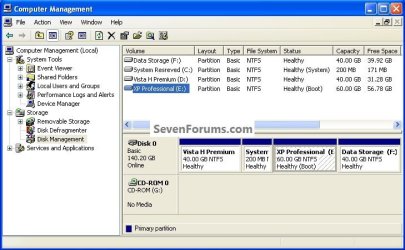
Installed XP after Win7, repaired with Win7 disc Win7 so it would boot again and ran EasyBCD to add XP to the boot menu. After rebooting, booted into Win7 and "hid" the Xp partition. Shut-down and booted into XP. In XP Disk-Managment (DM) there is NO OPTION to HIDE the 100/200mb system reserved partition- Hence one of the reasons for creating this thread.


If XP is installed first on it's own primary there won't be any worries about the 100mb regardless since the 7 installer only creates that on a drive found "raw" lacking any partitions for Windows to install onto already present and wouldn't be able to anyways with XP already installed.
Yep, the win installer won't create the system reserved partition if there is a active partition on the disc.

******************************

So, is there a way to retain the 100/200mb system reserved partition scheme, with it containing the boot files for Win7 and XP and force XP not to see that partition? From my research the answer is no.

Secondarily: If the system partiton is done away with as in scenario #2 above- (XP installed to first primary partition, Win7 to 2nd) and Win7 boot info is on the XP partition- is there a way from within Win7 to hide that partition as it contains the boot files? XP currently won't allow the system reserved partition to be "hidden" as it contains system files.

What are the Pro's and Con's of installing to a logical partiton? What are the downsides? I'm trying to weigh these pros and cons vs the possible future problems of a D drive assignment in XP vs the strengths of installing to a logical vs primary partition. (From my research installing additional OS's is a plus- which does not apply to me and this machine will be XP, Win7 only)

.
 
Last edited:

My Computer My Computer

At a glance

XP Pro 32, Win7 Pro 64, Windows 7 Ultimate 32/64
OS
XP Pro 32, Win7 Pro 64, Windows 7 Ultimate 32/64
There is no benefit of installing an OS to a Logical partition. Much better to create a fourth Primary if necessary using free Partition Wizard bootable CD.

You can't install the Win7 boot files onto a Logical anyway. You'd need another OS already installed on Primary for Win7 to place its boot files while configuring a Dual Boot, or to construct a Primary boot partition by marking it active before install.

Creating a Prmary Active boot partition for Win7 installer to place its boot files during install to a Logical partition does have one benefit, however: As with the 100mb System Reserved boot partition created during install when using the installer to format a HD, the Repair Console will also be placed on the F8 Advanced Boot Tools menu so you don't have to use the DVD or Repair CD. You can repair your computer in a coffee shop. But still not necesary to install to a Logical drive - they are for data.
 
There is no benefit of installing an OS to a Logical partition. Much better to create a fourth Primary if necessary using free Partition Wizard bootable CD.

You can't install the Win7 boot files onto a Logical anyway. You'd need another OS already installed on Primary for Win7 to place its boot files while configuring a Dual Boot, or to construct a Primary boot partition by marking it active before install.

I noticed in another thread you had XP already installed on first primary, then installed Win7 (originally it installed to a logical partition-then you converted it to a primary)

Q: While running XP- drive letter assigned is C to XP. All boot files are on Xp partition.(Correct?)
Q: While running Win7- were you able to "hide" the XP partition so when booted into Win7 it showed as "C" also?

Creating a Primary Active boot partition for Win7 installer to place its boot files during install to a Logical partition does have one benefit, however: As with the 100mb System Reserved boot partition created during install when using the installer to format a HD, the Repair Console will also be placed on the F8 Advanced Boot Tools menu so you don't have to use the DVD or Repair CD. You can repair your computer in a coffee shop. But still not necessary to install to a Logical drive - they are for data.
Running list:

System Reserved 100mb
PRO:

#1=Repair console, Press F8 Advanced tools menu availble without disc.
Q: (All tools installed in System reserved?)
#2=When removing a installed OS- allows the other OS's to continue booting.
#3= If a OS is removed- repair of the bootloader is a simple affair as the system reserved partition itself is still intact
#4=System Reserved partition is hidden (In Win7) so boot files cannot accidentally be deleted.


CON:

#1=Takes up (1) primary
#2=100mb is too small, increase to 200mb
#3=Having a "System Reserved" partition causes older MS OS's to incorrectly assign drive letters. Unlike Win7 which "hides" the partition older OS's "see" the partition as "C" which may freak out certain apps, or cause install problems. This is likely to cause operator error and or confusion.
#4= "System Reserved" partition shows in XP, right clicking on partition in Windows file Explorer gives option to FORMAT.!!! Disk Manger says I can't remove drive letter- and does not show option to format...


PRO of Logical vs Primary

#1=Allows for other Win OS's to be installed to logical partitions EG: Win7 and XP for example only taking up (1) of the primaries instead of (2).
#2=
 
Last edited:

My Computer My Computer

At a glance

XP Pro 32, Win7 Pro 64, Windows 7 Ultimate 32/64
OS
XP Pro 32, Win7 Pro 64, Windows 7 Ultimate 32/64
Two reasons using the system reserve partition as active primary and logical drives for OSs can be a good thing:
1. If you want to multiboot a lot of OSs, you're not limited to 4, and
2. It's simpler later on to replace an OS on a drive without having to deal with the boot files being there.

I actually prefer to use Partition Wizard to create my own system reserve partition first, make it active primary, and then set up any XP partitions, then Windows 7 partitions.
 

My Computer My Computer

At a glance

Windows 7
OS
Windows 7
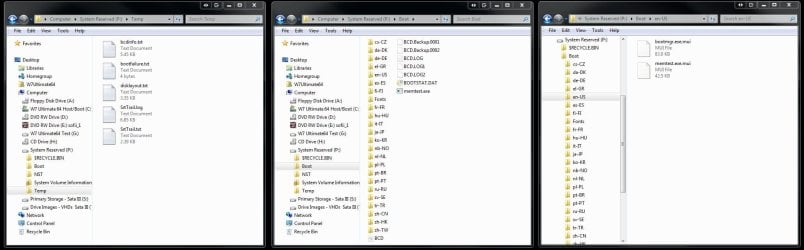
The repair tools are not placed on the 100mb system reserved only the BCD store and boot files in general along with the memtest executable. The image below has been posted previously for an extended lookover of the 100mb itself.

Now as far as installing 7 after XP on the same drive and onto a second primary the 7 boot files are what replace XP's own as far as which then becomes the default OS and which boot loader will be used. During the installation XP will automatically be added into the 7 BCD store as "previous version of Windows" when the boot options screens come up afterwards.

As far as the startup repair or "Last configuration known to work" options those come up if the system sees a crash or hard boot without shutting properly. The startup repair option is not an F8 boot option with or without the 100mb present. The image here shows what is actually on the 100mb itself.

For seeing the startup repair as a general F8 option you would need a reg edit similar to how the recover console was installed as a boot option on the two previous versions. You would need something like that to see it made a regular choice.

As far as Partition Wizard hope you don't have any Sata III drives installed! The PW program is too outdated even with the latest release to even see the pair installed here. Any other partitioning option however indicates the two drives are present. Pity anyone with one of the new Sata III only boards now seen.(Sata III ports only on those)

The 7 drive tools, Disk Part, Paragon, GParted, and others however were not found having any problems with Sata IIIs present. PW is another older however open source partitioning program with it's limitations.
 

Attachments

  • System Reserved 4 100mb Extended View.jpg
    System Reserved 4 100mb Extended View.jpg
    129.2 KB · Views: 124

My Computers My Computers

  • At a glance

    W7 Ultimate x64/W10 Pro x64/W11 Pro Triple Bo...AMD Phenom II X4 975 Deneb 3.6ghz - 965 2nd r...Kingston Hyper X DDR3 1600 1.5v 16gb - Hyper ...MSI HD Radeon 5750 1gb - MSI HD Radeon 6450 o...
    Computer type
    PC/Desktop
    Computer Manufacturer/Model Number
    Custom builds = 2
    OS
    W7 Ultimate x64/W10 Pro x64/W11 Pro Triple Boot - Main PC W7 Remote PC Micro ATX W7 Pro x64/W11 Pro
    CPU
    AMD Phenom II X4 975 Deneb 3.6ghz - 965 2nd remote pc
    Motherboard
    Gigabyte GA-790XTA-UD4-Gigabyte GA-880GM-D2H remote pc
    Memory
    Kingston Hyper X DDR3 1600 1.5v 16gb - Hyper X Fury 8gb 2nd
    Graphics Card(s)
    MSI HD Radeon 5750 1gb - MSI HD Radeon 6450 on mini tower
    Sound Card
    Creative Labs X-Fi Xtreme Audio P - Realtek onooard 2nd case
    Monitor(s) Displays
    ASUS VW199T-P 19" HP 2082a Main-HP 2082a 20" remote pc
    Screen Resolution
    Asus 1440x900 - HP 1600x900
    Hard Drives
    WD Black 1TB HD per OS W7, W10, and pending W11 presently on 500gb OS Drive - Pending Triple 1TB HDs for Spanned Storage/backup volume
    Single 2TB external USB enclosure, single 1TB System 7 Host/Boot drive, Pending 8TB external HD for system image b
    PSU
    Corsair 750TX - primary / Corsair CX600 - second
    Case
    Antec 900-2 - SSD compatible / NZXT Vulcan mini tower
    Cooling
    Zalman CNPS9900A
    Keyboard
    AZIO L70 Backlit Letters Gaming - ONN Cordless/USB
    Mouse
    MSI DS200 Programmable, Logitech Cordless
    Internet Speed
    30mbps upgrade - primary hard wired - mini tower usb WiFi
    Antivirus
    GFI VIPRE Internet Security 2014 on W7 2016 beta on W10,
    Browser
    Cyberfox, WaterFox 64bit FF variants, FireFox x64, Pale Moon
    Other Info
    Accomdata fan cooled usb 2.0 PIDE/Sata II, III external enclosure.
    Sambient usb/eSata PATA/Sata II, III external enclosure.
  • At a glance

    W7 Pro x64/W11 ProAMD Deneb 3.6ghz - 965Kingston Hyper X Fury 8gbMSI HD Radeon 6450 DVI Output
    Computer type
    PC/Desktop
    System Manufacturer/Model Number
    CUSTOM ASSEMBLY
    OS
    W7 Pro x64/W11 Pro
    CPU
    AMD Deneb 3.6ghz - 965
    Motherboard
    Gigabyte GA-880GM-D2H remote pc
    Memory
    Kingston Hyper X Fury 8gb
    Graphics Card(s)
    MSI HD Radeon 6450 DVI Output
    Sound Card
    Realtek onooard Creative or Other separate PENDING
    Monitor(s) Displays
    VIZIO 32" LCD TV Separate LCD Pending
    Screen Resolution
    1600x1080
    Hard Drives
    WD 500GB OS Host/Boot WD Green 1TB Storage/Backup
    PSU
    Corsair 600W - THERMALTAKE 600W spare case
    Case
    NZXT Vulcan mini tower
    Cooling
    Twin 120mm Top Fans - 240mm Side Cover
    Keyboard
    ONN Cordless/USB Logitech Cordless
    Mouse
    ONN USB/Cordless - Logitech Cordless
    Internet Speed
    DSL 5G
    Browser
    MS Edge, FireFox, WaterFox x64, FireFox Nightly
    Other Info
    OS Testing-Remote Access to Main TeamViewer
Two reasons using the system reserve partition as active primary and logical drives for OSs can be a good thing:
1. If you want to multiboot a lot of OSs, you're not limited to 4, and
2. It's simpler later on to replace an OS on a drive without having to deal with the boot files being there.

I actually prefer to use Partition Wizard to create my own system reserve partition first, make it active primary, and then set up any XP partitions, then Windows 7 partitions.
If you mark the XP partition "Active" before the XP install, when installed second in a dual boot it will create it's self as C: on a Primary partition; then the "System Reserved" drive letter can be removed in XP; and the "System Reserved" can be marked active and startup repairs can be done to make the "System Reserved" the "System" volume.
click to enlarge
POS7.jpg
For anyone interested and since it wasn't mentioned earlier; there is a tutorial on this subject, at this link below; and no, it doesn't mention "pros and cons" it's just an idea/guide.

System Reserved : Multi Boot from Logical Partitions
 

My Computer My Computer

At a glance

W 7 64-bit UltimateIntel Q9550 Yorkfield8GB Dominator 8500C5DATI : XFX 5870
Computer Manufacturer/Model Number
* BFK Customs *
OS
W 7 64-bit Ultimate
CPU
Intel Q9550 Yorkfield
Motherboard
ASUS P5Q Pro
Memory
8GB Dominator 8500C5D
Graphics Card(s)
ATI : XFX 5870
Sound Card
Realtek HD Audio 7-1
Monitor(s) Displays
1x 47" LCD HDMI & 3x 26" LCD HDMI
Screen Resolution
1920x1080P & 1920x1200
Hard Drives
1x 80GB Intel X25-M G2 SSD : 1x 500GB & 1x 640GB WD Caviar Black(s)
PSU
Corsair 620HX
Case
Cooler Master RC-690
Cooling
Tuniq Tower 120, 2x 140mm and 3x 120mm case fans
Keyboard
Microsoft 500
Mouse
Razer Diamondback 3G
Internet Speed
14 Mb/s
Other Info
1x Koutech 3Gb/s SATA HDD Hot Swap Rack
Answers in bold:

Q: While running XP- drive letter assigned is C to XP. All boot files are on Xp partition.(Correct?) Correct
Q: While running Win7- were you able to "hide" the XP partition so when booted into Win7 it showed as "C" also? Nothing is hidden. This is the way Win7 works by default when installed from boot to a Dual Boot.


System Reserved 100mb
PRO:

#1=Repair console, Press F8 Advanced tools menu availble without disc.
Q: (All tools installed in System reserved?) It is not clear they are installed in SysReserved, only that they appear on F8 menu when SysReserved is present.
#2=When removing a installed OS- allows the other OS's to continue booting.
#3= If a OS is removed- repair of the bootloader is a simple affair as the system reserved partition itself is still intact
#4=System Reserved partition is hidden (In Win7) so boot files cannot accidentally be deleted. It is not easy to delete boot files in any case.

CON:

#1=Takes up (1) primary
#2=100mb is too small, increase to 200mb Recommended in case something gets written there, as free space is required to create SysVol file for imaging.
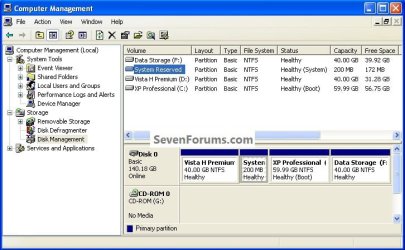
#3=Having a "System Reserved" partition causes older MS OS's to incorrectly assign drive letters. Unlike Win7 which "hides" the partition older OS's "see" the partition as "C" which may freak out certain apps, or cause install problems. This is likely to cause operator error and or confusion. I have not seen an example of this.
#4= "System Reserved" partition shows in XP, right clicking on partition in Windows file Explorer gives option to FORMAT.!!! Disk Manger says I can't remove drive letter- and does not show option to format... Not an issue unless you get fidgety.

PRO of Logical vs Primary

#1=Allows for other Win OS's to be installed to logical partitions EG: Win7 and XP for example only taking up (1) of the primaries instead of (2). You can have up to 4 primary partitions for OS's so keep data partitions logical and you shouldn't need to worry about this. Use free Partition Wizard to create Logical data partitions, to convert Prmary data partitions to Logical, or to create a 4th Primary partition: http://www.sevenforums.com/tutorials/93322-partition-wizard-use-bootable-cd.html
#2=
 
#3=Having a "System Reserved" partition causes older MS OS's to incorrectly assign drive letters. Unlike Win7 which "hides" the partition older OS's "see" the partition as "C" which may freak out certain apps, or cause install problems. This is likely to cause operator error and or confusion. I have not seen an example of this.


Here's an example of that. ;)

XPBoot.jpg
 

My Computer My Computer

At a glance

W 7 64-bit UltimateIntel Q9550 Yorkfield8GB Dominator 8500C5DATI : XFX 5870
Computer Manufacturer/Model Number
* BFK Customs *
OS
W 7 64-bit Ultimate
CPU
Intel Q9550 Yorkfield
Motherboard
ASUS P5Q Pro
Memory
8GB Dominator 8500C5D
Graphics Card(s)
ATI : XFX 5870
Sound Card
Realtek HD Audio 7-1
Monitor(s) Displays
1x 47" LCD HDMI & 3x 26" LCD HDMI
Screen Resolution
1920x1080P & 1920x1200
Hard Drives
1x 80GB Intel X25-M G2 SSD : 1x 500GB & 1x 640GB WD Caviar Black(s)
PSU
Corsair 620HX
Case
Cooler Master RC-690
Cooling
Tuniq Tower 120, 2x 140mm and 3x 120mm case fans
Keyboard
Microsoft 500
Mouse
Razer Diamondback 3G
Internet Speed
14 Mb/s
Other Info
1x Koutech 3Gb/s SATA HDD Hot Swap Rack
Weren't you saying you hadn't seen an example of XP making the "System Reserved" partition the C: partition and XP being the "next available" partition?

If not, what were you referring to in what I quoted?
 

My Computer My Computer

At a glance

W 7 64-bit UltimateIntel Q9550 Yorkfield8GB Dominator 8500C5DATI : XFX 5870
Computer Manufacturer/Model Number
* BFK Customs *
OS
W 7 64-bit Ultimate
CPU
Intel Q9550 Yorkfield
Motherboard
ASUS P5Q Pro
Memory
8GB Dominator 8500C5D
Graphics Card(s)
ATI : XFX 5870
Sound Card
Realtek HD Audio 7-1
Monitor(s) Displays
1x 47" LCD HDMI & 3x 26" LCD HDMI
Screen Resolution
1920x1080P & 1920x1200
Hard Drives
1x 80GB Intel X25-M G2 SSD : 1x 500GB & 1x 640GB WD Caviar Black(s)
PSU
Corsair 620HX
Case
Cooler Master RC-690
Cooling
Tuniq Tower 120, 2x 140mm and 3x 120mm case fans
Keyboard
Microsoft 500
Mouse
Razer Diamondback 3G
Internet Speed
14 Mb/s
Other Info
1x Koutech 3Gb/s SATA HDD Hot Swap Rack
Unlike Windows 7 which "hides" the partition older OS's "see" the partition as "C" which may freak out certain apps, or cause install problems. This is likely to cause operator error and or confusion.

I haven't seen an example of SysReserved when installed correctly without a drive letter confusing apps on older OS's as to where they should be installed.

When installed correctly last and from boot I believe Win7 will always see itself as C and have only experienced that the other multi-booted OS's see themselves as C when booted into them - thus presenting no problem for applications needing install in the booted OS.

I'm not sure why the SysReserved in the screenshot is lettered C. My experience is the default during Win7 install is that no drive letter is issued to SysReserved. It was once required to give it a letter to use EasyBCD, but no longer. So there is no known reason to issue SysReserved a letter, and if an older OS does so it should be ignored.
 
I wanted to make sure so I just wiped the SysResv, repaired Vista so it would be "System Active", deleted/recreated/formatted the XP partition and installed XP and XP did not install itself as C:; every time I've installed XP it always takes the next available drive letter when installed second after Vista/W_7 and has never created itself as C: that I have seen.
click to enlarge
Vista.jpg
XP.jpg
 

My Computer My Computer

At a glance

W 7 64-bit UltimateIntel Q9550 Yorkfield8GB Dominator 8500C5DATI : XFX 5870
Computer Manufacturer/Model Number
* BFK Customs *
OS
W 7 64-bit Ultimate
CPU
Intel Q9550 Yorkfield
Motherboard
ASUS P5Q Pro
Memory
8GB Dominator 8500C5D
Graphics Card(s)
ATI : XFX 5870
Sound Card
Realtek HD Audio 7-1
Monitor(s) Displays
1x 47" LCD HDMI & 3x 26" LCD HDMI
Screen Resolution
1920x1080P & 1920x1200
Hard Drives
1x 80GB Intel X25-M G2 SSD : 1x 500GB & 1x 640GB WD Caviar Black(s)
PSU
Corsair 620HX
Case
Cooler Master RC-690
Cooling
Tuniq Tower 120, 2x 140mm and 3x 120mm case fans
Keyboard
Microsoft 500
Mouse
Razer Diamondback 3G
Internet Speed
14 Mb/s
Other Info
1x Koutech 3Gb/s SATA HDD Hot Swap Rack
Unless custom installing the same edition of the same version of Windows twice each installation will see itself as C when booted into it. Other installations will be provided the next available drive letter automatically by Windows unless needing to be initialized.

If you run the Windows installer for 7 as one example while booted in Windows to install to another partition or drive and boot into that it will see it self as D. For XP there was a registry edit available for the older version to change the D back to C when this was seen. This is due to both installations using the exact same boot loader and why the second install is automatically given a different letter as it sees itself.
 

My Computers My Computers

  • At a glance

    W7 Ultimate x64/W10 Pro x64/W11 Pro Triple Bo...AMD Phenom II X4 975 Deneb 3.6ghz - 965 2nd r...Kingston Hyper X DDR3 1600 1.5v 16gb - Hyper ...MSI HD Radeon 5750 1gb - MSI HD Radeon 6450 o...
    Computer type
    PC/Desktop
    Computer Manufacturer/Model Number
    Custom builds = 2
    OS
    W7 Ultimate x64/W10 Pro x64/W11 Pro Triple Boot - Main PC W7 Remote PC Micro ATX W7 Pro x64/W11 Pro
    CPU
    AMD Phenom II X4 975 Deneb 3.6ghz - 965 2nd remote pc
    Motherboard
    Gigabyte GA-790XTA-UD4-Gigabyte GA-880GM-D2H remote pc
    Memory
    Kingston Hyper X DDR3 1600 1.5v 16gb - Hyper X Fury 8gb 2nd
    Graphics Card(s)
    MSI HD Radeon 5750 1gb - MSI HD Radeon 6450 on mini tower
    Sound Card
    Creative Labs X-Fi Xtreme Audio P - Realtek onooard 2nd case
    Monitor(s) Displays
    ASUS VW199T-P 19" HP 2082a Main-HP 2082a 20" remote pc
    Screen Resolution
    Asus 1440x900 - HP 1600x900
    Hard Drives
    WD Black 1TB HD per OS W7, W10, and pending W11 presently on 500gb OS Drive - Pending Triple 1TB HDs for Spanned Storage/backup volume
    Single 2TB external USB enclosure, single 1TB System 7 Host/Boot drive, Pending 8TB external HD for system image b
    PSU
    Corsair 750TX - primary / Corsair CX600 - second
    Case
    Antec 900-2 - SSD compatible / NZXT Vulcan mini tower
    Cooling
    Zalman CNPS9900A
    Keyboard
    AZIO L70 Backlit Letters Gaming - ONN Cordless/USB
    Mouse
    MSI DS200 Programmable, Logitech Cordless
    Internet Speed
    30mbps upgrade - primary hard wired - mini tower usb WiFi
    Antivirus
    GFI VIPRE Internet Security 2014 on W7 2016 beta on W10,
    Browser
    Cyberfox, WaterFox 64bit FF variants, FireFox x64, Pale Moon
    Other Info
    Accomdata fan cooled usb 2.0 PIDE/Sata II, III external enclosure.
    Sambient usb/eSata PATA/Sata II, III external enclosure.
  • At a glance

    W7 Pro x64/W11 ProAMD Deneb 3.6ghz - 965Kingston Hyper X Fury 8gbMSI HD Radeon 6450 DVI Output
    Computer type
    PC/Desktop
    System Manufacturer/Model Number
    CUSTOM ASSEMBLY
    OS
    W7 Pro x64/W11 Pro
    CPU
    AMD Deneb 3.6ghz - 965
    Motherboard
    Gigabyte GA-880GM-D2H remote pc
    Memory
    Kingston Hyper X Fury 8gb
    Graphics Card(s)
    MSI HD Radeon 6450 DVI Output
    Sound Card
    Realtek onooard Creative or Other separate PENDING
    Monitor(s) Displays
    VIZIO 32" LCD TV Separate LCD Pending
    Screen Resolution
    1600x1080
    Hard Drives
    WD 500GB OS Host/Boot WD Green 1TB Storage/Backup
    PSU
    Corsair 600W - THERMALTAKE 600W spare case
    Case
    NZXT Vulcan mini tower
    Cooling
    Twin 120mm Top Fans - 240mm Side Cover
    Keyboard
    ONN Cordless/USB Logitech Cordless
    Mouse
    ONN USB/Cordless - Logitech Cordless
    Internet Speed
    DSL 5G
    Browser
    MS Edge, FireFox, WaterFox x64, FireFox Nightly
    Other Info
    OS Testing-Remote Access to Main TeamViewer
The above is a clean install booted from the XP installer and it is an XP SP3 integrated ISO from TechNet.
 

My Computer My Computer

At a glance

W 7 64-bit UltimateIntel Q9550 Yorkfield8GB Dominator 8500C5DATI : XFX 5870
Computer Manufacturer/Model Number
* BFK Customs *
OS
W 7 64-bit Ultimate
CPU
Intel Q9550 Yorkfield
Motherboard
ASUS P5Q Pro
Memory
8GB Dominator 8500C5D
Graphics Card(s)
ATI : XFX 5870
Sound Card
Realtek HD Audio 7-1
Monitor(s) Displays
1x 47" LCD HDMI & 3x 26" LCD HDMI
Screen Resolution
1920x1080P & 1920x1200
Hard Drives
1x 80GB Intel X25-M G2 SSD : 1x 500GB & 1x 640GB WD Caviar Black(s)
PSU
Corsair 620HX
Case
Cooler Master RC-690
Cooling
Tuniq Tower 120, 2x 140mm and 3x 120mm case fans
Keyboard
Microsoft 500
Mouse
Razer Diamondback 3G
Internet Speed
14 Mb/s
Other Info
1x Koutech 3Gb/s SATA HDD Hot Swap Rack
I didn't realize that this thread was so old, but I still decided to put my two cents into the conversation.

I've recently been trying to install Win XP x64 onto a motherboard RAID 10 with a dedicated boot partition which could eventually contain the Vista and Win 7 bootloaders for multi-booting. Initially I was planning on adding two versions of Linux to the Windows bootloaders for chaining to grub, but besides not knowing what I'm doing, it turns out Linux has issues with my AMD SB710 Southbridge chipset, so I need to readjust my plans.

Anyway, after some off and on researching over the past two weeks, and two days of trial and error, I found that I could install XP on a logical partition, but never as the "C" drive letter designation. Besides the fact that logical partitions cannot be marked as being "Active," the starting point of a logical partition could be viewed more as dynamic and not static or physical, based on research, which the XP installation process doesn't like. Research also suggests that Vista and Windows 7, as well as 8, supports a more intelligent installation process where the System/OS drive receives the "C" designation, regardless of partition placement or type, which I hope is true very soon.

Now I've reviewed a number of tutorials on dual and multi-booting with XP, including with installing XP on a logical partition, and most failed for me when I attempted to implement them. In the cases where Linux was required, there were either problems with the RAID, or the steps were either too vague or I missed something. When I worked within just Windows XP's installation, which is what I wanted, I found that the "C" designation is always given to the partition marked as being "Active," regardless of placement on the hard drive. I did review the tutorial someone linked to in this thread, but I didn't read that information, at least not in terms I could easily understand. It is possible to make the future System Reserve or boot partition look like how it will appear in Vista or Win 7 after the installation has completed. I just copied the necessary boot files, removed the drive letter and marked the partition as "Active." At one point I needed to modify the boot.ini to add a switch for AMD's Power Now, and suddenly all the files in the boot partition were Write-Protected, but I manually disabled that per file to resolve it, but apparently I cannot remove the "Hidden" attribute. Sometimes Windows won't let you remove the drive letter, but that's because the System Reserve or boot partition is marked as being active and a drive letter is already assigned. If I marked the XP partition, C: Drive, as being active, rebooted, then Disk Management identified the C: Drive as being the system drive, and I could delete the boot drive's letter, mark it as now active, and reboot to successfully simulate a Vista or Win 7 configuration.

As to programs and confusion, from what I've just experienced... Any attempt to install an older Windows OS on a logical partition will cause it to designate the active primary partition as being C, and the System partition as one or more following letter designation, based upon previously existing accessible operating systems. And since a logical partition in an MBR based environment cannot be an active boot partition, based on what I've tried so far, the installation on a logical partition can never be "C," before Vista from what I've read. Vista is my next step. Since you can select which primary partition is Active for installation, you don't really need to modify the registry, and changing mounted devices by itself doesn't always work. I changed the boot partition from C to B, and the system partition from D to C, and after rebooting, Windows was attempting to copy files and folders to the B: Drive, which still doesn't make sense to me. Using a hex editor, and modifying every instance I could locate for drive letter designations, only caused Windows to hang during startup. Now I can't say without certainty, but from my testing, aside from the boot.ini, it appears that both a volume/partition ID and letter designation need to be modified correctly, otherwise programs and applications can indeed appear confused.

After all the time I've spent over the past two weeks, it's actually much quicker and easier to install an older OS on a Primary partition, and mark that partition as being Active, if you want the "C" designation letter when running that OS. It's so much easier to modify the dedicated boot partition afterward. However, MBR partitioning has its limitations, so if it's just dual or multi-booting with XP, and you really want XP to be designated the C drive letter when running it, a Primary and not Logical Partition is perhaps the simplest method to choose from for installation.
 

My Computer My Computer

At a glance

Windows XP Professional x64 & x86, Vista Home...
OS
Windows XP Professional x64 & x86, Vista Home Premium x86
Yes an old thread, but still shows up in google, first page. :)

Here's a few direct answers toward the OP's question, which I don't think have been said directly yet:

1) No. You can't ever remove or hide the "boot" partition from view, in a running instance of XP. If XP uses the 1/200 MB partition as its "boot" drive, its required to have a drive letter.

It effectively has open files and the drive is accessesed in a way that requires it to be treated like a normal drive with a drive letter. XP has a classic "boot" drive and "system" drive concept, which can be the same lettered drive.

Also to help you remember, if you think of the advanced boot options tab in "computer > properties", it allows you to open the boot.ini in notepad, which would have to be on the "boot" drive and thus the boot drive would have to be visible, and thus XP expects the boot drive to be visible. This is no different than if you had two XP installs and no 100/200 MB partition, where the active "boot" partition containing one XP woudl have to be visible to the second.

2) Yes. You can work around this by making the XP partition the active partition and then making it capable of being the boot loader.

This is effectively the same as if you had installed XP first and then installed some other OS, even if the other OS is XP. "Windows 7 or not" really has nothing to do with the OP's original question.

3) So... if the goal of the OP was to not have to re-install everything, and end up with an XP install that could be its own C drive, *and* where windows 7 is still loadable without resorting to Grub or any of that kind of thing, here is an example.

If you had a new factory windows 7 install, being the common senario, and you end up with all primary partitions of:
a) 200 MB partition (active) (windows 7 boot loader doped)
b) Windows 7 partition
c) maybe manufacturers recovery partition
d) maybe manufacturers bios tools partition

You need to get to something like
a) 200 MB partition (windows 7 boot loader doped)
b) Windows 7 partition
c) Windows XP partition (active) (windows 7 boot loader doped)
d) maybe manufacturers bios tools partition

This makes the a) partition basically a useless artifact, unless you later install grub in order to allow the bios to effectivly redirect to either a) or c) each of which would have a working Windows 7 boot loader. Skipping the whole Grub thing, the benifit of the "useless" 200 MB partition is that you can later whack the c) partition and mark a) active, and reboot and go right back to normal and still have a working OS.

4) No. You can't have XP in a logical partition and ever have a singular "boot" and "system" partition for the XP install.

In this case, you will always have a extra "boot" drive letter thats not same drive letter as the XP system partition. The issue of logical versus primary is mostly irrelivant to the OP's core issue, as demonstrated above as those were all assumed to be primary. It does come into play however, in that the active partition needs to be someitng other than the logical partion, and thus the boot and the system can never be the same and wil always result in two unhideable drives, once you are booted into XP.

Hope this helps future travelers.

There are many articles about using partition managers, Grub, Windows 7 recovery tools and partitioning which should help with the rest.
 

My Computer My Computer

At a glance

All versions
OS
All versions
Back
Top