Moving Desktop Icons to the Taskbar

mikegc

New member
Power User
Local time
10:08 AM
Messages
79
I just got a Dell XPS laptop, x64, and, so far, I have no real issues with Windows 7. I like a clean desktop and, on my XP machines, moved the desktop icons with ease. With the new operating system, I've done that, too, but some icon cannot be moved in the traditional way. Is there a way to move My Document, My Pictures, My Computer, etc., to the taskbar?

I apologize if this has been discussed. Many thanks for any assistance.

Mike
 

My Computer

Computer Manufacturer/Model Number
Dell XPS
OS
Windows 7 Ultimate x64
CPU
Intel® Core™ i7-840QM (1.86GHz, 8 threads, turbo boost up to
Memory
8 GB Shared Dual Channel DDR3 Memory
Graphics Card(s)
NVIDIA® GeForce® GT 435M 2GB graphics
Hard Drives
640GB 7200 RPM SATA Hard Drive
My Computer

Computer type
PC/Desktop
Computer Manufacturer/Model Number
Gateway DX4831-01e (Mid-Tower Desktop)
OS
Originally Win 7 Hm Prem x64 Ver 6.1.7600 Build 7601-SP1 | Upgraded to Windows 10 December 14, 2019
CPU
Intel i3 530 2.93GHz, 2933MHz 2 Cores 4 Logical Processors
Motherboard
Gateway H57M01 133 megahertz
Memory
6GB of 1,333MHz DDR3 SDRAM
Graphics Card(s)
32MB Intel Graphics Media Accelerator HD IGChip
Sound Card
Realtek High Definition Audio
Monitor(s) Displays
Gateway HX2000 20inch TFT active matrix TN
Screen Resolution
1600 x 900 x 59 hertz
Hard Drives
WDC WD10EADS-00M2B0 [HDD] (1000.20 GB) -- drive 0,
HL-DT-ST DVDRAM GH41N [CD-ROM dr]
Four card readers, and Four USB 2.0
PSU
300watts.
Case
Mid-Tower Desktop
Cooling
Stock from Gateway
Keyboard
Natural Ergonomic Keyboard 4000, see Other Info
Mouse
Orig. Gateway wore out now using Insignia USB wired optical
Internet Speed
Vz FIOS 10ms png 57.64Mbps down 65.53Mbps up Speedtest.org
Antivirus
Zamana Anti-logger with Anti-malware, MSE, Windows Firewall,
Browser
IE11.0.9600.19399-Upd ver11.0.135, Firefox 68.0.1 x64
Other Info
System Specs by Belarc.

BIOS: American Megatrends Inc. P01-A0 11/17/2009

Replaced the MS 'Natural' Standard PS/2 Enhanced 101-102 Keyboard with a new Natural Ergonomic Keyboard 4000 on August 1st 2014.

Canon Pixma MG3222 Printer.

Updated to IE11 on 12102015 | Fios Quantum Router g1100

Additional AV: SpywareBlaster, manual Mbam, SAS
right click on taskbar and select toolbars -> my documents

repeat to get my computer on taskbar and then right click on desktop and select hide icons

hope that will help
 

My Computer

Computer type
PC/Desktop
Computer Manufacturer/Model Number
Self Built
OS
Windows 8.1 - 64 Bit
CPU
Intel Core i5-4670K (Haswell)
Motherboard
Gigabyte GA-Z87X-D3H
Memory
8GB DDR3-RAM PC1600 CL9 ADATA XPG V1.0 black
Graphics Card(s)
Gigabyte NVIDIA GTX 770 Graphics Card (2GB, DDR5, PCI-E)
Sound Card
ASUS Xonar DX 7.1 | Turtle Beach HPA 2
Monitor(s) Displays
Samsung SyncMaster P2270HD
Screen Resolution
1080p
Hard Drives
Samsung 840 Evo 250 GB (OS only)
Seagate Barracuda 1TB S-ATA
Seagate Barracuda 250GB S-ATA
Maxtor 250GB S-ATA (Backup only)
WD Elements 500Gb/Go
PSU
750 watts
Case
Zalman GS-1000 Special Edition
Cooling
Zalman CNPS10X Performa
Keyboard
Logitech K350
Mouse
Logitech M705 | Razer Vespula Mouse Pad
Internet Speed
Virgin Media - 60Mbps
Antivirus
Microsoft Security Essentials
Other Info
120mm fans x 4
(2 on top, 1 at rear, 1 at bottom)
right click on taskbar and select toolbars -> my documents

repeat to get my computer on taskbar and then right click on desktop and select hide icons

hope that will help

I'd agree, except rather than hiding desktop icons as a whole (unless you'd rather no icons ever show on the desktop), just remove the My Document, My Pictures, My Computer, etc. shortcuts. A Guy
 

My Computer

Computer type
PC/Desktop
OS
Windows 10 Home x64
CPU
INTEL Core i5-750 Quad-Core 3.37GHz
Motherboard
ASUS P7P55D
Memory
HyperX Fury Black Series 8GB (2 x 4GB) 1866Mhz
Graphics Card(s)
EVGA GeForce GTX 750 Superclocked 1GB 128-Bit GDDR5
Monitor(s) Displays
LG 32MA68HY 32" IPS
Screen Resolution
1920 x 1080
Hard Drives
Samsung 840 Evo 120GB, SEAGATE 500GB Barracuda® 7200.12, SATA 3 Gb/s, 7200 RPM, 16MB cache
PSU
ANTEC TruePower New TP-550, 80 PLUS, 550W
Case
ANTEC Three Hundred Illusion
Cooling
COOLER MASTER Hyper 212 Plus, 4 x 120mm 1 x 140mm Noctua's
Internet Speed
85 + Mbps
Antivirus
Avast
Browser
Vivaldi
Thanks, everyone! I managed to get My Computer moved but still can't budge My Documents and My Pictures. I'll learn to live with it.

Mike
 

My Computer

Computer Manufacturer/Model Number
Dell XPS
OS
Windows 7 Ultimate x64
CPU
Intel® Core™ i7-840QM (1.86GHz, 8 threads, turbo boost up to
Memory
8 GB Shared Dual Channel DDR3 Memory
Graphics Card(s)
NVIDIA® GeForce® GT 435M 2GB graphics
Hard Drives
640GB 7200 RPM SATA Hard Drive
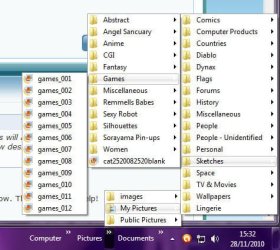
Right click taskbar. Click toolbars. Select desktop. This will appear next to notification items. Right click empty desktop. Select view. Uncheck "show desktop icons. To see desktop icons click arrow to right of desktop
 

My Computer

OS
Windows 7
I just got a Dell XPS laptop, x64, and, so far, I have no real issues with Windows 7. I like a clean desktop and, on my XP machines, moved the desktop icons with ease. With the new operating system, I've done that, too, but some icon cannot be moved in the traditional way. Is there a way to move My Document, My Pictures, My Computer, etc., to the taskbar?

I apologize if this has been discussed. Many thanks for any assistance.

Mike

Thanks, everyone! I managed to get My Computer moved but still can't budge My Documents and My Pictures. I'll learn to live with it.

Mike

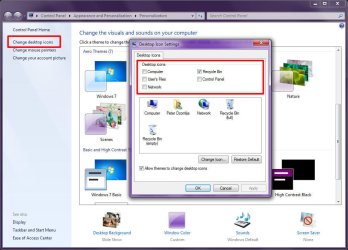
Do you want to remove them from the desktop? Try this:
  1. Right-click an unused part of the desktop, then click "Personalize"
  2. Click "Change desktop icons"
  3. Remove the check marks from the items in "Desktop Icons"
  4. Click OK
  5. Close the Personalization window
But as far as pinning individual icons for Computer, Documents and Pictures to t he taskbar, I don't think you can, not unless you're willing to enable the old-fashioned and antiquated Quick Launch Bar.

This is because Computer, Documents, Pictures, and indeed all the other personal User Folders are all controlled by Windows Explorer. Basically, if I pin "Computer" to the taskbar, then clicking that icon will activate the Explorer window (or open Explorer at Computer if it is not already open). If no Explorer windows are open, and I click "Pictures" on the start menu, then Windows Explorer will open to Pictures, and the pinned icon on the taskbar will activate.

Pinning happens on a per-application basis. Only one icon at at time perapplication is allowed to be pinned.
 

Attachments

  • Image1.jpg
    Image1.jpg
    136.1 KB · Views: 36

My Computer

Computer type
PC/Desktop
Computer Manufacturer/Model Number
Virtual Machine
OS
Windows 7 Professional 32-bit SP1
CPU
AMD A4/A6
Motherboard
Intel Corporation 440BX Desktop Reference Platform
Memory
3.00GB EDO
Graphics Card(s)
VMware SVGA 3D
Sound Card
High Definition Audio Device
Monitor(s) Displays
Generic Non-PnP Monitor on VMware SVGA 3D
Screen Resolution
1440x900
Hard Drives
1 x 60GB VMware Virtual SATA Hard Drive ATA Device
Antivirus
Kaspersky Total Security
Right click taskbar. Click toolbars. Select desktop. This will appear next to notification items. Right click empty desktop. Select view. Uncheck "show desktop icons. To see desktop icons click arrow to right of desktop


Yup, you're right. I found that and that's what I'm using now. Thanks for your help!

Mike
 

My Computer

Computer Manufacturer/Model Number
Dell XPS
OS
Windows 7 Ultimate x64
CPU
Intel® Core™ i7-840QM (1.86GHz, 8 threads, turbo boost up to
Memory
8 GB Shared Dual Channel DDR3 Memory
Graphics Card(s)
NVIDIA® GeForce® GT 435M 2GB graphics
Hard Drives
640GB 7200 RPM SATA Hard Drive

"But as far as pinning individual icons for Computer, Documents and Pictures to t he taskbar, I don't think you can, not unless you're willing to enable the old-fashioned and antiquated Quick Launch Bar.

This is because Computer, Documents, Pictures, and indeed all the other personal User Folders are all controlled by Windows Explorer. Basically, if I pin "Computer" to the taskbar, then clicking that icon will activate the Explorer window (or open Explorer at Computer if it is not already open). If no Explorer windows are open, and I click "Pictures" on the start menu, then Windows Explorer will open to Pictures, and the pinned icon on the taskbar will activate."
- Dzomlija


I can't believe this: I found a Windows article that told me how to my "Computer" to the toolbar and it works fine. My Pictures and My Document, though, are a different matter. Thank you for your assistance!!!!!

Mike
 

My Computer

Computer Manufacturer/Model Number
Dell XPS
OS
Windows 7 Ultimate x64
CPU
Intel® Core™ i7-840QM (1.86GHz, 8 threads, turbo boost up to
Memory
8 GB Shared Dual Channel DDR3 Memory
Graphics Card(s)
NVIDIA® GeForce® GT 435M 2GB graphics
Hard Drives
640GB 7200 RPM SATA Hard Drive
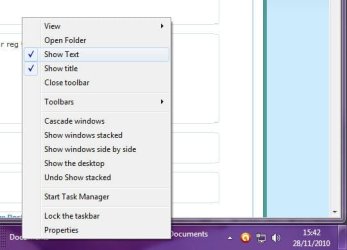
I can't believe this: I found a Windows article that told me how to my "Computer" to the toolbar and it works fine. My Pictures and My Document, though, are a different matter. Thank you for your assistance!!!!!

Mike

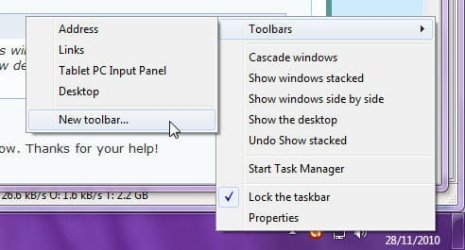
Try this:
1) Right click the taskbar, click "Toolbars", click "New toolbar...":
Image1.jpg

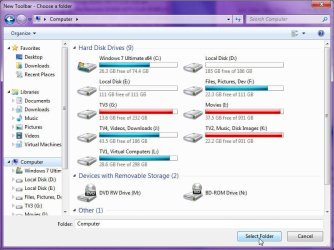
2) In the "New Toolbar - Choose a folder" window, click "Computer", then click "Select Folder":
Image2.jpg

3) Bingo, you have a "Computer" toolbar on your taskbar:
Image3.jpg

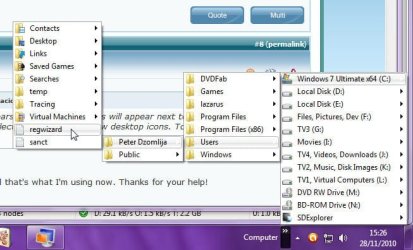
4) It work for Documents and Pictures also (and any other folder you may want). Here is the toolbar I created for my Pictures library:
Image4.jpg


I'm not entirely sure though if this is what you want, but it's the best solution there is without requiring the use of the quick launch bar. If you right-click on the taskbar, then uncheck "Lock the taskbar", you can then drag the toolbar title to make it more visible:
Image5.jpg

Right-click the toolbar title to get additional options, such as "Show Text" or "Show Title":
Image6.jpg
 

My Computer

Computer type
PC/Desktop
Computer Manufacturer/Model Number
Virtual Machine
OS
Windows 7 Professional 32-bit SP1
CPU
AMD A4/A6
Motherboard
Intel Corporation 440BX Desktop Reference Platform
Memory
3.00GB EDO
Graphics Card(s)
VMware SVGA 3D
Sound Card
High Definition Audio Device
Monitor(s) Displays
Generic Non-PnP Monitor on VMware SVGA 3D
Screen Resolution
1440x900
Hard Drives
1 x 60GB VMware Virtual SATA Hard Drive ATA Device
Antivirus
Kaspersky Total Security
Oh, I like that!!!!!!!!

Many thanks,

Mike
 

My Computer

Computer Manufacturer/Model Number
Dell XPS
OS
Windows 7 Ultimate x64
CPU
Intel® Core™ i7-840QM (1.86GHz, 8 threads, turbo boost up to
Memory
8 GB Shared Dual Channel DDR3 Memory
Graphics Card(s)
NVIDIA® GeForce® GT 435M 2GB graphics
Hard Drives
640GB 7200 RPM SATA Hard Drive
Back
Top