Solved Cannot pin a folder (its shortcut) to the taskbar

markaz

New member
Power User
VIP
Local time
5:33 PM
Messages
168
Location
Peoria, AZ
I have followed the tutorial(s) here and elsewhere on pinning a folder to the taskbar in Window 7. It's straight forward enough, but if I attempt to drag and drop the folder's shortcut from the Desktop to the Taskbar I get the universal symbol for "cannot do this". Even when I right click the shortcut I am not given the option to pin it to the taskbar. Before anyone asks, I am adding "explorer" to the beginning of target path in Properties.Any help would be appreciated.
 

My Computer My Computer

Computer type
PC/Desktop
Computer Manufacturer/Model Number
Custom
OS
Windows 7 Home Premium x64
CPU
AMD A6-6400K APU
Motherboard
Gigabyte F2A88XM-D3H
Memory
8.0GB DDR3-1600
Graphics Card(s)
Radeon Onboard Graphics
Sound Card
Realtek High Def
Monitor(s) Displays
Acer K242HQL
Screen Resolution
1920x1080
Hard Drives
Samsung 850 EVO SSD 250GB
PSU
Corsair 430W
Case
Silverstone PS-08
Cooling
Enermax fans (120mm-intake, 80mm-exhaust)
Keyboard
Logitech K360
Mouse
Logitech M305 Cordless Optical
Internet Speed
Download 60.19Mbps Upload 6.71Mbps
Antivirus
AVG
Browser
Iron Version 51.0.2700.0 (64-bit)
Put the shortcut on the desktop and then drag it over the explorer icon in the taskbar. It will be pinned there.
 

My Computer My Computer

Computer Manufacturer/Model Number
HP, Dell, Gateway, Toshiba - 4 laptops and 2 desktops
OS
Vista, Windows7, Mint Mate, Zorin, Windows 8
CPU
from 1.6GHz Duo to i7
Monitor(s) Displays
2x HP w2207
Hard Drives
5x HDD, 7x SSD, 12x Externals
Keyboard
with trackball - no mices
Mouse
Trackball mice
Internet Speed
DSL 6000
in Search bar type gpedit.msc press Enter. Local Group Policy Editor will come up.
Then under User Configuration > Administrative Template > Start Menu and Taskbar: on the left side under Setting:
Right click on Remove pinned programs from the taskbar choose Edit. If it is "Enabled" change it to "Disabled" then click Apply>Ok. To make that the configuration is applied restart your computer.

After the reboot, check if you can now pin programs to your taskbar.

Regards

ShoTTaS :)


My Computer My Computer

Computer type
PC/Desktop
Computer Manufacturer/Model Number
HP
OS
Windows 7 Pro 32bit
CPU
Dual Core
Antivirus
Trend Micro
Thank you for the replies. With regard to each suggestion:

1. Pyprohly - I entered the fully qualified path (both with a space between the quotation marks and without a space) and have the same result. Pin to Taskbar does not appear in Context Menu or when I drag it to the Taskbar I am not allowed to drop it.

2. whs - First I do not have the Windows Explorer icon on the Taskbar and if I did wouldn't I have to open Windows Explorer from its icon and then find my folder and click on it? I want the folder directly on the Taskbar.

3. ShoTTaS - When I search gpedit.msc and hit "Enter", the Group Policy Editor does not open.

FYI: I created a new text document on the desktop and renamed it to an .EXE. I ignored the popup warning about changing file types so I effectively had an EXE on the desktop. When I right click the icon the Context Menu has the option of pinning it to the Taskbar. I can also drag the icon to the Taskbar and it states "Pin to Taskbar". Regardless of the method used to pin it to the taskbar the icon DOES NOT appear on the taskbar.
 

My Computer My Computer

Computer type
PC/Desktop
Computer Manufacturer/Model Number
Custom
OS
Windows 7 Home Premium x64
CPU
AMD A6-6400K APU
Motherboard
Gigabyte F2A88XM-D3H
Memory
8.0GB DDR3-1600
Graphics Card(s)
Radeon Onboard Graphics
Sound Card
Realtek High Def
Monitor(s) Displays
Acer K242HQL
Screen Resolution
1920x1080
Hard Drives
Samsung 850 EVO SSD 250GB
PSU
Corsair 430W
Case
Silverstone PS-08
Cooling
Enermax fans (120mm-intake, 80mm-exhaust)
Keyboard
Logitech K360
Mouse
Logitech M305 Cordless Optical
Internet Speed
Download 60.19Mbps Upload 6.71Mbps
Antivirus
AVG
Browser
Iron Version 51.0.2700.0 (64-bit)
Regardless of the method used to pin it to the taskbar the icon DOES NOT appear on the taskbar.
Something is wrong, Markaz. Are you saying that you cannot pin applications or Shortcuts to the taskbar--the only items that can be pinned?

My only guess is that you may have missing or damaged registry values for .lnk files. I recommend you restore default file type associations.


3. ShoTTaS - When I search gpedit.msc and hit "Enter", the Group Policy Editor does not open.
You've another issue coming.
 

My Computer My Computer

Computer type
PC/Desktop
OS
Windows 10, Windows 8.1 Pro, Windows 7 Professional, OS X El Capitan
Regardless of the method used to pin it to the taskbar the icon DOES NOT appear on the taskbar.
Something is wrong, Markaz. Are you saying that you cannot pin applications or Shortcuts to the taskbar--the only items that can be pinned?

My only guess is that you may have missing or damaged registry values for .lnk files. I recommend you restore default file type associations.


3. ShoTTaS - When I search gpedit.msc and hit "Enter", the Group Policy Editor does not open.
You've another issue coming.

Agreed...something is wrong. I have two apps (a mail client and a password manager) currently pinned to the taskbar. If I go to those exe's in their install folders I now do not have the option of pinning either of them (Context menu or drag and drop). So somewhere from the time I pinned them until now something's gotten corrupted.

You mentioned a possible issue with .lnk. I used Brink's registry tweak to get rid of shortcut arrows, but that was over 4 1/2 years ago. I highly doubt that registry tweak has a thing to do with it. I was investigating this potential issue as well and in doing so came across something that I'm not certain is an issue or not. In the registry, should there be the following: HKEY_CURRENT_USER\Software\Policies\Microsoft\Windows\Explorer. If so, the Explorer key is missing.

I'll investigate the Group Policy Editor issue and if I don't find a 'fix' to that then I'll post another thread. Maybe related...who knows at this point.

Thanks for the help. Greatly appreciated.
 

My Computer My Computer

Computer type
PC/Desktop
Computer Manufacturer/Model Number
Custom
OS
Windows 7 Home Premium x64
CPU
AMD A6-6400K APU
Motherboard
Gigabyte F2A88XM-D3H
Memory
8.0GB DDR3-1600
Graphics Card(s)
Radeon Onboard Graphics
Sound Card
Realtek High Def
Monitor(s) Displays
Acer K242HQL
Screen Resolution
1920x1080
Hard Drives
Samsung 850 EVO SSD 250GB
PSU
Corsair 430W
Case
Silverstone PS-08
Cooling
Enermax fans (120mm-intake, 80mm-exhaust)
Keyboard
Logitech K360
Mouse
Logitech M305 Cordless Optical
Internet Speed
Download 60.19Mbps Upload 6.71Mbps
Antivirus
AVG
Browser
Iron Version 51.0.2700.0 (64-bit)
2. whs - First I do not have the Windows Explorer icon on the Taskbar and if I did wouldn't I have to open Windows Explorer from its icon and then find my folder and click on it? I want the folder directly on the Taskbar.
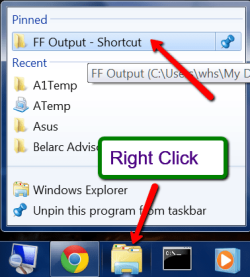
I really don't see where the difficulty is. In my picture I mad a shortcut to the desktop of 'FF Output' and dragged it over the explorer icon. Then I deleted the shortcut on the desktop. Now all I need to do is right click on the explorer icon and it is right there.

2015-01-27_1201.png

The other option would be a toolbar. There you can pin shortcuts, folders, shortcuts within folders and folders within folders. A very flexible facility where you can have hundreds of entries that would otherwise never fit on the taskbar.

http://www.sevenforums.com/tutorials/72092-toolbars-how-use-windows-7-vista.html
 

My Computer My Computer

Computer Manufacturer/Model Number
HP, Dell, Gateway, Toshiba - 4 laptops and 2 desktops
OS
Vista, Windows7, Mint Mate, Zorin, Windows 8
CPU
from 1.6GHz Duo to i7
Monitor(s) Displays
2x HP w2207
Hard Drives
5x HDD, 7x SSD, 12x Externals
Keyboard
with trackball - no mices
Mouse
Trackball mice
Internet Speed
DSL 6000
Well, i guess the next thing to do is the repair install of your OS, you've got a lot of issue on your computer. (i can't find the link in tutorials)
But let me find a way on how to get your gpedit.msc back.
 

My Computer My Computer

Computer type
PC/Desktop
Computer Manufacturer/Model Number
HP
OS
Windows 7 Pro 32bit
CPU
Dual Core
Antivirus
Trend Micro
Well, i guess the next thing to do is the repair install of your OS, you've got a lot of issue on your computer. (i can't find the link in tutorials)
But let me find a way on how to get your gpedit.msc back.
Whenever I read "repair install" as a fix to anything I really exhaust all efforts to do anything but that. In checking I went to http://www.sevenforums.com/tutorials/214461-local-group-policy-reset-default.html just to get info. On that page is the following:
D57qHn.jpg

I have Windows 7 Home Premium. Would this explain not being able to open gpedit.msc?
___________________________________________________

whs - In your original post you said "..and then drag it over the explorer icon in the taskbar". In your last post you said "...and dragged it over the explorer icon." This is a pic of my taskbar and do not see that I have an icon for explorer.
1ndvy8.jpg

___________________________________________________

FYI: Here's what's in the Taskbar folder located at \Users\ME\AppData\Roaming\Microsoft\Internet Explorer\Quick Launch\User Pinned\TaskBar\.
s5guWX.jpg

Interestingly, the folder shortcut I've been trying to add to the taskbar already IS in the Taskbar folder from previous attempts along with Internet Explorer, their icons are just not being displayed on the taskbar. So I can add things to the Taskbar, it's just a matter of making the icons display!
 
Last edited:

My Computer My Computer

Computer type
PC/Desktop
Computer Manufacturer/Model Number
Custom
OS
Windows 7 Home Premium x64
CPU
AMD A6-6400K APU
Motherboard
Gigabyte F2A88XM-D3H
Memory
8.0GB DDR3-1600
Graphics Card(s)
Radeon Onboard Graphics
Sound Card
Realtek High Def
Monitor(s) Displays
Acer K242HQL
Screen Resolution
1920x1080
Hard Drives
Samsung 850 EVO SSD 250GB
PSU
Corsair 430W
Case
Silverstone PS-08
Cooling
Enermax fans (120mm-intake, 80mm-exhaust)
Keyboard
Logitech K360
Mouse
Logitech M305 Cordless Optical
Internet Speed
Download 60.19Mbps Upload 6.71Mbps
Antivirus
AVG
Browser
Iron Version 51.0.2700.0 (64-bit)
Got it working. The problem was associated with a key that appeared in HKEY_CLASSES_ROOT\lnkfile. A value named NeverShowExt was present. Searched what this value was and found this article: Show Super Hidden File Extensions at Registry Guide for Windows. Deleted NeverShowExt and instantly arrows on shortcuts reappeared, but Pin the taskbar once again appeared in context menus. Got rid of the icon arrows and went through the steps of adding the folder I wanted on the taskbar and it worked well.

Thanks to everyone for your valuable input.
 

My Computer My Computer

Computer type
PC/Desktop
Computer Manufacturer/Model Number
Custom
OS
Windows 7 Home Premium x64
CPU
AMD A6-6400K APU
Motherboard
Gigabyte F2A88XM-D3H
Memory
8.0GB DDR3-1600
Graphics Card(s)
Radeon Onboard Graphics
Sound Card
Realtek High Def
Monitor(s) Displays
Acer K242HQL
Screen Resolution
1920x1080
Hard Drives
Samsung 850 EVO SSD 250GB
PSU
Corsair 430W
Case
Silverstone PS-08
Cooling
Enermax fans (120mm-intake, 80mm-exhaust)
Keyboard
Logitech K360
Mouse
Logitech M305 Cordless Optical
Internet Speed
Download 60.19Mbps Upload 6.71Mbps
Antivirus
AVG
Browser
Iron Version 51.0.2700.0 (64-bit)
And thank you, Markaz, for returning to share your fix to the issue you've had. As it will help others solve theirs in future.
 

My Computer My Computer

Computer type
PC/Desktop
OS
Windows 10, Windows 8.1 Pro, Windows 7 Professional, OS X El Capitan
Back
Top