System Image Recovery

How to Do a System Image Recovery in Windows 7


   Information
This will show you how to restore your Windows 7 hard disk back to exactly how it was when you created a system image backup.
   Warning

  • You can only do a system image recovery to a HDD that is the same size or larger than the one the system image was created from. You will not be able to do a system image recovery to a smaller HDD.
  • When you restore your computer from a image backup, it is a complete restoration. You can't choose individual items to restore, and all of your current programs, system settings, and files are replaced.
  • If your backup image is on a external device (ex: USB drive), then make sure it is connected before starting. If USB drive, then also make sure that you have your BIOS settings (ex: Legacy USB) set to allow USB devices at boot.
  • A system image recovery will format everything on each hard drive that was included in a system image, and will only restore what is included (see steps 7-9 in STEP TWO below) in the system image back. Be sure to backup anything that you do not want to lose that is not included in the system image backup first.


STEP ONE

Only if You Renamed the "WindowsImageBackup" Folder


   Note
To be able to have multiple versions of system images saved on the same drive or partition, you would need to rename the older WindowsImageBackup folder from the previously created system image as described in the NOTE box at the top of this tutorial.

If you renamed the WindowsImageBackup folder for the system image version that you wanted to restore, then you will need to do the steps below before you will be able to restore that system image.

1. If you are "Able to Boot" into Windows 7 A) In Windows Explorer, navigate to the renamed (drive letter)\WindowsImageBackup folder location of the system image that you want to restore.

B) If you already have a folder named WindowsImageBackup that is not the system image version that you want to restore, then you will need to right click on it, click on Rename, and type in say WindowsImageBackup-Copy-2 as an example.

C) Now, right click on the renamed system image version (ex: WindowsImageBackup-Copy-1) that you did want to restore, click on Rename, type in WindowsImageBackup an press enter.

D) Go to the STEP TWO section below to do the System Image Recovery.
2. If you are "Not Able to Boot" into Windows 7 A) If you have the system image backup save to an external device, be sure that it is connected now.

B) Open a command prompt at boot.

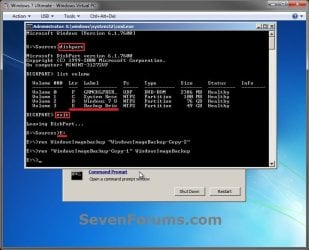
C) In the command prompt, type diskpart and press enter. (see screenshot below)

D) In the command prompt, type list volume and press enter. (see screenshot below)

E) Make note of the drive letter (ex: E: ) that you have the system image backup saved to.

F) In the command prompt, type exit and press enter. (see screenshot below)

G) In the command prompt, type the E: and press enter. (see screenshot below)
NOTE: Subsititute E: for your actual drive letter at step 2E instead.

H) If you already have a folder named "WindowsImageBackup"

NOTE: This is if you already have a folder named WindowsImageBackup that is not the system image version that you want to restore. If so, you would need to rename it to say WindowsImageBackup-Copy-2 as an example.
  • In the command prompt, type the command below and press enter. (see screenshot below)
    NOTE: Substitute WindowsImageBackup-Copy-2 in the command below with any name in quotes that you would like to rename it to instead.
Code:
[B]ren WindowsImageBackup "[COLOR=red]WindowsImageBackup-Copy-2[/COLOR]"[/B]
I) In the command prompt, type the command below and press enter. (see screenshot below)
NOTE: Substitute WindowsImageBackup-Copy-1 in the command below with the actual name of your renamed system image folder in quotes that you want to use to restore instead.
Code:
[B]ren "[COLOR=red]WindowsImageBackup-Copy-1[/COLOR]" WindowsImageBackup[/B]
J) Close the command prompt window. (see screenshot below)

K) Continue on to step 3B in the STEP TWO section below to do the System Image Recovery.
Rename-1.jpg


STEP TWO

To Do the System Image Recovery

1. If you have the system image backup save to an external device, be sure that it is connected and turned on (powered up) now.
A) Start with either step 2 or step 3 below first.
2. From "Backup and Restore" in the Control Panel while in Windows 7 A) Open the Control Panel (icons view), and click on Backup and Restore.

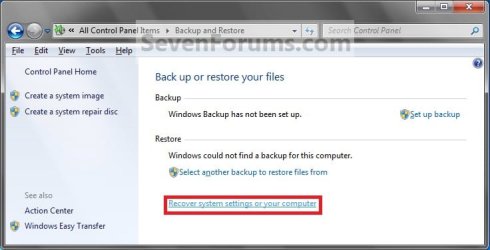
B) Click on the Recover system settings on your computer link. (see screenshot below) Step1.jpg
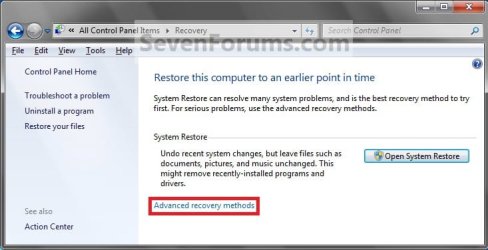
C) Click on the Advanced recovery methods link. (see screenshot below) Step2.jpg
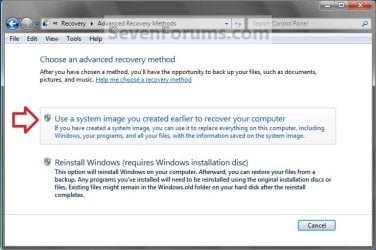
D) Select the Use a system image you created earlier to recover your computer option. (see screenshot below) Step3.jpg
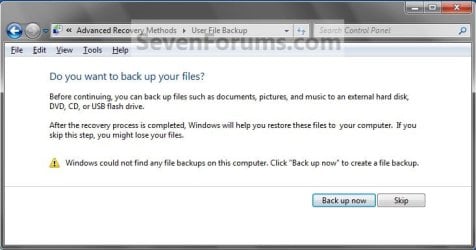
E) Select to either create a Back up now, or to Skip it and continue the system image recovery without backing up any of your current files.
NOTE: If you select Back up now, it will take you to step 6 in this tutorial link to create a User and System File back up of your current files first before continuing to step 1F. (see screenshot below) Step4A.jpg
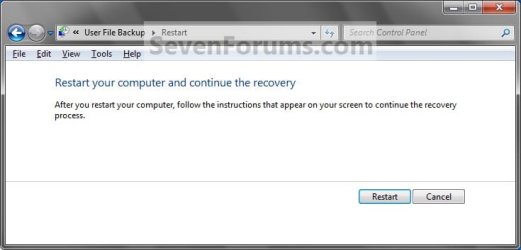
F) Click on Restart. (see screenshot below) Step5A.jpg
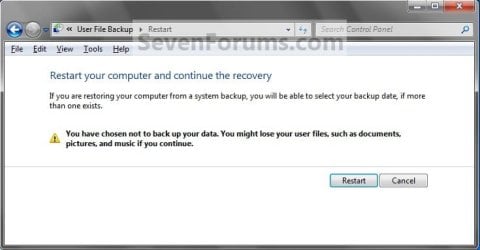
Step5B.jpg

G) Select a languange to be used for your keyboard input and click on Next. (see screenshot below) Step6.jpg
H) Go to step 4.
3. From the System Recovery Options Screen at Boot A) Boot to the System Recovery Options screen from your Windows 7 installation DVD/USB, or System Repair Disc.

B) Select the System Image Recovery option. (see screenshot below) System_Recovery_Options.jpg
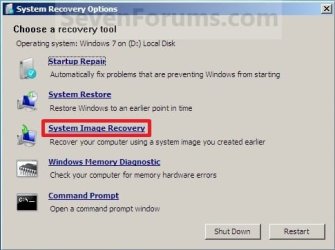
4. If you saved the system image backup to a set of DVDs, then insert the last DVD from the set when prompted. If not, go to step 5 for a system image backup on a hard drive. A) Go to step 7 below.
5. To Use the Latest System Image A) Select (dot) Use the latest available system image and click on Next. (see screenshot below) Step7.jpg
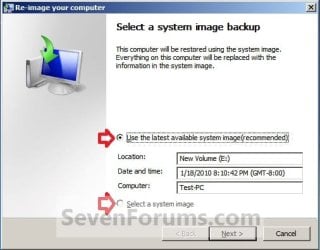
B) Go to step 7.
6. To Select a System Image A) Select (dot) Select a system image, and click on Next. (see screenshot above)
NOTE: This is if the system image that you want to use is not listed here and is at another location that you wish to choose from instead.

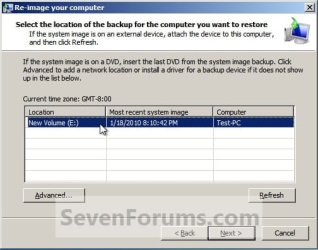
B) Select the location of the backup image for the computer you want to restore from the list, and click on Next. (see screenshot below)

   Note
To add a image from a network location, click on the Advanced button, and on the Search for a system image on the network option.

If the drive cannot be seen to select a system image from, then you may need to use the tutorial below to load your SATA or RAID drivers before it will be seen. You would click on the Advanced button, and on the Install a driver option.

SATA Drivers - Load in Windows 8 System Image Recovery
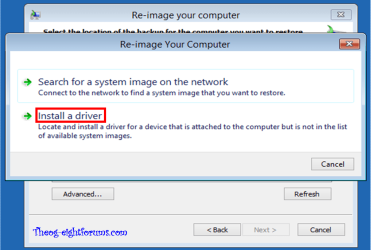
RecoveryBackup004-8.PNG


Step8A.jpg
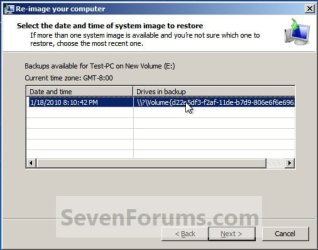
C) Select the date and time of the system image to restore, and click on Next. (see screenshot below) Step8B.jpg
7. To Do a Full System Image Recovery
NOTE: This option will format everything on each hard disk drive that was included in the system image, then restore them as they were when the system image was created.

   Note
Format and repartition disks box:
NOTE: Special thanks to MJF for this addition. 1) Grayed out and selected
You are forced to have the whole disk formatted and repartitioned to match the partition structure of the disk the image was made from. This can occur when restoring an image to a new disk or the original disk with a modified partition structure. Data on other partitions on the disk you are restoring to will be lost.

2) Grayed out and unselected
You are not given the option to format and repartition the disk. This will occur if you are restoring Windows from a partition on the same disk.

3) Not grayed out and unselected
Here you have the option to select format the whole disk and repartition or not. In this case the disk the image was taken from has a matching partition structure to the disk you are restoring the image to. By not selecting the format and repartition option your image will be restored and other partitions untouched such as valuable data partitions.
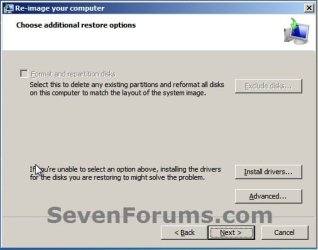
A) Check the Format and repartition disks box (if not grayed out) and uncheck Only restore system drives box (if available), and click on Next. (see screenshots below) Exclude_Disks.jpg
Step9.jpg
System_Drives.jpg
B) Go to step 10.
8. To Only Restore System Drives in System Image Recovery
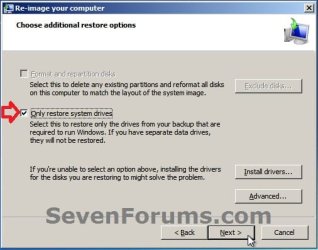
NOTE: When restoring to the same disk containing data partitions, the Format and repartition disks option may format the data partitions as well. If this is the case and you have the option to leave the Format and repartition disks box unchecked, then initially attempt your image recovery with the Format and repartition disks box unchecked. If recovery is unsuccessful, repeat the process with the format box ticked. A) If available, check the Only restore system drives box, and click on Next. (see screenshot below) System_Drives.jpg
B) Go to step 10.
9. To Exclude Restoring Specific Drives in System Image Recovery
NOTE: Since a system image recovery will format everything on each hard disk drive that was included in a system image, this will allow you to exclude specific disks so that specific disk will not be formated or restored. A) Check the Format and repartition disks box , and click on the Exclude disks button (if not grayed out). (see screenshot below)
NOTE: If the Exclude disks button is grayed out, then the HDD that you are restoring to is empty, or you do not have any disks in the system image that are able to be excluded from being restored. Exclude 001.JPG
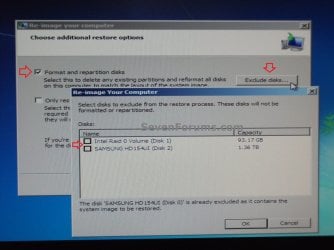
B) Unselect the drives that you want to exclude from being restored.

C) Click on Next.
10. Click on Finish. (see screenshot below) Step10.jpg
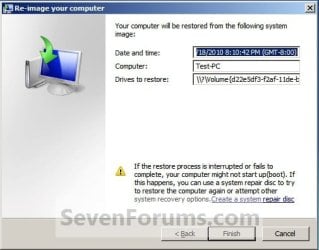
11. Click on Yes. (See screenshot below) Step11.jpg
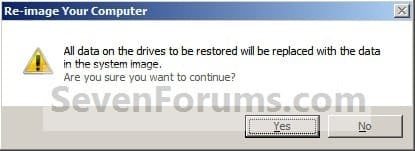
12. You will now see this screenshot below.
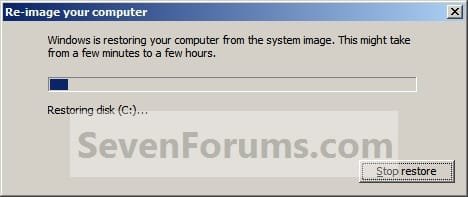
NOTE: If you have the backup image on DVDs, have them ready. See step 4 above. Step12.jpg
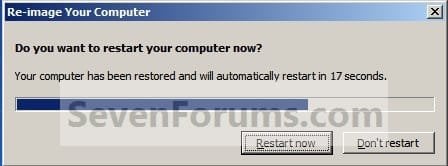
13. When it is through, click on Restart Now to finish. (see screenshot below)
NOTE: Your computer will restart and the backup image restoration will be done. Step13.jpg
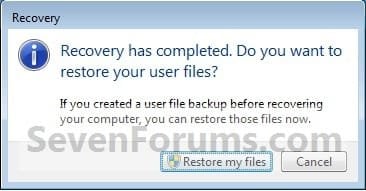
14. If you created a backup in step 1E, then you will now see this option to Restore my files after the computer restarts. (see screenshot below) Step14.jpg
That's it,
Shawn


Attachments

  • Step6A.jpg
    Step6A.jpg
    47.1 KB · Views: 244
Last edited:
You're most welcome Greg. Thank you. :)
 

My Computer

Computer type
PC/Desktop
Computer Manufacturer/Model Number
Self built custom
OS
64-bit Windows 11 Pro for Workstations
CPU
Intel i7-8700K OC'd to 5 GHz
Motherboard
ASUS ROG Maximus XI Formula Z390
Memory
64 GB (4x16GB) G.SKILL TridentZ RGB DDR4 3600 MHz
Graphics Card(s)
ASUS ROG-STRIX-GTX1080TI-O11G-GAMING
Sound Card
Integrated
Monitor(s) Displays
2 x Samsung Odyssey G7 27"
Screen Resolution
2560x1440
Hard Drives
1TB Samsung 990 PRO M.2,
4TB Samsung 990 PRO PRO M.2,
TerraMaster F8 SSD Plus NAS
PSU
Seasonic Prime Titanium 850W
Case
Thermaltake Core P3
Cooling
Corsair Hydro H115i
Keyboard
Logitech wireless K800
Mouse
Logitech MX Master 4
Internet Speed
2 Gb/s Download and 100 Mb/s Upload
Antivirus
Malwarebyte Anti-Malware Premium
Browser
Google Chrome
Other Info
Logitech Z625 speaker system,
Logitech BRIO 4K Pro webcam,
HP Color LaserJet Pro MFP M477fdn,
APC SMART-UPS RT 1000 XL - SURT1000XLI,
Galaxy S23 Plus phone
Selecting Renamed Images

One of many useful tutorials.
A possible addition to consider:
When you are in the File System Recover Options menu
at Step 5
The images available for selection will exist in the various root directories as [WindowsImageBackup]. If you renamed images as a means to store multiple images, you can rename them back at this stage by selecting the command prompt option. This can be useful when you can only boot from a System Repair Disk.
1) >diskpart
>list volumes
will give you give you the letter name assigned to your volumes.
2) >cd "volume letter"
To navigate to where your renamed images are located.
3) >ren "Renamed Image" WindowsImageBackup
To rename back to the folder name recognised by Windows for recovery.
eg.
>ren WindowsImageBackup_1_1_10 WindowsImageBackup
Note: If [WindowsImageBackup] already exists but you want another image you need to rename it first.
4)>exit
You can now select the renamed image to reimage your system.

or maybe just:
If you have renamed images in order to keep multiple images on a single volume, you can use the Command Prompt option at this stage to rename them back to [WindowsImageBackup]. This image will then be given as an option to restore.
 
Last edited:

My Computer

Computer type
PC/Desktop
Computer Manufacturer/Model Number
Own build
OS
Windows 7x64 Home Premium SP1
CPU
Intel i7 2600k
Motherboard
ASUS P8Z68 Deluxe
Memory
G.Skill Ripjaws (DDR3-1600) 2x4GB
Graphics Card(s)
Nvidia GeForce GTS 450; Intel HD Graphics 3000(GT2+)
Monitor(s) Displays
Dell Ultrasharp IPS panel U2311H, Samsung SyncMaster P2350
Screen Resolution
1920x1080
Hard Drives
Samsung 850 Pro SSD 256GB, Samsung SSD 840 120GB, Seagates 1TB Barracuda ST31000528AS x2
PSU
Seasonic M12II 520W
Case
Lian Li Lancool PC-K60
Cooling
Case: 1x120mm, 3x140mm CPU: Hyper 212+
Keyboard
Logitech MK520 (wireless)
Mouse
Logitech MK520
Internet Speed
6-7 Mbps
Antivirus
Norton Security Premium, Malwarebytes on 2 (MSE on 3rd PC)
Browser
FireFox
Other Info
Audio: Logitech Z523 2.1
Hello Michael,

Thank you. I shall get this worked up and added late tonight. :)
 

My Computer

Computer type
PC/Desktop
Computer Manufacturer/Model Number
Self built custom
OS
64-bit Windows 11 Pro for Workstations
CPU
Intel i7-8700K OC'd to 5 GHz
Motherboard
ASUS ROG Maximus XI Formula Z390
Memory
64 GB (4x16GB) G.SKILL TridentZ RGB DDR4 3600 MHz
Graphics Card(s)
ASUS ROG-STRIX-GTX1080TI-O11G-GAMING
Sound Card
Integrated
Monitor(s) Displays
2 x Samsung Odyssey G7 27"
Screen Resolution
2560x1440
Hard Drives
1TB Samsung 990 PRO M.2,
4TB Samsung 990 PRO PRO M.2,
TerraMaster F8 SSD Plus NAS
PSU
Seasonic Prime Titanium 850W
Case
Thermaltake Core P3
Cooling
Corsair Hydro H115i
Keyboard
Logitech wireless K800
Mouse
Logitech MX Master 4
Internet Speed
2 Gb/s Download and 100 Mb/s Upload
Antivirus
Malwarebyte Anti-Malware Premium
Browser
Google Chrome
Other Info
Logitech Z625 speaker system,
Logitech BRIO 4K Pro webcam,
HP Color LaserJet Pro MFP M477fdn,
APC SMART-UPS RT 1000 XL - SURT1000XLI,
Galaxy S23 Plus phone
Ok Michael. It has been added as the STEP ONE section.

Thank you again. :)
 

My Computer

Computer type
PC/Desktop
Computer Manufacturer/Model Number
Self built custom
OS
64-bit Windows 11 Pro for Workstations
CPU
Intel i7-8700K OC'd to 5 GHz
Motherboard
ASUS ROG Maximus XI Formula Z390
Memory
64 GB (4x16GB) G.SKILL TridentZ RGB DDR4 3600 MHz
Graphics Card(s)
ASUS ROG-STRIX-GTX1080TI-O11G-GAMING
Sound Card
Integrated
Monitor(s) Displays
2 x Samsung Odyssey G7 27"
Screen Resolution
2560x1440
Hard Drives
1TB Samsung 990 PRO M.2,
4TB Samsung 990 PRO PRO M.2,
TerraMaster F8 SSD Plus NAS
PSU
Seasonic Prime Titanium 850W
Case
Thermaltake Core P3
Cooling
Corsair Hydro H115i
Keyboard
Logitech wireless K800
Mouse
Logitech MX Master 4
Internet Speed
2 Gb/s Download and 100 Mb/s Upload
Antivirus
Malwarebyte Anti-Malware Premium
Browser
Google Chrome
Other Info
Logitech Z625 speaker system,
Logitech BRIO 4K Pro webcam,
HP Color LaserJet Pro MFP M477fdn,
APC SMART-UPS RT 1000 XL - SURT1000XLI,
Galaxy S23 Plus phone
More than glad to help a little
 

My Computer

Computer type
PC/Desktop
Computer Manufacturer/Model Number
Own build
OS
Windows 7x64 Home Premium SP1
CPU
Intel i7 2600k
Motherboard
ASUS P8Z68 Deluxe
Memory
G.Skill Ripjaws (DDR3-1600) 2x4GB
Graphics Card(s)
Nvidia GeForce GTS 450; Intel HD Graphics 3000(GT2+)
Monitor(s) Displays
Dell Ultrasharp IPS panel U2311H, Samsung SyncMaster P2350
Screen Resolution
1920x1080
Hard Drives
Samsung 850 Pro SSD 256GB, Samsung SSD 840 120GB, Seagates 1TB Barracuda ST31000528AS x2
PSU
Seasonic M12II 520W
Case
Lian Li Lancool PC-K60
Cooling
Case: 1x120mm, 3x140mm CPU: Hyper 212+
Keyboard
Logitech MK520 (wireless)
Mouse
Logitech MK520
Internet Speed
6-7 Mbps
Antivirus
Norton Security Premium, Malwarebytes on 2 (MSE on 3rd PC)
Browser
FireFox
Other Info
Audio: Logitech Z523 2.1
hi Brink , i delete 110 GB of data by mistake by (Shift+Delete), is image recovery recover everything in HDD or there's no hope for me to recover my data, i delete it in 28/10, it's very important for me ^_^
thank you ^_^
 

My Computer

OS
Windows 7 Home Premium 64bit
hi Brink , i delete 110 GB of data by mistake by (Shift+Delete), is image recovery recover everything in HDD or there's no hope for me to recover my data, i delete it in 28/10, it's very important for me ^_^
thank you ^_^
Just a little info until Brink can reply. If the data was included in the Image you made, then yes you can recover it. When you say data, what kind of data? Is it user files of some sort? If it is, then you may not need to use the restore option. You can use Disk Management and mount/attach the Image as a VHD and copy your data from that.
 

My Computer

Computer Manufacturer/Model Number
Averatec 6130HS-20
OS
Windows 7 Professional 32-bit (6.1, Build 7600)
CPU
Intel(R) Pentium(R) 4 3.00 GHz HT
Memory
2.0 GB
Graphics Card(s)
ATI Mobility Radeon 9600 64MB
Sound Card
Realtek AC'97 Audio
Screen Resolution
1280 x 800
Hard Drives
Seagate 96023A 60GB 7200RPM -
Seagate FreeAgentDesktop 250GB
Cooling
20 Inch Box Fan
Mouse
Targus PAWM10 Wireless Optical Laptop Mouse
Thank you very much "Greg S" for help ^_^

i didn't made image before ^^, is it like backup?
my data is videos, sounds and documents

Thank you very much^__^
 

My Computer

OS
Windows 7 Home Premium 64bit
Hello Ahmed Omer, and welcome to Seven Forums.

A system image, when created, is a complete backup of the selected hard drives/partitions that includes all files on them.

If you did not create a system image before you deleted these files, then you will not have a system image to recover them from. If this is so, then you might see if you may be able to use the free programs ShadowExplorer or Recuva to recover the files from the folder that they were in.

Hope this helps,
Shawn
 

My Computer

Computer type
PC/Desktop
Computer Manufacturer/Model Number
Self built custom
OS
64-bit Windows 11 Pro for Workstations
CPU
Intel i7-8700K OC'd to 5 GHz
Motherboard
ASUS ROG Maximus XI Formula Z390
Memory
64 GB (4x16GB) G.SKILL TridentZ RGB DDR4 3600 MHz
Graphics Card(s)
ASUS ROG-STRIX-GTX1080TI-O11G-GAMING
Sound Card
Integrated
Monitor(s) Displays
2 x Samsung Odyssey G7 27"
Screen Resolution
2560x1440
Hard Drives
1TB Samsung 990 PRO M.2,
4TB Samsung 990 PRO PRO M.2,
TerraMaster F8 SSD Plus NAS
PSU
Seasonic Prime Titanium 850W
Case
Thermaltake Core P3
Cooling
Corsair Hydro H115i
Keyboard
Logitech wireless K800
Mouse
Logitech MX Master 4
Internet Speed
2 Gb/s Download and 100 Mb/s Upload
Antivirus
Malwarebyte Anti-Malware Premium
Browser
Google Chrome
Other Info
Logitech Z625 speaker system,
Logitech BRIO 4K Pro webcam,
HP Color LaserJet Pro MFP M477fdn,
APC SMART-UPS RT 1000 XL - SURT1000XLI,
Galaxy S23 Plus phone
Thank you very much "Greg S" for help ^_^

i didn't made image before ^^, is it like backup?
my data is videos, sounds and documents

Thank you very much^__^

If the data was on a hard drive/partition which you would have made an image of, it could be easily restored. Or as previously mentioned, attached as VHD and copied from. Yes, an image is similar to a backup. Backups are used mostly for backing up your personal data whilst the image would backup/image your entire hard drive/partition.
 

My Computer

Computer Manufacturer/Model Number
Averatec 6130HS-20
OS
Windows 7 Professional 32-bit (6.1, Build 7600)
CPU
Intel(R) Pentium(R) 4 3.00 GHz HT
Memory
2.0 GB
Graphics Card(s)
ATI Mobility Radeon 9600 64MB
Sound Card
Realtek AC'97 Audio
Screen Resolution
1280 x 800
Hard Drives
Seagate 96023A 60GB 7200RPM -
Seagate FreeAgentDesktop 250GB
Cooling
20 Inch Box Fan
Mouse
Targus PAWM10 Wireless Optical Laptop Mouse
Images and file/folder backup sets are totally different from a technical point of view. Like mentioned Images are .vhd files (one per partition imaged) and these are typically very large. File/folder backup sets are stored as one or more .zip files. Each .zip file is generally substantially smaller than the .vhd file.

If the recovery programs that Brink mentioned can recover the large .vhd file then there is a good chance it can recover the image file folder. In this case you could make a new existing image of your system for safety. The recovered image folder may be able to be reimaged if it is renamed back to [WndowsImageBackup] in a root directory of a partition.
 

My Computer

Computer type
PC/Desktop
Computer Manufacturer/Model Number
Own build
OS
Windows 7x64 Home Premium SP1
CPU
Intel i7 2600k
Motherboard
ASUS P8Z68 Deluxe
Memory
G.Skill Ripjaws (DDR3-1600) 2x4GB
Graphics Card(s)
Nvidia GeForce GTS 450; Intel HD Graphics 3000(GT2+)
Monitor(s) Displays
Dell Ultrasharp IPS panel U2311H, Samsung SyncMaster P2350
Screen Resolution
1920x1080
Hard Drives
Samsung 850 Pro SSD 256GB, Samsung SSD 840 120GB, Seagates 1TB Barracuda ST31000528AS x2
PSU
Seasonic M12II 520W
Case
Lian Li Lancool PC-K60
Cooling
Case: 1x120mm, 3x140mm CPU: Hyper 212+
Keyboard
Logitech MK520 (wireless)
Mouse
Logitech MK520
Internet Speed
6-7 Mbps
Antivirus
Norton Security Premium, Malwarebytes on 2 (MSE on 3rd PC)
Browser
FireFox
Other Info
Audio: Logitech Z523 2.1
One more addition to step 1

Brink
Some people like to move their images to folders for keeping multiple Windows images. You may want to add something to step 1 along the lines:

.....in addition to the renaming stuff....

If you have moved your image into a folder called say "wstore" you need to will need to move it back to the appropriate root partition/volume. Say the volume has been assigned E: then

>cd e:\wstore
>dir {only to check the image is there}
>16/11/2010 9:00AM <DIR> windowsimagebackup
>move windowsimagebackup e:\

This of course can be used with renaming as well if the user chooses a combination of both folder and rename storage.

I know it's pretty simple but your decision of course.
 

My Computer

Computer type
PC/Desktop
Computer Manufacturer/Model Number
Own build
OS
Windows 7x64 Home Premium SP1
CPU
Intel i7 2600k
Motherboard
ASUS P8Z68 Deluxe
Memory
G.Skill Ripjaws (DDR3-1600) 2x4GB
Graphics Card(s)
Nvidia GeForce GTS 450; Intel HD Graphics 3000(GT2+)
Monitor(s) Displays
Dell Ultrasharp IPS panel U2311H, Samsung SyncMaster P2350
Screen Resolution
1920x1080
Hard Drives
Samsung 850 Pro SSD 256GB, Samsung SSD 840 120GB, Seagates 1TB Barracuda ST31000528AS x2
PSU
Seasonic M12II 520W
Case
Lian Li Lancool PC-K60
Cooling
Case: 1x120mm, 3x140mm CPU: Hyper 212+
Keyboard
Logitech MK520 (wireless)
Mouse
Logitech MK520
Internet Speed
6-7 Mbps
Antivirus
Norton Security Premium, Malwarebytes on 2 (MSE on 3rd PC)
Browser
FireFox
Other Info
Audio: Logitech Z523 2.1
Good idea Michael. Added. :)
 

My Computer

Computer type
PC/Desktop
Computer Manufacturer/Model Number
Self built custom
OS
64-bit Windows 11 Pro for Workstations
CPU
Intel i7-8700K OC'd to 5 GHz
Motherboard
ASUS ROG Maximus XI Formula Z390
Memory
64 GB (4x16GB) G.SKILL TridentZ RGB DDR4 3600 MHz
Graphics Card(s)
ASUS ROG-STRIX-GTX1080TI-O11G-GAMING
Sound Card
Integrated
Monitor(s) Displays
2 x Samsung Odyssey G7 27"
Screen Resolution
2560x1440
Hard Drives
1TB Samsung 990 PRO M.2,
4TB Samsung 990 PRO PRO M.2,
TerraMaster F8 SSD Plus NAS
PSU
Seasonic Prime Titanium 850W
Case
Thermaltake Core P3
Cooling
Corsair Hydro H115i
Keyboard
Logitech wireless K800
Mouse
Logitech MX Master 4
Internet Speed
2 Gb/s Download and 100 Mb/s Upload
Antivirus
Malwarebyte Anti-Malware Premium
Browser
Google Chrome
Other Info
Logitech Z625 speaker system,
Logitech BRIO 4K Pro webcam,
HP Color LaserJet Pro MFP M477fdn,
APC SMART-UPS RT 1000 XL - SURT1000XLI,
Galaxy S23 Plus phone
Good idea Michael. Added. :)
Brink your addition
"If you moved the WindowsImageBackup folder to another partition or drive, then you will also need to move it back to the original partition or drive letter it was created on."

suggest this mod

If you moved the WindowsImageBackup folder within another folder or to another partition or drive, then you will also need to move it back to the original partition or drive letter it was created on.


ie. they don't need to be stored in the root but packed away in sub folders.
 

My Computer

Computer type
PC/Desktop
Computer Manufacturer/Model Number
Own build
OS
Windows 7x64 Home Premium SP1
CPU
Intel i7 2600k
Motherboard
ASUS P8Z68 Deluxe
Memory
G.Skill Ripjaws (DDR3-1600) 2x4GB
Graphics Card(s)
Nvidia GeForce GTS 450; Intel HD Graphics 3000(GT2+)
Monitor(s) Displays
Dell Ultrasharp IPS panel U2311H, Samsung SyncMaster P2350
Screen Resolution
1920x1080
Hard Drives
Samsung 850 Pro SSD 256GB, Samsung SSD 840 120GB, Seagates 1TB Barracuda ST31000528AS x2
PSU
Seasonic M12II 520W
Case
Lian Li Lancool PC-K60
Cooling
Case: 1x120mm, 3x140mm CPU: Hyper 212+
Keyboard
Logitech MK520 (wireless)
Mouse
Logitech MK520
Internet Speed
6-7 Mbps
Antivirus
Norton Security Premium, Malwarebytes on 2 (MSE on 3rd PC)
Browser
FireFox
Other Info
Audio: Logitech Z523 2.1
Sounds good. :)
 

My Computer

Computer type
PC/Desktop
Computer Manufacturer/Model Number
Self built custom
OS
64-bit Windows 11 Pro for Workstations
CPU
Intel i7-8700K OC'd to 5 GHz
Motherboard
ASUS ROG Maximus XI Formula Z390
Memory
64 GB (4x16GB) G.SKILL TridentZ RGB DDR4 3600 MHz
Graphics Card(s)
ASUS ROG-STRIX-GTX1080TI-O11G-GAMING
Sound Card
Integrated
Monitor(s) Displays
2 x Samsung Odyssey G7 27"
Screen Resolution
2560x1440
Hard Drives
1TB Samsung 990 PRO M.2,
4TB Samsung 990 PRO PRO M.2,
TerraMaster F8 SSD Plus NAS
PSU
Seasonic Prime Titanium 850W
Case
Thermaltake Core P3
Cooling
Corsair Hydro H115i
Keyboard
Logitech wireless K800
Mouse
Logitech MX Master 4
Internet Speed
2 Gb/s Download and 100 Mb/s Upload
Antivirus
Malwarebyte Anti-Malware Premium
Browser
Google Chrome
Other Info
Logitech Z625 speaker system,
Logitech BRIO 4K Pro webcam,
HP Color LaserJet Pro MFP M477fdn,
APC SMART-UPS RT 1000 XL - SURT1000XLI,
Galaxy S23 Plus phone
Hoping to avoid disaster (or at least a lot of work)

_______________________________________
UPDATE: I've narrowed the problem to a failure during image creation, not a file location/integrity issue as I originally thought
I re-installed the bad drive and (keeping my fingers crossed that it doesn't completely fail at any second) have tried to re-run the back-up. It freezes at exactly the same spot each time....at a little under 25% completion on the green progress bar. Windows itself freezes, and upon restart, the "bootmgr is missing" error occurs until I do a cold boot.

Is it possible to create a system image from outside Windows? Any suggestions? I'm very keen to get at least one usable image of this drive before disaster strikes.
________________________________________

TIA for any help. Her system is using Win 7 Home Premium 64bit.

(Great thread, BTW.....very helpful & friendly!)
 
Last edited:

My Computer

OS
Windows 7 Pro 64bit
_______________________________________
UPDATE: I've narrowed the problem to a failure during image creation, not a file location/integrity issue as I originally thought
I think I see what happened with her back-up. I re-installed the bad drive and (keeping my fingers crossed that it doesn't completely fail at any second) have tried to re-run the back-up. It freezes at exactly the same spot each time....at a little under 25% completion on the green progress bar. Windows itself freezes, and upon restart, the "bootmgr is missing" error occurs until I do a cold boot.

Is it possible to create a system image from outside Windows? Any suggestions? I'm very keen to get at least one usable image of this drive before disaster strikes.
________________________________________

Original Post:

The Seagate HDD in a single-drive system I recently built for a friend began to issue S.M.A.R.T. warnings a couple days ago. I immediately went over there, installed a secondary back-up HDD, and used Backup & Restore to create a system image of the C drive. I also set it to create a separate back-up of her libraries. I formatted the secondary drive first, so there's nothing else on it.

It was progressing normally and I left with the backup still running. She confirmed a little later by text that it was done.

Now the Seagate drive appears to have failed. I've installed a new HDD to restore the image to, but Windows Recovery says it finds no available System Image. Neither that secondary back-up HDD I installed, nor the files on it, has been moved or renamed. From the command prompt, I confirmed that there is a folder named "WindowsImageBackup" on that drive (which Windows is calling "C" now).

So, my question: How do I determine whether this is a "locating-the-image" problem, or a "there's-no-system-image-and-you're-going-to-spend-the-rest-of-the-weekend-rebuilding-her-entire-installation" problem. Obviously, I'm REALLY hoping it's the first, but when I called to ask exactly what message she saw when back-up completed, she said she doesn't actually remember any such message (gulp!:eek:) and she doesn't know whether it was done before she saw a "bootmgr is missing, press CTL+ALT+DEL to resart" message and rebooted. (double-gulp!!:eek::eek:) I should have stayed til it was done......

TIA for any help. Her system is using Win 7 Home Premium 64bit.

(Great thread, BTW.....very helpful & friendly!)
I need a clear statement of the current situation ie. right now. The above is too confusing.
What disks have you got and what is on the disks?
Do you think you have a valid image?
 

My Computer

Computer type
PC/Desktop
Computer Manufacturer/Model Number
Own build
OS
Windows 7x64 Home Premium SP1
CPU
Intel i7 2600k
Motherboard
ASUS P8Z68 Deluxe
Memory
G.Skill Ripjaws (DDR3-1600) 2x4GB
Graphics Card(s)
Nvidia GeForce GTS 450; Intel HD Graphics 3000(GT2+)
Monitor(s) Displays
Dell Ultrasharp IPS panel U2311H, Samsung SyncMaster P2350
Screen Resolution
1920x1080
Hard Drives
Samsung 850 Pro SSD 256GB, Samsung SSD 840 120GB, Seagates 1TB Barracuda ST31000528AS x2
PSU
Seasonic M12II 520W
Case
Lian Li Lancool PC-K60
Cooling
Case: 1x120mm, 3x140mm CPU: Hyper 212+
Keyboard
Logitech MK520 (wireless)
Mouse
Logitech MK520
Internet Speed
6-7 Mbps
Antivirus
Norton Security Premium, Malwarebytes on 2 (MSE on 3rd PC)
Browser
FireFox
Other Info
Audio: Logitech Z523 2.1
I need a clear statement of the current situation ie. right now. The above is too confusing.
What disks have you got and what is on the disks?
Do you think you have a valid image?
Yeah, sorry....I should have just edited out the original post. There was no valid image to find, so that was not the problem.

Currently, I have the original drive that's failing, a 1Tb Seagate. Though I can boot into Windows, it's triggering SMART errors, and diagnostics programs confirm that there are "irreparable errors." I have a new WD that I want to replace it with.

I tried using Windows Backup several times to create a system image. It would consistently hang at the same point (~25% complete) and I'd have to reboot, always getting a missing boot mgr message. So Windows Backup never produced a valid image.

I installed Acronis True Image and tried to create an image. I used a freshly-formatted 400Gb Hitachi as the destination drive (as I did with Windows Backup).

Acronis sputtered for awhile, but at least it sent error messages. It was running into unreadable sectors, in this pattern:
6,126,592
6,126,600
6,126,608
6,126,616
...

I told it to ignore these sectors, but eventually, I got a fatal error: "Connection to the service is refused. The operation was terminated unexpectently."

SO.....the disc is damaged or defective, but apparently not in areas that affect Windows significantly. Upon back-up attempts, however, these sectors cause the backup programs to fail.

I still do not have a valid image. Though I'm concerned about the drive really failing at any moment, should I run some sort of disc repair program first, to mark the bad sectors, and then try one of the back-up programs again? I could rebuild her installation, but I want to exhaust every possibility before doing that. Since it can still boot and function pretty normally, I figure this installation can't be too badly damaged. I just want to replace the bad disc.
 

My Computer

OS
Windows 7 Pro 64bit
It looks to me that the disk is definitely on its last legs. Both Windows and Acronis are baulking I doubt anything like Macrium will perform any magic.

At this stage your first priority should be to get all her personal data off the disk onto some storage media. Ideally an external HDD.
(1) Can you do this?

(2) You say every time you you boot (presumably the failing disk) you get boot manager missing - what do you do then?

(3) Do you have the OS disks and apps to rebuild the system? Is the OS retail or OEM?

(4) You attempted to reimage to a 400GB HDD - Yes? How big was the partition the images came from?
 

My Computer

Computer type
PC/Desktop
Computer Manufacturer/Model Number
Own build
OS
Windows 7x64 Home Premium SP1
CPU
Intel i7 2600k
Motherboard
ASUS P8Z68 Deluxe
Memory
G.Skill Ripjaws (DDR3-1600) 2x4GB
Graphics Card(s)
Nvidia GeForce GTS 450; Intel HD Graphics 3000(GT2+)
Monitor(s) Displays
Dell Ultrasharp IPS panel U2311H, Samsung SyncMaster P2350
Screen Resolution
1920x1080
Hard Drives
Samsung 850 Pro SSD 256GB, Samsung SSD 840 120GB, Seagates 1TB Barracuda ST31000528AS x2
PSU
Seasonic M12II 520W
Case
Lian Li Lancool PC-K60
Cooling
Case: 1x120mm, 3x140mm CPU: Hyper 212+
Keyboard
Logitech MK520 (wireless)
Mouse
Logitech MK520
Internet Speed
6-7 Mbps
Antivirus
Norton Security Premium, Malwarebytes on 2 (MSE on 3rd PC)
Browser
FireFox
Other Info
Audio: Logitech Z523 2.1
Back
Top