Solved Delete Win7 orphaned system image restore points ("backup" type)

pallmall

New member
Local time
9:57 PM
Messages
19
Delete Win7 orphaned system image restore points ("backup" type)

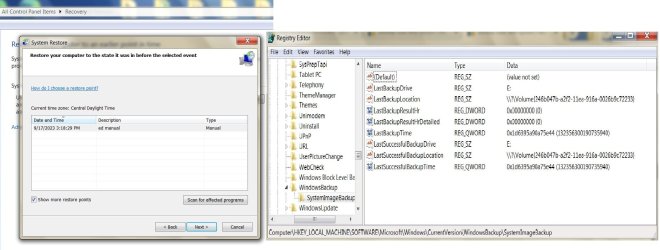
I was brousing forums/tutorial/632 that gave me some clues of how to delete two backup image pointers found in REGEDIT that were left on my Windows 7 laptop from previous owners/installers. I have never done a backup since the computer purchase, and I always assumed that these were a couple of restore backups on my single OS hardrive to restore to if needed in an emergency. I had located one tutorial for deleting orphans using CMD in Windows 10 - but only here with Win7 and REGEDIT - did it look more of a promising venture to complete this task. Here is the REGEDIT screenshot with the two orphaned images of data code in the right-hand pane :
System image.jpg
An E: drive was/is the next logical drive after my CD/DVD that was likely used as an external image backup in the past.

Can I delete all these data entries within the right pane to clear those entries that are redundant and remain visible in the restore window - and/or should I leave the "default" entry intact within the REGEDIT screen ?
 

My Computers

System One System Two

  • Computer type
    Laptop
    Computer Manufacturer/Model Number
    Dell Latitude E6400
    OS
    Windows 7 professional x64 bit
    CPU
    Dual core
    Memory
    4 Gb
    Hard Drives
    WD Scopio black 320 Gb
    Antivirus
    none
    Browser
    Chrome; Edge; Fox
  • Computer type
    PC/Desktop
You don't need to monkey with the registry.
 

My Computer

Computer type
PC/Desktop
OS
Windows 7 Ultimate x64

My Computer

Computer type
PC/Desktop
Computer Manufacturer/Model Number
medionl/Aspire 6930G/acer x55a
OS
W7 home premium 32bit/W7HP 64bit/w10 tp insider ring
CPU
E5300 dual core
Motherboard
medion MS7366
Memory
3gb
Graphics Card(s)
Nvidia Geforce 7100 Nforce 630i
Monitor(s) Displays
avixc
Internet Speed
n (isp resticted to 72)
Antivirus
mse/pands
Browser
palemoon
Other Info
Belkin Fd7050 n USB using Railink RT2870 drivers, more upto date
OK...REGEDIT was a nice place to visit, but maybe not the best place to make fixes...would like to get a "shout out" to the admin "Bree" who wrote the tutorial\632 how to clear out the orphan image restore points with a command prompt in the Windows Ten forum : I followed the same command prompt procedures with a Win 7 installation CD; In DISKPART I had C drive as System Reserve at 100Mb, and D drive was the "selectable" drive with 297Gb; I continued on to find "System Volume Information\WindowsImageBackup" , and confirmed with a directory command :
... <DIR> .
... <DIR> . .
... <DIR> Catalog
... <DIR> SPPMetadataCache
0 file(s) 0 bytes
4 Dir(s) ................. bytes free

I am seeing the same directories and structure as in the Win 10 example.

So now tell me 'ye or nay, can I delete those image indicators in Win 7 with >" DEL (space) CATALOG\*.* " and then >" DEL SPPMETADATACACHE\*.* " followed with a "Y" after each command entry ?
 

My Computers

System One System Two

  • Computer type
    Laptop
    Computer Manufacturer/Model Number
    Dell Latitude E6400
    OS
    Windows 7 professional x64 bit
    CPU
    Dual core
    Memory
    4 Gb
    Hard Drives
    WD Scopio black 320 Gb
    Antivirus
    none
    Browser
    Chrome; Edge; Fox
  • Computer type
    PC/Desktop
This thread-request is almost solved. I used CMD "\*.*" to delete the contents of "CATALOG" and "SSPMETADATACACHE" within the hidden "SYSTEM VOLUME INFORMATION" directory. This action removed the orphaned "backup" type images that were left from a couple of previous backups, and that were visible when check-marking the box "see more restore points".
View attachment 423205
You can see in this pic that the CMD action cleared the old residual "backup type" references from the restore window, but does not clear the registry of the same residual data.
I found this reference from Sevenforums/backup-restore/82182 ... "Delete the folder WindowsImageBackup, it deletes all earlier images. When you then create the first image on your new computer, this folder is re-created.Kari "

The reference to "WindowsImageBackup folder" was not clear in specifying either within the Registry, or within the hidden directory folder.

I have lost track of the Forum thread that described the deletion of several registry "folders" with REGEDIT to rid their computer of shadow restore points, but they did not delete the said "WindowsImageBackup" folder, and left that folder alone in that particular clean-up procedure.

However, I have good reason to trust in deleting that "WindowsImageBackup" folder also (with all of its data values) within the registry if there is nothing associated or available for that folder and it's content to work with as well. If the backups were destroyed or lost many years ago, ect...then the registry data is unusable and dormant/redundant/non-active. From the examples I have seen here in the Forums thusfar, I believe that deleting the "WindowsImageBackup" folder in the registry will not cause any systems operable detriment, and will not fester the registry for the backups that do not exist any longer. Would anyone agree in this specific matter in clearing this said registry folder?...and would it make much difference in just deleting the data and leaving the folder empty with the "default" value ?

I do have a restore point set, but I will also study the Forum to learn how to backup and restore the registry before I attempt any registry deletions...and that's the next plan.

- - - Updated - - -

Here's the pic for the above message (attachment 423205) :
Reg.jpg
 

My Computers

System One System Two

  • Computer type
    Laptop
    Computer Manufacturer/Model Number
    Dell Latitude E6400
    OS
    Windows 7 professional x64 bit
    CPU
    Dual core
    Memory
    4 Gb
    Hard Drives
    WD Scopio black 320 Gb
    Antivirus
    none
    Browser
    Chrome; Edge; Fox
  • Computer type
    PC/Desktop
It's really not needed to monkey with the registry because you can cause issues. I'm not that well versed in the Windows backup scheme so I would be hesitant at deleting those keys. If it's not causing an issue then leave it be. You more than likely already have junk keys, as do I and everyone else on the planet. It's really not a huge issue to have those there and will not effect your computer. Deleting the wrong keys will cause an issue though. If it should cause an issue after you delte the keys, either now or in the future, I would be familiar with how to use system restore at boot up...
 

My Computer

Computer type
PC/Desktop
OS
Windows 7 Ultimate x64
Thanks F22. I've been reading some articles that say a bloated registry makes little to no difference in perfomance, and to also dismiss all of those "registry cleaners" that can potentially screw things up but good ! I kindof wanted a cleaned out key (WindowsImageBackup) of old values so that there would be no "mix ups" when I'm needing to read back from that key while recovering with a backed up image. I only want to create one image to access a full recovery if need be, and only two restore points for the lightweight issues. I left the folders "Catalog and SPP..." as is when I cleaned out the hidden Information directory, because I intend to create and maintain a proper backup image that will fill into those standing folders with active and current data...in stead of someone else's ghosts. I can of course, monitor this particular registry key, and do expect to see another entry with DWORD, a hex string value, a drive letter, ect. when I create a new backup image. I will leave this posting open for now, and can come back later with updated screenshots after I get a backup underway. Cheers for now...
 

My Computers

System One System Two

  • Computer type
    Laptop
    Computer Manufacturer/Model Number
    Dell Latitude E6400
    OS
    Windows 7 professional x64 bit
    CPU
    Dual core
    Memory
    4 Gb
    Hard Drives
    WD Scopio black 320 Gb
    Antivirus
    none
    Browser
    Chrome; Edge; Fox
  • Computer type
    PC/Desktop
OK...REGEDIT was a nice place to visit, but maybe not the best place to make fixes...would like to get a "shout out" to the admin "Bree" who wrote the tutorial....
That would be this one....
Delete System Image Restore Point from System Restore in Windows 10 | Tutorials

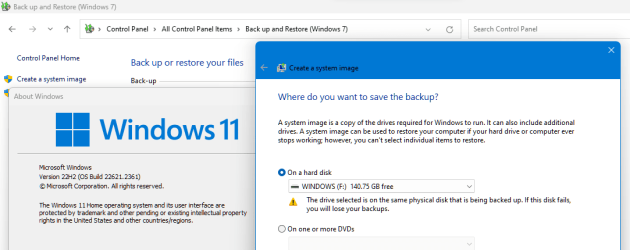
Yes, System Image Backup was new for Windows 7, and remained virtually unchanged through Windows 8, 8.1, 10 and 11. That tutorial is applicable to all of them.

And yes, it's still in W11 (for now) despite having been deprecated years ago. :D

image.png

I see you have cleaned out your System Volume Information by now....

This thread-request is almost solved. I used CMD "\*.*" to delete the contents of "CATALOG" and "SSPMETADATACACHE" within the hidden "SYSTEM VOLUME INFORMATION" directory. This action removed the orphaned "backup" type images that were left from a couple of previous backups, and that were visible when check-marking the box "see more restore points".
View attachment 423205
You can see in this pic that the CMD action cleared the old residual "backup type" references from the restore window, but does not clear the registry of the same residual data.
Redundant registry keys like these have no impact on system performance, you really don't need to clean them up. Windows just ignores them.

I found this reference from Sevenforums/backup-restore/82182 ... "Delete the folder WindowsImageBackup, it deletes all earlier images. When you then create the first image on your new computer, this folder is re-created.Kari "
The reference to "WindowsImageBackup folder" was not clear in specifying either within the Registry, or within the hidden directory folder....
Neither. It is referring to the WindowsImageBackup folder created on the drive where you saved your backups, the folder that stores all your system images.
 

My Computers

System One System Two

  • Computer type
    Laptop
    Computer Manufacturer/Model Number
    Toshiba satellite C650D
    OS
    Windows 7 Home Premium x64
    CPU
    AMD V120
    Memory
    4GB
    Internet Speed
    150 Mbps
    Antivirus
    MSE
    Browser
    IE11, Edge, Firefox
    Other Info
    I also have W7 Pro on my System Two, and several W7 Hyper-V VMs. My other machines run Windows 10/11. Their specs are in my Ten Forums & Eleven Forum profiles.
  • Computer type
    Laptop
    System Manufacturer/Model Number
    Lenovo Thinkpad T430
    OS
    Windows 7 Pro x64
    CPU
    Intel i5-3320M
    Memory
    8 GB
    Hard Drives
    250GB Samsung SSD 860 EVO
    Other Info
    Antivirus: MSE
This is my other Win7 Pro "fresh install" on a desktop that has never set a restore point or created any backup images whatsoever :
No backups whatsoever.jpg
As can be seen, there are no "WindowsImageBackup" keys (or other restore keys) existing or "nested" within this Windows Backup "master key". There's just a "default" item with no Data or "Value not set".

I have seen another thread that deleted several registry keys from this same "master key" to get rid of their ancient restore points without issue . . . and this gives me good reason to delete the same with respect to the "WindowsImageBackup" key, as referring the two "E: drive" image backups on the former laptop that will never exist again unless I create an image anew. The laptop will likely default to an E: drive again if I create a backup, and I do not want to fish my way through three or more data entries if I need to address this register again - nor do I care for windows to get mixed up fishing for my new backup reference through there likewise. . . .

. . . am I missing something here . . . is there a checksum or similar that will go awry from deleting this said register ? I have also read that this type of purging is regularly executed in ridding unwanted program remnants with a search & delete also.
 

My Computers

System One System Two

  • Computer type
    Laptop
    Computer Manufacturer/Model Number
    Dell Latitude E6400
    OS
    Windows 7 professional x64 bit
    CPU
    Dual core
    Memory
    4 Gb
    Hard Drives
    WD Scopio black 320 Gb
    Antivirus
    none
    Browser
    Chrome; Edge; Fox
  • Computer type
    PC/Desktop
This is my other Win7 Pro "fresh install" on a desktop that has never set a restore point or created any backup images whatsoever....

...there are no "WindowsImageBackup" keys (or other restore keys) existing or "nested" within this Windows Backup "master key". There's just a "default" item with no Data or "Value not set".

I have seen another thread that deleted several registry keys from this same "master key" to get rid of their ancient restore points without issue . . . and this gives me good reason to delete the same with respect to the "WindowsImageBackup" key, as referring the two "E: drive" image backups on the former laptop that will never exist again unless I create an image anew. The laptop will likely default to an E: drive again if I create a backup, and I do not want to fish my way through three or more data entries if I need to address this register again - nor do I care for windows to get mixed up fishing for my new backup reference through there likewise. . . .

. . . am I missing something here . . . is there a checksum or similar that will go awry from deleting this said register ?
System Restore doesn't look in the registry for restore points, it will only list the restore points (Backup type or otherwise) that it finds in C:\System Volume Information.

There should be no harm in deleting any sub-keys you may have in HKLM\SOFTWARE\Microsoft\Windows\CurrentVersion\WindowsBackup (but do NOT delete the WindowsBackup key itself). Then again, there would be no harm in leaving them there either.

I have also read that this type of purging is regularly executed in ridding unwanted program remnants with a search & delete also.
There are lots of registry cleaners that can do that sort of purge. They usually provide little if any benefit. The danger can be that some of the more aggressive ones may purge just one key too many and break something. It's safer not to use any form of registry cleaner.

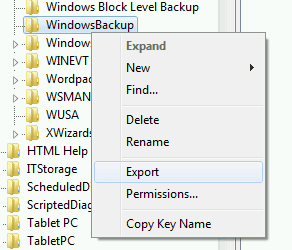
For the particular keys that are bothering you they seem safe enough to delete. At worst I'd expect deleting them to return Windows Backup to its 'never used' state. If you are worried, then right-click on the WindowsBackup key and export to a .reg file before making changes. Double-clicking on a .reg file will import its contents into the registry.

image.png
 

My Computers

System One System Two

  • Computer type
    Laptop
    Computer Manufacturer/Model Number
    Toshiba satellite C650D
    OS
    Windows 7 Home Premium x64
    CPU
    AMD V120
    Memory
    4GB
    Internet Speed
    150 Mbps
    Antivirus
    MSE
    Browser
    IE11, Edge, Firefox
    Other Info
    I also have W7 Pro on my System Two, and several W7 Hyper-V VMs. My other machines run Windows 10/11. Their specs are in my Ten Forums & Eleven Forum profiles.
  • Computer type
    Laptop
    System Manufacturer/Model Number
    Lenovo Thinkpad T430
    OS
    Windows 7 Pro x64
    CPU
    Intel i5-3320M
    Memory
    8 GB
    Hard Drives
    250GB Samsung SSD 860 EVO
    Other Info
    Antivirus: MSE
Yes, I made a .reg file backup of the image backup key and values therein if things do not agree after a deletion. Thank you Bree. I'm gonna think about a third-party backup solution, and also call this one SOLVED and move on to a new thread issue involving a low CMOS battery and TPM boot corruption.
 

My Computers

System One System Two

  • Computer type
    Laptop
    Computer Manufacturer/Model Number
    Dell Latitude E6400
    OS
    Windows 7 professional x64 bit
    CPU
    Dual core
    Memory
    4 Gb
    Hard Drives
    WD Scopio black 320 Gb
    Antivirus
    none
    Browser
    Chrome; Edge; Fox
  • Computer type
    PC/Desktop
Back
Top