*help* Confused...Will this work? (New system, old key??)

jwei

New member
Local time
7:08 AM
Messages
6
So my scenario is as follows:

I currently have an old system (Q6600, p5q, etc.) in which I bought a windows 7 upgrade and installed cleanly using one of the guides.

Now I'm building a HTPC (completely diff specs besides the HDD, amd ii x2, 785g), can I use my old key and install on the new machine?

I've been reading around and it seems that some places state you need to call in for a phone activation, but because my install was originally from an upgrade disc im not sure if that makes a difference?

Please advise!

Thanks
 

My Computer My Computer

OS
Windows 7 64bit home
You can try a trick that worked with Vista, but not sure of 7. Install do not activate then install again and activate.

http://www.sevenforums.com/tutorials/31402-clean-install-upgrade-windows-7-version.html

If that works your done. If you have problems you must activate by phone. All this is assuming that the upgrade was correctly installed using a qualifying OS the first time (Vista or XP). If that is the case you can legally install on a new computer. The OS must be removed from the old. The rule is one computer at a time.
 
Last edited by a moderator:

My Computer My Computer

Computer type
PC/Desktop
Computer Manufacturer/Model Number
Dell XPS 420
OS
Windows 10, Home Clean Install
CPU
Intel Core2 processsor Q8200(2.33Ghz 1333FSB) Quad Core Tech
Motherboard
Dell
Memory
6 gb
Graphics Card(s)
ATI Radeon 256MB HD3650
Sound Card
Intergrated 7.1 Channel Audio
Monitor(s) Displays
Dell SP2009W 20"
Hard Drives
640 GB Serial ATA Hard drive
Cooling
Fan
Keyboard
Dell USB Keyboard
Mouse
Dell Premium Optical USB
Internet Speed
DSL 2.85
It depends if the XP or Vista which qualifies you to use Win7 Upgrade version is tied to the former machine or is a retail copy. If retail then it continues qualifying you to use Upgrade version.

If you're using the same HD, boot DVD to CUstom Install, it will scan the HD to see another OS (Win7) to allow Upgrade version key upfront, even if you go on to use Drive Options to delete, repartition and/or format.

If you install to new, wiped or clean HD or it rejects Upgrade key, leave key box blank and use one of the workarounds given here after install: http://www.sevenforums.com/tutorials/31402-clean-install-upgrade-windows-7-version.html
 
It depends if the XP or Vista which qualifies you to use Win7 Upgrade version is tied to the former machine or is a retail copy. If retail then it continues qualifying you to use Upgrade version.

If you're using the same HD, boot DVD to CUstom Install, it will scan the HD to see another OS (Win7) to allow Upgrade version key upfront, even if you go on to use Drive Options to delete, repartition and/or format.

If you install to new, wiped or clean HD or it rejects Upgrade key, leave key box blank and use one of the workarounds given here after install: http://www.sevenforums.com/tutorials/31402-clean-install-upgrade-windows-7-version.html
Oh ok cool thanks. I'm pretty sure I did the clean install using the upgrade windows 7 version work around in the first place. I do have a retail oem copy of XP laying around too, but I'd prefer to clean install everything.

So given that I'm keeping the same HDD, this *should* work fine right?
 

My Computer My Computer

OS
Windows 7 64bit home
Okay here is the method I use, this will allow you to reinstall without getting the Windows.old file.
When I purchased Vista it was as an upgrade to XP that I currently owned. Long story short I had problems upgrading to Vista. Tech support showed me the way of installing then running an upgrade install. My way is a little more streamlined in that you just install follow a few steps and continue on with your business.

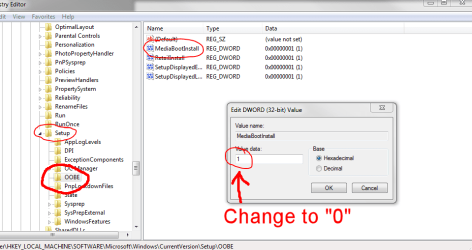
First Install Windows as you normally would but do not enter the key and DO NOT select automatically activate in the installation options. Make sure that option is deselected. Now you have a fresh copy with the standard 30 day trial period. In windows press and hold the Windows key and click R on the keyboard, this brings up the Run command window. Type regedit in that window and press enter. UAC will prompt, click yes. You will now see the Registry Editor, navigate to HKEY_LOCAL_MACHINE/Software/Microsoft/Windows/CurrentVersion/Setup/OOBE/. Right click MediaBootInstall and click Modify, change the "1" to a "0". Click okay and exit the registry editor.

Second open an elevated command prompt, (Click Start and type CMD in the search box) right click cmd.exe and select “run as administrator”. Once the command prompt appears type “slmgr /rearm” without the quotes, and press enter. Next simply type Exit and hit enter again, after which it will ask you to restart your machine. Once restarted activate windows with your upgrade product key by clicking start and typing Activate Windows. Follow the prompts and you should have no problems and also no windows.old folder hogging up space on your system.
 

Attachments

  • Capture.PNG
    Capture.PNG
    26.4 KB · Views: 18

My Computer My Computer

Computer Manufacturer/Model Number
Samsung Chronos 7
OS
windows 7 Pro 64Bit
CPU
2.2 GHz Intel Core i7-2675QM
Memory
8GB
Graphics Card(s)
Intel HD Graphics 3000/Radeon HD 6490M
Sound Card
Realtek High Definition Audio
Monitor(s) Displays
Built in LCD and external Dell 22 inch LCD
Screen Resolution
1600x900
Hard Drives
1 TB HDD
Internet Speed
20 MBPS Down 1500 KBPS Up
Okay here is the method I use, this will allow you to reinstall without getting the Windows.old file.
When I purchased Vista it was as an upgrade to XP that I currently owned. Long story short I had problems upgrading to Vista. Tech support showed me the way of installing then running an upgrade install. My way is a little more streamlined in that you just install follow a few steps and continue on with your business.

First Install Windows as you normally would but do not enter the key and DO NOT select automatically activate in the installation options. Make sure that option is deselected. Now you have a fresh copy with the standard 30 day trial period. In windows press and hold the Windows key and click R on the keyboard, this brings up the Run command window. Type regedit in that window and press enter. UAC will prompt, click yes. You will now see the Registry Editor, navigate to HKEY_LOCAL_MACHINE/Software/Microsoft/Windows/CurrentVersion/Setup/OOBE/. Right click MediaBootInstall and click Modify, change the "1" to a "0". Click okay and exit the registry editor.

Second open an elevated command prompt, (Click Start and type CMD in the search box) right click cmd.exe and select “run as administrator”. Once the command prompt appears type “slmgr /rearm” without the quotes, and press enter. Next simply type Exit and hit enter again, after which it will ask you to restart your machine. Once restarted activate windows with your upgrade product key by clicking start and typing Activate Windows. Follow the prompts and you should have no problems and also no windows.old folder hogging up space on your system.
Sounds good thank you!

Cool thanks, I'll give this a shot. When you were upgrading, did you change any hardware?

I also should note I bought this upgrade via student promo, worked fine as a clean install before so hopefully no problems arise.
 

My Computer My Computer

OS
Windows 7 64bit home
Sounds good thank you!

Cool thanks, I'll give this a shot. When you were upgrading, did you change any hardware?

I also should note I bought this upgrade via student promo, worked fine as a clean install before so hopefully no problems arise.

No I did not change any hardware that particular time, but I have used this method more than once with no problems. It basically tells windows that you have performed an upgrade install without the fuss of actually doing one. It has yet to fail me on both Vista and Windows 7.
 

My Computer My Computer

Computer Manufacturer/Model Number
Samsung Chronos 7
OS
windows 7 Pro 64Bit
CPU
2.2 GHz Intel Core i7-2675QM
Memory
8GB
Graphics Card(s)
Intel HD Graphics 3000/Radeon HD 6490M
Sound Card
Realtek High Definition Audio
Monitor(s) Displays
Built in LCD and external Dell 22 inch LCD
Screen Resolution
1600x900
Hard Drives
1 TB HDD
Internet Speed
20 MBPS Down 1500 KBPS Up

My Computer My Computer

Computer Manufacturer/Model Number
* BFK Customs *
OS
W 7 64-bit Ultimate
CPU
Intel Q9550 Yorkfield
Motherboard
ASUS P5Q Pro
Memory
8GB Dominator 8500C5D
Graphics Card(s)
ATI : XFX 5870
Sound Card
Realtek HD Audio 7-1
Monitor(s) Displays
1x 47" LCD HDMI & 3x 26" LCD HDMI
Screen Resolution
1920x1080P & 1920x1200
Hard Drives
1x 80GB Intel X25-M G2 SSD : 1x 500GB & 1x 640GB WD Caviar Black(s)
PSU
Corsair 620HX
Case
Cooler Master RC-690
Cooling
Tuniq Tower 120, 2x 140mm and 3x 120mm case fans
Keyboard
Microsoft 500
Mouse
Razer Diamondback 3G
Internet Speed
14 Mb/s
Other Info
1x Koutech 3Gb/s SATA HDD Hot Swap Rack
Sorry, guess I've never seen that post on here
 

My Computer My Computer

Computer Manufacturer/Model Number
Samsung Chronos 7
OS
windows 7 Pro 64Bit
CPU
2.2 GHz Intel Core i7-2675QM
Memory
8GB
Graphics Card(s)
Intel HD Graphics 3000/Radeon HD 6490M
Sound Card
Realtek High Definition Audio
Monitor(s) Displays
Built in LCD and external Dell 22 inch LCD
Screen Resolution
1600x900
Hard Drives
1 TB HDD
Internet Speed
20 MBPS Down 1500 KBPS Up
It depends if the XP or Vista which qualifies you to use Win7 Upgrade version is tied to the former machine or is a retail copy. If retail then it continues qualifying you to use Upgrade version.

If you're using the same HD, boot DVD to CUstom Install, it will scan the HD to see another OS (Win7) to allow Upgrade version key upfront, even if you go on to use Drive Options to delete, repartition and/or format.

If you install to new, wiped or clean HD or it rejects Upgrade key, leave key box blank and use one of the workarounds given here after install: http://www.sevenforums.com/tutorials/31402-clean-install-upgrade-windows-7-version.html
Oh ok cool thanks. I'm pretty sure I did the clean install using the upgrade windows 7 version work around in the first place. I do have a retail oem copy of XP laying around too, but I'd prefer to clean install everything.

So given that I'm keeping the same HDD, this *should* work fine right?

Retail OEM XP like Factory OEM is a qualifier for Upgrade version but technically only on the machine it was first installed upon and remains tied to.

There is no reason to reinstall XP even if you could in-place Upgrade it as you can Vista. It simply doesn't have to be on the machine.

Again, if installing to a new or wiped HD which has no OS on it, the installer will likely refuse the Upgrade version key upfront. In that case, leave the key box blank, after install do the registry workaround in the tutorial, activate at Computer>Properties.
 
Back
Top